

Migrate email from another provider
Copy mailboxes from any IMAP provider into WebGee using the Migration Center, without losing folder structure or read state.
Copy the contents of a mailbox hosted elsewhere into a WebGee mailbox. Applies to every WebGee Workspace mailbox.
The Migration Center connects to your old provider over IMAP and copies messages, folders and read state across. The old mailbox is left untouched.
Before you begin
You need:
- The destination mailbox already created on WebGee. Create it under cPanel → Email Accounts first — the migration copies into it, it does not create it.
- Credentials for both mailboxes — the old provider's and the new one's.
- The old provider's IMAP server name, from their documentation.
Migrate before you change MX records, not after. Once mail is delivered to WebGee, the old mailbox stops receiving — but its existing contents stay there, and you still need this step to bring them across.
Migrate
-
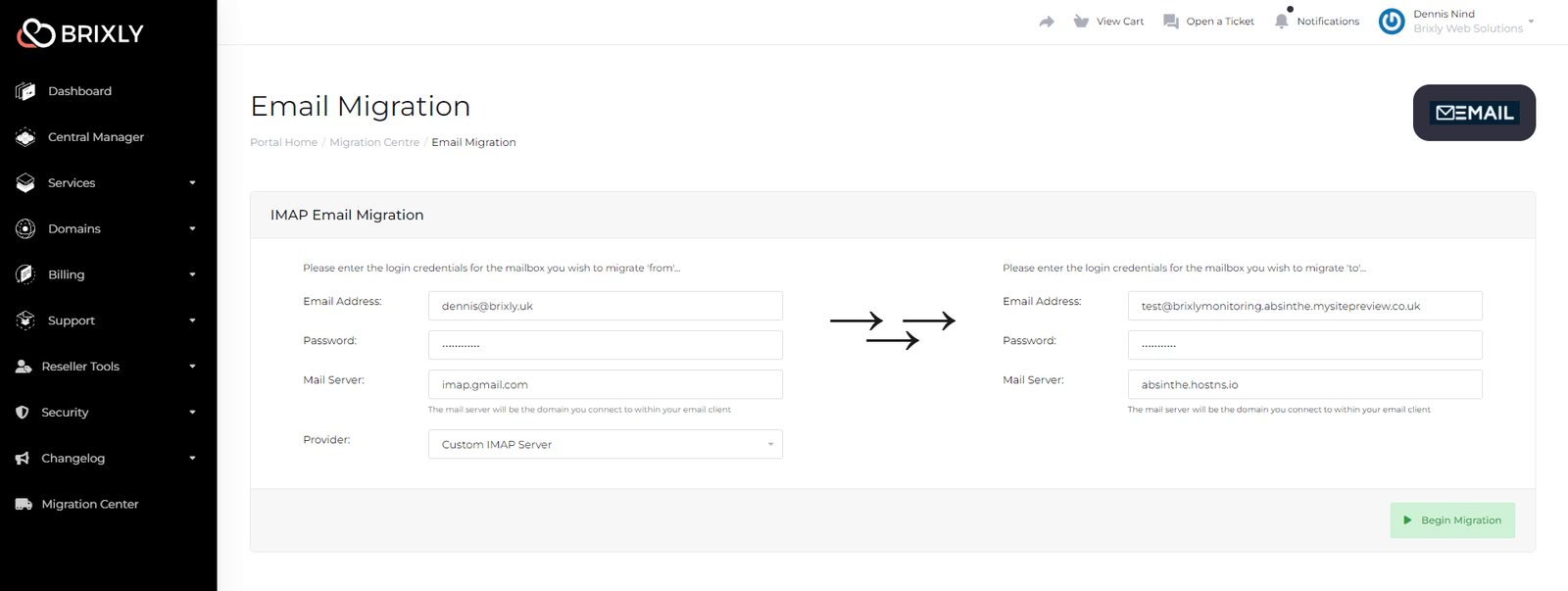
Open the Migration Center and select Email Migration.
-
Enter the credentials for the source mailbox and the destination mailbox. Set the provider to Custom IMAP Server.
-
Select Begin Migration.
-
Both connections are tested first. Green ticks on each mean the credentials and server details are valid — then select Start IMAP Migration.
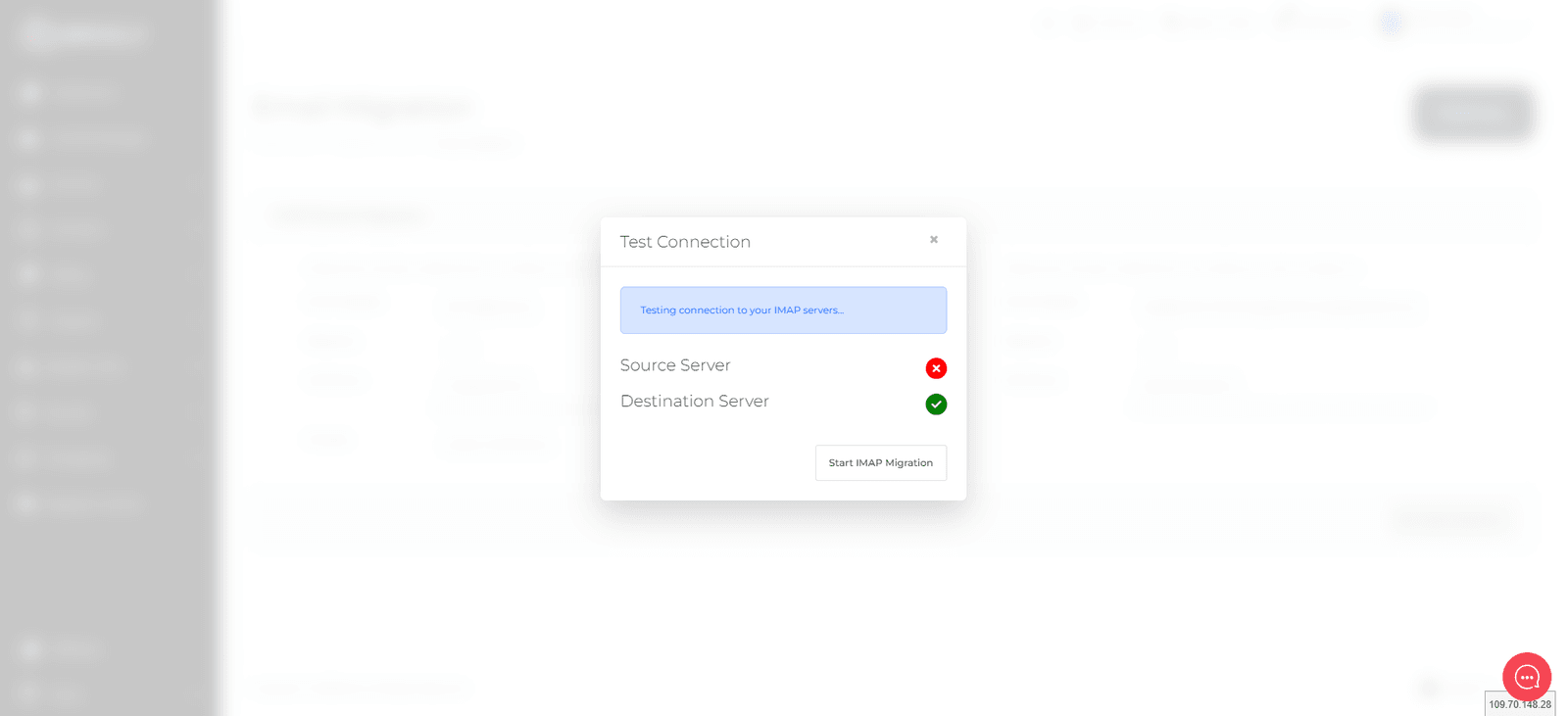
How long it takes depends on mailbox size. Large mailboxes take hours; you can close the page and it continues.
Check it worked
Sign in to webmail and confirm your folders and messages are present. Compare the message count of a couple of folders against the old provider.
Leave the old mailbox in place for a week or two before closing that account, so you can go back if something is missing.
If the connection test fails
- The IMAP server name is wrong. Check the old provider's documentation —
it is often
imap.followed by their domain, but not always. - The password is wrong. Confirm by signing in to the old provider's webmail.
- The provider requires an app password. Gmail, Outlook.com and iCloud all refuse ordinary passwords for IMAP when two-factor authentication is on. Generate an app-specific password in that provider's security settings and use that.
- IMAP is disabled on the source account. Some providers turn it off by default — Gmail in particular. Enable it in their settings first.
Related
Maximum email attachment size
WebGee accepts messages up to 50 MB in total, and what to use instead when you need to send something larger.
Configure email routing in cPanel
Tell your server whether it handles mail for a domain or passes it to an external provider — the setting that MX records alone do not change.