

نقل البريد من مزوّد آخر
انسخ صناديق البريد من أي مزوّد IMAP إلى WebGee عبر مركز النقل، دون فقدان بنية المجلدات أو حالة القراءة.
انسخ محتويات صندوق بريد مستضاف في مكان آخر إلى صندوق في WebGee. ينطبق على كل صناديق بريد WebGee Workspace.
يتصل مركز النقل بمزوّدك القديم عبر IMAP وينسخ الرسائل والمجلدات وحالة القراءة. ويُترَك الصندوق القديم دون مساس.
قبل أن تبدأ
تحتاج:
- صندوق الوجهة منشأً مسبقًا على WebGee. أنشئه ضمن cPanel ← Email Accounts أولًا — فالنقل ينسخ إليه ولا ينشئه.
- بيانات اعتماد الصندوقين — القديم والجديد.
- اسم خادم IMAP للمزوّد القديم، من وثائقه.
انقل قبل تغيير سجلات MX لا بعده. فبمجرد أن يُسلَّم البريد إلى WebGee يتوقف الصندوق القديم عن الاستقبال — لكن محتوياته القائمة تبقى هناك، وتظل تحتاج هذه الخطوة لجلبها.
انقل
-
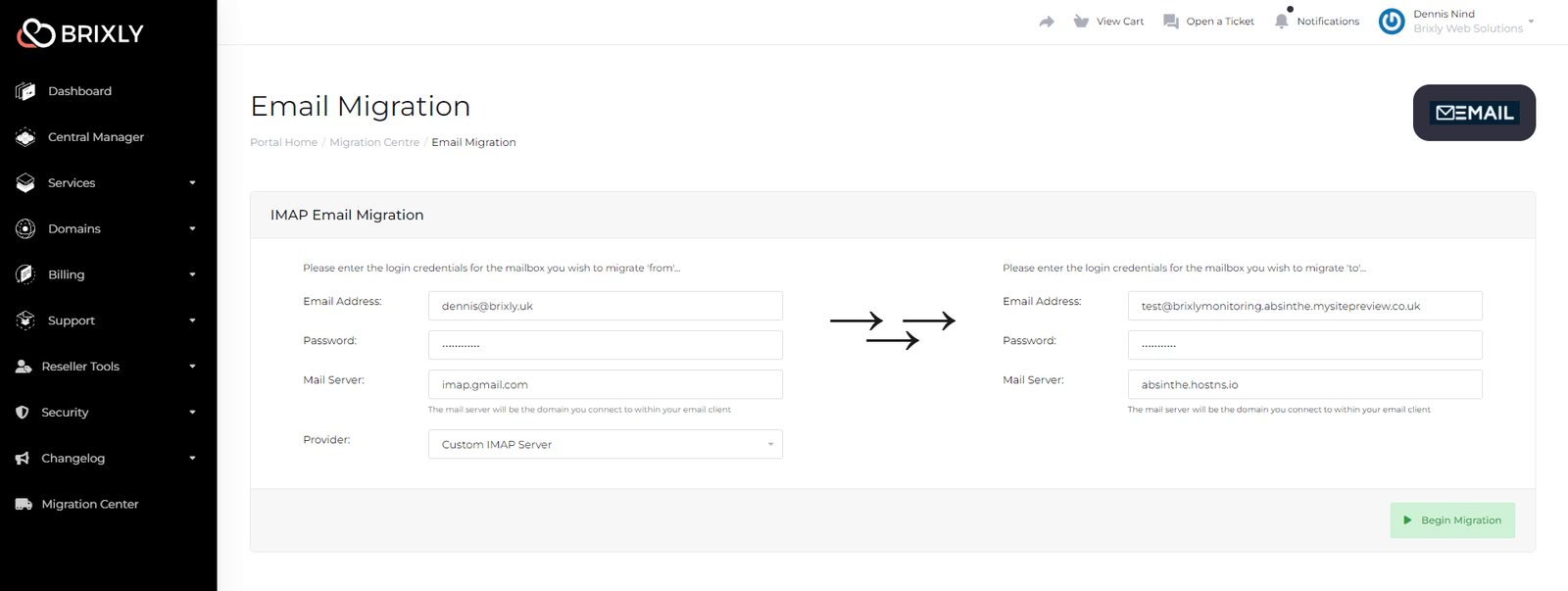
افتح مركز النقل واختر Email Migration.
-
أدخل بيانات اعتماد صندوق المصدر وصندوق الوجهة. واضبط المزوّد على Custom IMAP Server.
-
اختر Begin Migration.
-
يُختبَر الاتصالان أولًا. وعلامتا صح خضراوان على كل منهما تعنيان أن بيانات الاعتماد وبيانات الخادم صالحة — عندها اختر Start IMAP Migration.
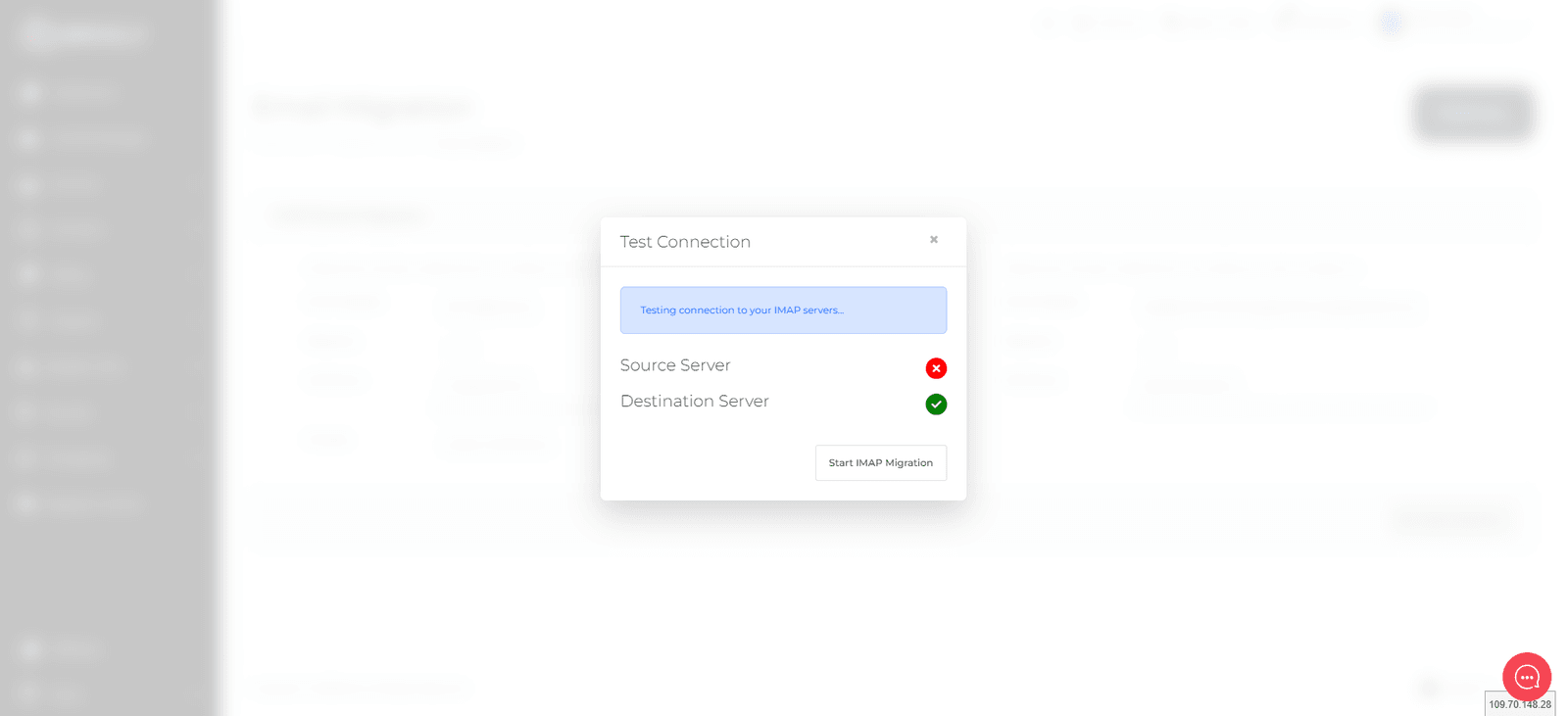
ومدة ذلك تعتمد على حجم الصندوق. فالصناديق الكبيرة تستغرق ساعات؛ ويمكنك إغلاق الصفحة وهو يستمر.
تأكّد أنه نجح
سجّل الدخول إلى بريد الويب وتأكّد من وجود مجلداتك ورسائلك. وقارن عدد الرسائل في مجلدين أو ثلاثة بما لدى المزوّد القديم.
واترك الصندوق القديم قائمًا أسبوعًا أو أسبوعين قبل إغلاق ذلك الحساب، لتستطيع العودة إن كان شيء ناقصًا.
إن فشل اختبار الاتصال
- اسم خادم IMAP خاطئ. راجع وثائق المزوّد القديم — فهو غالبًا
imap.متبوعًا بنطاقه، لكن ليس دائمًا. - كلمة المرور خاطئة. تأكّد بتسجيل الدخول إلى بريد ويب المزوّد القديم.
- المزوّد يشترط كلمة مرور تطبيق. فـ Gmail وOutlook.com وiCloud كلها ترفض كلمات المرور العادية لـ IMAP حين تكون المصادقة الثنائية مفعّلة. ولّد كلمة مرور خاصة بالتطبيق في إعدادات الأمان لدى المزوّد واستخدمها.
- IMAP معطّل على حساب المصدر. فبعض المزوّدين يوقفونه افتراضيًا — وGmail خصوصًا. فعّله في إعداداتهم أولًا.