

ضبط MailScanner
اضبط عتبات فحص السبام والفيروسات لكل نطاق في cPanel، وأضف المرسِلين إلى قوائم السماح والحظر، وأفرج عن البريد المشروع المحتجَز.
يصفّي MailScanner السبام والفيروسات من البريد الوارد قبل أن يصل صناديقك. ينطبق على كل حسابات استضافة cPanel، بما فيها حسابات الموزّعين.
وهو يجمع عدة محرّكات: MailScanner نفسه نواةً للمعالجة، وSpamAssassin لتسجيل نتيجة السبام، وClamAV لكشف الفيروسات، وشبكتَي DCC وVipul's Razor للتعرّف التعاوني على السبام.
افتح MailScanner
-
سجّل الدخول إلى cPanel.
-
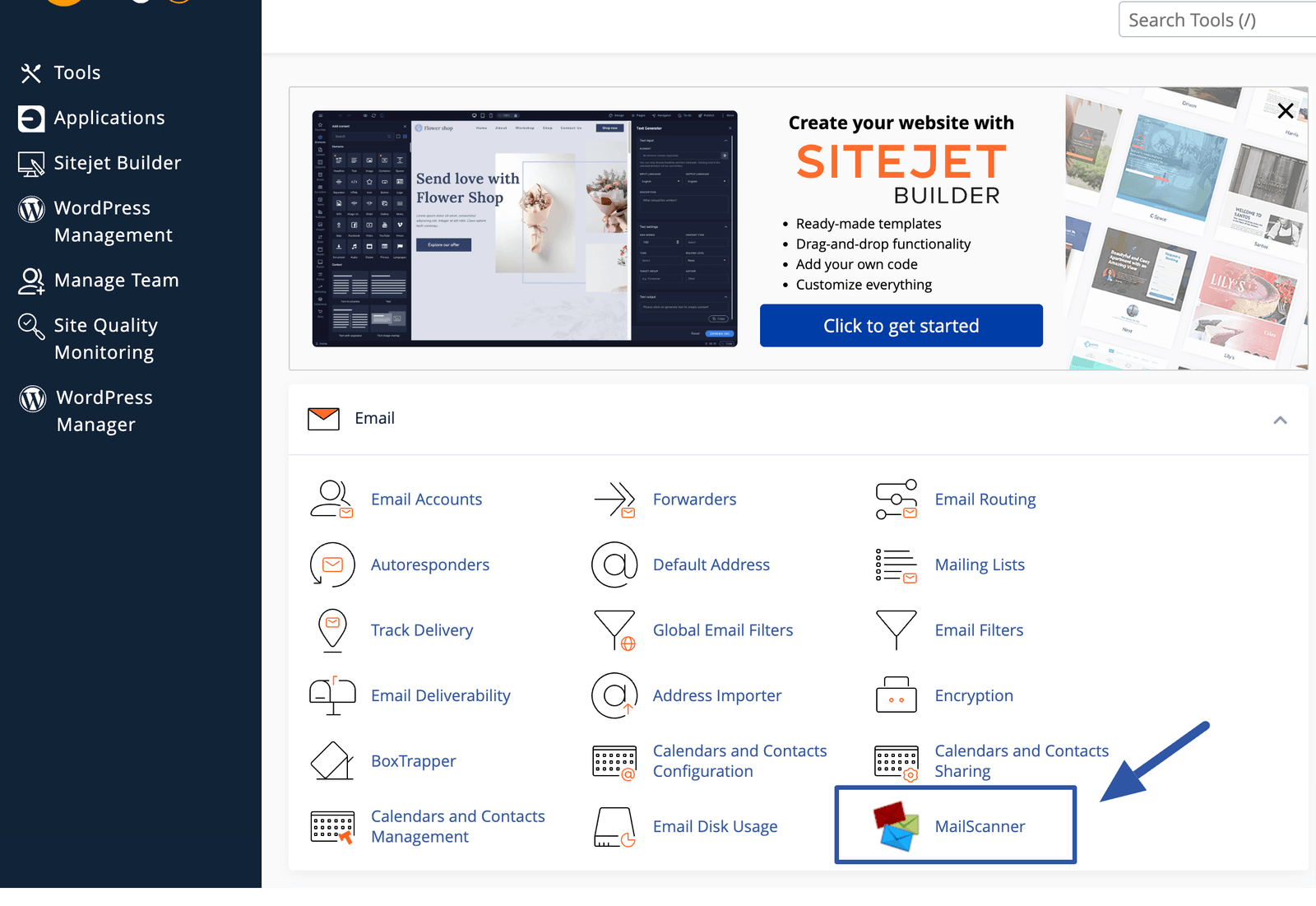
في قسم Mail، اختر MailScanner.
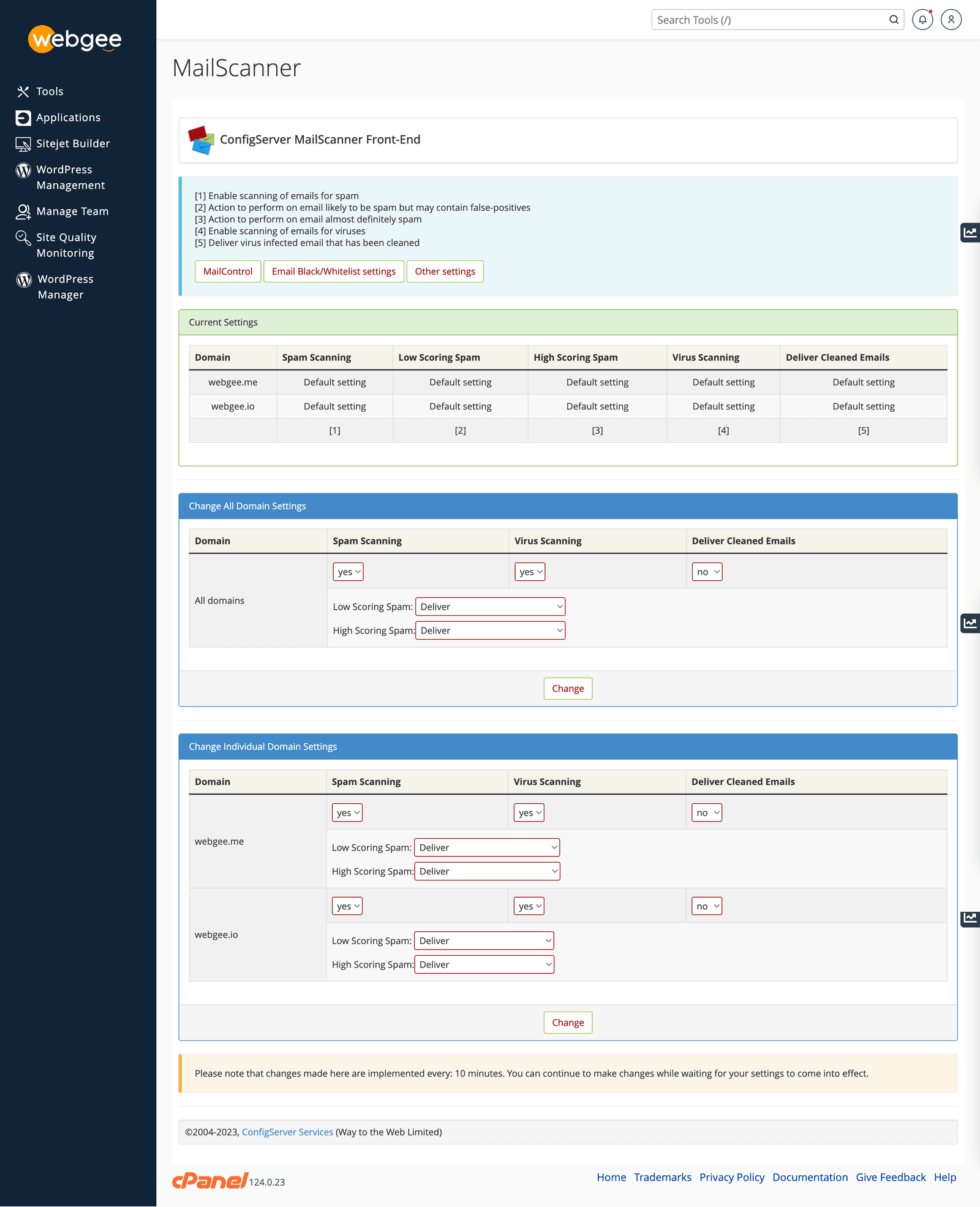
وللشاشة جزآن: Current Settings، ويعرض ما هو نشط الآن، و Change Individual Domain Settings، حيث تضبط كل نطاق على حدة.
كيف يعمل تسجيل نتيجة السبام
تُعطى كل رسالة نتيجة. وعتبتان تحدّدان ما يحدث لها:
| النتيجة | تُعامَل بوصفها |
|---|---|
| دون العتبة الدنيا | بريدًا عاديًا، يُسلَّم |
| بين العتبتين | سبامًا منخفض النتيجة |
| عند العتبة العليا أو فوقها | سبامًا مرتفع النتيجة |
فبعتبة دنيا 5 وعتبة عليا 10، تكون رسالة نتيجتها 7 سبامًا منخفض النتيجة،
ورسالة نتيجتها 12 سبامًا مرتفع النتيجة.
وأنت تختار منفصلًا ما يحدث لكل نطاق: Deliver أو Delete أو Forward
إلى عنوان مثل spam@yourdomain.com.
لا تضبط أي نطاق على Delete. فالبريد المحذوف ذهب — فلا شيء تفرج عنه ولا سبيل لاكتشاف نتيجة إيجابية خاطئة. سلّم السبام منخفض النتيجة ليصل إلى مجلد Spam، ووجّه السبام مرتفع النتيجة إلى عنوان مراجعة إن أردت إبعاده.
الإعدادات
| الإعداد | ماذا يفعل |
|---|---|
| Spam Scanning | يفعّل تسجيل نتيجة السبام أو يوقفه |
| Virus Scanning | يفعّل فحص ClamAV أو يوقفه |
| Deliver Cleaned Emails | هل تُسلَّم الرسالة بعد نزع فيروس منها |
| Low Scoring Spam | تسليم أو حذف أو توجيه |
| High Scoring Spam | تسليم أو حذف أو توجيه |
اترك Virus Scanning مفعَّلًا. فلا حجة معقولة لإيقافه.
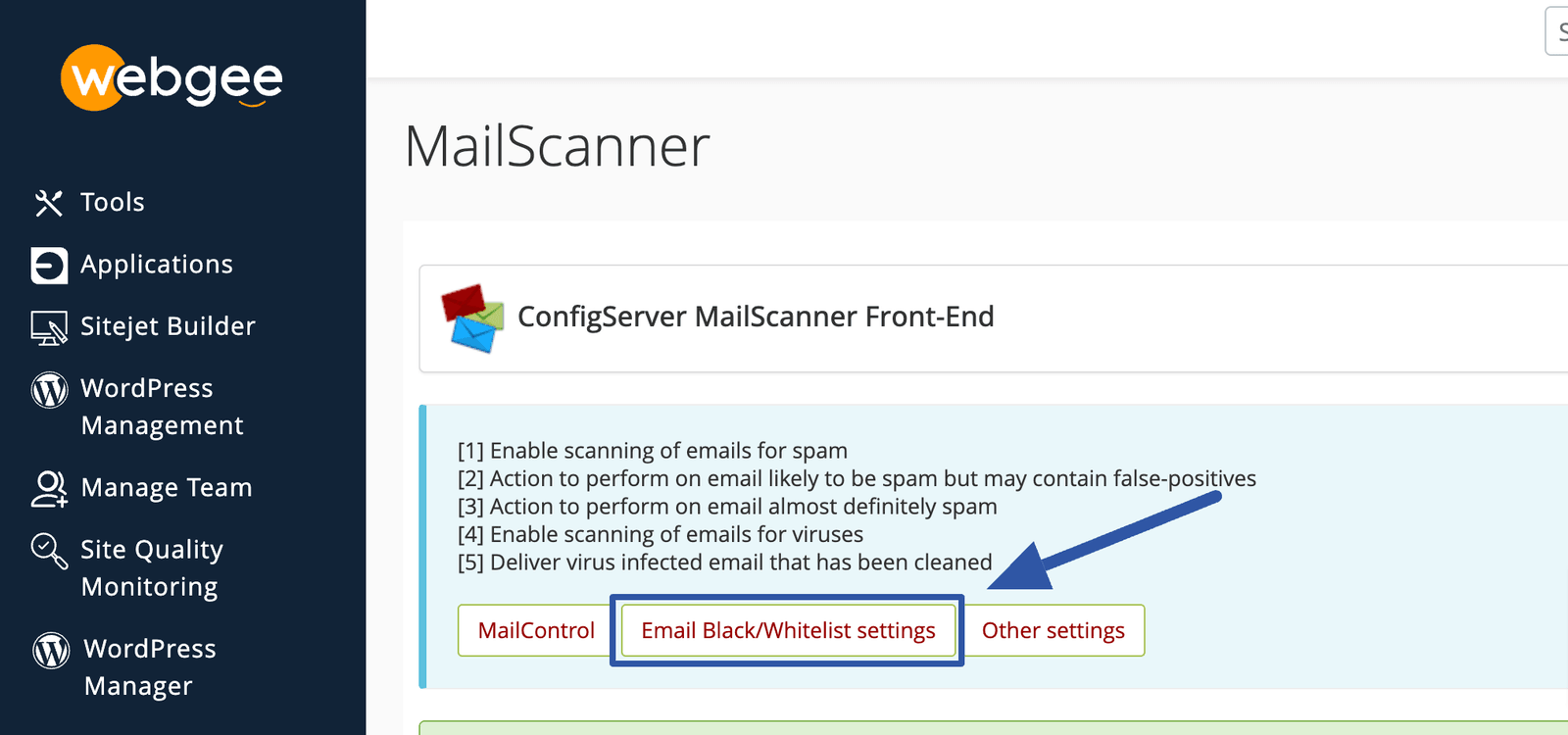
قائمتا السماح والحظر
الإفراج عن البريد المحتجَز بـ MailControl
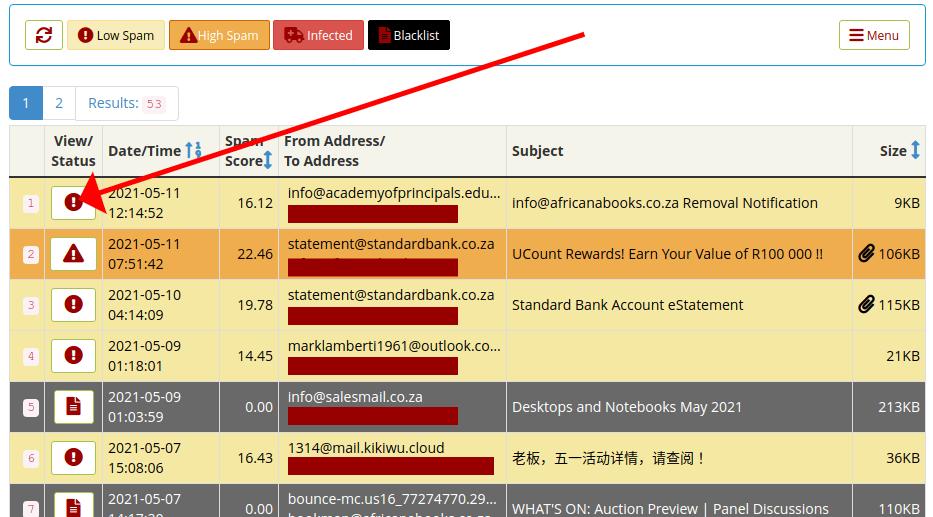
يعدّد MailControl الرسائل التي عُلِّمت ولم تُسلَّم.
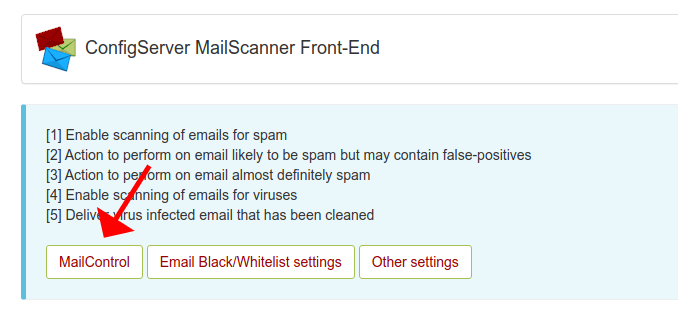
وتُصنَّف الرسائل إلى Low Spam وHigh Spam وInfected وBlacklist.
-
اختر View/Status على رسالة لفحصها.
-
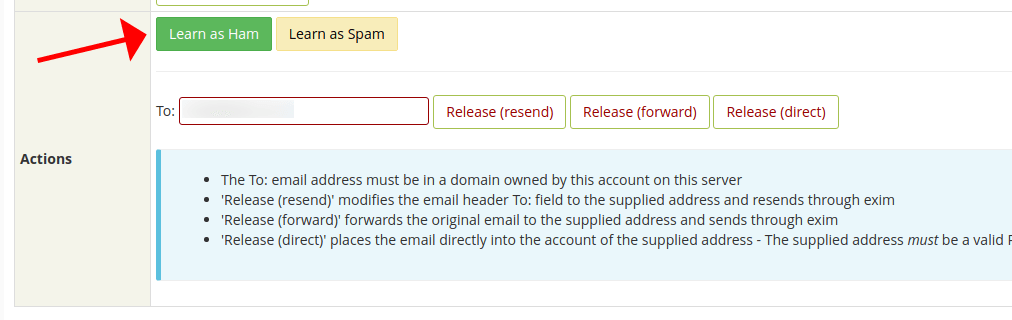
إن لم تكن سبامًا، فاختر Learn as Ham لتعليم الفلتر.
-
ولتسليمها إلى المستقبِل الأصلي، اختر Release (Direct).
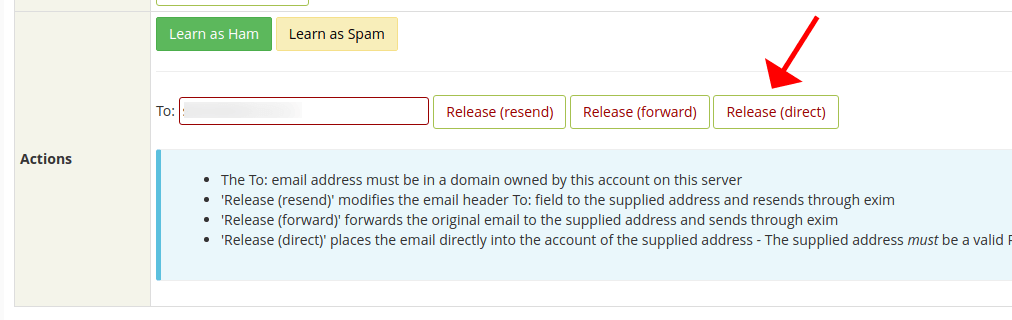
استخدم Learn as Ham إلى جانب الإفراج. فالإفراج يسلّم هذه الرسالة الواحدة؛ أما تعليم الفلتر فيقلّل تكرار التقاط المرسِل نفسه.
لا تفرج عن رسالة من فئة Infected أبدًا. فقد احتُجزت لأنها تحوي برمجية خبيثة، لا لأن نتيجتها كانت سيئة.
تحقّق
- أرسل إلى نفسك رسالة من عنوان خارجي وتأكّد من وصولها.
- راجع MailControl بعد يوم أو يومين بحثًا عن نتائج إيجابية خاطئة، وأضفها إلى قائمة السماح أو علّمها حسب الحاجة.
- إن كان بريد حقيقي يُلتقَط باستمرار، فارفع العتبة الدنيا قليلًا بدل التوسّع في قوائم السماح.