

Domains, DNS and mail routing
Manage a website's domains, change its document root, edit DNS records, enable DKIM and decide whether mail is delivered locally or elsewhere.
Each website has one primary domain and its own DNS zone. Applies to all WordPress Cloud packages.
Open a website and select Domains.
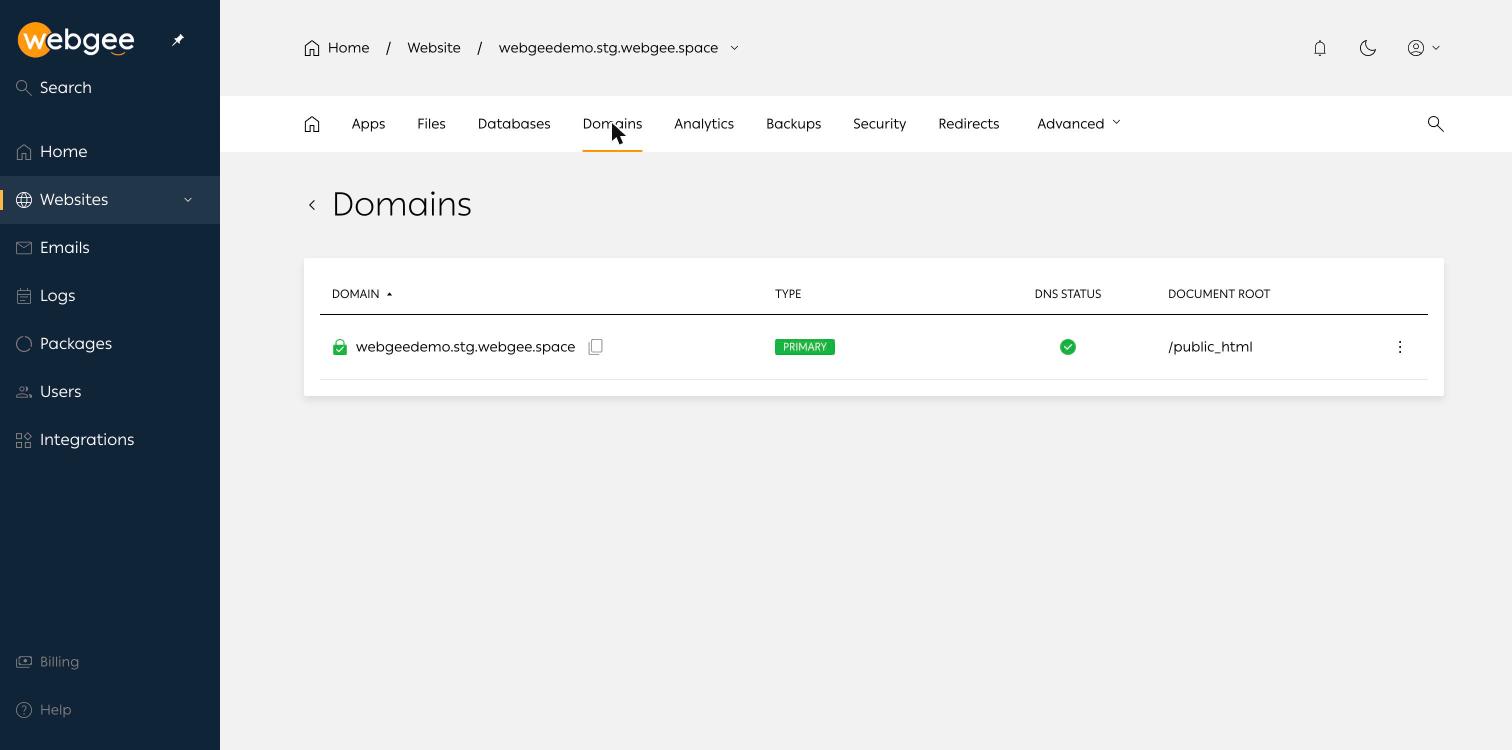
Each row shows the domain, whether it is PRIMARY, its DNS status, and its document root. A green padlock means a certificate is installed — see SSL certificates.
Use the row menu → Manage to open a domain.
Document root
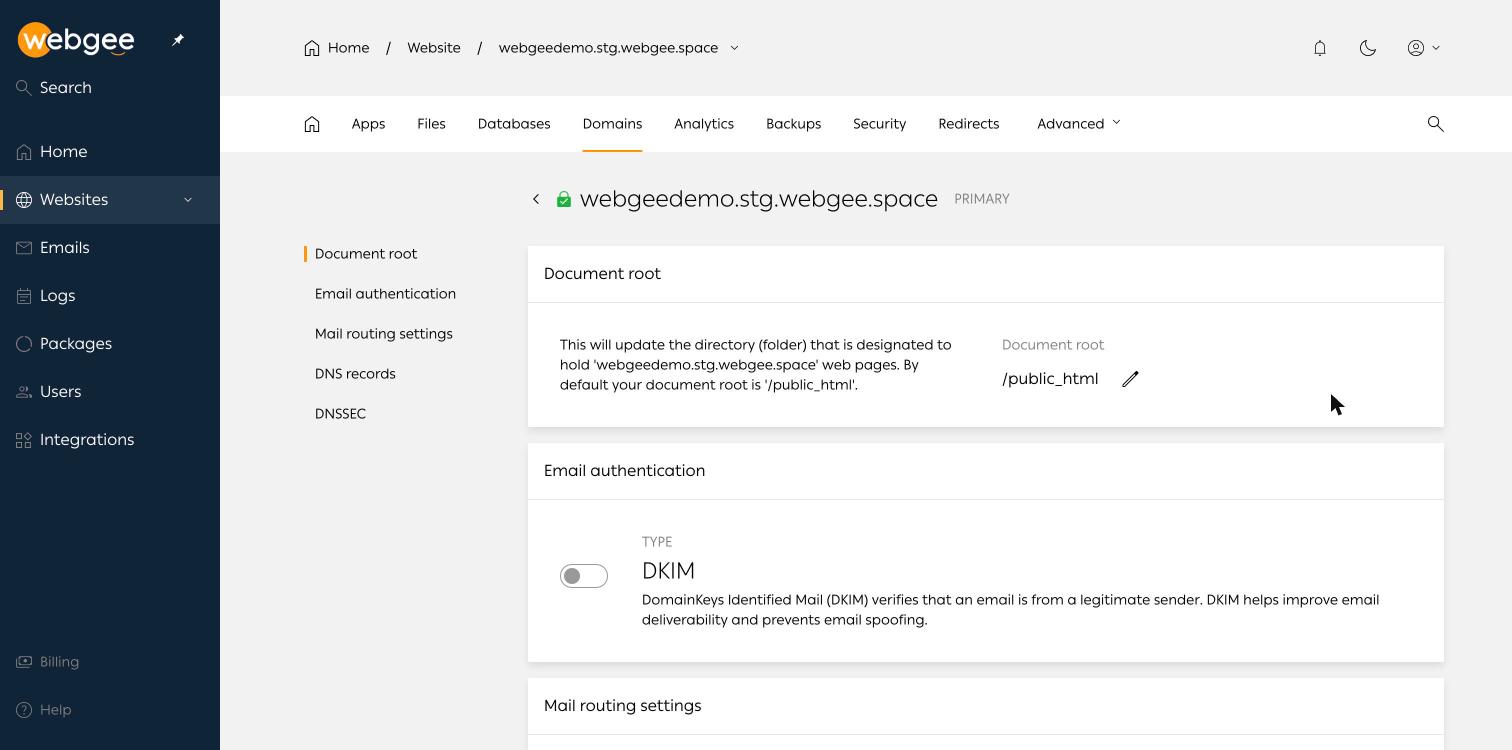
The folder that holds this domain's pages, /public_html by default. Change it
if the application lives in a subdirectory — for example a framework that serves
from public.
Email authentication
DKIM signs outbound mail so receiving servers can verify it came from your domain. It is off by default; turn it on for any domain that sends mail.
DKIM is one of three records that decide whether your mail is accepted. See SPF, DKIM and DMARC for the full picture.
Mail routing
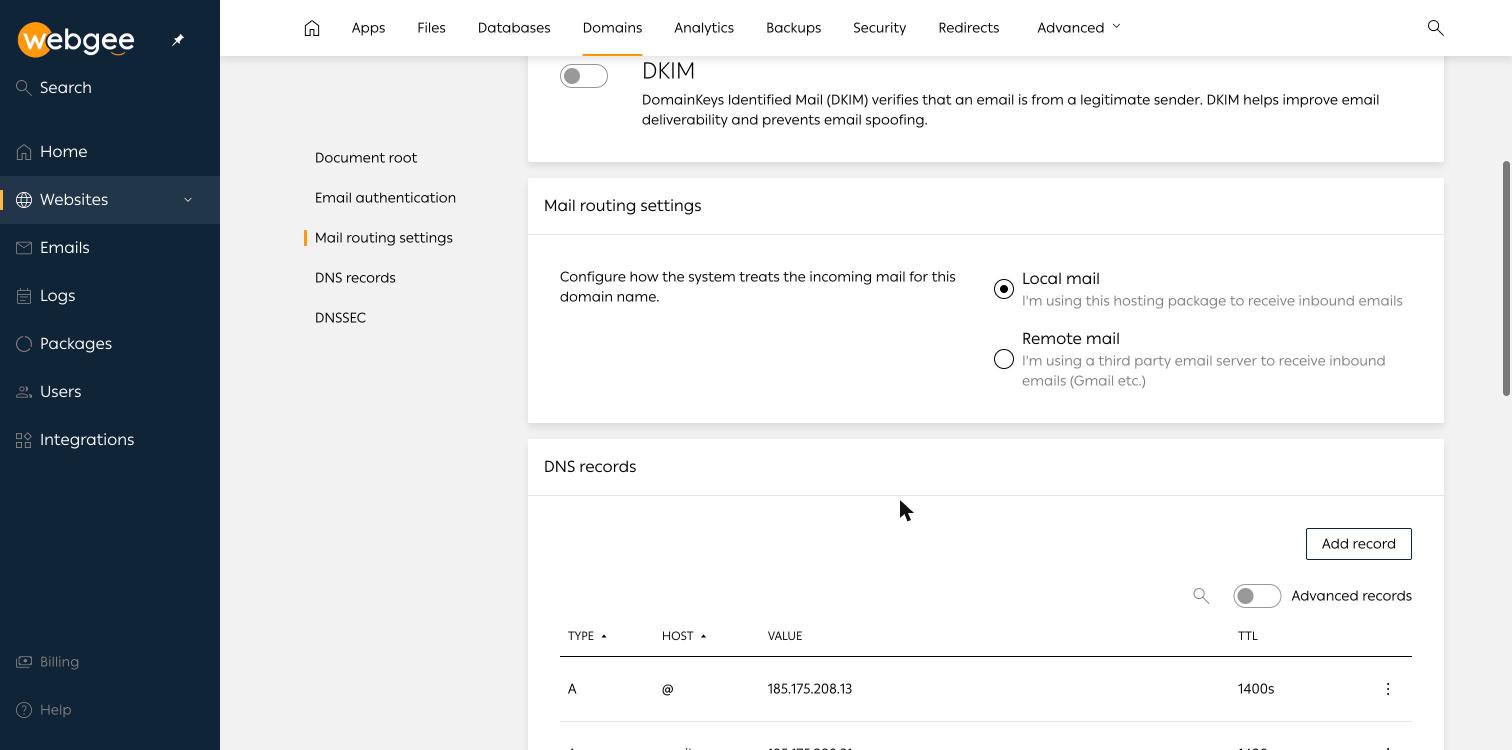
This decides where inbound mail for the domain goes:
- Local mail — mailboxes on this hosting package receive it. The default.
- Remote mail — a third-party provider such as Google Workspace or Microsoft 365 receives it.
Set this to Remote mail before pointing your MX records elsewhere. If it stays on Local mail, the server delivers mail addressed to your domain into local mailboxes instead of sending it on, and messages between your own users never leave the server.
DNS records
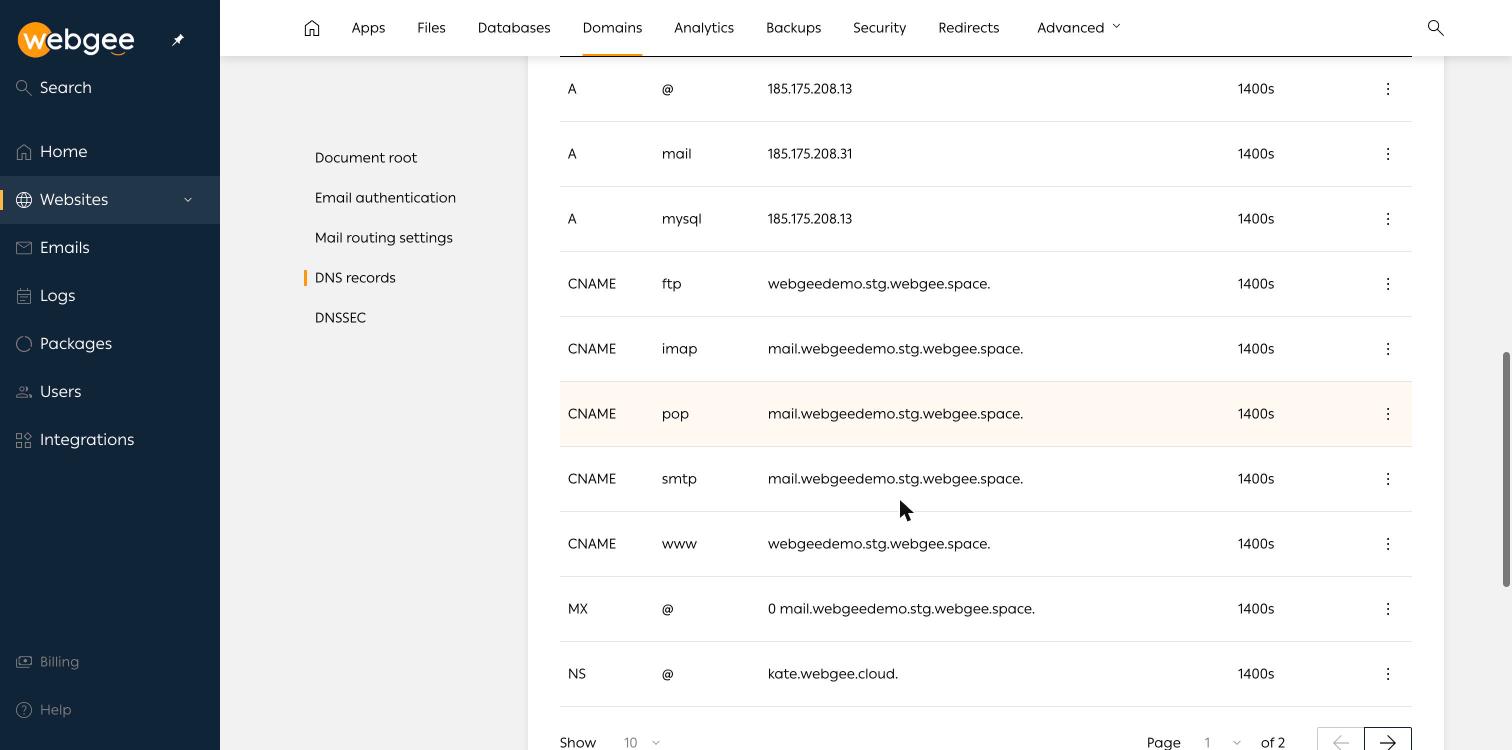
The zone is created for you when the site is provisioned. A new site carries:
| Type | Host | Points at |
|---|---|---|
A | @ | The website's IPv4 address |
A | mail | The mail server |
A | mysql | The database server |
CNAME | www, ftp | The domain itself |
CNAME | imap, pop, smtp | mail.<domain> |
MX | @ | mail.<domain> |
NS | @ | The WebGee nameservers |
Add record creates one. The Advanced records toggle exposes the less common types. Records are paginated — use the page control at the foot of the table rather than assuming what you see is everything.
The addresses these records point at are listed on the site overview under At a glance.
DNSSEC
DNSSEC signs your DNS zone so resolvers can detect tampering. It is configured from the DNSSEC section on the same page.
Enabling it requires publishing a DS record at your registrar. If the two ever disagree, resolvers stop answering for your domain entirely — so change the registrar side and the zone side together, and verify resolution before you walk away.