

The WordPress Toolkit
Manage WordPress itself from the panel — version and auto-update policy, plugins, themes, users, single sign-on, maintenance mode and debug constants.
The Toolkit manages WordPress from outside WordPress. It is useful when the
site is broken, when a plugin has locked you out, or when you would rather not
log into wp-admin at all. Applies to every WordPress installation on WordPress
Cloud.
Open a website, go to Apps, and select Toolkit beside the installation.
General
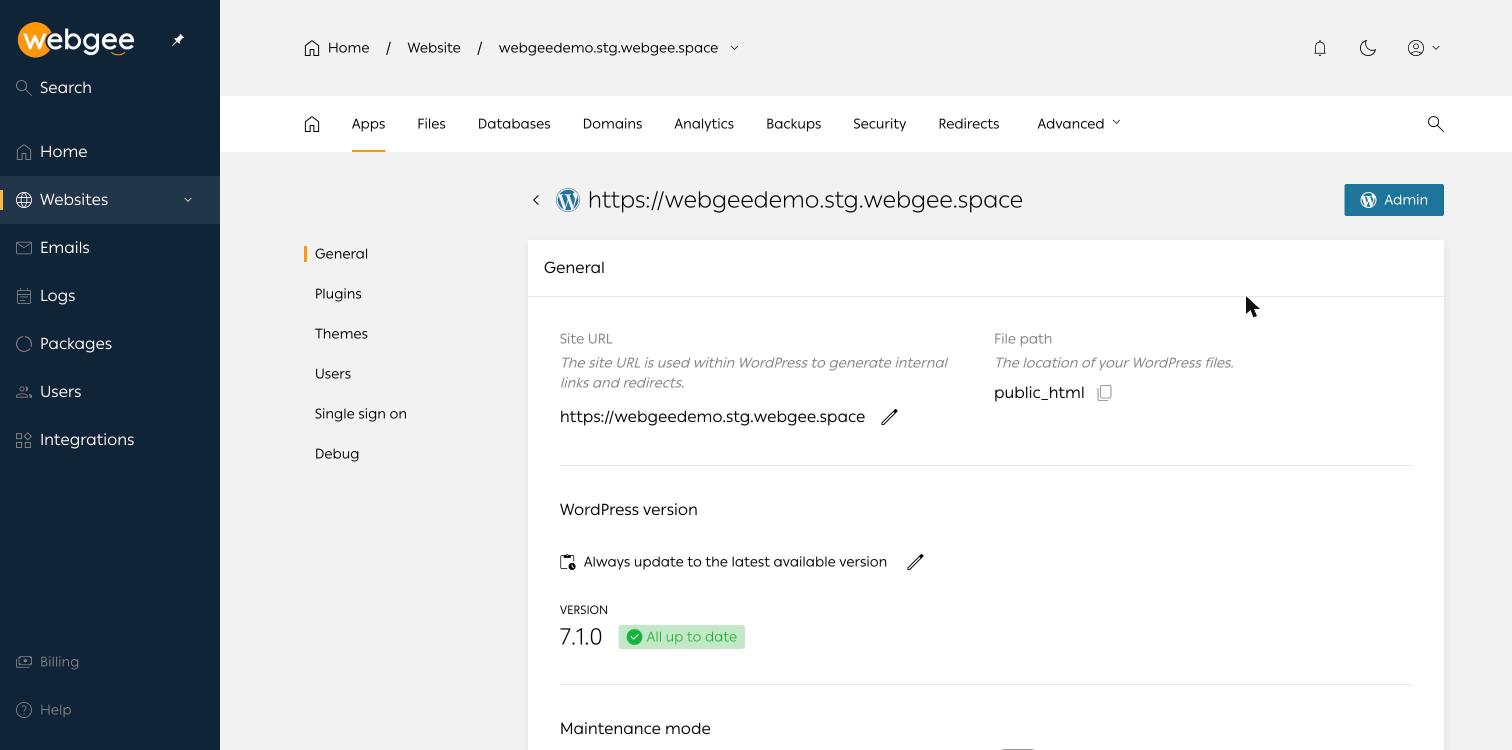
- Site URL — what WordPress uses to build internal links and redirects. Edit it here if a migration left it pointing at the wrong domain; this is the setting that causes redirect loops when it is wrong.
- File path — where the installation lives, normally
public_html. - WordPress version — the installed version and its update policy. The default is Always update to the latest available version; the pencil icon changes it.
- Maintenance mode — a toggle that shows visitors a maintenance notice. Useful while you are mid-migration.
Plugins
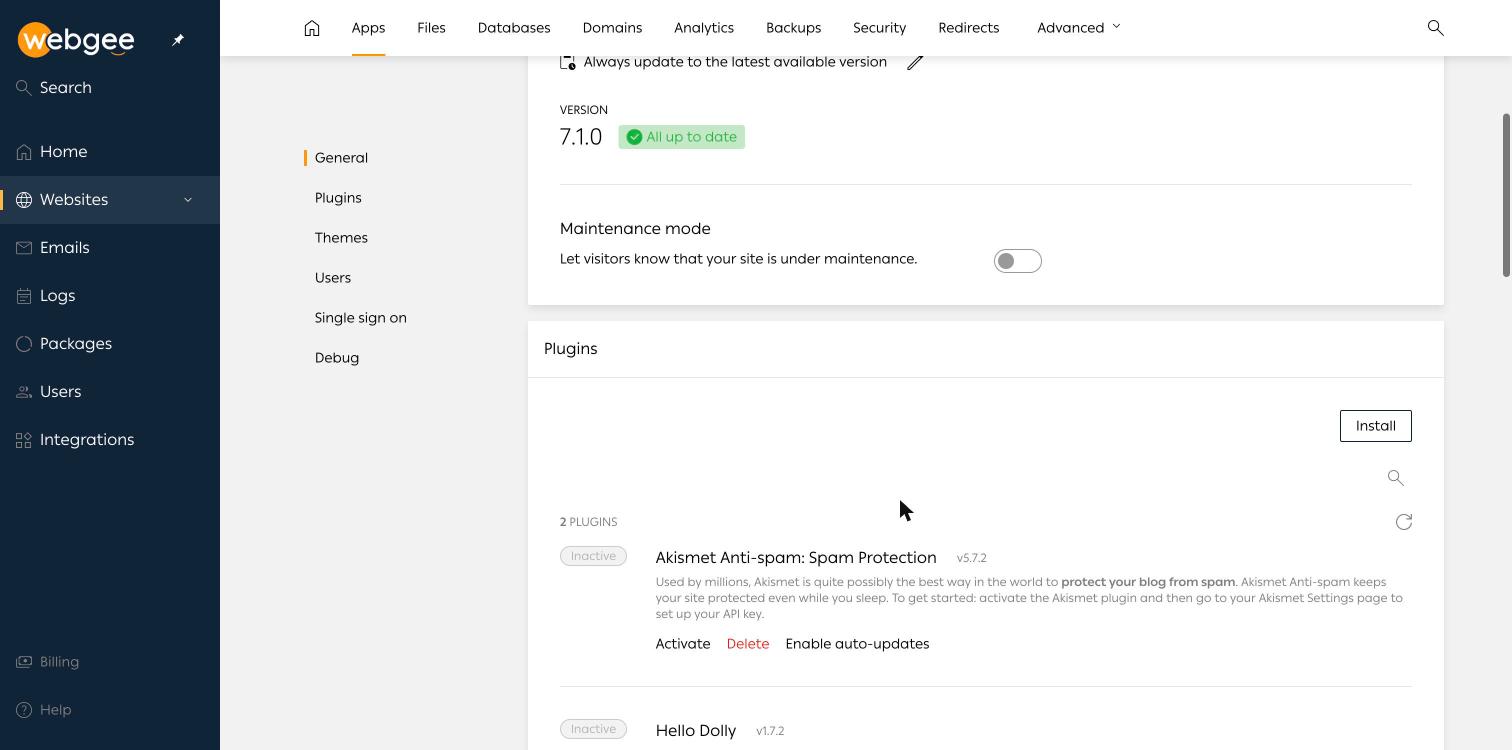
Install, activate, deactivate, delete and set auto-updates per plugin, with a search box for large sites. A fresh install ships with Akismet and Hello Dolly, both inactive.
Managing plugins here is the way out of the classic failure: a plugin update
that white-screens the site. Deactivate it from the panel and the site comes
back without needing wp-admin.
Themes
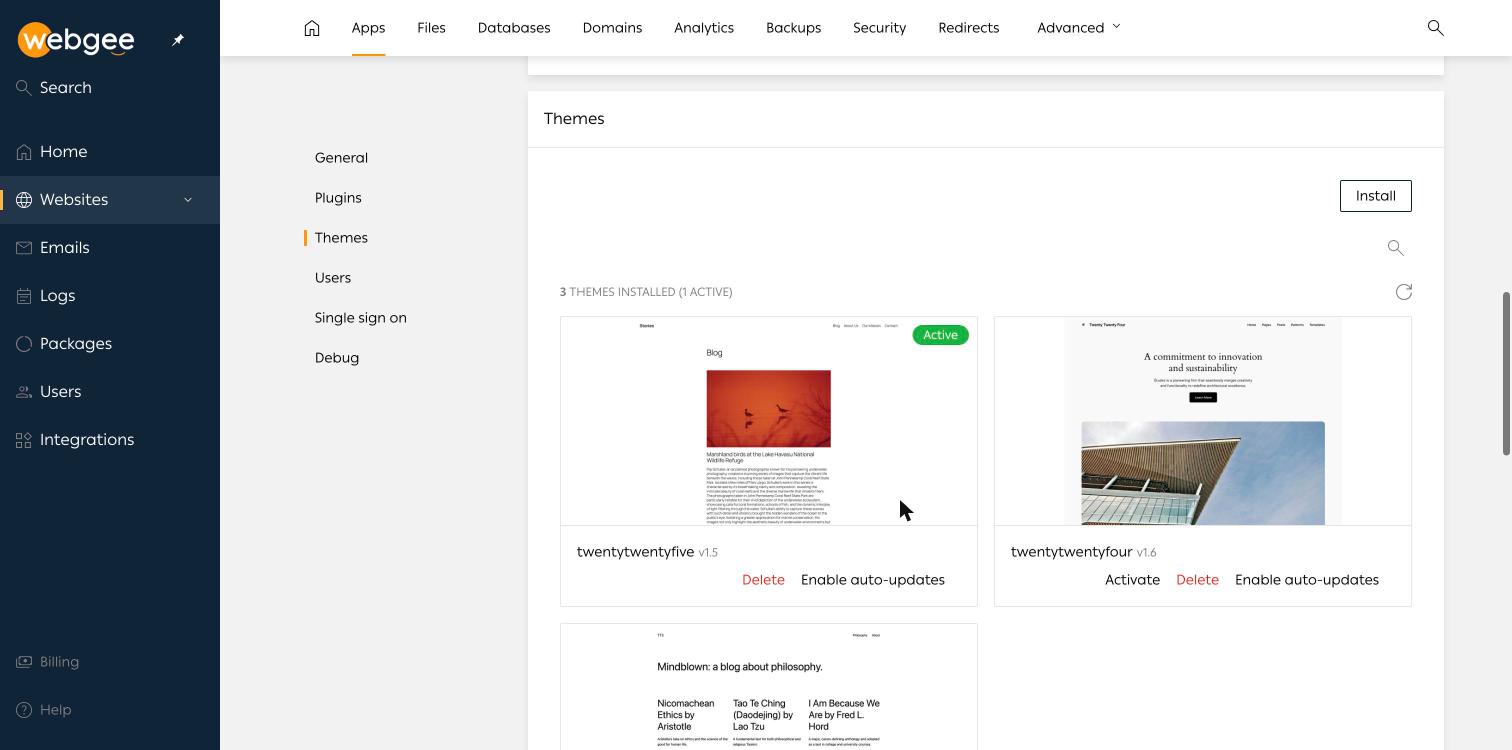
Same controls as plugins — install, activate, delete, auto-update — with previews. A fresh install ships with three default themes, one active.
Users
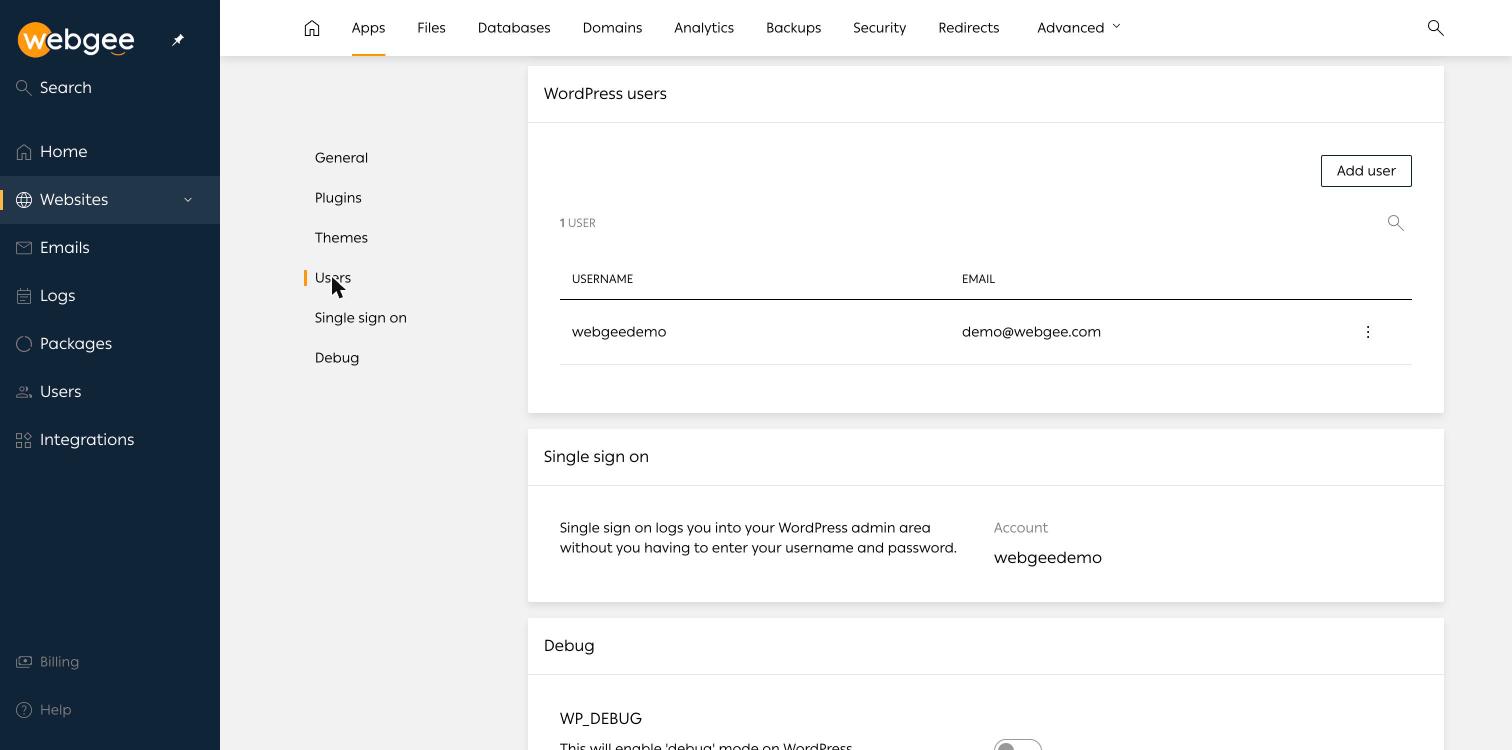
Lists the WordPress user accounts with their email addresses, and lets you add one. This is how you regain access when the administrator account is lost: create a new user rather than trying to reset a password you no longer control.
Single sign-on
Single sign-on logs you into wp-admin from the panel without entering the
WordPress password. The Admin button beside the installation uses it.
The account it signs in as is shown here, and on the site overview under SINGLE SIGN ON.
Debug
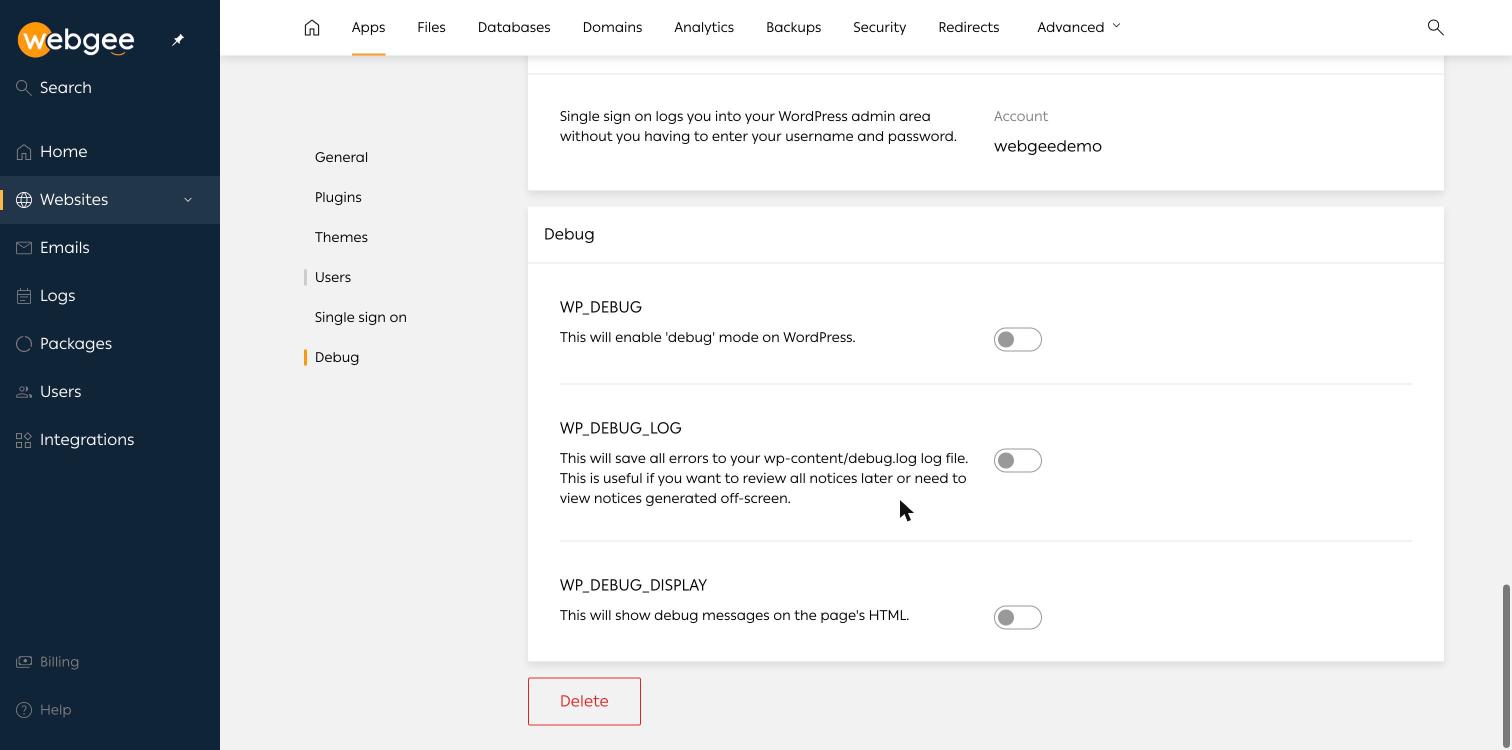
Three WordPress constants, all off by default:
| Constant | Effect |
|---|---|
WP_DEBUG | Turns on WordPress debug mode |
WP_DEBUG_LOG | Writes errors to wp-content/debug.log |
WP_DEBUG_DISPLAY | Prints debug messages into the page HTML |
Leave WP_DEBUG_DISPLAY off on a live site. It prints file paths and query
detail to every visitor. To investigate a live problem, enable WP_DEBUG and
WP_DEBUG_LOG only, then read wp-content/debug.log in the
file manager.