

Back up and restore a website
Take an on-demand backup, restore a whole site, or restore individual files and databases from a point in time.
Backups in WordPress Cloud cover the home directory and every database attached to the website. Applies to all WordPress Cloud packages.
Open a website and select Backups.
Take a backup
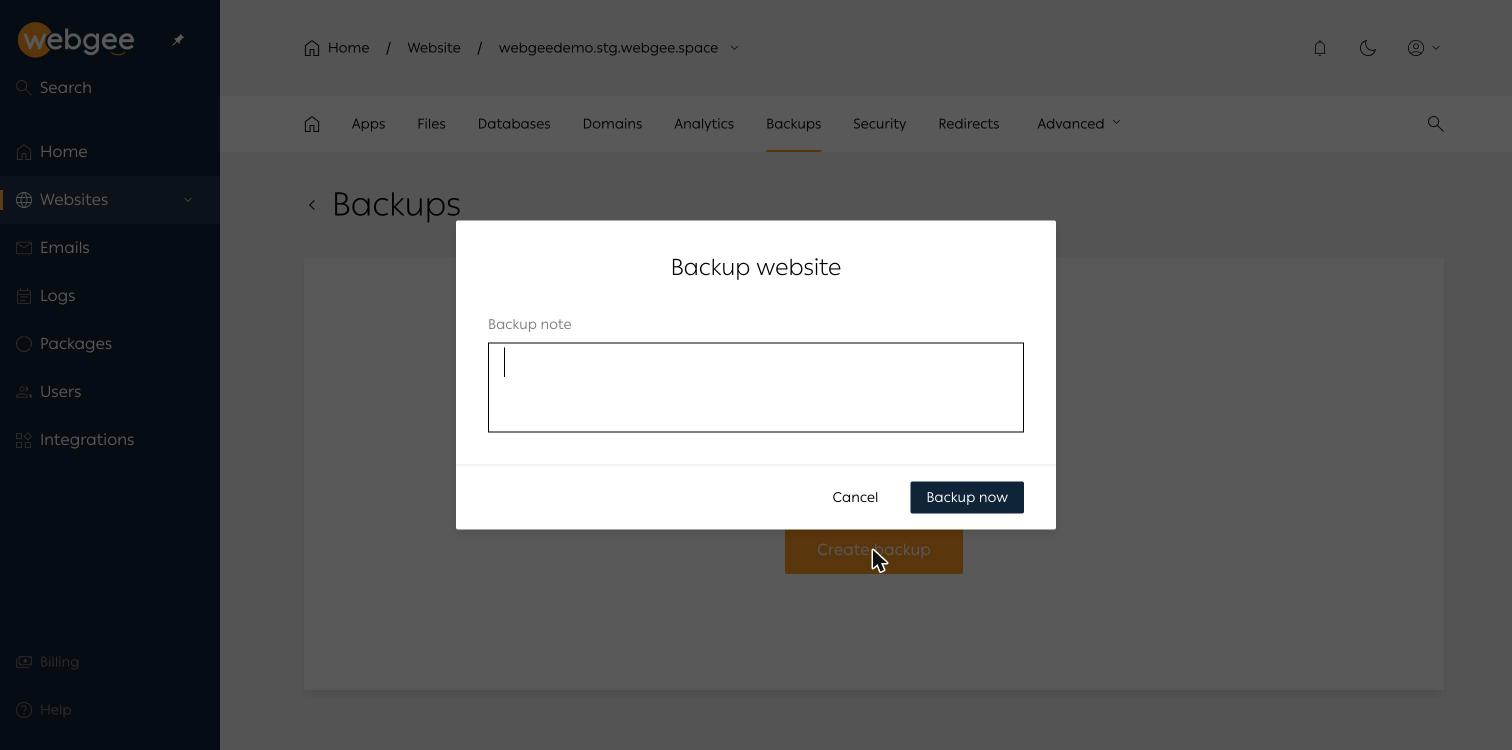
Select Create backup, add a note describing why you took it, then Backup now. On a fresh WordPress site this completes in a few seconds.
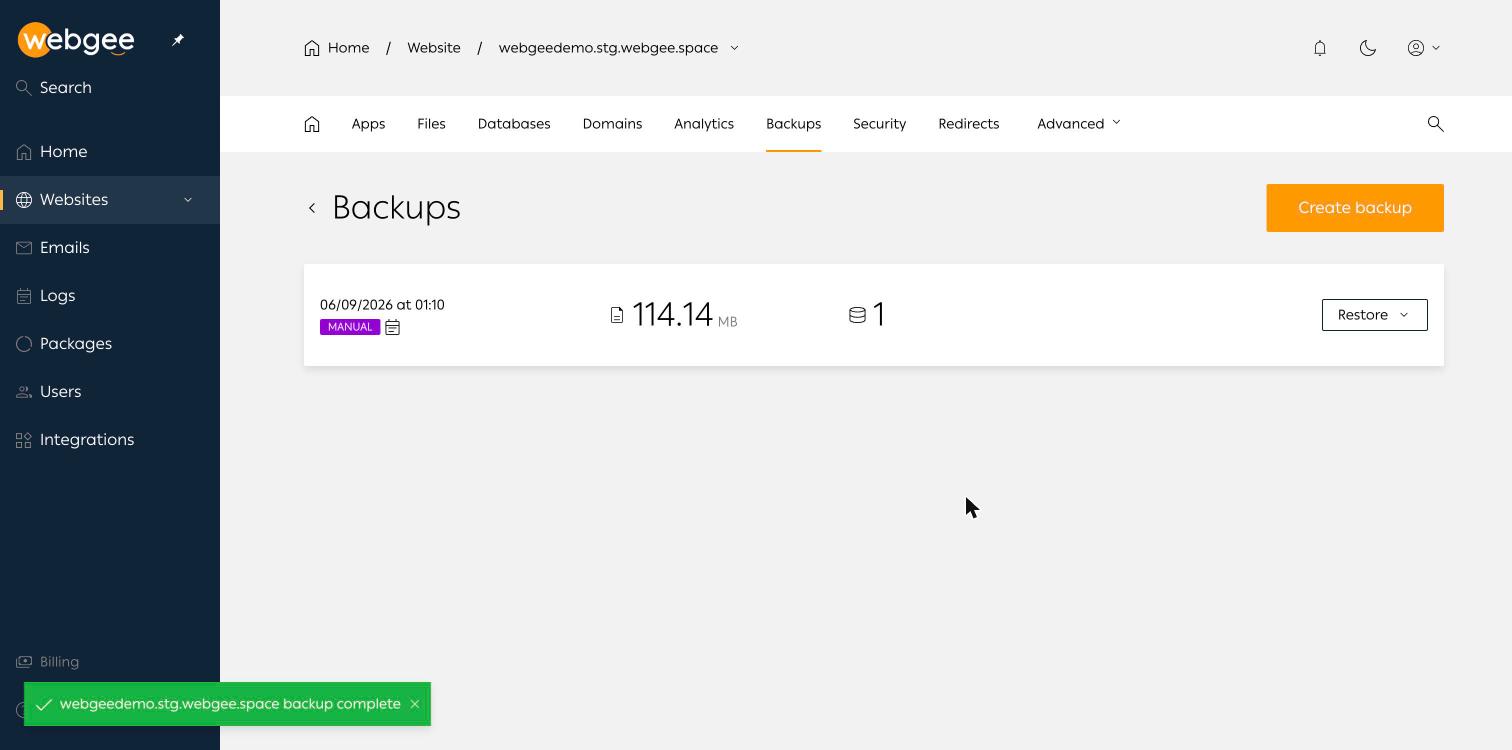
Each entry shows the timestamp, whether it was MANUAL or scheduled, the size, and how many databases it contains.
Take one before every risky change: a plugin update, a theme switch, a push live, or anything done in phpMyAdmin. The note field is worth using — "before WooCommerce 9 upgrade" tells you far more later than a bare timestamp.
Restore everything
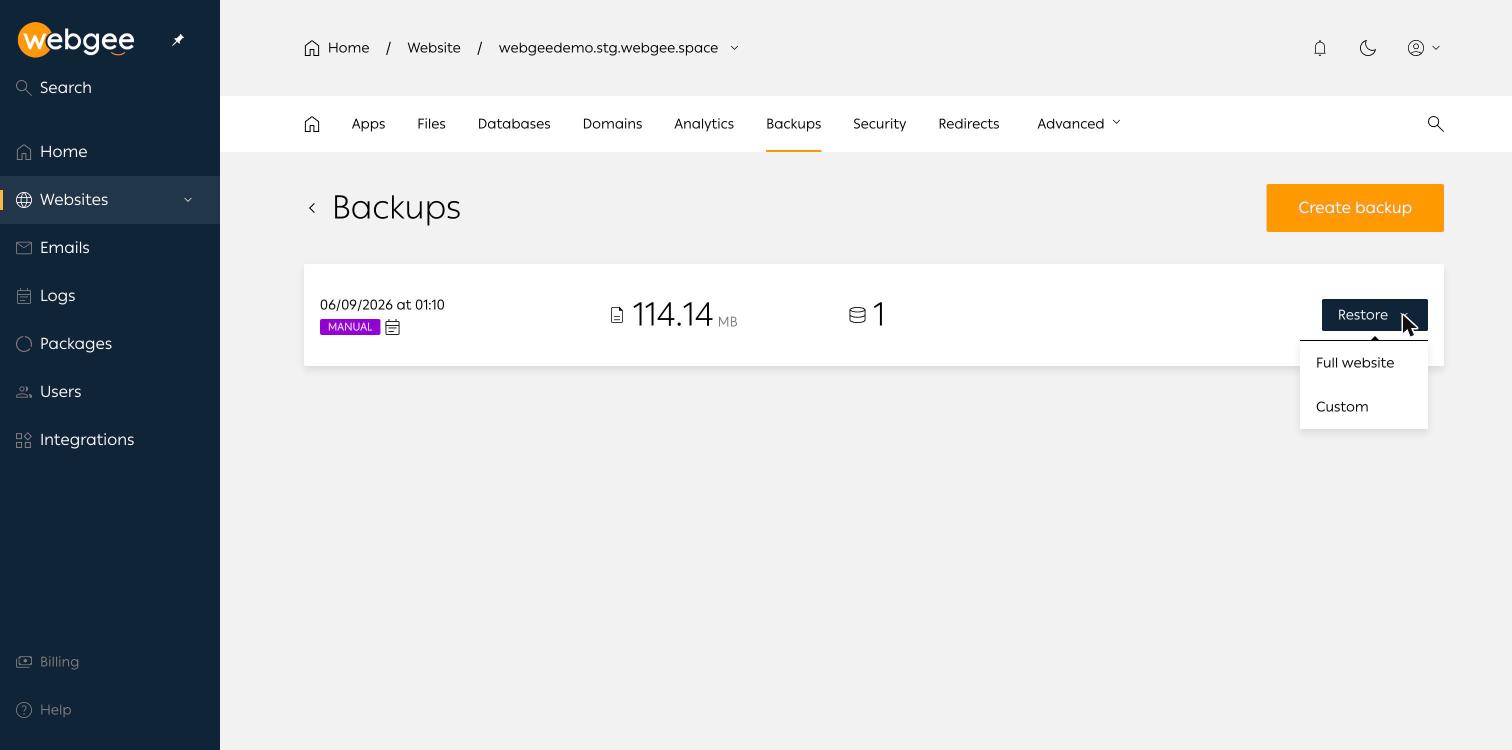
Restore → Full website replaces the current files and databases with the contents of that backup.
A full restore discards everything created since the backup was taken — including orders, comments and form submissions. On a live site, take a fresh backup first so you can get back to the current state if the restore is not what you expected.
Restore part of a site
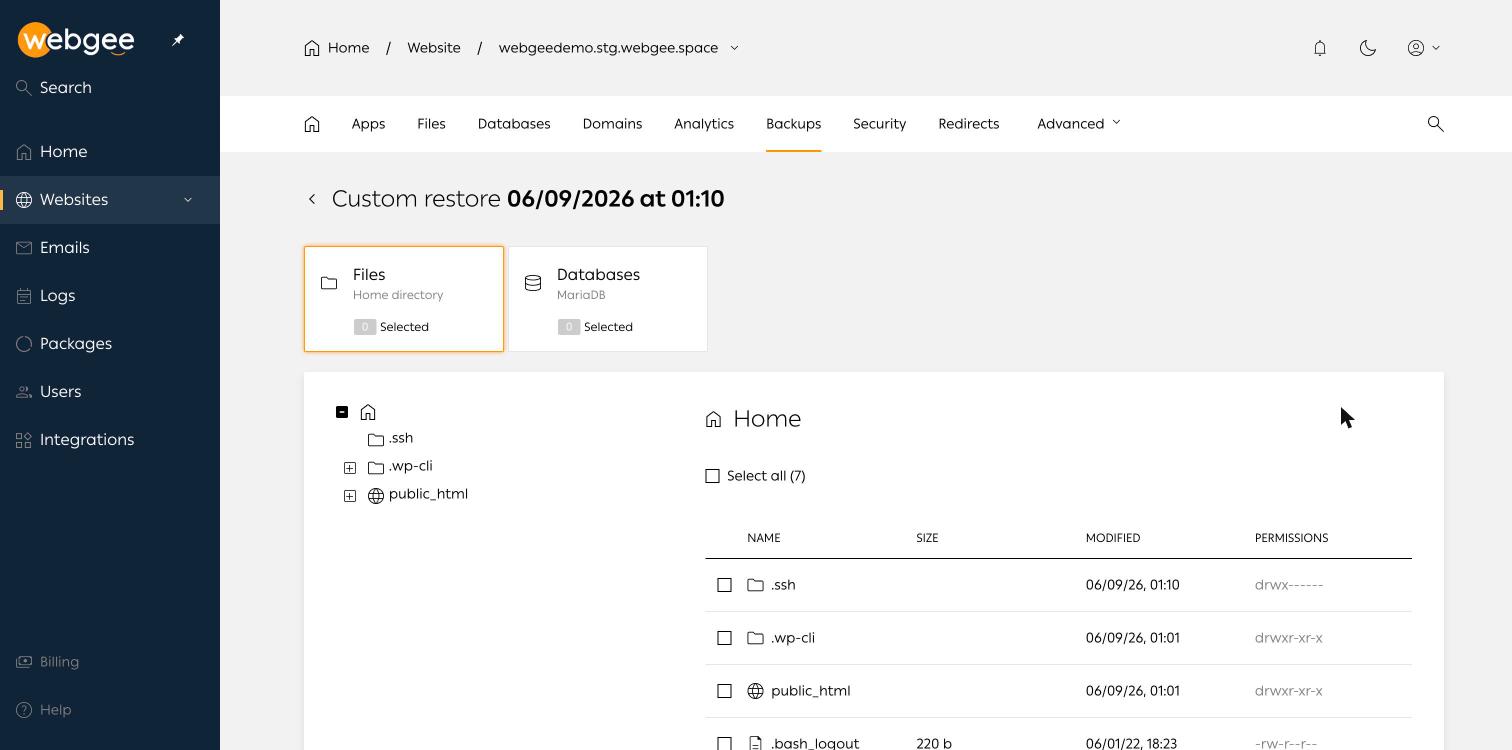
Restore → Custom opens a picker with two tabs:
- Files — browse the home directory as it was at that moment and tick individual files or folders. Sizes, modification times and permissions are all shown.
- Databases — select which MariaDB databases to restore.
This is the option to reach for most of the time. Recovering one corrupted plugin folder, or rolling back only the database after a bad import, avoids the collateral damage of a full restore.
Upload a backup
Upload backup on the site overview restores from a file you hold. See Import a website for moving in from another host.
Download a copy
Download on the site overview offers Download website data and Download email data.
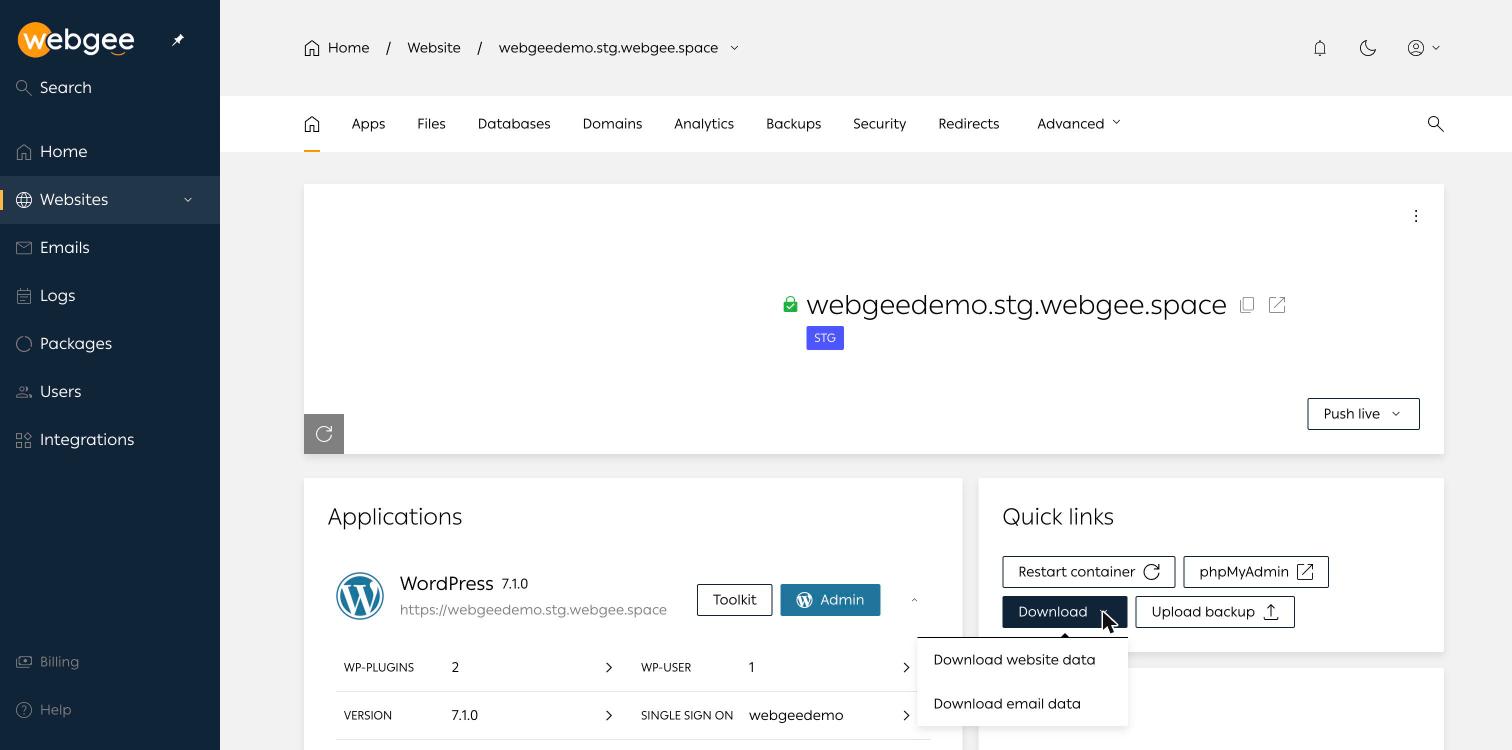
Keep a copy off the platform for anything you cannot afford to lose. Backups stored only where the site lives share the site's fate.