

SSL certificates
Every WordPress Cloud site gets a free Let's Encrypt certificate. How to force HTTPS, and how to install a certificate you bought elsewhere.
WordPress Cloud issues a free Let's Encrypt certificate when a website is provisioned and renews it automatically. Applies to all WordPress Cloud packages.
Open a website and select Security.
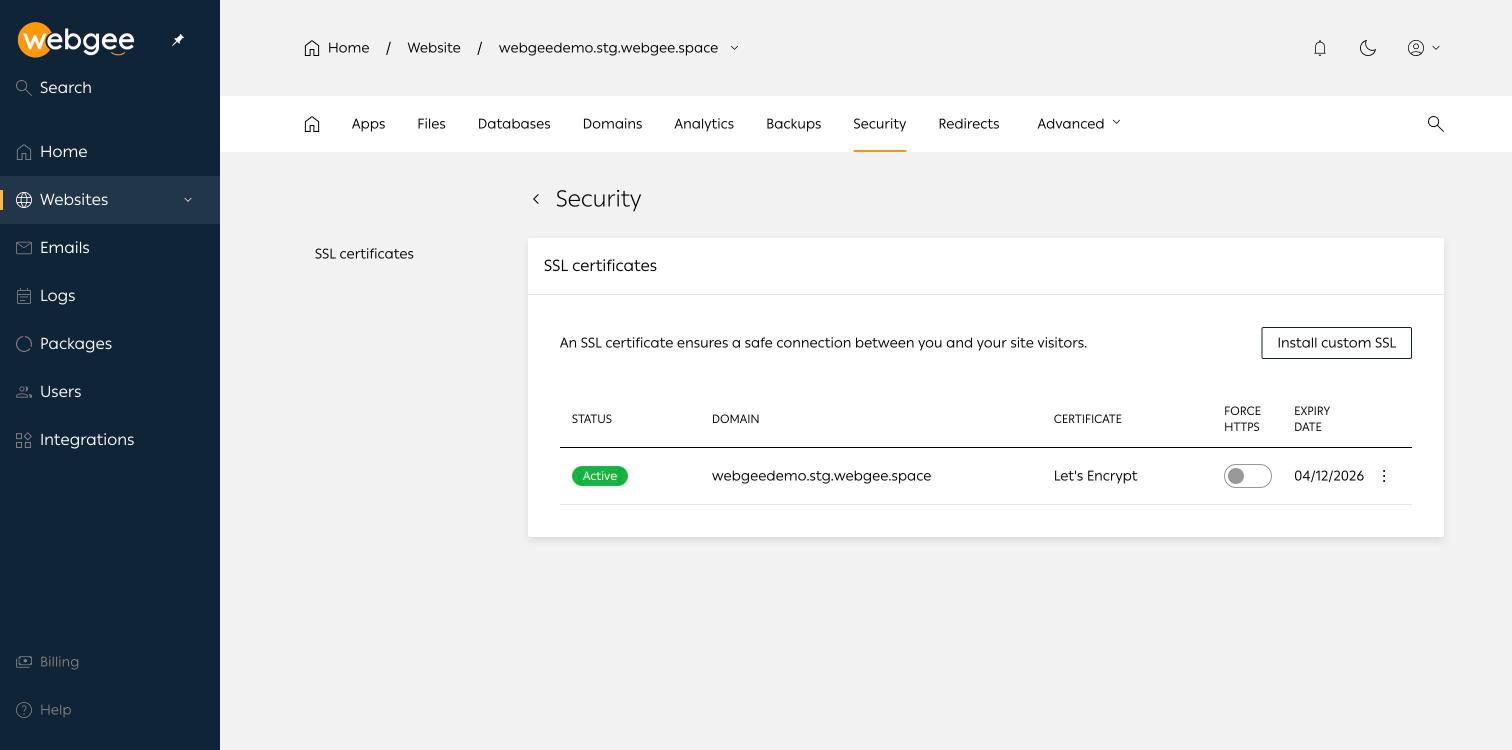
Each row shows the certificate's status, the domain it covers, the issuer, a Force HTTPS toggle and the expiry date.
Force HTTPS
The toggle is off by default. With it off, the site answers on both http://
and https://, which splits your traffic across two URLs and leaves visitors on
whichever they arrived at.
Turn it on so every request is redirected to https://.
After enabling Force HTTPS, check that WordPress agrees. If the Site URL
under Apps → Toolkit → General still begins http://, the server
redirect and the WordPress redirect can fight each other and produce a
redirect loop. Set both to https://.
Mixed content
A padlock only appears if every asset on the page also loads over https://. A
site migrated from http:// usually has absolute http:// image URLs in the
database.
Fix them at the source rather than with a plugin: run a search and replace
across the database from http://example.com to https://example.com.
Install a certificate you bought
Select Install custom SSL and supply the certificate, its private key and any intermediate chain.
Use this only when you need something Let's Encrypt cannot give you — an extended validation certificate, or one your organisation mandates. Custom certificates do not renew automatically; you are responsible for replacing them before the expiry date shown in the table.
Verify
- The domain loads over
https://with no browser warning. - With Force HTTPS on, entering the
http://address lands you onhttps://. - The expiry date in the table is roughly 90 days out for Let's Encrypt.