

Databases and phpMyAdmin
Add MariaDB databases and users to a WordPress Cloud website, and open phpMyAdmin for the ones that exist.
Each website gets one database when it is provisioned; you can add more. The engine is MariaDB. Applies to all WordPress Cloud packages.
Open a website and select Databases.
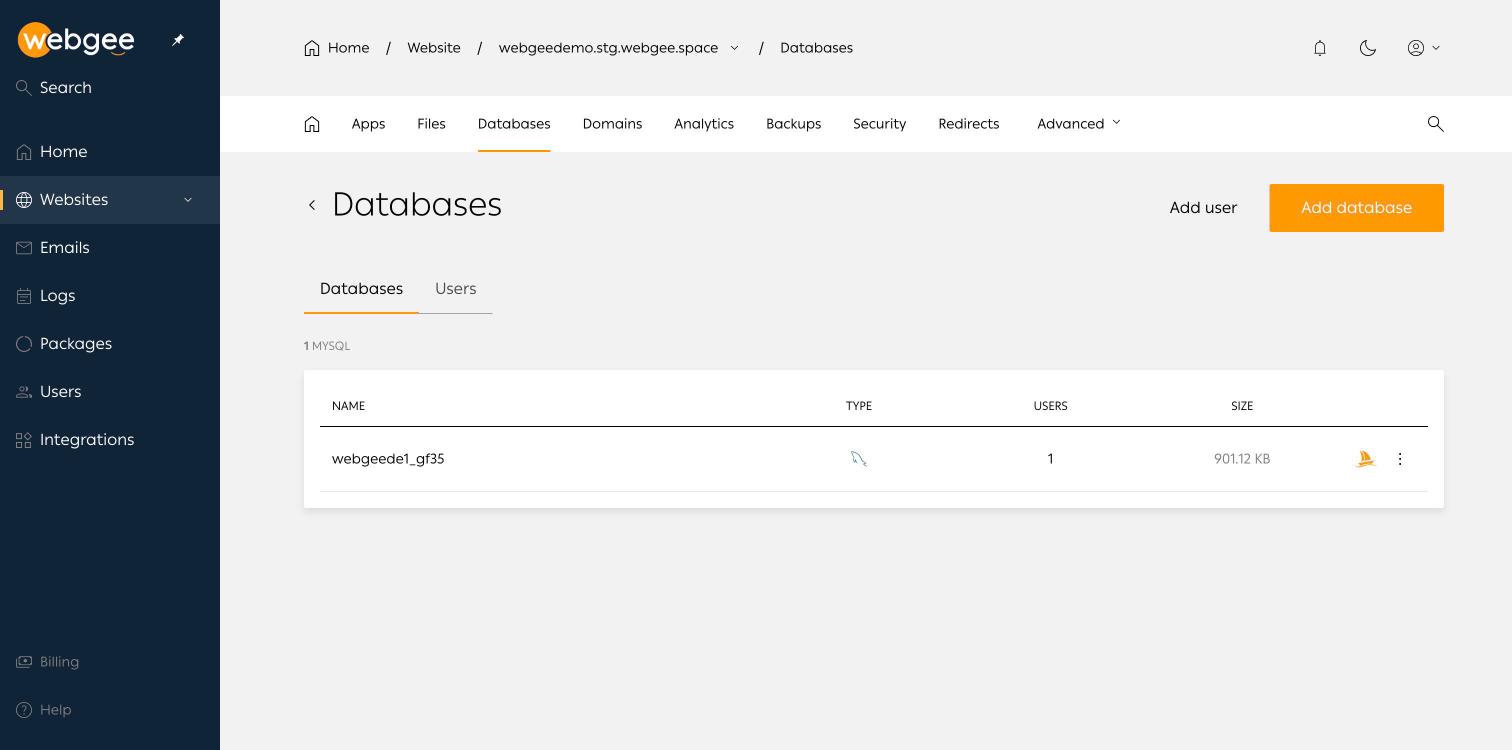
Two tabs — Databases and Users — and two buttons, Add user and Add database. Each row shows the database name, its user count and its size, with a phpMyAdmin icon that opens that database directly.
Database and user names are prefixed from the site name, so the WordPress
database for a site is something like webgeede1_gf35.
Add a database
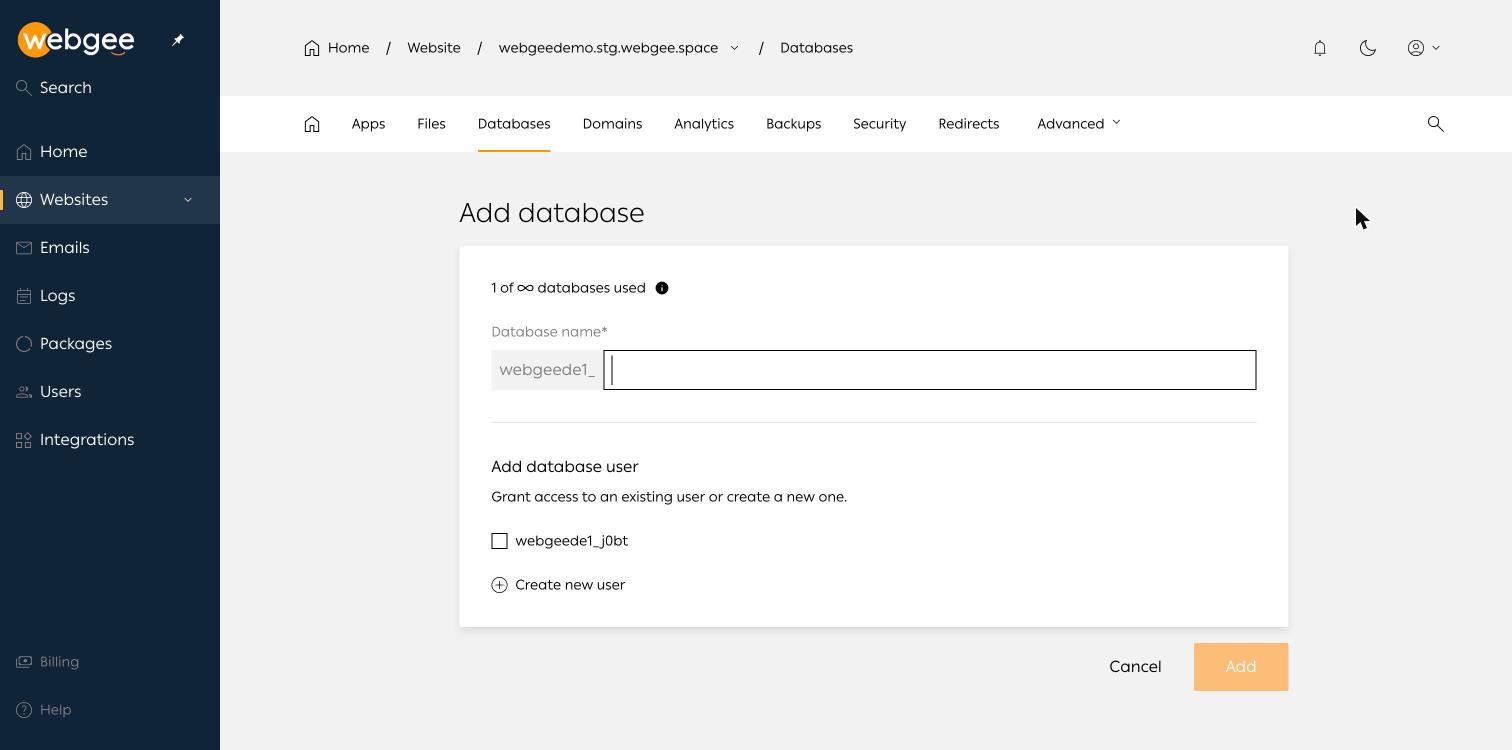
- Select Add database.
- Enter a name. The prefix is fixed and shown to the left of the field.
- Either tick an existing user to grant access, or select Create new user.
- Select Add.
The header shows your database allowance. On packages with unlimited databases it reads as a count against an infinity symbol.
Open phpMyAdmin
Either use the icon on the database row, or phpMyAdmin under Quick links on the site overview. You are signed in automatically — there is no separate phpMyAdmin password to manage.
phpMyAdmin edits the live database with no undo. Take a backup before running anything that writes, and prefer exporting a copy over editing in place.
Remote connections
The address to connect to from outside is shown on the site overview under
At a glance → Database (MySQL) IPv4 address. The site's DNS also carries
a mysql record pointing at it.
Related
Email accounts
Create mailboxes and forwarders on a WordPress Cloud domain, set spam thresholds and out-of-office replies, and find the IMAP, POP and SMTP settings.
Manage files and FTP accounts
Use the browser file manager, understand the container layout, and create FTP accounts for FileZilla and similar clients.