

Map your hosting as a network drive with Web Disk
Use Web Disk to mount your hosting account as a folder on Windows, macOS or Linux, and when SFTP is the better choice.
Web Disk exposes your account over WebDAV, so it appears as a network drive on your computer and you edit files as if they were local. Applies to shared, reseller and Premium hosting on cPanel.
Open Web Disk in cPanel under Files.
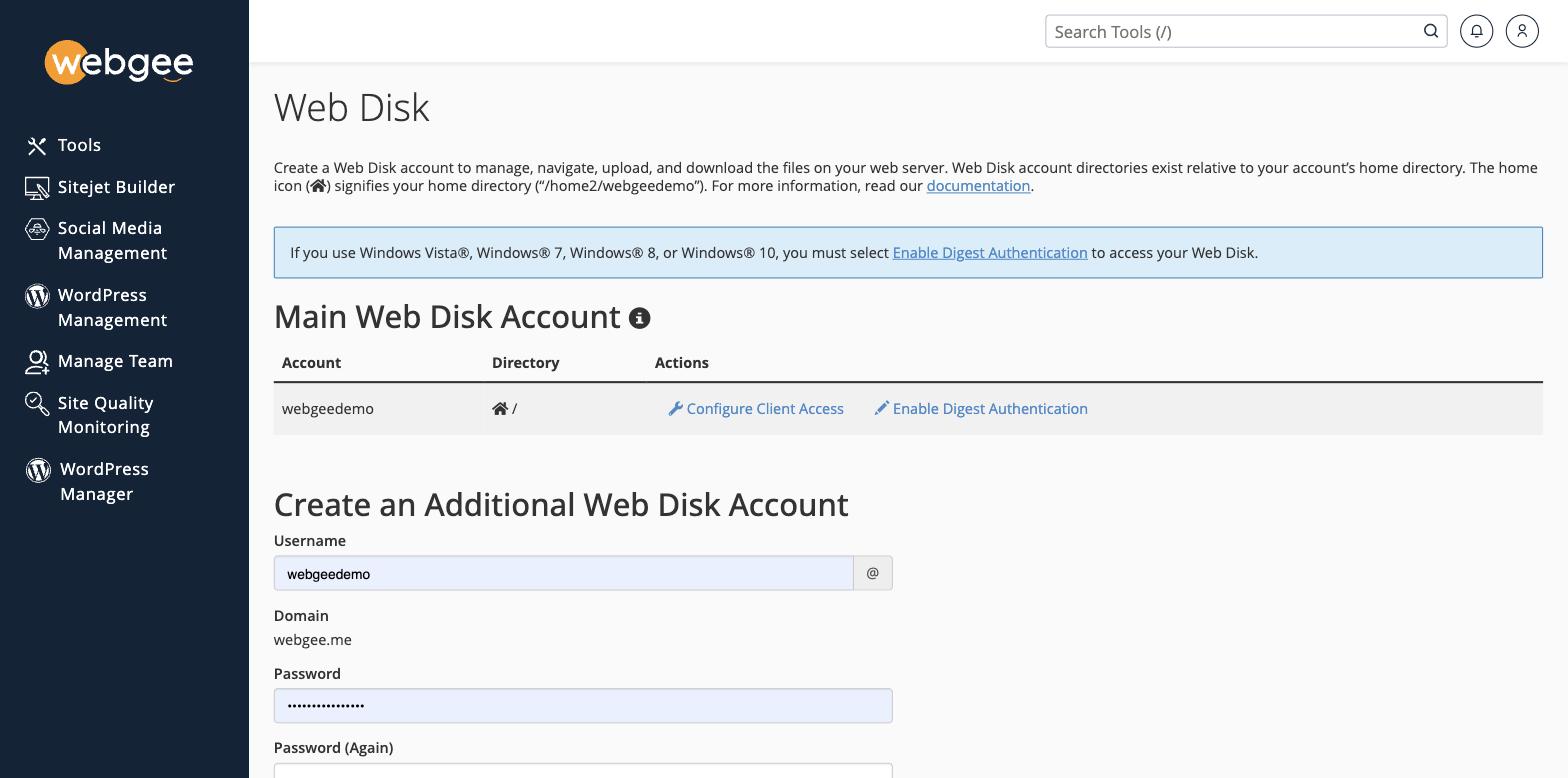
Use the main account
Your cPanel account already has a Web Disk account covering the whole home directory. Select Configure Client Access beside it, choose your operating system, and follow the instructions — cPanel generates a configuration script for Windows and gives manual settings for everything else.
The main Web Disk account has access to your entire home directory, and its password is your cPanel password. Do not configure it on a shared or untrusted computer. Create a restricted account instead, as below.
Create a restricted account
Create an Additional Web Disk Account makes a login limited to one directory.
Use this for anyone who should reach only part of the account — a designer who
needs public_html/wp-content/themes and nothing else.
The username is suffixed with your domain, so alex becomes
alex@example.com, and that full address is the login.
Windows needs digest authentication
If you are on Windows, select Enable Digest Authentication before connecting. Windows will not authenticate to a WebDAV share without it, and the failure looks like a wrong password rather than a missing setting.
SFTP is usually better
Web Disk is convenient for occasional edits, but WebDAV is slow with many small files and drops connections on unstable networks — which corrupts a save part-way through.
For anything substantial use SFTP. It is faster, more reliable, and can authenticate with a key instead of a password: