

Use File Manager
Upload, edit and organise files from cPanel without an FTP client, including the settings you need to see .htaccess and wp-config.
Manage your website's files from the browser. Applies to shared, reseller and Premium hosting.
Open File Manager in cPanel under Files. It opens in a new browser tab.
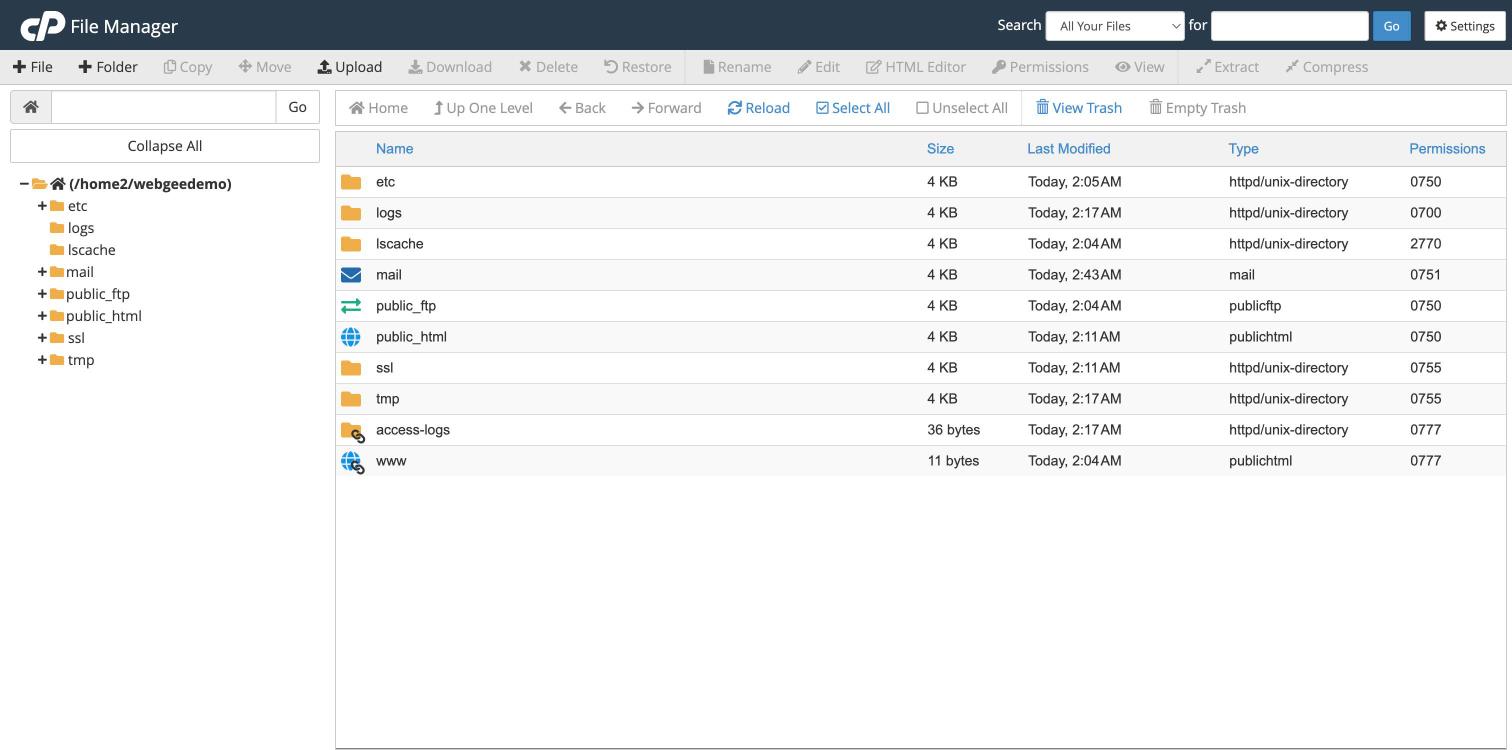
The toolbar across the top holds the actions; the left pane is a folder tree; the Permissions column on the right shows each item's octal mode, which is where to look when something is not writable.
Show hidden files first
Files beginning with a dot — .htaccess most importantly — are hidden by
default, so File Manager appears not to contain them.
Select Settings, top right, and tick Show Hidden Files (dotfiles).
Do this before anything else. Most "the file isn't there" problems are this setting.
Finding your way around
The left panel is a directory tree; the right shows the contents of whatever you
select. Your website lives in public_html — see
Where to upload your website files.
Uploading
Select → Upload and choose your files.
For anything more than a handful of files, upload a zip and extract it here. Transferring thousands of small files individually — over FTP or through the browser — is dramatically slower. A WordPress install is around 2,000 files.
Upload the archive, right-click it, and choose Extract.
Editing
Right-click a file and choose Edit for plain editing, or Code Edit for syntax highlighting.
Take a copy before editing anything that can break the site — .htaccess,
wp-config.php, a theme's functions.php. Right-click, Copy, and name it
.htaccess.bak. There is no undo, and a mistake in .htaccess produces a 500
error across the whole site.
Long editing sessions can also be interrupted if your IP changes — see Your IP address has changed. Use SFTP for substantial work.
Permissions
Right-click a file and choose Change Permissions. Directories should be
755, files 644 — see
File and directory permissions.
For a whole tree, select the folder and tick Recurse into subdirectories, applying to files and directories separately — they need different values.
Other useful actions
- Compress a folder before downloading it, or before making risky changes.
- Search the current directory and below, useful for locating a file across a large site.
- Disk Usage, from the same menu, shows what is consuming space — see Check your disk usage.
When to use FTP instead
File Manager is fine for quick work. Use SFTP for large uploads, bulk edits, or anything where losing a session would cost you — see Upload files with FileZilla.
Related
Check your disk usage
Find what is consuming your disk space in cPanel, and the four things that account for nearly every unexplained figure.
Map your hosting as a network drive with Web Disk
Use Web Disk to mount your hosting account as a folder on Windows, macOS or Linux, and when SFTP is the better choice.