

Give team members their own cPanel access
Create up to seven team users with their own logins and scoped permissions, instead of sharing one cPanel password.
Give colleagues or contractors their own cPanel login with only the access they need. Applies to shared, reseller and Premium hosting where Manage Team is enabled.
If Manage Team is not in your cPanel, open a ticket and ask for it.
Why bother
Sharing the main cPanel password means everyone has full control, nothing is attributable, and removing one person means changing the password for everyone.
Team users solve all three: separate credentials, scoped permissions, and removing someone affects only them.
Create one
-
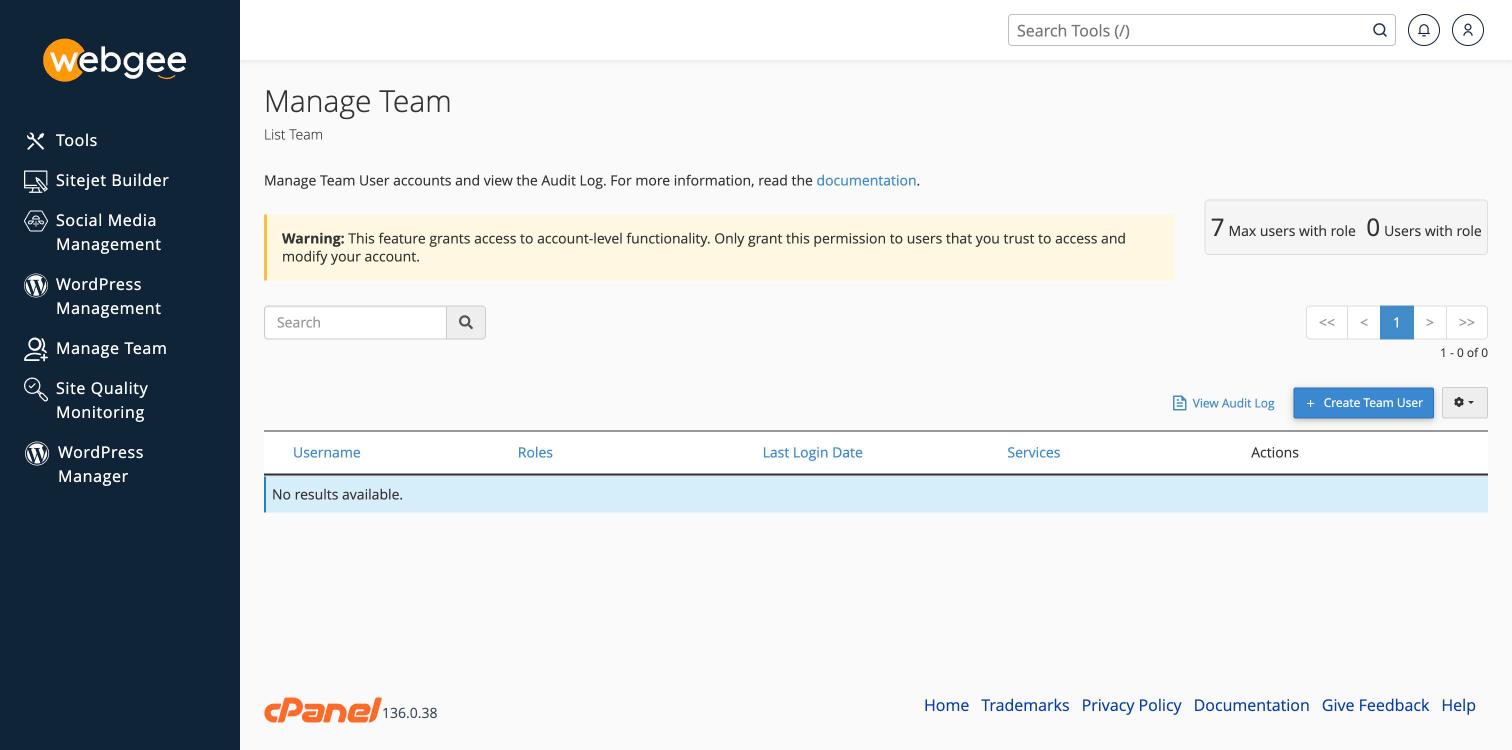
In cPanel, open Manage Team.
-
Select Create Team User.
-
Enter a username. It is automatically suffixed with your primary domain, so a username of
alexbecomesalex@example.com— and that full address is what they sign in with. -
Choose how the password is set:
- The user will set the account password — the default. They receive an invitation and choose their own, so you never handle their password.
- Set the user's password — you choose it and pass it on yourself.
-
Enter a contact email.
-
Choose the roles — see below.
-
Optionally set an expiry date.
-
Create.
Prefer letting the user set their own password. It means there is no password for you to transmit, and none for you to know.
They sign in at the same cPanel URL with their own username.
Roles
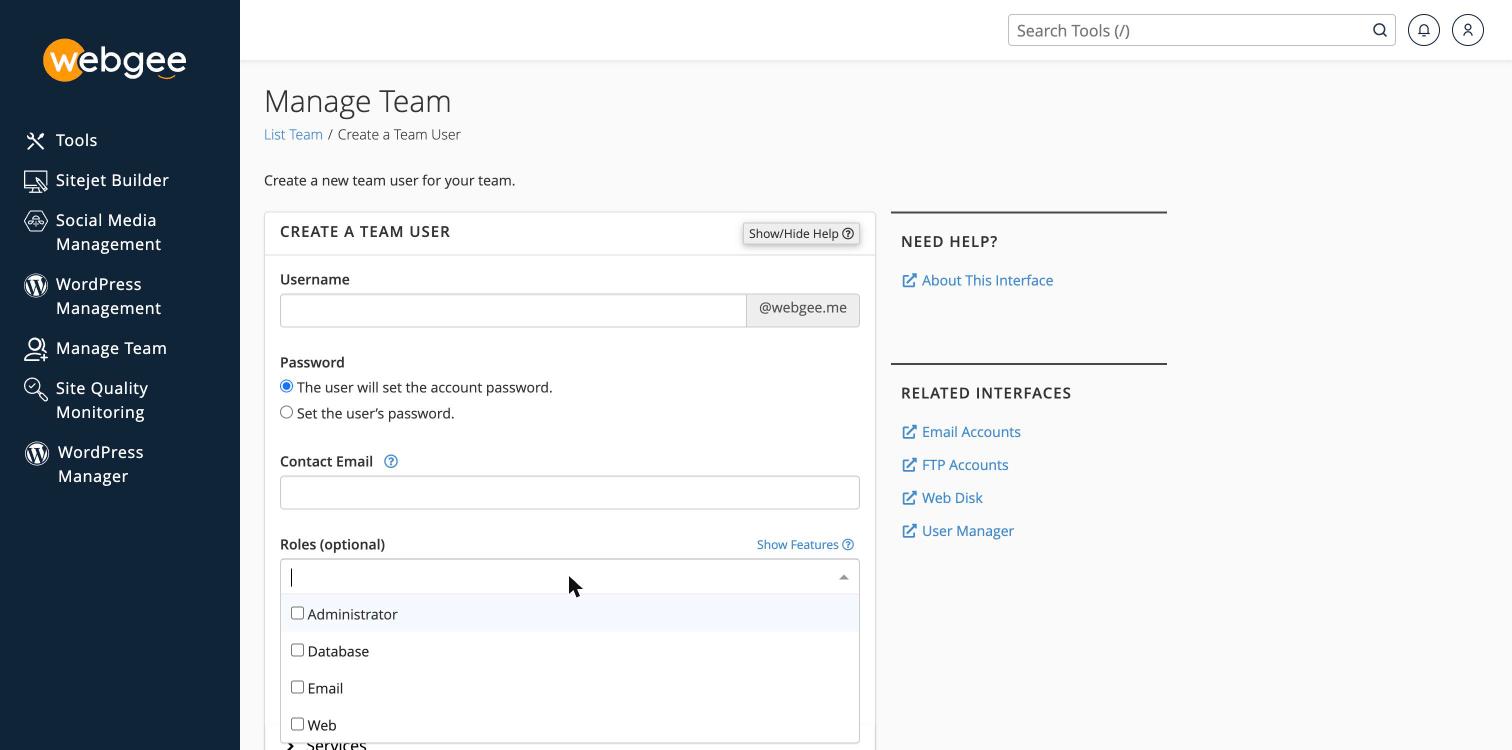
Roles determine what each user can reach:
| Role | Grants |
|---|---|
| Administrator | Account-level functionality, close to the owner's own access |
| Database | phpMyAdmin, MySQL databases and users |
| Mailboxes, forwarders, autoresponders | |
| Web | Files, domains, subdomains, SSL |
Roles are checkboxes, so a user can hold several.
Assign only what the person needs. A developer usually wants Database and Web; someone handling mailboxes wants Email alone.
Administrator grants account-level access — cPanel warns about it on the Manage Team page for that reason. It defeats most of the point of team users, which is to hand out less than full control. Grant the specific roles instead unless the person genuinely needs to administer the account.
Leaving roles empty is allowed. The user can sign in but reaches almost nothing, which is occasionally what you want while preparing an account.
Set an expiry for contractors
The expiry date is the most useful feature here and the easiest to overlook. Set one when creating access for a contractor or a fixed piece of work, and the account disables itself. Access that ends automatically is access nobody has to remember to revoke.
Limits
A team has up to seven team users plus the owner. Team users cannot create further team users, change the account's own password, or reach billing.
Removing someone
Manage Team → suspend or delete the user. Immediate, and nothing else is affected.
Suspending is worth preferring where the person may return — it keeps the configuration without the access.
Removing a team user does not undo what they set up. Check for SSH keys, FTP accounts, API tokens or cron jobs they added, and remove those separately.
Related
Moving between WebGee servers
WebGee uses cPanel Live Transfer to move accounts between its own servers with no downtime. Request it through support — do not use the Migration Center.
Upload files with FileZilla
Connect FileZilla over SFTP or FTPS, and never over plain FTP — which sends your password in the clear.