

Manage cron jobs
Schedule recurring tasks in cPanel, choose an interval that will not exhaust your resources, and stop the emails every run generates.
Schedule a command to run automatically. Applies to shared, reseller and Premium hosting.
Add one
-
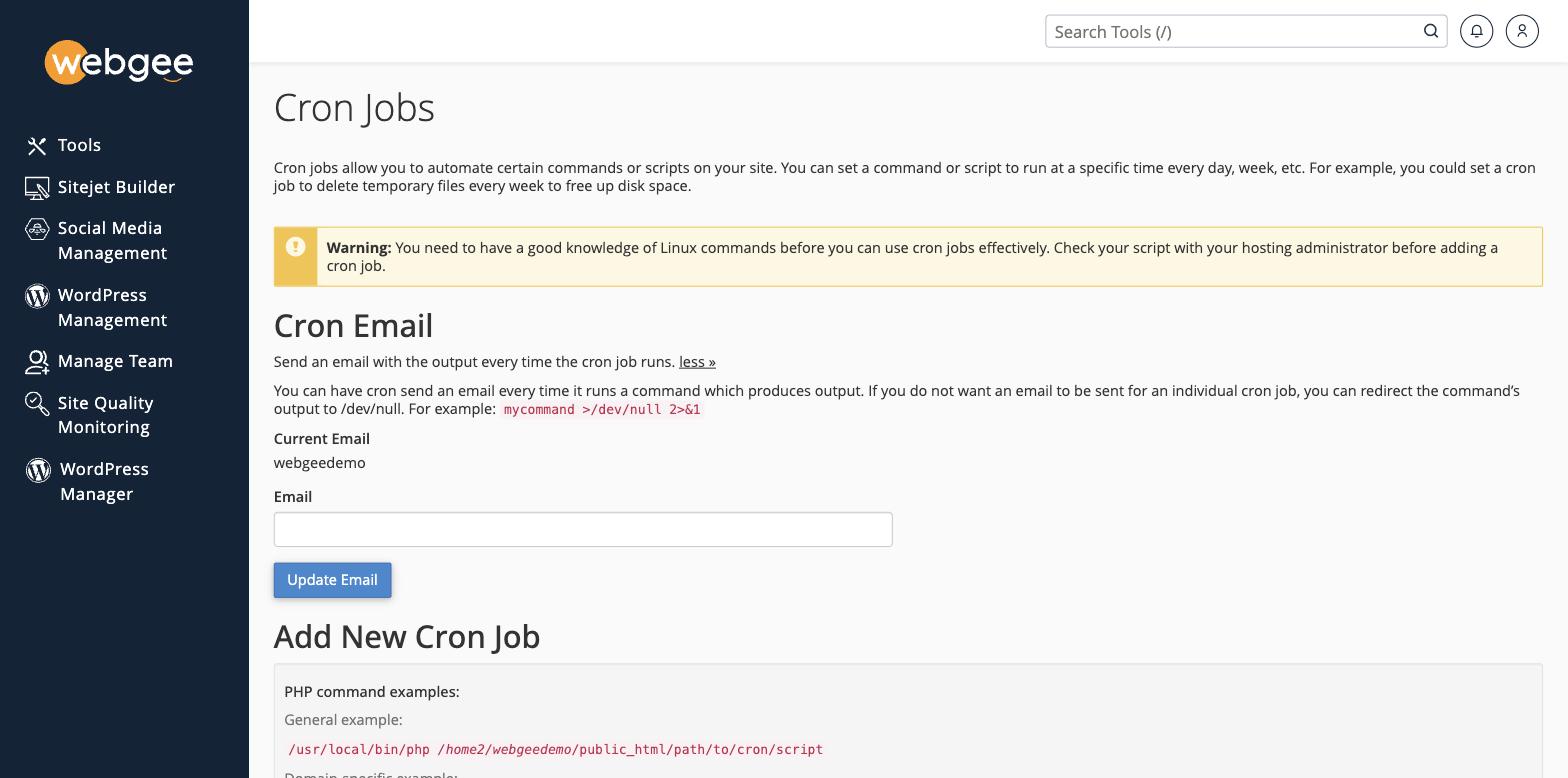
In cPanel, open Cron Jobs under Advanced.
-
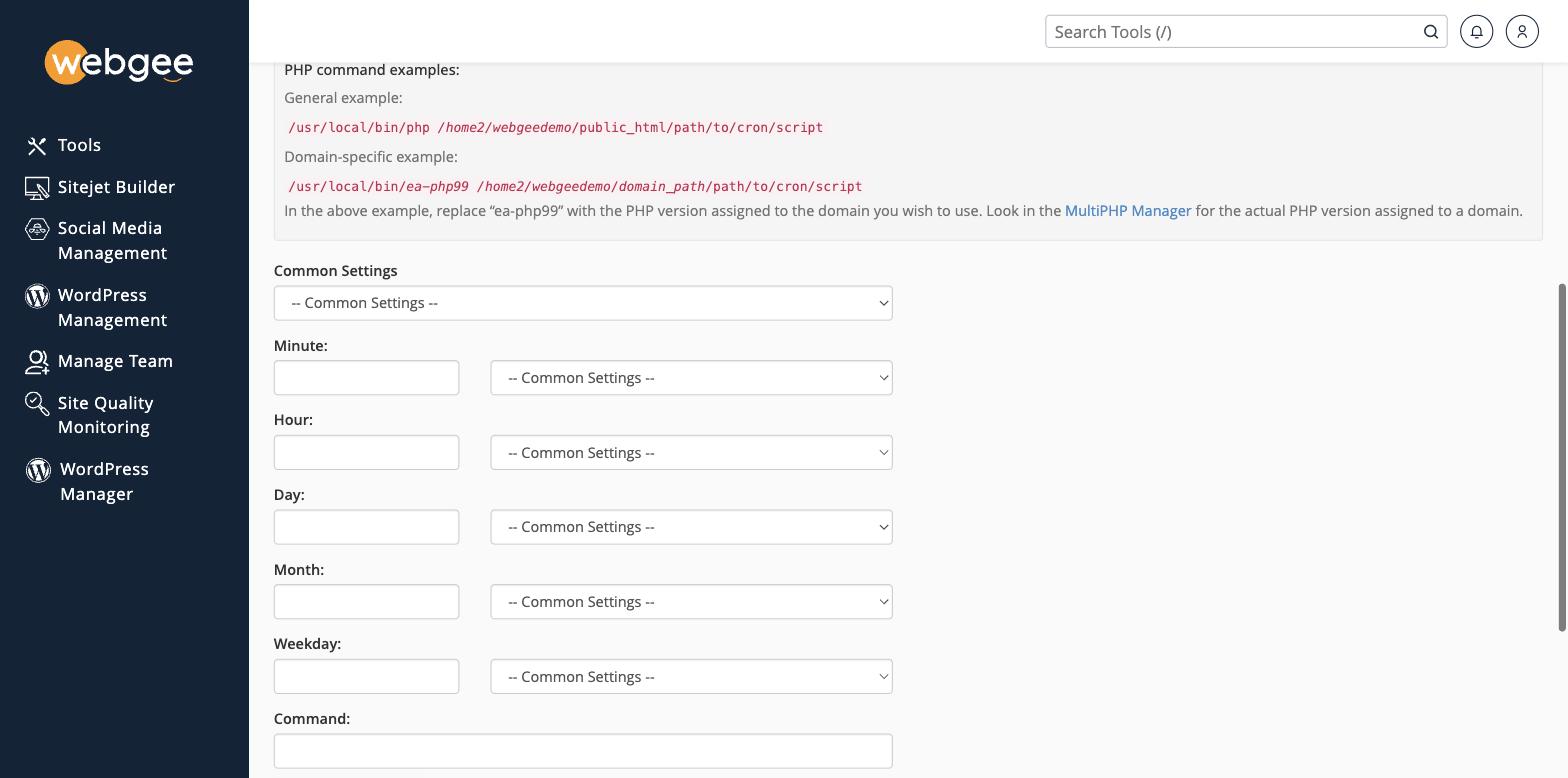
Use Common Settings to pick a preset interval, or set Minute, Hour, Day, Month and Weekday yourself.
-
Enter the command.
-
Select Add New Cron Job.
A typical command:
cd /home/cpaneluser/public_html && /usr/local/bin/php -q script.php > /dev/null 2>&1Choose the interval carefully
A heavy job on a short interval is one of the most common ways to exhaust your account's resources. Each run consumes CPU and an entry process, and if a job takes longer than its interval, runs overlap and stack up until the account hits its limits.
Sustained overuse also breaches the fair usage policy.
Rules of thumb:
- Every 5 minutes is the shortest sensible interval for most work.
- Every minute only for something that reliably finishes in seconds.
- Time the job first —
time php script.php— and keep the interval comfortably longer than the result.
Stop the emails
By default cron emails you the output of every run. A job running every five minutes produces nearly 300 emails a day.
Set the Cron Email field to an address you want them at — or better, discard the output in the command itself:
# Discard everything
command > /dev/null 2>&1

# Keep errors, discard normal output
command > /dev/null
The second is usually right: silence when it works, an email when it does not.
See Stop cron emails.
Check it worked
Set the job to run a minute or two ahead and watch for the result — the email if you kept it, or the effect of the job itself.
To confirm the command works at all, run it over SSH first exactly as written. Most failed cron jobs are wrong paths, and cron gives you no clue: it simply produces nothing.
Common problems
- Wrong path. cPanel does not validate the command. Use absolute paths —
/usr/local/bin/php, notphp. - Different environment. Cron runs with a minimal
PATHand none of your shell configuration. A command that works interactively may not. - Overlapping runs. If a job can take longer than its interval, guard it with a lock file.
WordPress
Do not schedule wp-cron.php every minute. Five minutes is right, and WP-Cron
must be disabled in wp-config.php first or both will run — see
Replace WP-Cron with a real cron job.