

Password-protect a directory
Put an HTTP password in front of a folder with Directory Privacy, and understand what that protection does and does not cover.
Directory Privacy puts a username and password in front of a folder. Visitors are prompted by the browser before they see anything inside. Applies to shared, reseller and Premium hosting on cPanel.
Useful for a staging area, a client preview, or an admin folder that should not be public.
Protect a folder
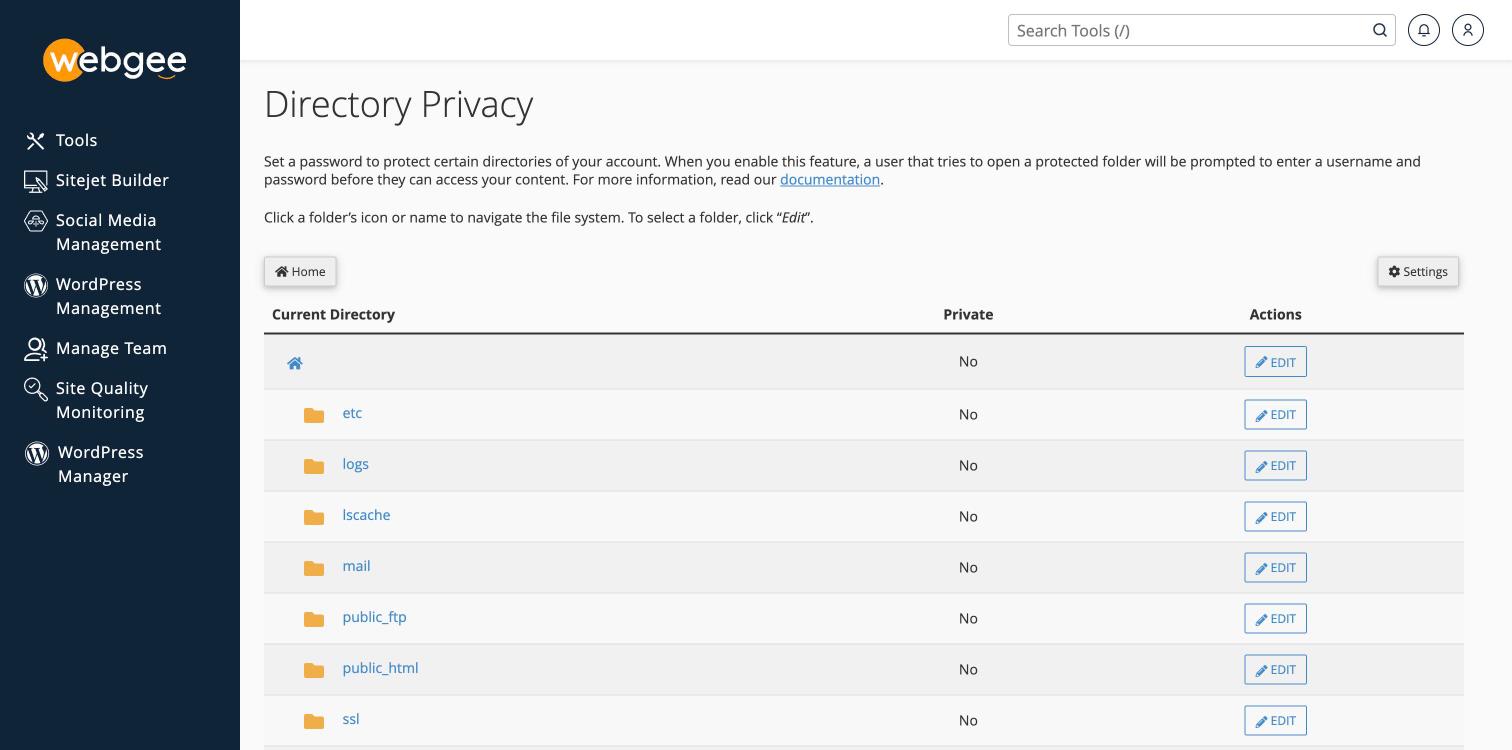
- In cPanel, open Directory Privacy in the Files section.
- Navigate to the folder. Select a folder's name to move into it; select Edit to choose it.
- Tick Password protect this directory and give it a name.
- Save.
- Create a user: enter a username and password under Create User, then Add/modify authorized user.
The protected folder shows Yes in the Private column.
Setting a directory to private without creating a user locks out everyone, including you. The two steps are separate and it is easy to do the first and forget the second.
What it does not protect
This is HTTP authentication. It controls web access to that folder only.
- It does not protect the files themselves. FTP, SFTP and File Manager reach them normally.
- It does not secure a WordPress site. Protecting
wp-adminbreaksadmin-ajax.php, which the front end uses — the usual symptom is features silently failing for logged-out visitors. - It is not encryption. Credentials are sent with each request; they are only protected because the connection is HTTPS. Make sure HTTPS is enforced.
Removing it
Return to the folder, untick Password protect this directory, and save. Delete the users too — they persist otherwise and reappear if you protect the folder again later.