

Force HTTPS on your site
Redirect all HTTP traffic to HTTPS using the cPanel toggle, a WordPress plugin, or an .htaccess rule, and fix mixed content afterwards.
Send every visitor to the secure version of your site, so nobody reaches it over plain HTTP. Applies to shared and reseller hosting.
Before you begin
You need a working SSL certificate on the domain first. Forcing HTTPS without one gives every visitor a browser security warning instead of your site. See Install a free SSL certificate.
Confirm the certificate works by visiting https://example.com directly. If it
loads without a warning, continue.
The simplest method: the cPanel toggle
This is the right choice for almost every site. It applies at the web server level, before any application code runs.
- In cPanel, open Domains.
- Find your domain in the list.
- Turn on Force HTTPS Redirect.
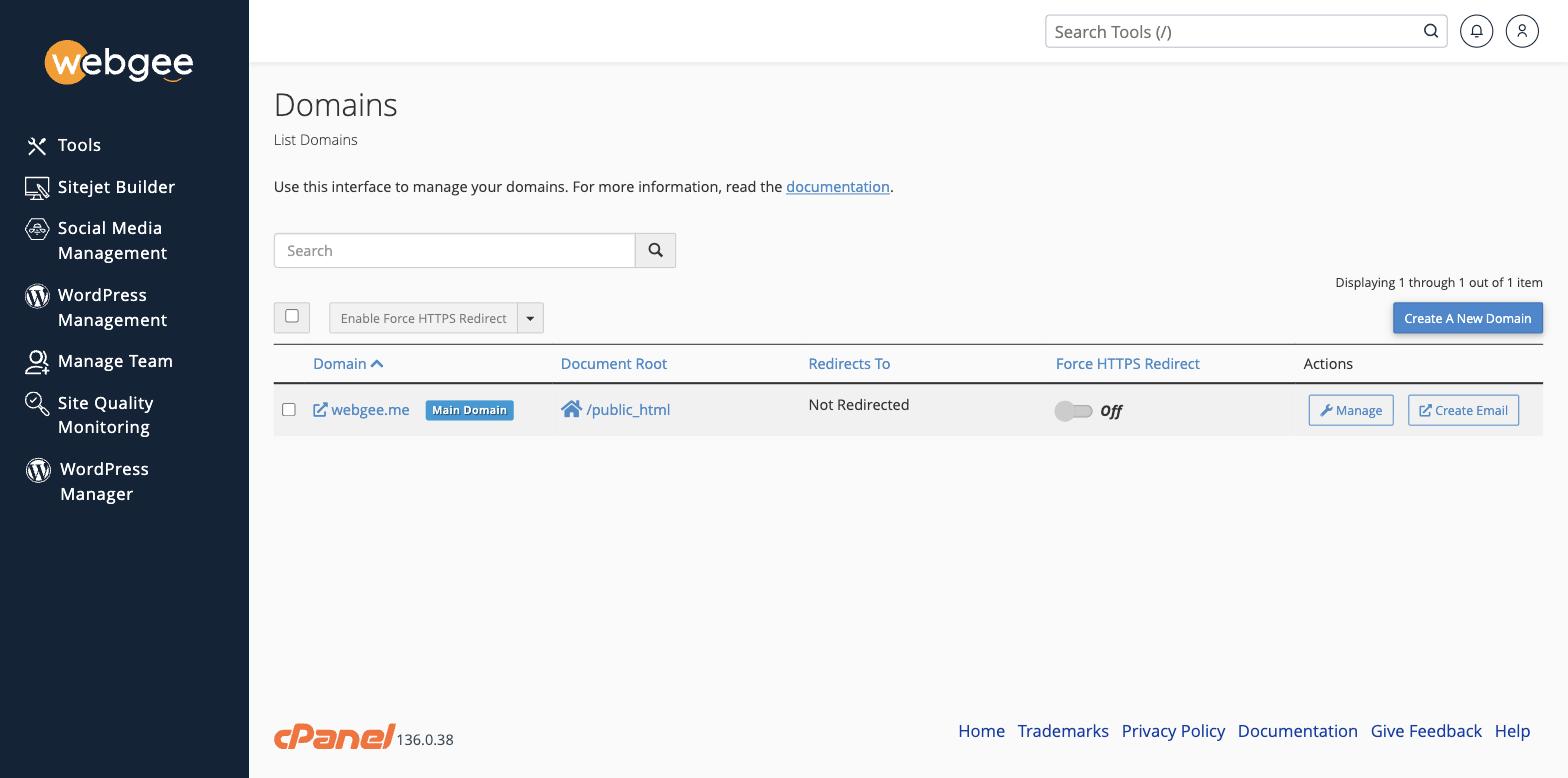
The change takes effect immediately.
To do several domains at once, tick them in the left-hand column and use Enable Force HTTPS Redirect above the table. No file editing, and nothing to undo later if you move hosts.
WordPress sites
The cPanel toggle handles the redirect, but WordPress also stores its own
address, and it must match — otherwise WordPress will keep generating http://
links and redirect visitors back and forth.
- In WordPress, go to Settings → General.
- Set both WordPress Address (URL) and Site Address (URL) to
https://example.com. - Select Save Changes.
If the site has a lot of hard-coded http:// links in its content, the
Really Simple SSL plugin
rewrites them as pages are served, which saves editing them all by hand.
Using .htaccess instead
Use this only if you need conditional behaviour the cPanel toggle cannot express — for example, forcing HTTPS on one subdirectory but not another.
Add this at the top of the .htaccess file in your document root, above any
existing rewrite rules:
RewriteEngine On
RewriteCond %{HTTPS} !=on
RewriteRule ^(.*)$ https://%{HTTP_HOST}/$1 [R=301,L]
Each directive must be on its own line. An older version of this article ran them together on a single line, which Apache rejects — if you copied that version and your site returned a 500 error, this is why.
Two details matter here:
R=301, notR. BareRissues a temporary redirect, so search engines keep treating the HTTP URL as canonical and the change never consolidates your ranking.301is permanent.%{HTTP_HOST}, not a hard-coded domain. The rule then keeps working for every domain and subdomain on the account, including after a domain change.
Check it worked
curl -sI http://example.com | head -n 3You want HTTP/1.1 301 Moved Permanently and a Location: header pointing at
the https:// address. A 302 means the redirect is temporary — check you used
R=301.
If the browser still shows "not secure"
The redirect is working but the page is loading images, scripts or stylesheets over HTTP. That is mixed content, and the fix is separate — see Mixed content errors.
If you get a redirect loop
Almost always caused by forcing HTTPS in two places at once — commonly the
cPanel toggle plus an .htaccess rule plus a plugin. Pick one and remove the
others.
Sites behind Cloudflare hit this too when Cloudflare's SSL mode is set to Flexible: Cloudflare requests your origin over HTTP, your server redirects to HTTPS, and round it goes. Set Cloudflare's SSL mode to Full (strict).