

Share server access
Give a developer or colleague access to a single server in the Cloud Console without sharing your account credentials.
Let someone else manage one of your servers without giving them your account. Applies to all VPS and dedicated servers.
Sharing is per-server. Someone granted access to one server sees only that server, and nothing about your billing or your other services.
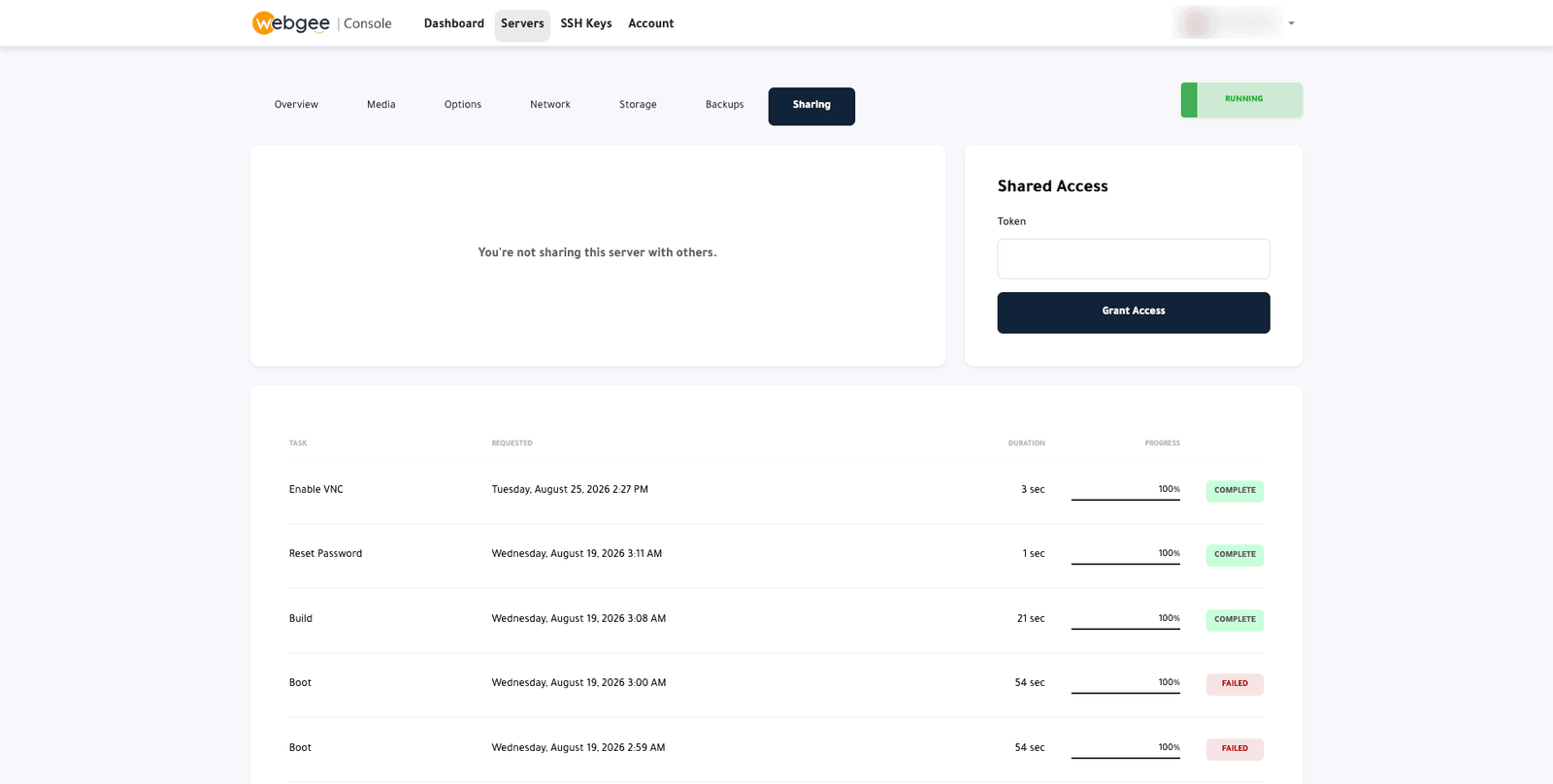
Grant access
- Ask the other person for their Cloud Console sharing token. They will find it in their own account settings.
- Open the Sharing tab on your server.
- Paste the token into Token.
- Select Grant Access.
They appear in the list on the left, and the server appears in their console.
Shared access includes the destructive controls — power off, rebuild, restore. Share only with people you would trust to rebuild the server, because they can.
Revoke access
Remove the person from the list on the Sharing tab. It takes effect immediately.
Revoke access when a piece of work finishes rather than leaving it in place. Also worth remembering: revoking console access does not remove any SSH key they added or password they set on the server itself. Rotate those too.
Sharing a key rather than a server
The SSH Keys page has its own share control, which shares a stored public key rather than access to a server. That is for teams building servers with a common key — see Add an SSH key.