

Add an SSH key
Add an existing public key to the Cloud Console, or generate a key pair, so servers you build accept key authentication instead of a password.
Store SSH public keys in the Cloud Console so they can be installed on servers when you build or rebuild them. Applies to all VPS and dedicated servers.
Key authentication is both more convenient and far more secure than a password — there is nothing to guess, and the private key never leaves your machine.
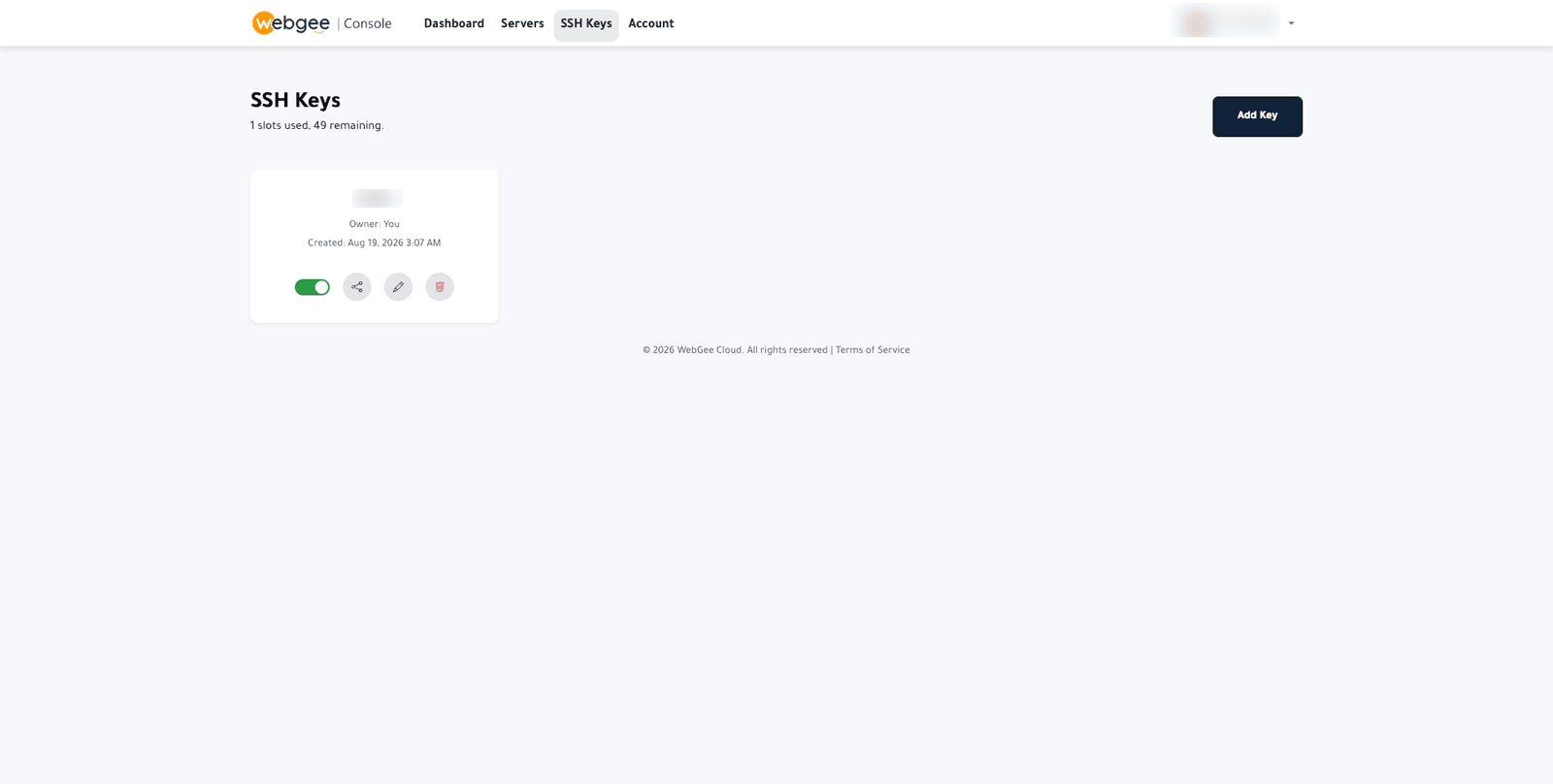
Keys are listed with their owner and creation date. Each has controls to enable or disable it, share it, rename it, or delete it. A disabled key stays stored but is not offered when building a server.
Add a key you already have
The better option: the private key is generated on your own machine and never transmitted.
If you do not have one yet, create it locally first:
ssh-keygen -t ed25519 -C "you@example.com"Then:
- Select Add Key.
- Enter a Name you will recognise — which machine it belongs to, not which server it is for.
- Paste the public key. On your machine:
cat ~/.ssh/id_ed25519.pub - Select Save.
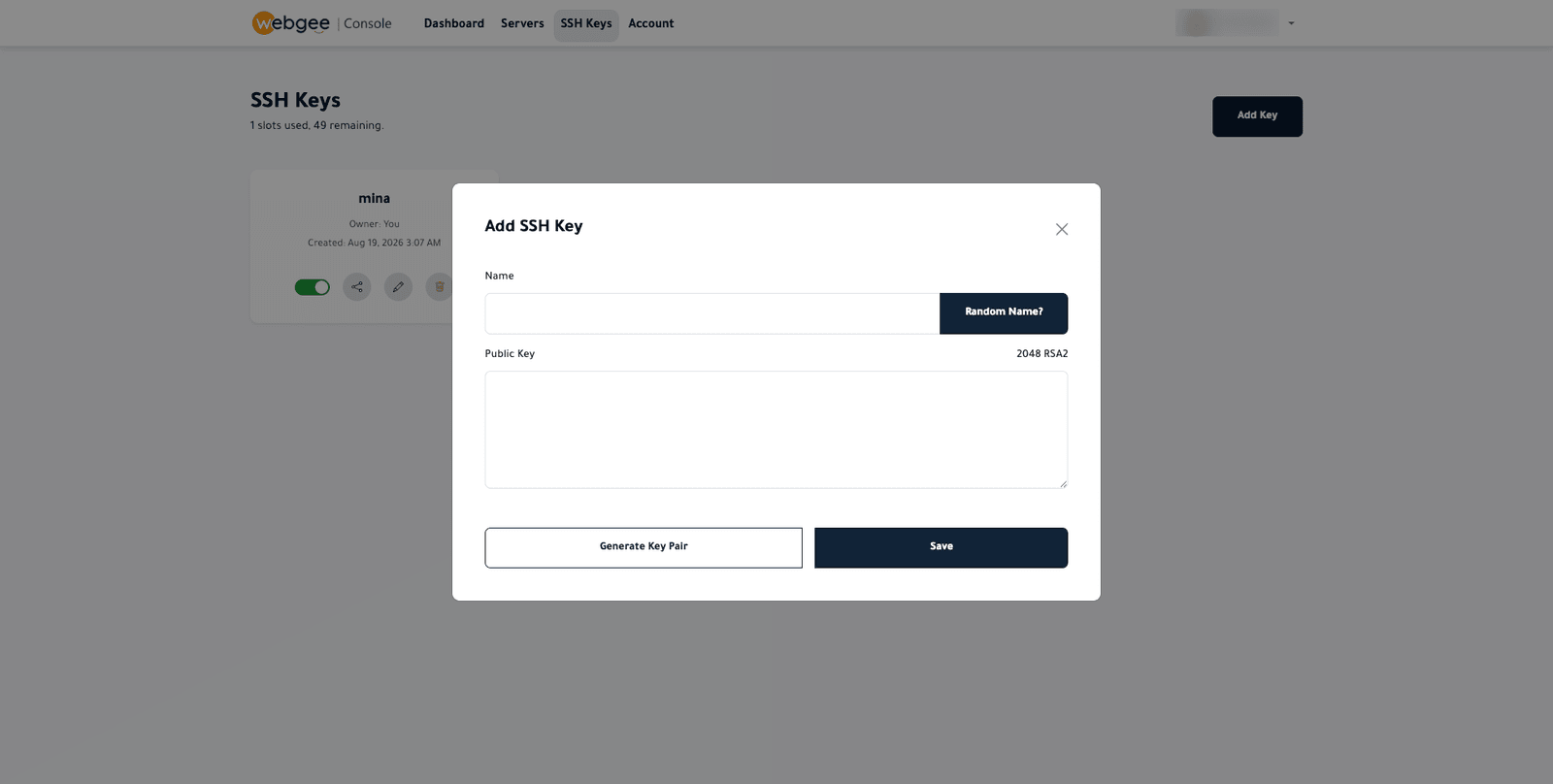
Paste the public key — the .pub file, one line starting ssh-ed25519 or
ssh-rsa. Never paste a private key. Anything beginning
-----BEGIN OPENSSH PRIVATE KEY----- is the private half and must stay on your
own machine.
Or generate a pair here
Use this if you cannot generate a key locally. It is slightly weaker, because the private key is created on the server side and has to travel to you.
-
Select Add Key, then Generate Key Pair.
-
Choose the options:
Setting Recommended Key Type ED25519 — modern, short, strong. Use RSA2 only if a tool you use cannot handle ed25519 Key Size For RSA2, 4096 bit. Not applicable to ed25519 Private Key Format OpenSSH for macOS, Linux and modern Windows. PuTTY only for PuTTY -
Select Generate.
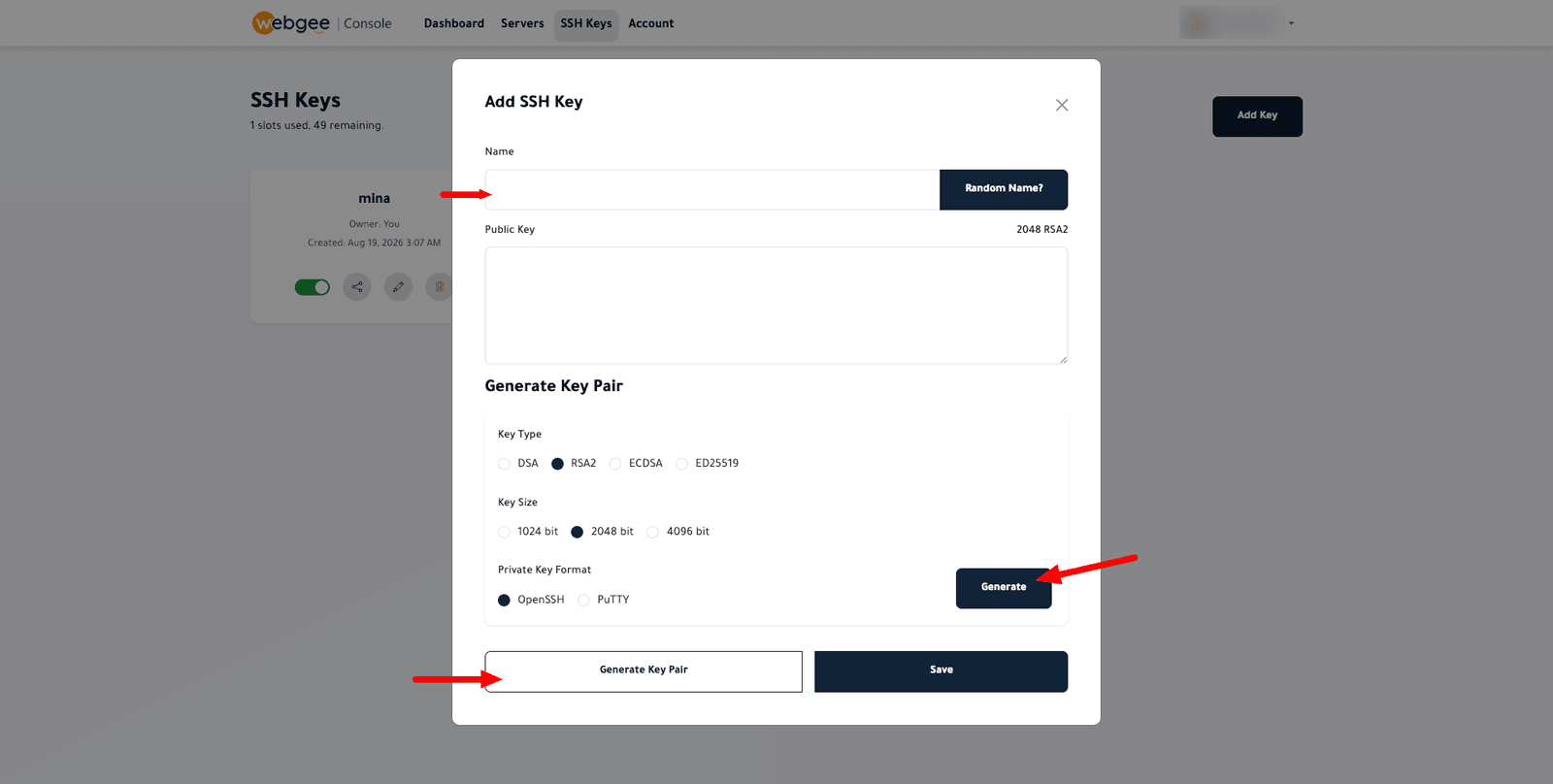
The private key is displayed once and is never stored. Copy it to a safe
place — ~/.ssh/ on your machine — before closing the dialog. If you lose it,
the key pair is useless and you must generate another.
On macOS or Linux, save it and restrict its permissions, or SSH will refuse to use it:
chmod 600 ~/.ssh/your-key- Select Save to store the public half.
Using a key
Attach the key when you rebuild a server. It is
installed for root during the build, and no password is emailed.
To add a key to a server that is already running, append the public key to
~/.ssh/authorized_keys on the server itself — see
Connect over SSH.