

Rebuild your server
Reinstall the operating system on a cloud server from the Cloud Console. This erases everything on the primary disk.
Install a fresh operating system on your cloud server. Applies to all VPS and dedicated servers.
A rebuild erases the primary disk. Every file, database and configuration on it is destroyed and cannot be recovered afterwards. Take a backup and confirm you can restore from it before you start — see Back up your server.
Start a rebuild
- In the Cloud Console, open your server.
- Select Rebuild.
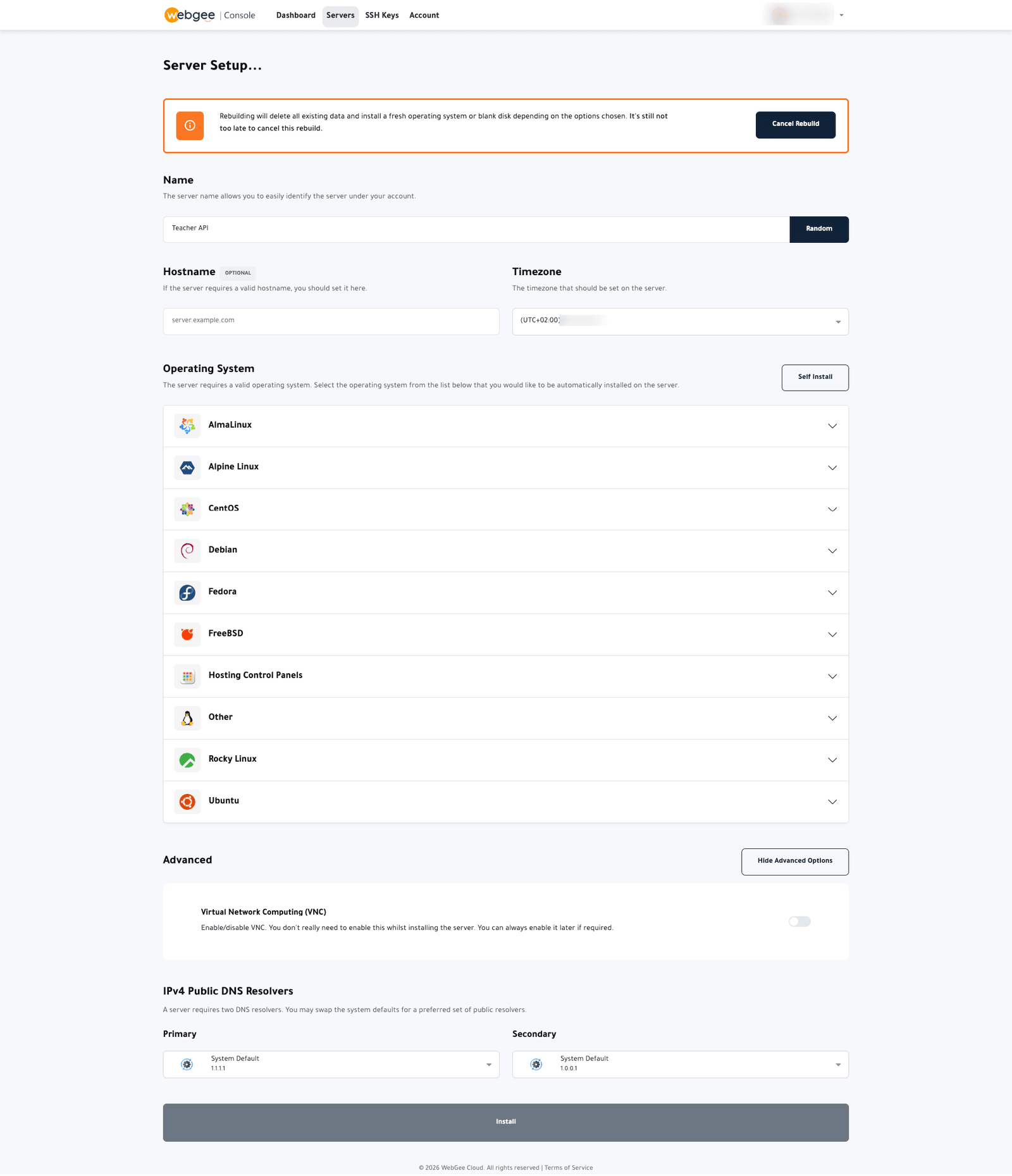
The setup page opens, with a banner confirming what is about to happen and a Cancel Rebuild button. Nothing is destroyed until you select Install.
Configure it
Name and hostname
Name identifies the server in your account — it has no effect on the server itself.
Hostname is set on the server. Use a fully qualified name such as
server1.example.com. Mail software in particular behaves badly with a bare
hostname, and changing it later means reissuing certificates.
Timezone
Sets the server clock's timezone. Log timestamps and scheduled jobs follow it.
Operating system
Choose from the available families:
- AlmaLinux, Rocky Linux, CentOS — RHEL-compatible
- Debian, Ubuntu — Debian-based
- Fedora, Alpine Linux, FreeBSD
- Hosting Control Panels — images with a panel preinstalled
- Other
Expand a family to pick a version. Prefer an LTS release unless you have a specific reason not to; they receive security updates for far longer.
Self Install leaves the disk blank so you can install from your own media instead. You will need VNC and boot media to complete it — the server has no OS to connect to over SSH.
Advanced options
- VNC — leave off. You do not need it during installation and can enable it later if something goes wrong.
- IPv4 Public DNS Resolvers — the system defaults are Cloudflare's
1.1.1.1and1.0.0.1. Change them only if you have a reason to.
Install
Select Install. The rebuild takes a few minutes; progress appears in the task list.
After the rebuild
Your root password is reset and any SSH keys attached to the build are installed. If you did not attach a key, the new password is emailed to you.
- Connect over SSH — see Connect over SSH.
- Change the root password if one was emailed to you.
- Update the system:
apt update && apt upgrade, ordnf upgradeon RHEL-family systems. - Reapply any firewall rules — they do not survive a rebuild.
If you cannot connect afterwards
- The installation is still running. Check the task list.
- Your SSH key was not attached. Use the password from the email, or reset the root password.
- The host key changed. Your SSH client will refuse to connect and say so.
Remove the old entry:
ssh-keygen -R your.server.ip.