

Reset the root password
Reset the root or Administrator password on a cloud server from the Cloud Console when you have lost access.
Reset your server's root password. Applies to all VPS and dedicated servers, Linux and Windows.
Reset it
-
Open the Cloud Console, either directly or via Client Area → your server → Open Cloud Console.
-
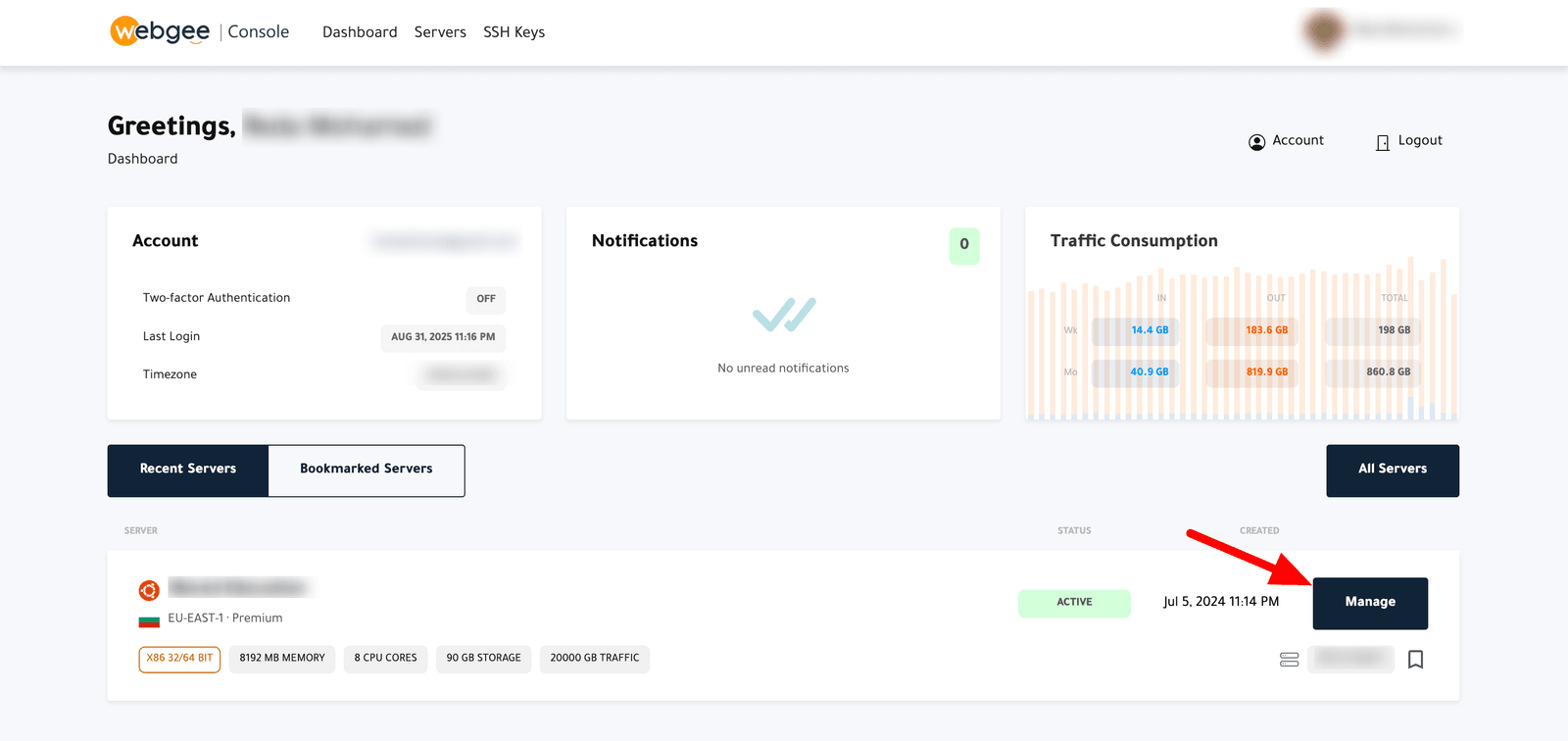
Select Manage beside the server.
-
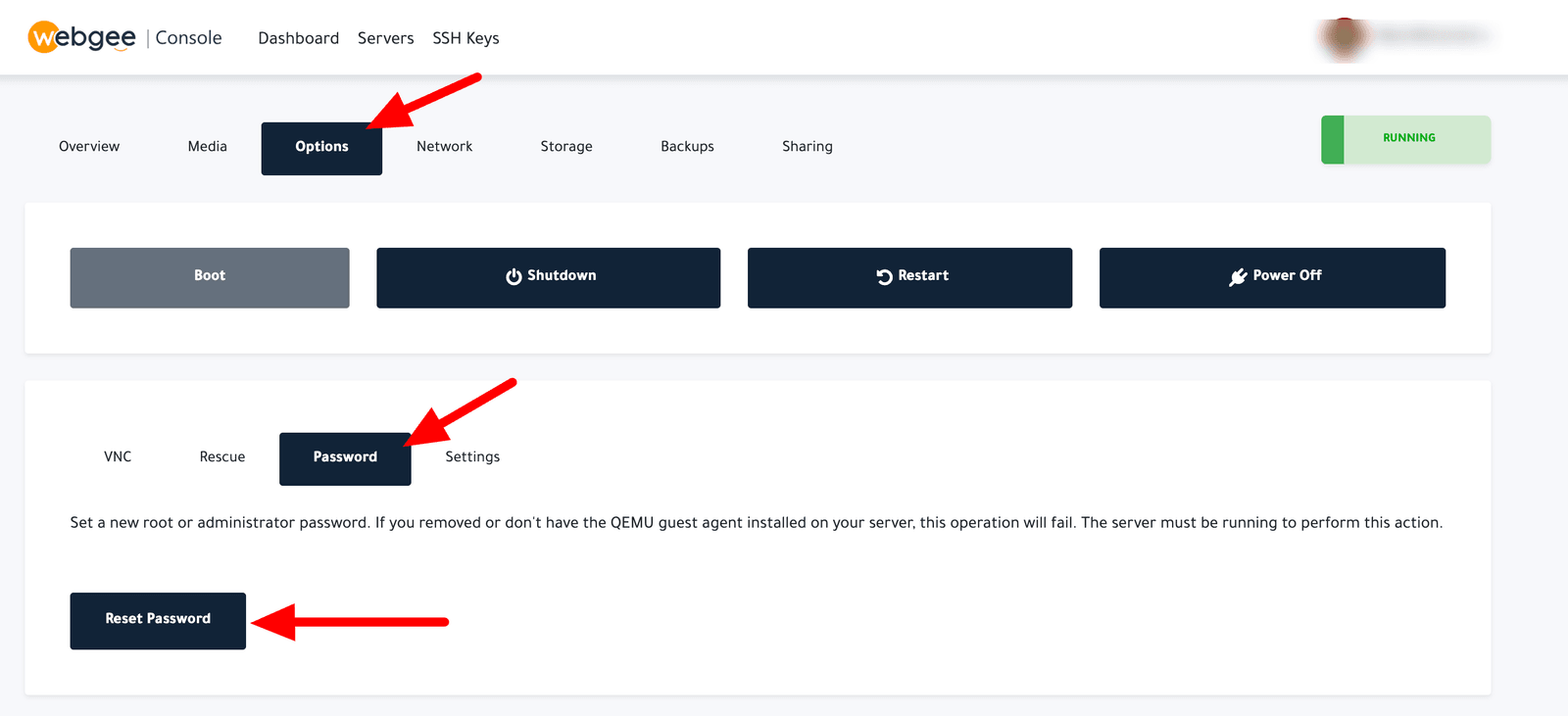
Open the Options tab, then Password.
-
Select Reset Password.
-
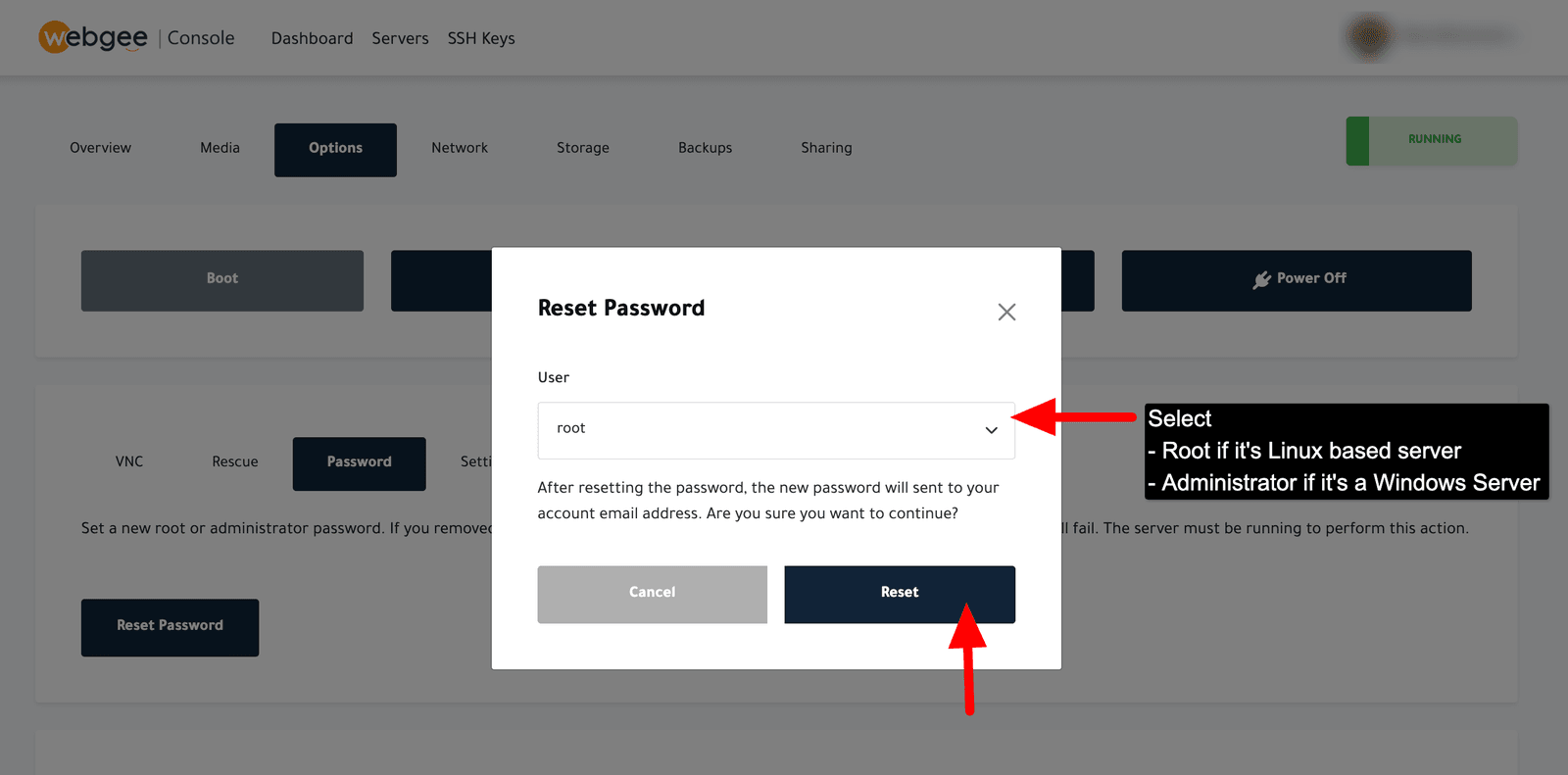
Choose the user — root on Linux, Administrator on Windows.
-
Confirm.
The server usually needs to be powered off for the reset to apply, and it is restarted as part of the process. Anything running on it stops. Do this at a time you can afford a brief outage.
The new password is shown in the console, or emailed to you.
Check it worked
ssh root@203.0.113.10Change it to something of your own on first login:
passwdBetter still, set up key authentication and stop using the password entirely — see Add an SSH key and Connect over SSH. A key cannot be guessed, and there is nothing to lose track of.
If you still cannot log in
Permission deniedimmediately — SSH may be configured to refuse root password logins (PermitRootLogin prohibit-password). Use rescue mode to edit/etc/ssh/sshd_config, or connect via VNC where SSH configuration does not apply.- The connection times out — a firewall on the server is blocking you. Rescue mode or VNC will get you in.
Host key verification failed— expected after a rebuild, not a password reset. Clear the old entry:ssh-keygen -R 203.0.113.10.