

Back up your server
Create on-demand backups of your cloud server's primary disk, set a daily or weekly schedule, and understand what is not included.
Back up your cloud server from the Cloud Console. Applies to all VPS and dedicated servers.
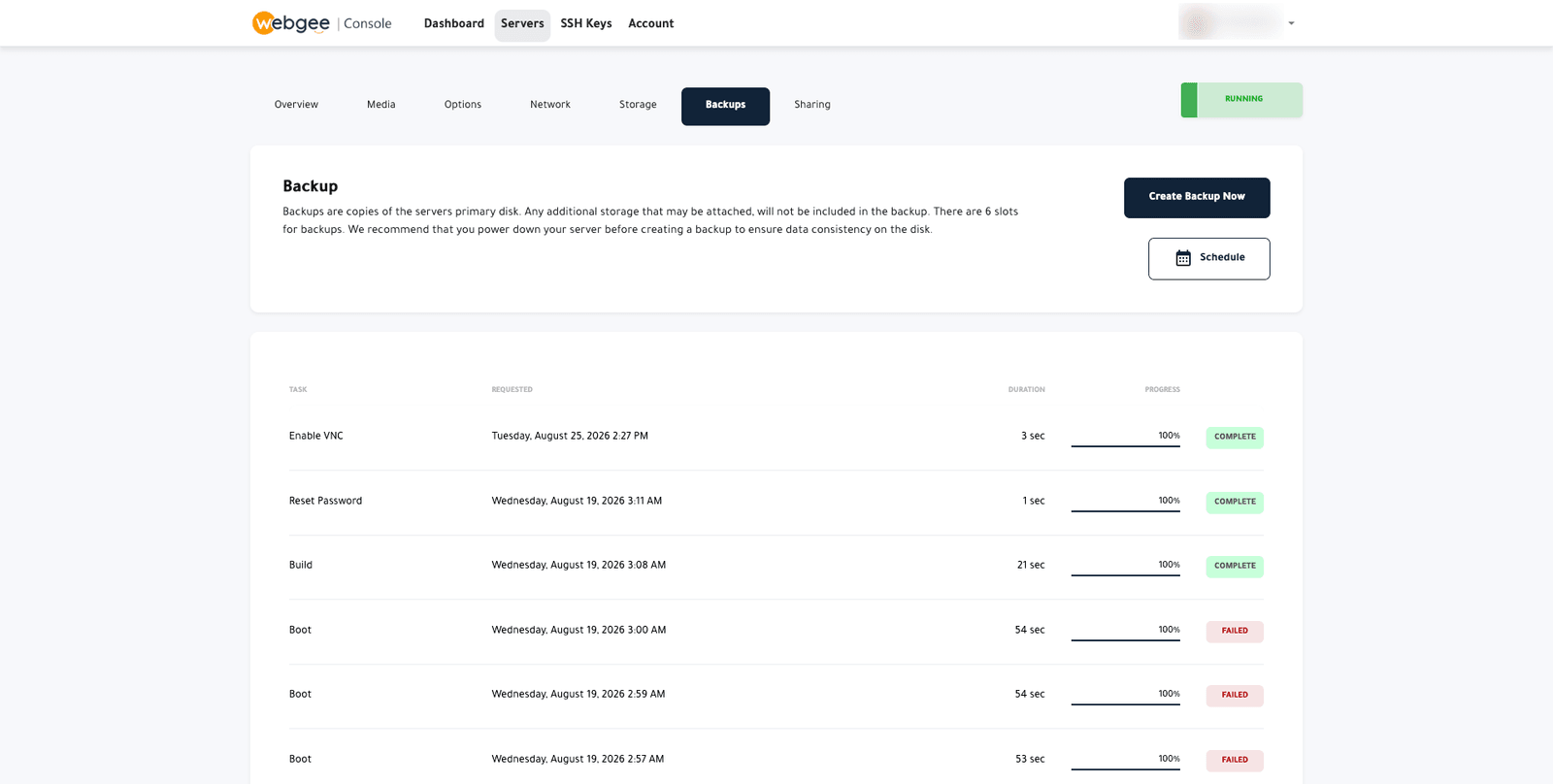
What is and is not included
A backup copies the server's primary disk only.
Additional attached storage is not backed up. If you have added a volume, its contents are not in these backups and must be backed up separately.
You have 6 backup slots. Once all six are used, the oldest is replaced.
Create one now
- Open the Backups tab.
- Select Create Backup Now.
Power the server down first for anything you actually intend to restore. A backup taken while the server is running captures the disk mid-write, so a database can be inconsistent in exactly the way that matters when you come to restore it. Shut down, back up, boot again.
Schedule backups
- Select Schedule.
- Choose None, Daily or Weekly.
- For weekly, choose the days.
- Choose the time.
- Select Update.
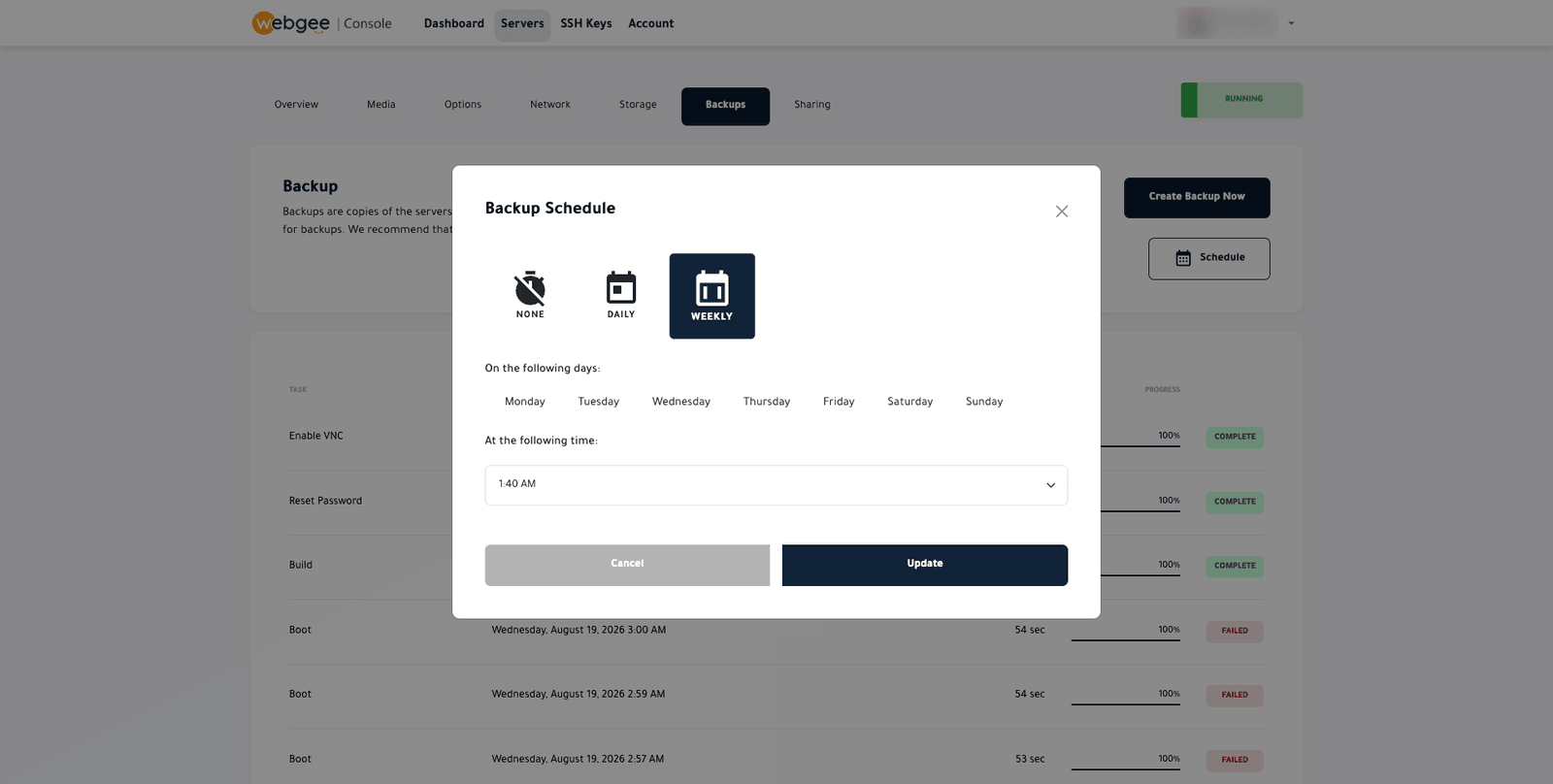
Pick a quiet hour. Scheduled backups run against a live server, with the consistency caveat above.
Restore
Select a backup from the list and choose to restore it.
Restoring overwrites the current primary disk. Anything written since that backup is lost. If you are unsure, take a fresh backup of the current state first — you have six slots.
This is not off-site backup
These backups live on WebGee infrastructure alongside the server. They protect against a bad change or a failed upgrade, not against losing access to the account.
For anything you cannot afford to lose, keep a copy elsewhere — your own object storage, or a backup tool that ships off-site.