

Mail Delivery Center
See what happened to your outbound mail after it left the server — delivery rates, per-message timelines, domain DNS health and blocked addresses.
The Mail Delivery Center shows what happened to your outbound mail after it left the server. Applies to all plans that send through the outbound relay.
This is where to look when someone says they never received your email. Your mail app's Sent folder only proves a message left; the Mail Delivery Center records whether it was accepted, deferred, bounced or blocked, and what the receiving server said about it.
Two ways in
From the client area — select Mail Delivery Center in the sidebar. You are signed in automatically, with no second password to enter.
Directly — open mdc.webgee.com and sign in with your client area email address and password.
Both reach the same place. The client area route is easier day to day; the direct URL is worth bookmarking if you check delivery often.
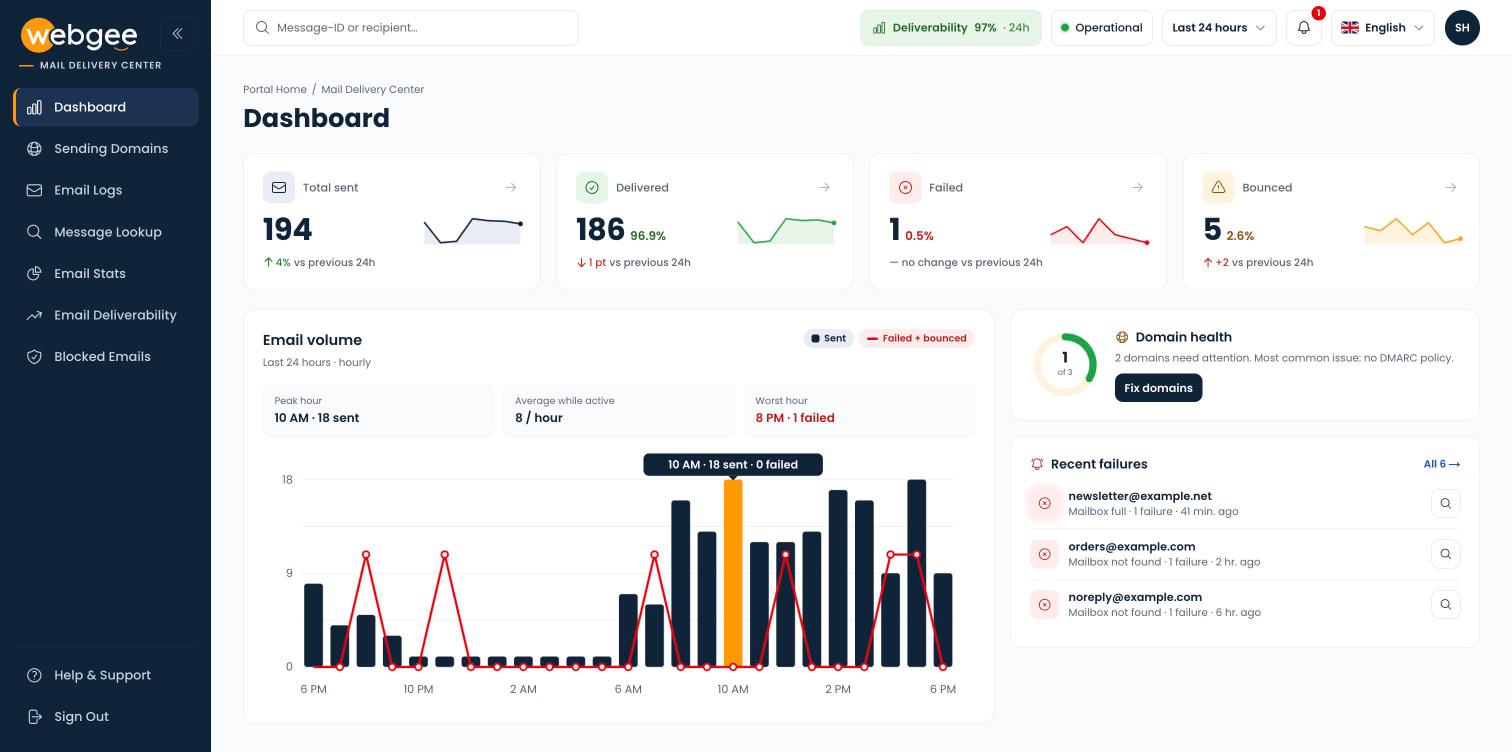
The header
The bar across the top of every page carries the controls you use most.
| Control | What it does |
|---|---|
| Search | Type a Message-ID, a Mail ID or a recipient address and press Enter to open Message Lookup |
| Deliverability | Your delivery rate over the last 24 hours. Select it to open Email Deliverability |
| Status pill | Whether WebGee's email relay is Operational, degraded, in maintenance or affected by an outage |
| Time range | The period every page covers — see below |
| Bell | Service notices and the latest WebGee announcement |
| Language | Switch between English, Arabic, French, German, Spanish and Chinese. Arabic switches the whole layout to right-to-left |
| Your initials | My account, Dark mode, Help & support and Sign out |
Choose the time range
The time range in the header applies to every page at once: the dashboard cards, the logs, the stats and the deliverability charts all follow it.
- Select the time range in the header. It shows Last 24 hours until you change it.
- Choose Last 24 hours, Last 7 days, Last 30 days or This billing period (the current calendar month).
- For any other window, enter a From and To date under Custom and select Apply.
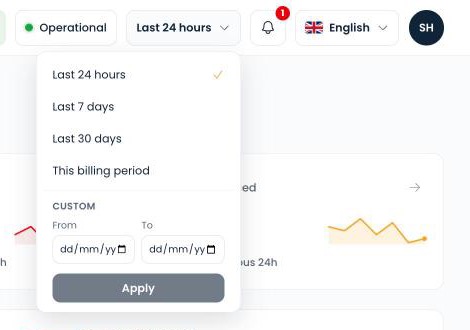
Your choice stays in place as you move between pages, and resets when you close the browser tab.
The deliverability badge
The Deliverability percentage is delivered mail divided by mail that has reached a final outcome — delivered plus failed — over the last 24 hours. Messages still waiting to be delivered are not counted, so a burst of sending does not drag the number down while it is in flight.
| Colour | Range | Meaning |
|---|---|---|
| Green | 85–100% | Healthy |
| Amber | 75–85% | Check the logs for recent failures |
| Red | Below 75% | Investigate now |
Read the badge alongside how much you sent. Two failures out of ten is 80% — amber — and one bad address explains it. The percentage only means something at volume.
Alerts at the top of a page
A yellow banner appears under the page title when something needs your attention:
- delivery to one recipient domain dropped by more than 10 points compared with the previous period, or
- one of your sending domains has started failing its DNS checks.
Select View details to open the page that explains it. Dismiss hides that alert until you next open the Mail Delivery Center in a new browser session.
What each page covers
| Page | Use it to |
|---|---|
| Dashboard | See sent, delivered, failed and bounced at a glance, and the latest failures |
| Sending Domains | Check each domain's SPF, DKIM, DMARC and MX, and get the exact record to fix one |
| Email Logs | Filter every message in the period and read the receiving server's response |
| Message Lookup | Trace one message, recipient by recipient |
| Email Stats | See why mail failed, and break volume down by recipient, sender and IP |
| Email Deliverability | Compare delivery to Gmail, Microsoft, Yahoo and others over time |
| Blocked Emails | See what is blocked, and release it if it was a mistake |
New to this version? Read What's new in the Mail Delivery Center.
What's new in the Mail Delivery Center
The dashboard
Sending domains
Email logs
Trace a single email
Email deliverability
Blocked emails
Email stats
Related
Fix the 550 5.7.1 [SS] rejection
This rejection means a message subject line matched spam keywords. What triggers it, how to secure a compromised mailbox, and how to get sending restored.
What's new in the Mail Delivery Center
The October 2026 Mail Delivery Center release — one time range for every page, message timelines, DNS health with exact records, and per-provider delivery.