

استنساخ موقع ووردبريس بـ WP Toolkit
انسخ تثبيت ووردبريس إلى نطاق آخر أو حساب cPanel آخر عبر WP Toolkit في WHM، بما في ذلك شبكات Multisite التي لا يتعامل معها Softaculous.
يستنسخ WP Toolkit تثبيت ووردبريس — الملفات وقاعدة البيانات — إلى نطاق آخر أو حساب cPanel آخر على الخادم نفسه. ينطبق على حسابات الموزّعين التي لديها وصول إلى WHM.
وخلافًا لـ Softaculous، فهو يتعامل مع شبكات Multisite.
قبل أن تبدأ
شيئان يجب أن يكونا جاهزين: أن يكون الموقع المصدر معروفًا لـ WP Toolkit، وأن تكون الوجهة موجودة أصلًا.
1. تأكّد أن WP Toolkit يعرف المصدر
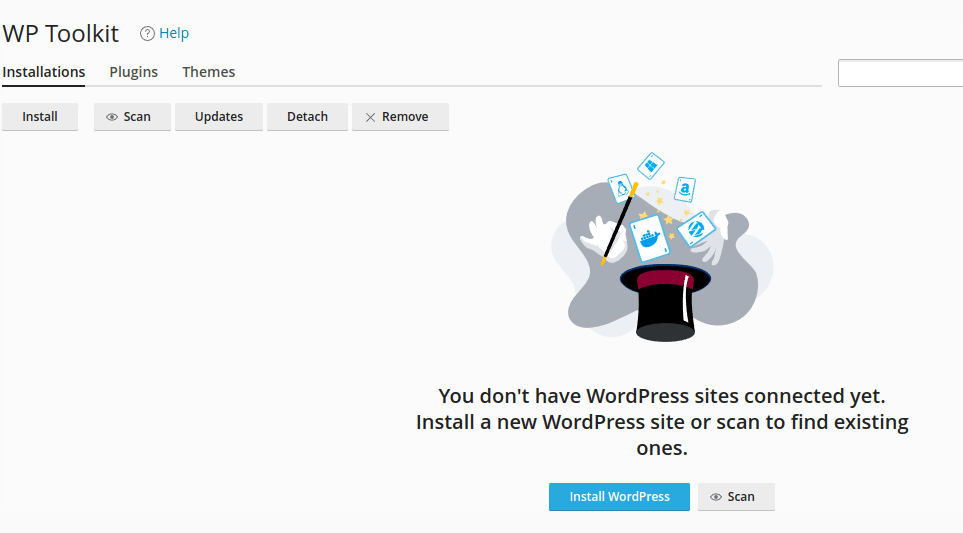
افتح حساب cPanel الذي يحمل الموقع وانتقل إلى WP Toolkit. فإن لم يكن الموقع مدرَجًا، فاختر Scan لاكتشاف التثبيتات على الحساب.
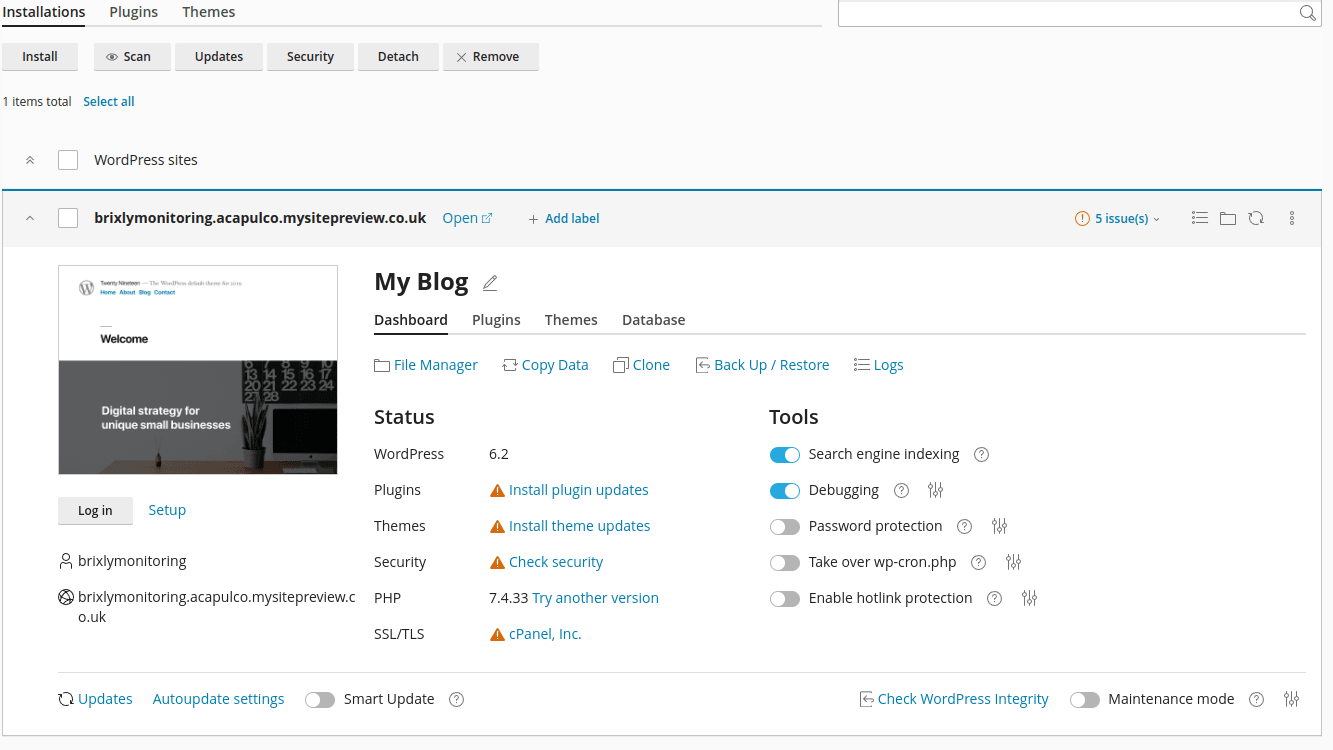
وبعد اكتشافه، يظهر في لوحة WP Toolkit.
2. أنشئ الوجهة
إما أن تنشئ حساب cPanel جديدًا، أو تضيف نطاقًا مضافًا أو فرعيًا إلى حساب قائم.
يجب أن تكون الوجهة فارغة. فالاستنساخ إلى نطاق عليه موقع أصلًا يستبدله. وإن كنت تستبدل موقعًا قائمًا فانسخه احتياطيًا أولًا — راجع تنزيل نسخة احتياطية من حسابك.
استنسخ الموقع
-
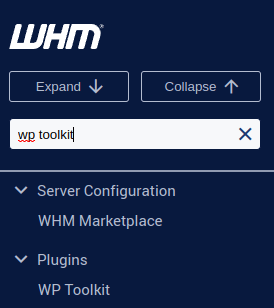
في WHM، افتح WP Toolkit — وأسرع طريق مربع البحث في الشريط الجانبي.
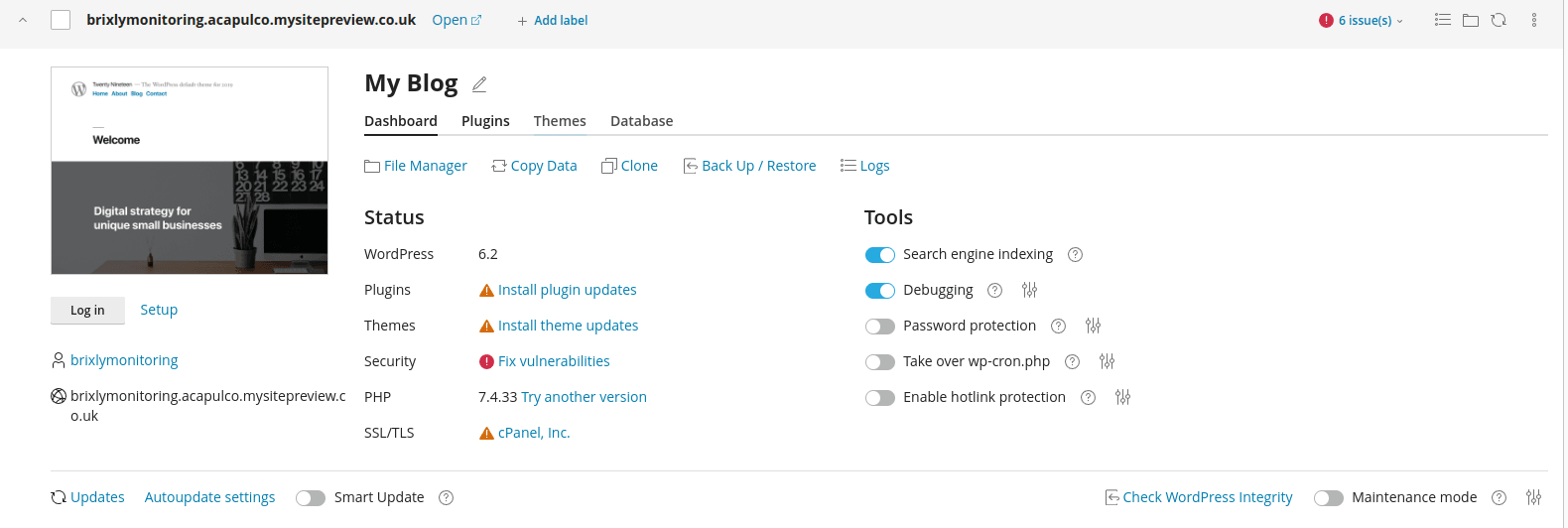
وهذا يعدّد كل موقع ووردبريس يملكه مستخدموك الفرعيون. استخدم مربع البحث في الأعلى على خادم مزدحم.
-
اعثر على الموقع واختر Clone.
-
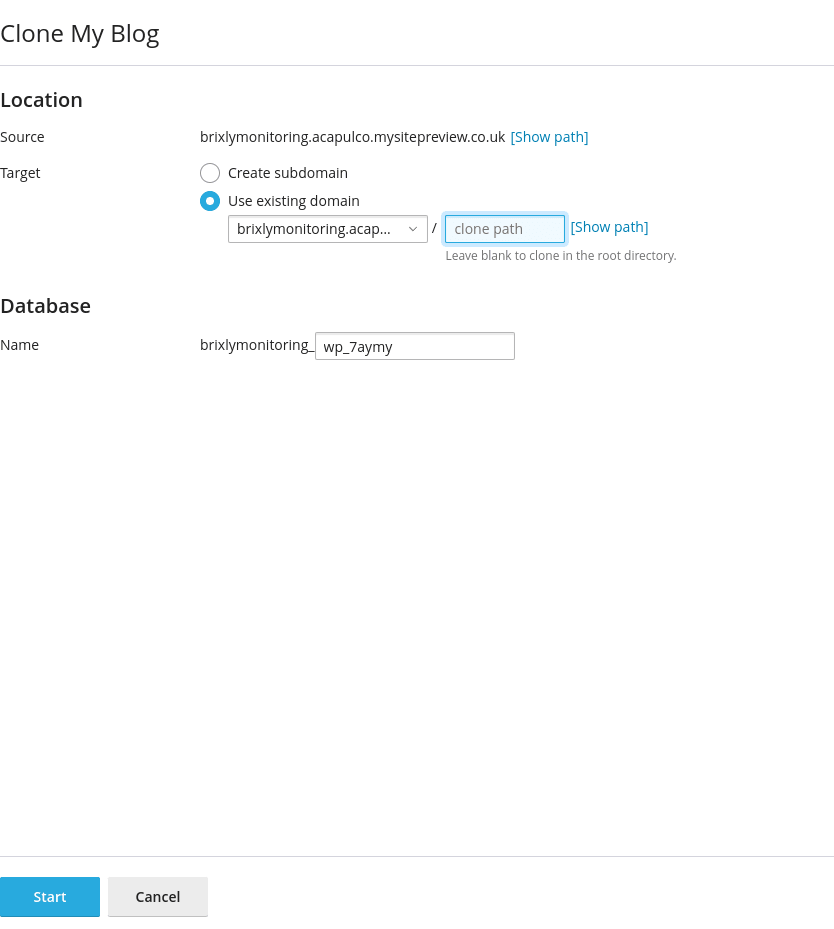
اختر Use existing domain واختر الوجهة.
-
اترك المسار فارغًا. فكل ما يُدخَل هنا يثبّت النسخة في مجلد فرعي من الوجهة، وهو نادرًا ما تريده. واسم قاعدة البيانات الافتراضي مناسب.
-
اختر Start.
أثناء التنفيذ
يظهر شريط تقدّم في أسفل النافذة.

ويمكنك إغلاق النافذة — فالاستنساخ يستمر في الخلفية.
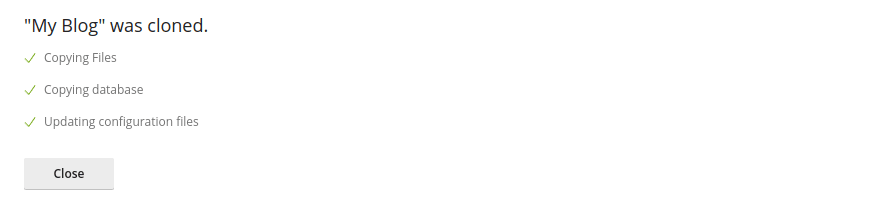
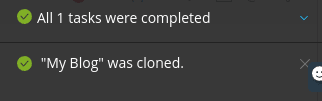
فإن أغلقتها، يتتبّع إشعار صغير في الزاوية التقدّم.
تحقّق
يعيد WP Toolkit كتابة رابط الموقع في قاعدة البيانات ضمن الاستنساخ، لكن تحقّق ولا تفترض:
- تُحمَّل النسخة على النطاق الجديد دون إعادة توجيه إلى القديم.
- تُحمَّل الصور — فالصور المكسورة تعني أن الروابط في قاعدة البيانات لا تزال تشير إلى المصدر.
- سجّل الدخول إلى
wp-adminفي النسخة. فبيانات الاعتماد منسوخة من المصدر. - تعرض Settings ← General النطاق الجديد في كل من WordPress Address و Site Address.
النسخة نسخة كاملة، بما فيها الإضافات والمستخدمون والمحتوى. فإن كانت مقصودة موقعًا تجريبيًا، فامنع محركات البحث من فهرستها: Settings ← Reading ← Discourage search engines from indexing this site.