

تثبيت LiteSpeed Cache وتفعيله
فعّل LSCache من cPanel أو من ووردبريس، وافهم ماذا يفعل كل قسم في الإضافة قبل أن تغيّر شيئًا.
LiteSpeed Cache (LSCache) ذاكرة صفحات كاملة تعمل داخل خادم الويب نفسه، مع مجموعة أدوات تحسين. وهي مجانية في كل باقات WebGee. ينطبق على كل الاستضافة المشتركة والموزِّعة، التي تعمل بـ LiteSpeed.
والتخزين المؤقت وحده هو المهم لمعظم المواقع. أما خصائص التحسين فاختيارية ويمكن تجاهلها تمامًا.
فعّلها من cPanel
وهذا أسرع طريق، وهو يثبّت الإضافة ويضبطها عنك.
- سجّل الدخول إلى cPanel وافتح LiteSpeed Web Cache Manager.
- ضمن LiteSpeed Cache Management، اختر WordPress Cache.
- اختر Scan إن لم تكن تثبيتاتك مدرَجة.
- اختر Enable بجوار التثبيت.
وهذا هو الإجراء كله. فتُثبَّت الإضافة وتُفعَّل وتبدأ التخزين.
أو فعّلها من ووردبريس
إن كانت الإضافة مثبَّتة أصلًا والتخزين معطّل، فانتقل إلى LiteSpeed Cache ← Cache واضبط Enable Cache على ON.
الافتراضيات مختارة لتعمل على معظم المواقع دون تعديل. فإن لم تغيّر شيئًا آخر، فالتخزين يعمل بشكل سليم. وكل ما أدناه مرجع لحين يكون لديك سبب محدّد للنظر.
تبويبات Cache
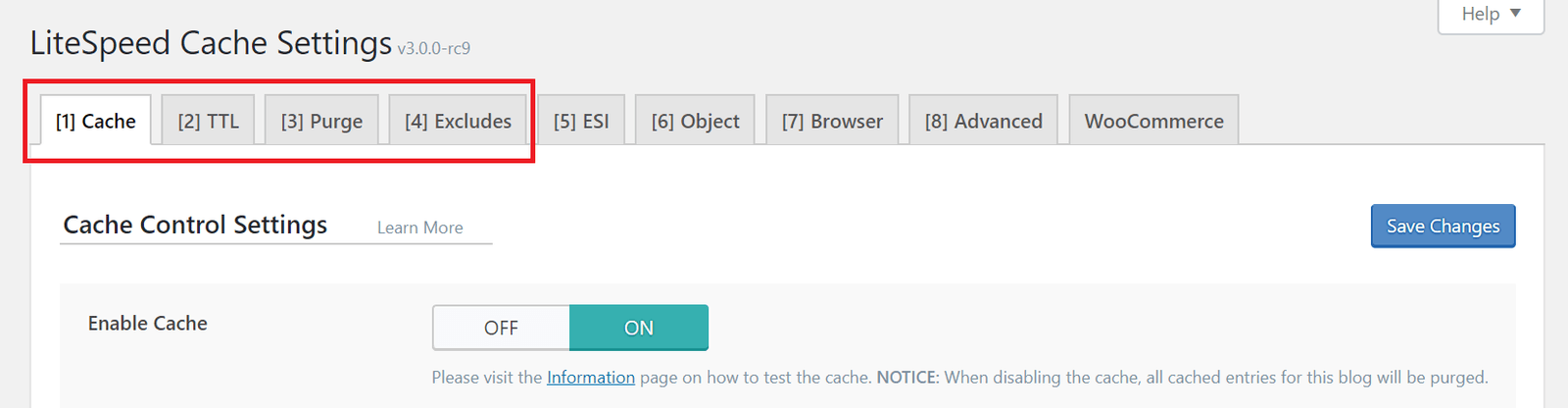
Cache — المفتاح الرئيسي، وأي أنواع المحتوى تُخزَّن. وكل شيء مفعَّل افتراضيًا.
TTL — كم ثانية تبقى الصفحة مخزَّنة قبل أن تُعدّ قديمة وتُطهَّر. والافتراضيات تناسب معظم المواقع.
Purge — متى تُزال الصفحات من الذاكرة قبل انتهاء مدتها. وهذا أهمّ مما يبدو: فنشر مقالة واحدة يغيّر الصفحة الرئيسية وأرشيف فئتها وأرشيف وسمها وأرشيف كاتبها، وكلها تحتاج التطهير وإلا رأى الزوار قوائم قديمة. والقواعد الافتراضية تتولّى هذا.
Excludes — الصفحات التي لا ينبغي تخزينها أبدًا. استخدم هذا بدل تعطيل التخزين حين تسيء صفحة واحدة التصرّف.
بقية تبويبات Cache
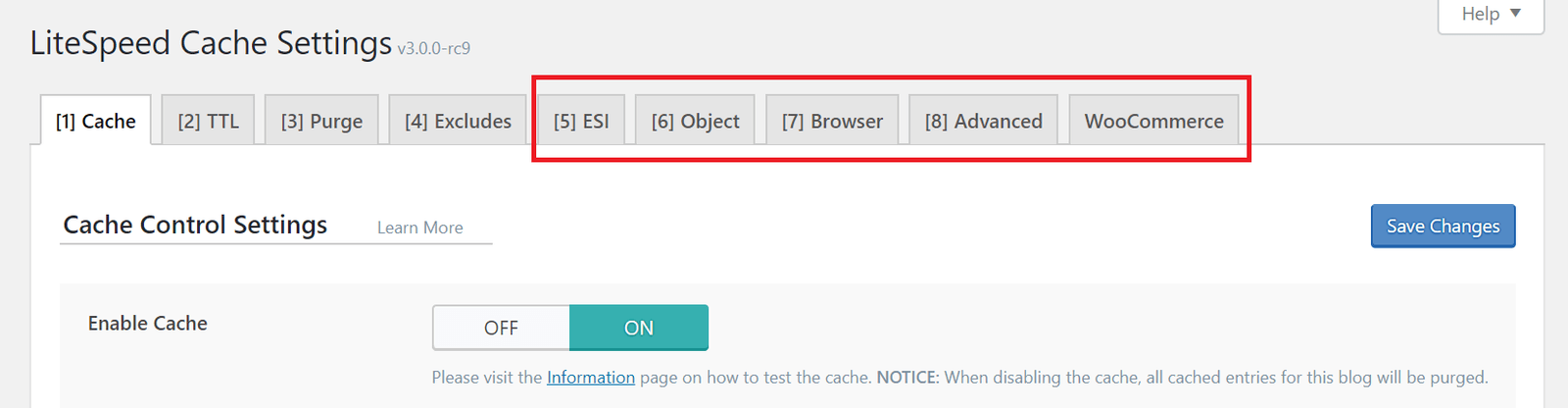
ESI (Edge Side Includes) — يفتح ثقوبًا في صفحة مخزَّنة ويملؤها بمحتوى خاص بكل زائر، كمجموع السلة أو تحية «مسجَّل باسم». ومعطّل افتراضيًا. وهذا ما يتيح تخزين صفحة أصلًا حين تحوي شيئًا مخصّصًا.
Object — يتصل بذاكرة كائنات خارجية مثل Redis. ولا يعمل إلا إن كان جانب الخادم مفعَّلًا أولًا؛ راجع التخزين المؤقت للكائنات بـ Redis للمكافئ في WordPress Cloud، أو فعّل Redis في قسم Software داخل cPanel.
Browser — يخبر متصفحات الزوار بالاحتفاظ بالملفات الثابتة كالصور محليًا، فلا تُنزَّل من جديد في كل زيارة.
Advanced — لا يُحتاج إلا لحل تعارض مع إضافة تخزين أخرى.
WooCommerce — يظهر حين يكون WooCommerce مفعَّلًا، ويتحكّم في كيفية تخزين صفحات المتجر. اترك الافتراضيات؛ فهي تستثني السلة والدفع أصلًا.
بقية أقسام الإضافة
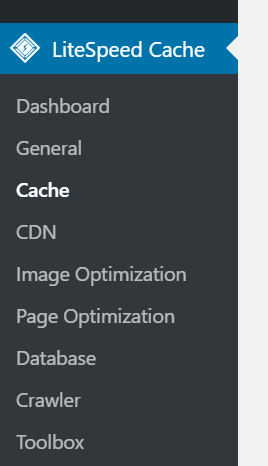
Dashboard — حالة الذاكرة وأي خدمات QUIC.cloud قيد الاستخدام.
General — إعدادات QUIC.cloud والتحديثات التلقائية للإضافة.
CDN — إعداد شبكة توصيل المحتوى. ومعطّل افتراضيًا؛ راجع QUIC.cloud أم Cloudflare.
Image Optimization — يضغط الصور عبر QUIC.cloud.
Page Optimization — تصغير CSS وجافاسكربت ودمجهما، والتحميل المؤجَّل وما شابه. وكلها معطّلة افتراضيًا.
Page Optimization هي حيث تتعطّل المواقع. فتصغير CSS وجافاسكربت ودمجهما قد يفسد التخطيط بصمت أو يوقف عمل السكربتات، والضرر يظهر غالبًا في قالب واحد فقط. فعّل خيارًا واحدًا في كل مرة وافحص الموقع بعد كل منها — لا كلها دفعة واحدة.
Database — أداة تحسين قاعدة البيانات. راجع تحسين قاعدة بيانات ووردبريس.
Crawler — يحمّل الصفحات مسبقًا إلى الذاكرة فلا ينتظر الزائر الأول توليدها.
الزاحف معطّل على الاستضافة المشتركة. فهو يزور كل صفحة في كل موقع مفعَّل فيه LSCache، وهو أثقل من أن يعمل على خادم مشترك. وهو متاح في باقتَي الاستضافة المميّزة والموزِّع المميّز.
Toolbox — تطهير الذاكرة يدويًا، وتصدير الإعدادات، والتنقيح.
تحقّق
حمّل الموقع في نافذة خاصة وابحث عن ترويسة الاستجابة x-litespeed-cache. راجع
التأكد من عمل LiteSpeed Cache.