

تفعيل WP_DEBUG وقراءة سجل الأخطاء
فعّل تسجيل التنقيح في ووردبريس لتجد مصدر شاشة بيضاء أو إضافة معطّلة، دون عرض الأخطاء لزوارك.
يجعل WP_DEBUG ووردبريس يسجّل الأخطاء التي كان سيخفيها. وهو أول خطوة في تشخيص
شاشة بيضاء أو خطأ فادح أو إضافة لا تسلك سلوكها. ينطبق على كل مواقع ووردبريس.
وتُكتَب الأخطاء في ملف سجل لا تُعرَض في الصفحة — وهو ما يجعل هذا آمنًا على موقع حي.
حرّر wp-config.php
ملف wp-config.php في المجلد الجذر لموقعك، وعادةً public_html. افتحه بـ
File Manager في cPanel أو بعميل FTP.
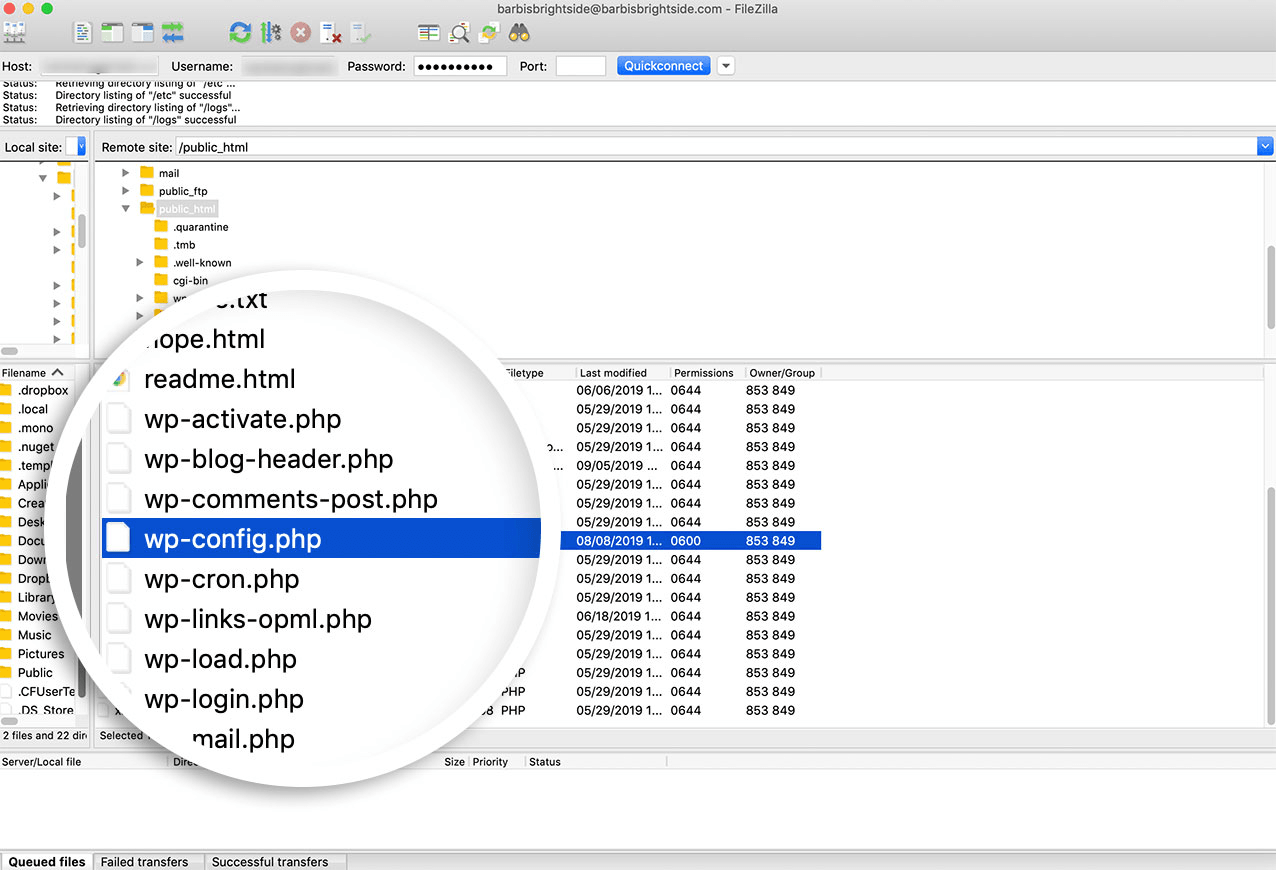
اعثر على السطر القائم:
define( 'WP_DEBUG', false );واستبدله بـ:
// تفعيل وضع WP_DEBUG
define( 'WP_DEBUG', true );

// تسجيل الأخطاء في wp-content/debug.log
define( 'WP_DEBUG_LOG', true );

// عدم عرض الأخطاء للزوار
define( 'WP_DEBUG_DISPLAY', false );
@ini_set( 'display_errors', 0 );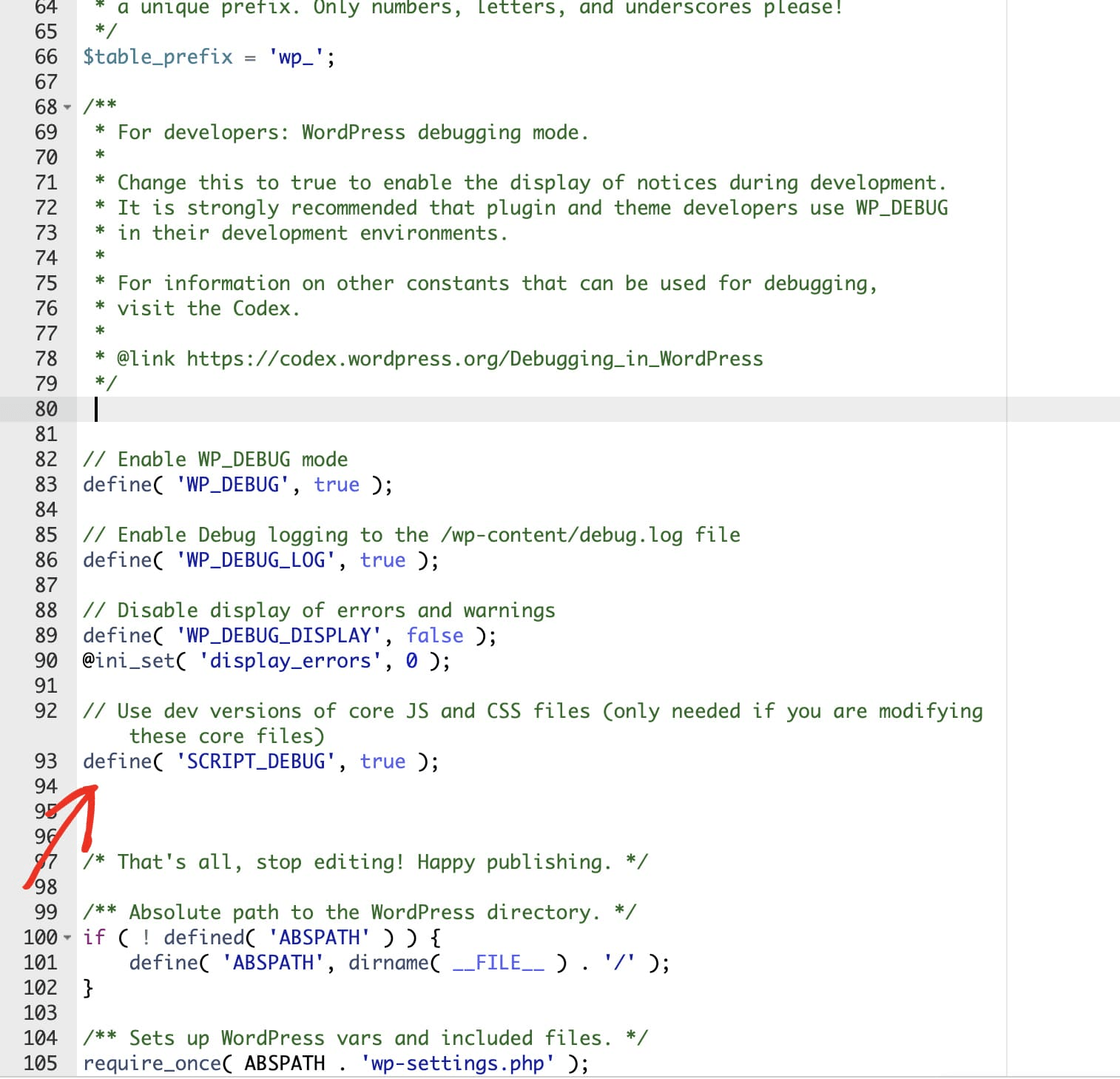
يجب أن تذهب هذه الأسطر فوق التعليق /* That's all, stop editing! */. فكل
ما بعده يُتجاهَل، والسبب الأشيع لظهور أن التنقيح لا يعمل هو إضافة الثوابت في
أسفل الملف.
وإن لم يكن WP_DEBUG معرَّفًا في أي مكان في الملف، فأضف الكتلة أعلاه فوق ذلك
التعليق.
يجب أن يبقى WP_DEBUG_DISPLAY على false
فضبط WP_DEBUG_DISPLAY على true يطبع الأخطاء داخل HTML الصفحة لكل زائر، بما
في ذلك مسارات الملفات، وفي بعض الأخطاء تفاصيل قاعدة البيانات. اتركه false
واقرأ السجل.
SCRIPT_DEBUG
تضيف بعض الأدلة define( 'SCRIPT_DEBUG', true );. وذلك يجعل ووردبريس يحمّل
جافاسكربت وCSS النواة غير مصغَّرين، وهو مفيد فقط إن كنت تنقّح ملفات النواة نفسها.
واتركه خارجًا فيما عدا ذلك — فهو يبطّئ كل تحميل صفحة.
أعد إنتاج المشكلة
احفظ الملف، ثم عد إلى الموقع وافعل ما سبّب الخطأ. فلا يُسجَّل شيء حتى يحدث الخطأ من جديد.
اقرأ السجل
افتح wp-content/debug.log.
ويعطي كل مدخل الخطأ ومسار الملف ورقم السطر. اعمل من المدخل الأقدم لا الأحدث — فالخطأ الفادح الواحد يتسلسل عادةً إلى عدة تحذيرات تابعة، والأول يسمّي السبب الحقيقي.
والمسار تحت wp-content/plugins/some-plugin/ يشير إلى تلك الإضافة. عطّلها وانظر
إن توقف الخطأ.
أوقفه بعد ذلك
أعد WP_DEBUG إلى false واحذف wp-content/debug.log.
يقع debug.log داخل جذر الويب وقد يكون قابلًا للقراءة عبر الإنترنت على
example.com/wp-content/debug.log. وهو يحوي مسارات ملفات وقد يحوي أجزاء
استعلامات. احذفه حين تنتهي، ولا تترك التنقيح مفعَّلًا على موقع حي إلى ما لا
نهاية — فالملف ينمو بلا حد.