

نقل ووردبريس باستخدام Installatron
استورد موقع ووردبريس إلى حساب استضافتك عبر Installatron، إما من مكان آخر في الحساب نفسه أو عبر FTP من مزوّد آخر.
يستورد Installatron تثبيت ووردبريس قائمًا — من الحساب نفسه، أو من مستضيف آخر عبر FTP. ينطبق على الاستضافة المشتركة والموزِّعة على cPanel.
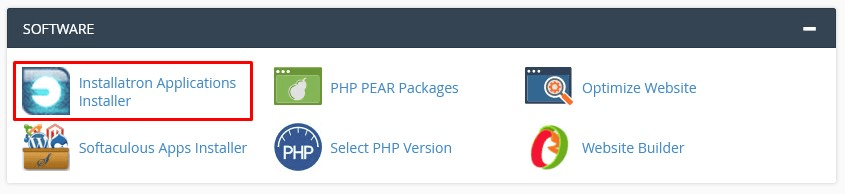
افتح Installatron Applications Installer من قسم Software في cPanel.
- ابحث عن
WordPressواختره. - افتح قائمة الأسطر الثلاثة واختر Import existing install.
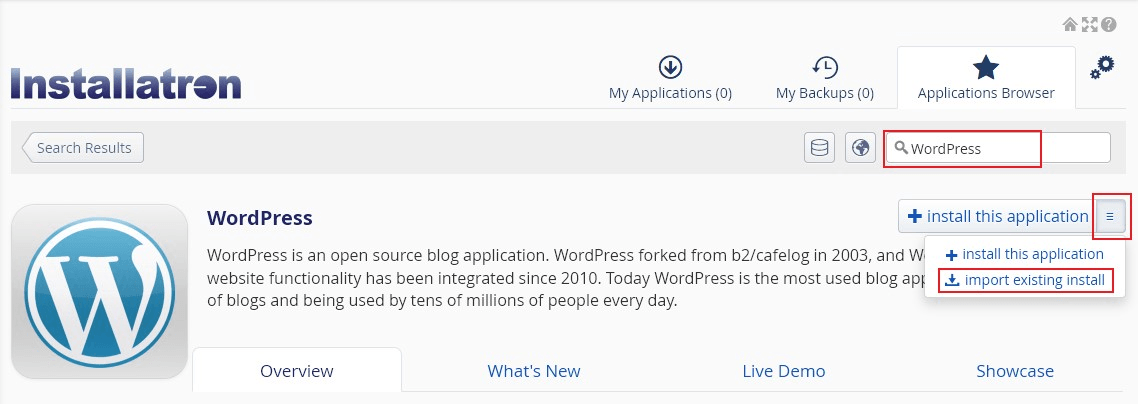
والخطوات نفسها تنطبق على كل تطبيق يدعمه Installatron، لا ووردبريس وحده.
الاستيراد من مزوّد آخر
اختر Continue تحت عمود From this account في شاشة الاستيراد.
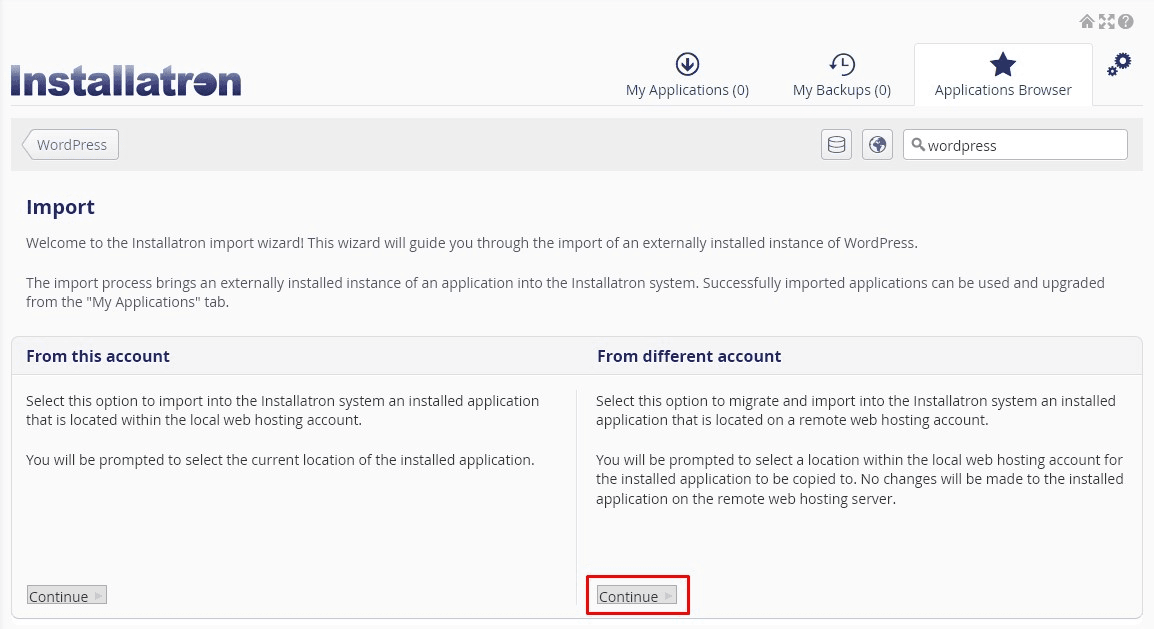
وللنموذج نصفان: أين الموقع الآن، وإلى أين ينبغي أن يذهب.
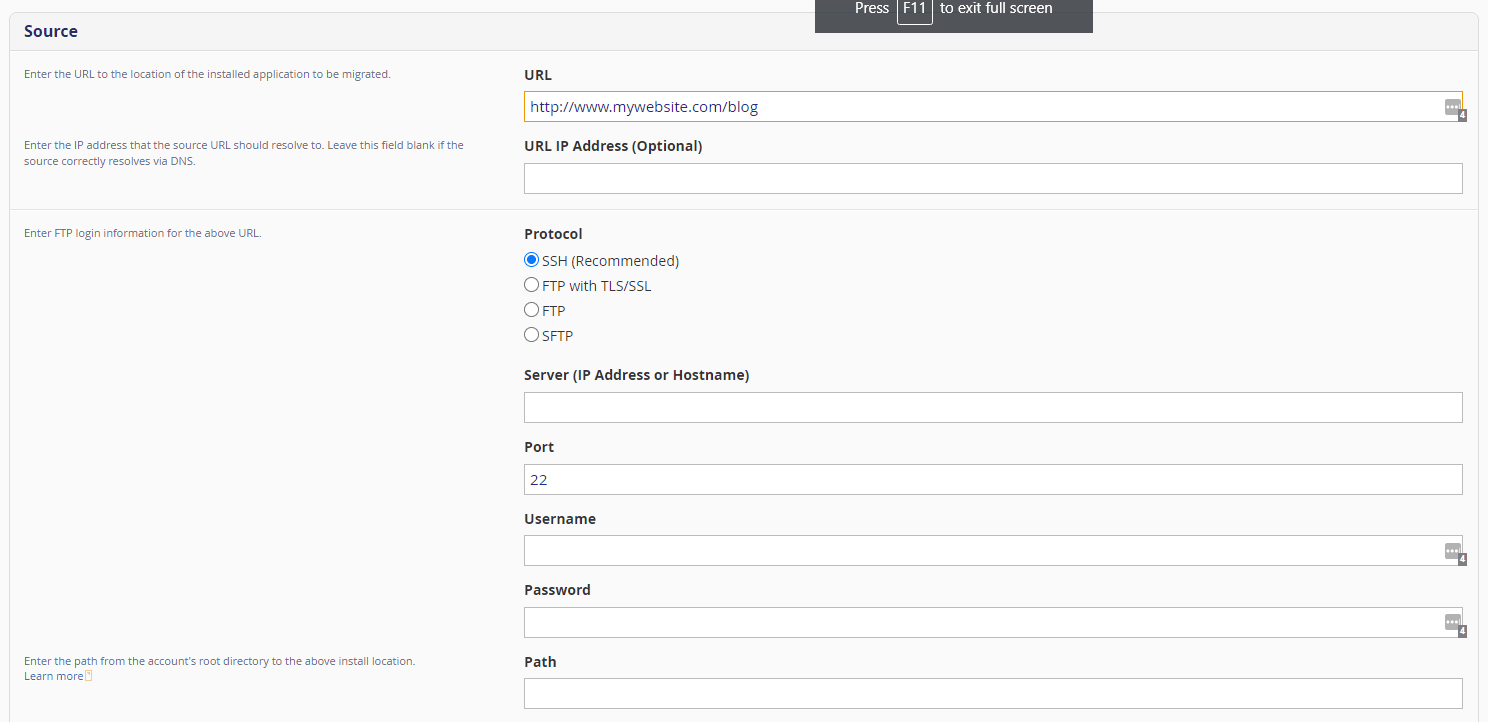
المصدر
| الحقل | ما تدخله |
|---|---|
| URL | عنوان الموقع المنقول |
| URL IP Address | اختياري. العنوان الذي ينبغي أن يُحلّ إليه الرابط — اتركه فارغًا ما لم يكن DNS يشير إلى هنا أصلًا |
| Protocol | ما يدعمه الخادم البعيد؛ وفضّل SFTP أو FTPS على FTP العادي |
| Server | اسم مضيف الخادم البعيد أو عنوانه |
| Port | يُضبَط تلقائيًا حسب البروتوكول؛ غيّره فقط لمنفذ غير قياسي |
| Username | اسم مستخدم FTP الكامل |
| Password | كلمة مرور FTP |
| Path | من حيث يُنزلك FTP، إلى مجلد ووردبريس |
بيانات FTP الخاطئة أشيع سبب لفشل الاستيراد، والخطأ لا يقول ذلك دائمًا. اتصل بعميل FTP أولًا وتأكّد أن بيانات الاعتماد والمسار يعملان قبل أن تبدأ.
ويستحق URL IP Address الاستخدام حين تنقل قبل تغيير DNS. اضبطه على عنوان الخادم القديم كي يصل Installatron إلى المصدر لا إلى ما يُحلّ إليه النطاق حاليًا.
وPath نسبي إلى مجلد دخولك في FTP لا إلى جذر الخادم. فإن أنزلك FTP مباشرة في
المجلد الرئيسي للحساب، فالمسار عادةً public_html.
الوجهة
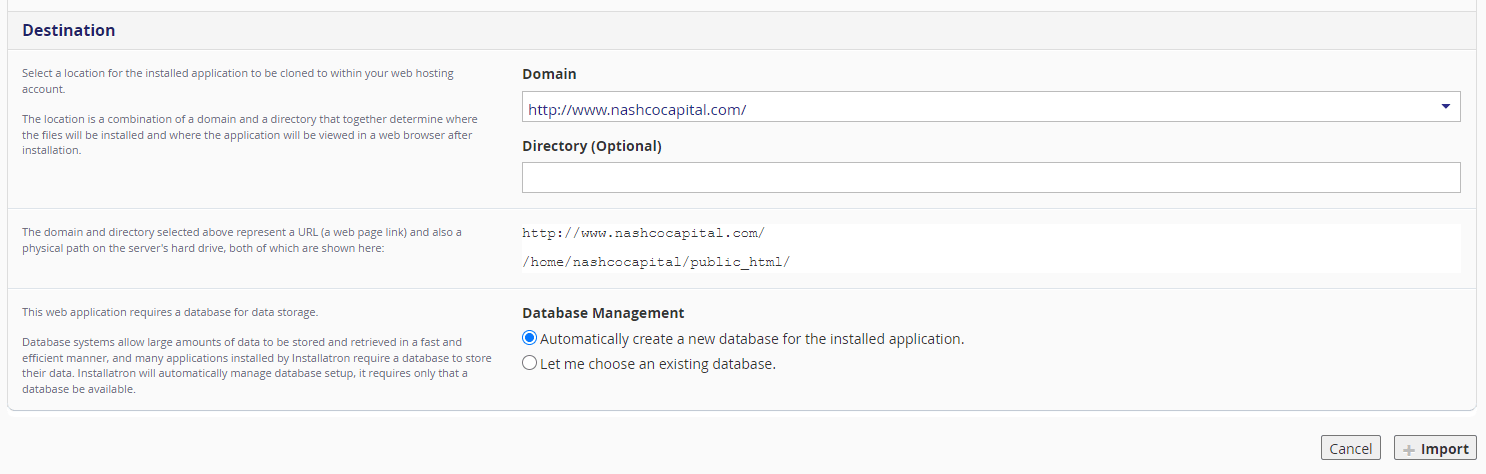
| الحقل | ما تدخله |
|---|---|
| Domain | أي نطاقاتك يقدّم الموقع بعد الاستيراد |
| Directory | اتركه فارغًا للتقديم من جذر النطاق |
| Database Management | دع Installatron ينشئ قاعدة بيانات، أو اختر قائمة |
اترك Directory فارغًا ما لم ترد الموقع تحت مجلد فرعي تحديدًا. ودع Installatron ينشئ قاعدة البيانات — فإعادة استخدام قائمة تخاطر باستبدال جداول موقع آخر.
اختر Import.
بعد الاستيراد
يظهر الموقع في My Applications.
- حمّله وتأكّد أنه يُقدَّم من النطاق الجديد لا القديم.
- تحقّق من تحميل الصور. فالصور المكسورة تعني أن الروابط في قاعدة البيانات لا تزال تشير إلى المصدر.
- سجّل الدخول إلى
wp-admin؛ فبيانات الاعتماد تنتقل مع الموقع. - ولا تغيّر DNS إلا بعد أن يعمل الموقع على الخادم الجديد.