

معالجة موقع عالق في وضع الصيانة
يعرض ووردبريس «Briefly unavailable for scheduled maintenance» حين لا يكتمل تحديث. احذف ملف .maintenance لإعادة الموقع.
إن كان موقعك يعرض «Briefly unavailable for scheduled maintenance. Check back in a minute» ولا يتعافى، فقد توقّف تحديث في منتصفه. ينطبق على كل مواقع ووردبريس.
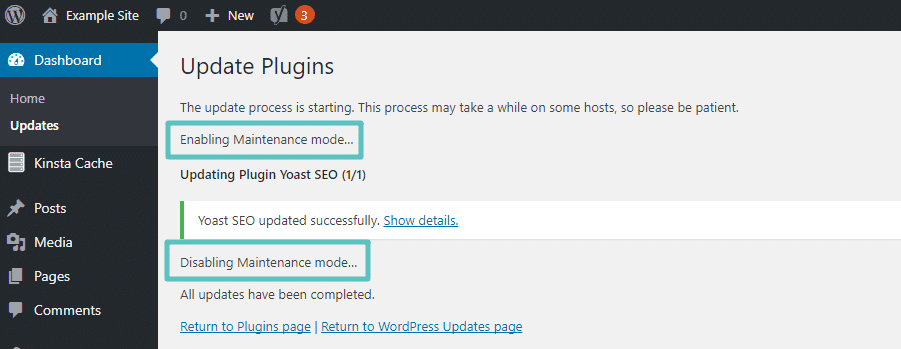
يدخل ووردبريس وضع الصيانة تلقائيًا كلما حدّث النواة أو قالبًا أو إضافة، ويغادره فور انتهاء التحديث. وذلك يستغرق عادةً ثانيتين ولا ينتبه أحد.
ويعلق حين يُقاطَع التحديث:
- أُغلق تبويب المتصفح في منتصف التحديث.
- حُدِّثت دفعة كبيرة من الإضافات أو القوالب دفعة واحدة فانتهت مهلة الطلب.
- سبّبت مشكلة توافق فشل التحديث في منتصفه.
احذف ملف .maintenance
أثناء وضع الصيانة، يحتفظ ووردبريس بملف اسمه .maintenance في المجلد الجذر
للموقع — الذي يحوي wp-admin وwp-config.php. وحذفه ينهي وضع الصيانة فورًا.
- اتصل عبر File Manager في cPanel أو بعميل FTP.
- افتح المجلد الجذر للموقع، وعادةً
public_html. - فعّل الملفات المخفية. وفي مدير الملفات هذا Settings ← Show Hidden Files (dotfiles)؛ وفي عملاء FTP خيار «show hidden files» عادةً. فالنقطة في البداية تعني أن الملف مخفي افتراضيًا.
- احذف
.maintenance.
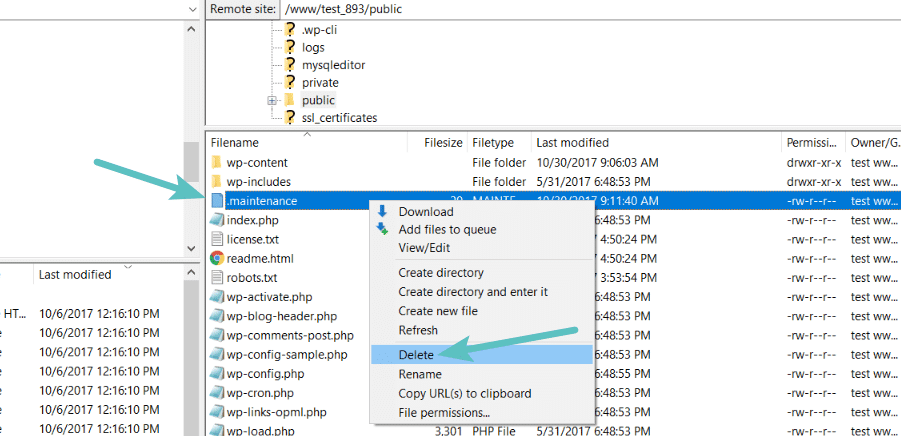
وينبغي أن يُحمَّل الموقع فورًا. امسح أي إضافة تخزين مؤقت وشبكة توصيل المحتوى، وإلا قد تظل صفحة الصيانة تُقدَّم من الذاكرة.
ثم أكمل التحديث
حذف الملف ينهي وضع الصيانة — ولا يُتمّ التحديث. فالموقع يعمل الآن بمجموعة ملفات محدَّثة جزئيًا.
أعد تشغيل التحديث بدل تركه. فالتحديث المطبَّق نصفيًا قد يترك ملفات إضافة من إصدار إلى جانب تغييرات قاعدة بيانات من آخر، والأخطاء الناتجة أصعب بكثير في التشخيص لاحقًا مما هي الآن.
انتقل إلى Dashboard ← Updates وشغّله من جديد. وهذه المرة:
- حدّث على دفعات صغيرة بدل اختيار كل شيء.
- اترك التبويب مفتوحًا حتى ينتهي.
فإن فشل التحديث مرارًا، فالسبب مشكلة توافق لا انتهاء مهلة. فعّل WP_DEBUG لترى الخطأ الفعلي.
اقرأ أيضًا
نقل ووردبريس بالاستيراد البعيد في Softaculous
اسحب موقع ووردبريس من مستضيف آخر إلى حسابك في WebGee عبر FTP، بتفصيل لكل حقل لا يشرحه النموذج.
إعادة ضبط روابط ووردبريس الدائمة
عالج الصفحات التي تعيد 404 بينما تعمل الصفحة الرئيسية، بإعادة توليد قواعد إعادة الكتابة — من اللوحة، أو باستعادة .htaccess إن تعذّر عليك الدخول.