

Configure WHMCS to send over SMTP
Point WHMCS at an authenticated mailbox so invoices and ticket replies are actually delivered rather than filtered.
Make WHMCS send email through an authenticated mailbox. Applies to reseller accounts running WHMCS.
WHMCS's default PHP mail sends unauthenticated messages that fail SPF and DKIM checks — so invoices, password resets and ticket replies land in spam or vanish. For a billing system that is a business problem, not an inconvenience.
Before you begin
Create a mailbox on the domain WHMCS sends from — billing@example.com.
A Gmail or Outlook address will not work: the sending domain must match the
authenticated account.
Configure it
-
In WHMCS, go to Configuration → System Settings → General Settings → Mail.
-
Beside Mail Provider, select Configure Mail Provider.

-
Choose SMTP and enter:
Field Value SMTP Host mail.webgee.comSMTP Port 465SMTP SSL Type SSLSMTP Username The full email address SMTP Password The mailbox password 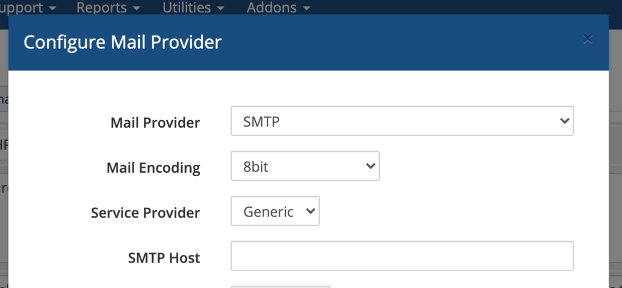
-
Save.
Port and SSL type must match. Port 465 requires SSL; port 587
requires TLS. Mixing them — 465 with TLS, or 587 with SSL — is the
single most common cause of WHMCS failing to send, and the error it gives is
not specific.
Full settings are in Email server settings.
Check it worked
WHMCS has a test under Utilities → System → System Email Log, or send yourself a test from a client profile.
Then check the message arrived in the inbox rather than spam. Delivery and inbox placement are different tests.
If mail still fails
SMTP connect() failed— port and SSL type mismatch, per above. Try587withTLS.- Authentication failed — the username must be the full email address.
- Sends but lands in spam — the From address does not match the authenticated domain, or your SPF record is wrong. See SPF records for WebGee hosting.
- Mail stops after a while — you may be hitting sending limits. A busy WHMCS sends a lot.