

DNS records for Premium Email
The MX, SPF, DKIM, DMARC and autodiscovery records Premium Email needs, what each one does, and how to check they are live.
Premium Email cannot receive a single message until your domain's DNS points at it. The DNS Guide tab lists every record you need, ready to copy.
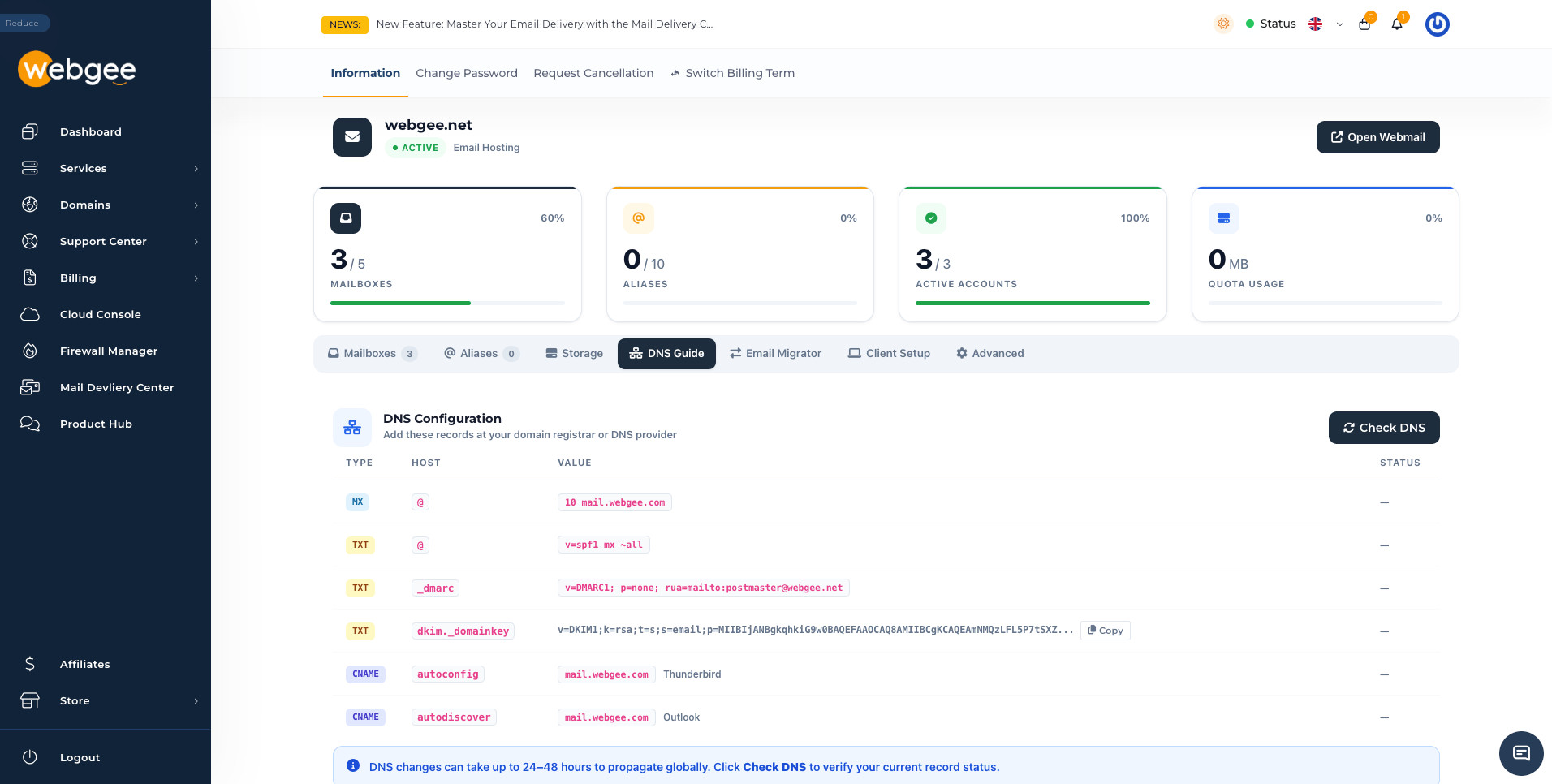
Add them at whichever provider your nameservers point to — the registrar, a DNS host, or Cloudflare. Adding them somewhere your nameservers do not point does nothing at all.
The records
| Type | Host | Value | What it does |
|---|---|---|---|
MX | @ | 10 mail.webgee.com | Routes your domain's mail to WebGee |
TXT | @ | v=spf1 mx ~all | Says which servers may send as your domain |
TXT | _dmarc | v=DMARC1; p=none; rua=mailto:postmaster@yourdomain | Reports on authentication results |
TXT | dkim._domainkey | the long v=DKIM1;... key | Signs your outgoing mail |
CNAME | autoconfig | mail.webgee.com | Lets Thunderbird configure itself |
CNAME | autodiscover | mail.webgee.com | Lets Outlook configure itself |
Take the DKIM value from the panel with the Copy button. It is a long public key, unique to your domain, and retyping it will introduce an error you will not spot by eye.
What each one is doing
MX is the only one that affects whether mail arrives. Everything else affects whether it is trusted once it does.
SPF lists who is allowed to send as you. v=spf1 mx ~all means "the servers
in my MX record may send; treat anything else as suspicious". If you also send
through another service — a newsletter platform, a CRM, a shop — that service
needs adding to this one record. You cannot have two SPF records on a domain.
DKIM signs every outgoing message cryptographically, so a receiving server can prove the message really came from your domain and was not altered.
DMARC tells receiving servers what to do when SPF or DKIM fails, and where
to send reports. The supplied record uses p=none, which means "report, but do
not reject" — the right setting to start with. Tighten it only once the reports
show your legitimate mail passing.
autoconfig and autodiscover are conveniences, not requirements. With them, most mail apps set themselves up from just an address and password. Without them, everyone enters the server settings by hand.
The SPF record here — v=spf1 mx ~all — is not the same as the one used
for WebGee shared and reseller hosting, which routes through the MailBaby
relay and needs include:spf-c.mailbaby.net. Use the record this panel shows
you for this domain. If the same domain also sends from a hosting account, ask
support to confirm a combined record rather than publishing either one alone.
Checking they are live
Select Check DNS. The Status column then reflects what WebGee can actually see for your domain, which is the only view that matters.
DNS changes take up to 24–48 hours to propagate globally, and a record that shows correctly for you may not yet be visible everywhere. If a record has looked wrong for more than 48 hours, it is not propagation — recheck what you actually published, and where.
Common mistakes
Publishing at the registrar when nameservers point elsewhere. The most common cause of "I added it and nothing happened".
Two SPF records. Adding a second v=spf1 TXT record does not combine them;
it breaks both. Merge the mechanisms into one record instead.
Leaving an old MX in place. If your domain previously had mail elsewhere, remove that MX record. Two MX records with different priorities means mail goes to whichever answers, which is not what you want mid-migration.
Wrapping the DKIM value. Some DNS panels split long TXT values across lines. Paste it as one string; if the panel insists on chunking it, that is fine as long as it is one record.