

Connect your mail app
IMAP and SMTP settings for Premium Email, plus the panel's own step-by-step guides for Outlook, Thunderbird and Apple Mail.
The Client Setup tab holds everything needed to add a Premium Email mailbox to any mail app, plus per-application walkthroughs.
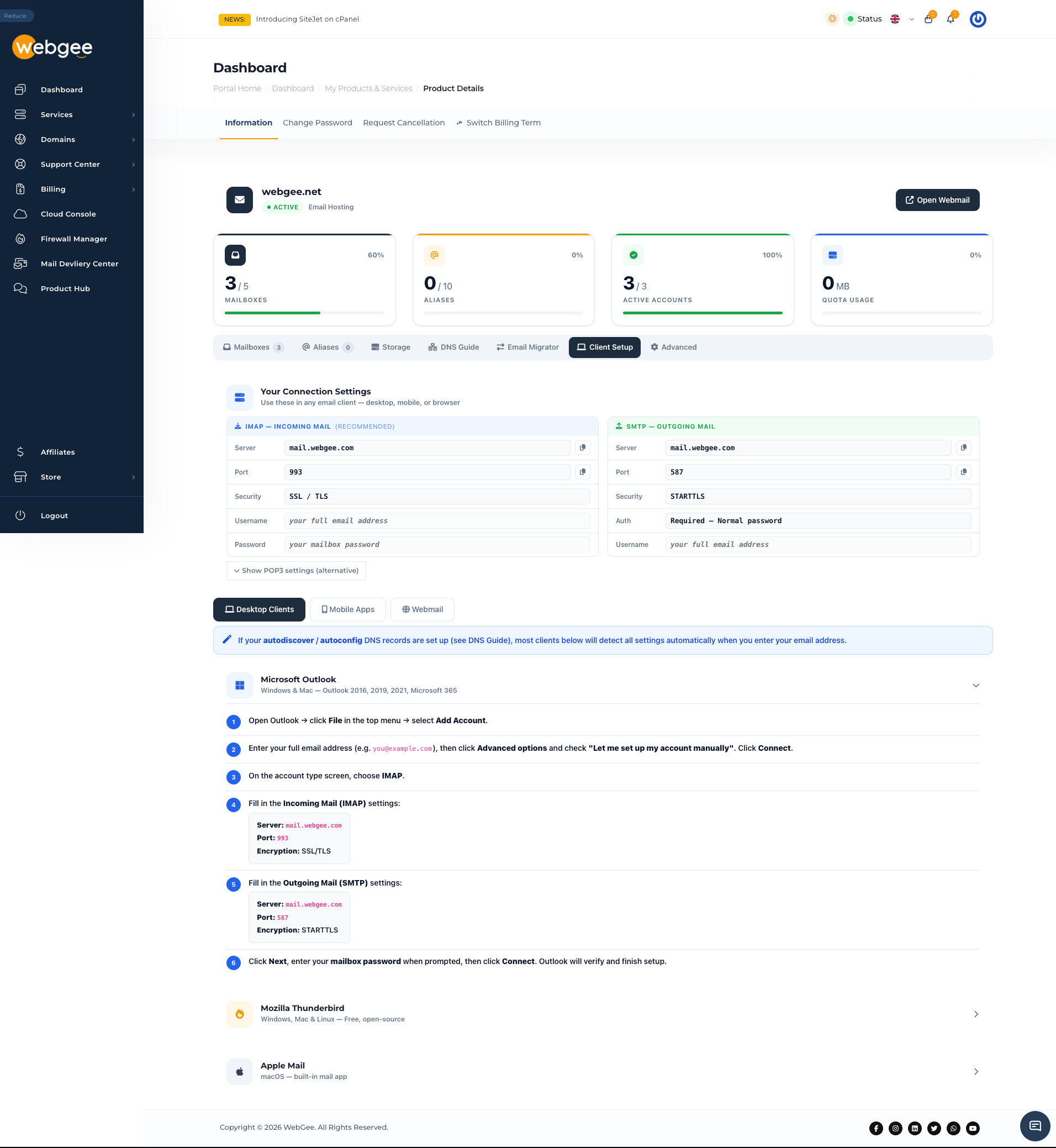
Connection settings
Incoming — IMAP (recommended)
| Setting | Value |
|---|---|
| Server | mail.webgee.com |
| Port | 993 |
| Security | SSL/TLS |
| Username | your full email address |
| Password | your mailbox password |
Outgoing — SMTP
| Setting | Value |
|---|---|
| Server | mail.webgee.com |
| Port | 587 |
| Security | STARTTLS |
| Authentication | Required — normal password |
| Username | your full email address |
The copy icon beside each value puts it on your clipboard, which is quicker and less error-prone than retyping on a phone.
The username is the full address, not the part before the @. Entering
just the local part is the single most common reason a client reports
"password incorrect" when the password is fine.
Show POP3 settings (alternative) reveals POP3 ports for the rare client that cannot do IMAP. Use IMAP unless you have a specific reason not to: POP3 downloads mail to one device and removes it from the server, so a second device and webmail both see nothing.
Let the app configure itself
If the autoconfig and autodiscover CNAME records are published — see
DNS records — most clients need only the
address and password and will find the rest themselves.
That is worth doing before rolling out to a team. It turns a page of settings into two fields for every person.
Per-application guides
The tab groups its walkthroughs under Desktop Clients, Mobile Apps and Webmail, each expandable:
- Microsoft Outlook — Windows and Mac, Outlook 2016, 2019, 2021 and Microsoft 365
- Mozilla Thunderbird — Windows, Mac and Linux
- Apple Mail — the built-in macOS app
The Outlook route is the one worth reading before you start, because Outlook hides manual setup: enter the address, then choose Advanced options and tick Let me set up my account manually before selecting Connect. Miss that and Outlook will try to guess and fail.
If it will not connect
- Check the username is the full address.
- Check the port and security pair. 993 goes with SSL/TLS, 587 with STARTTLS. Mixing them fails in ways that look like an authentication error.
- Confirm SMTP is enabled on the mailbox. It can be switched off per mailbox — see Manage mailboxes.
- Try webmail. If Open Webmail signs in with the same password, the mailbox and password are fine and the problem is in the client's settings.
Related
DNS records for Premium Email
The MX, SPF, DKIM, DMARC and autodiscovery records Premium Email needs, what each one does, and how to check they are live.
Import mail from another provider
Set up an IMAP sync job that copies mail from your old provider into a Premium Email mailbox, and keeps copying until you switch over.