

Manage mailboxes
Create, edit, suspend and delete mail accounts — with the quota, protocol and password options the Create Mailbox dialog offers.
The Mailboxes tab is the account list for your domain: every address, what it is using, and when it was last signed into.
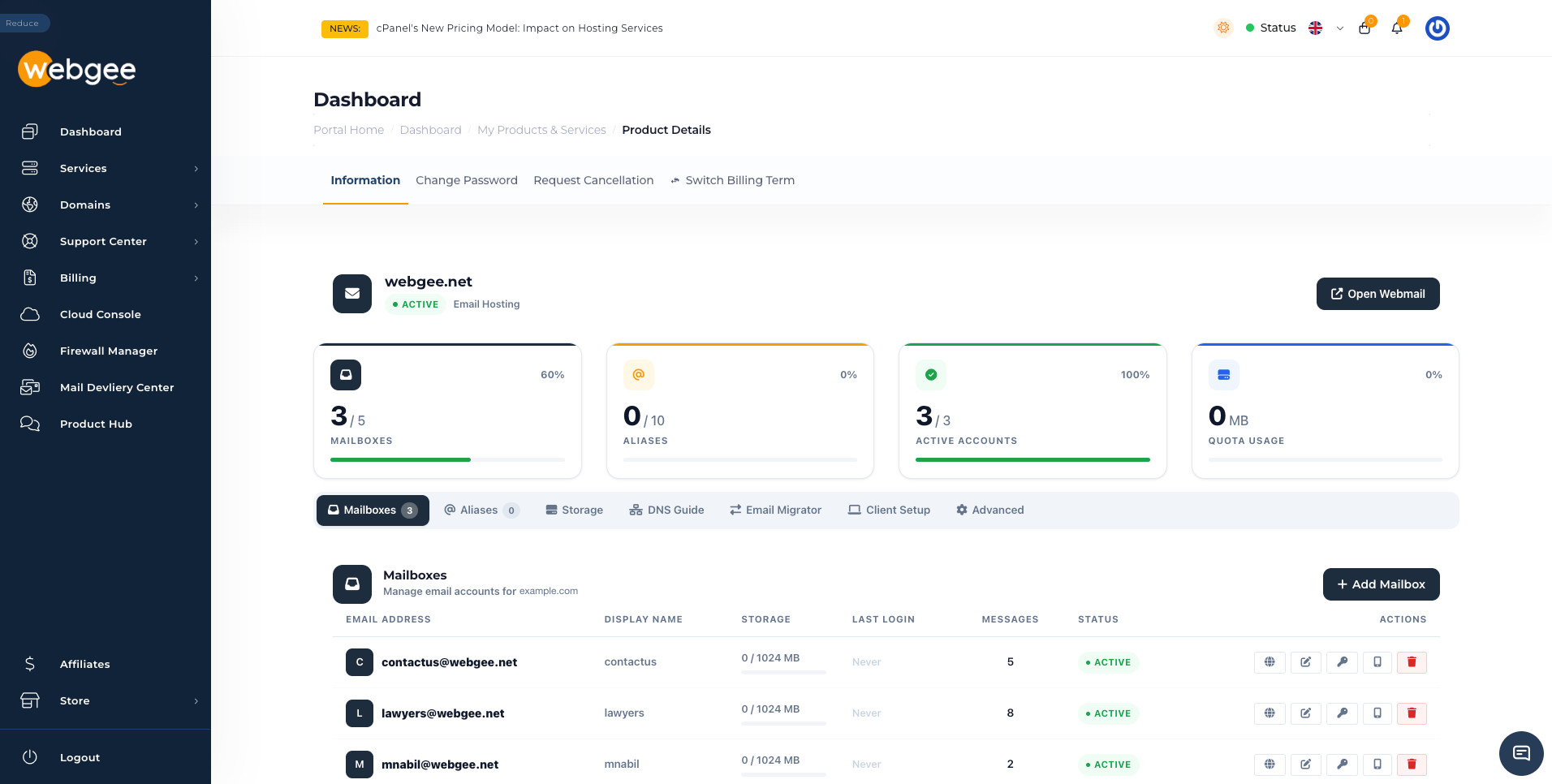
Reading the list
| Column | Meaning |
|---|---|
| Email Address | The full address |
| Display Name | The name shown on messages it sends |
| Storage | Mail stored, against that mailbox's quota |
| Last Login | When someone last signed in. Never means nobody has |
| Messages | Messages currently held |
| Status | Active, or disabled |
Last Login showing Never on a mailbox that has been live for a while is
worth a look. Either nobody is using it — in which case it is spending quota for
nothing — or someone set up a mail app, never checked it, and is missing mail.
Each row carries five actions: open webmail for that mailbox, edit it, change its password, show mobile setup, and delete it.
Create a mailbox
Select Add Mailbox.
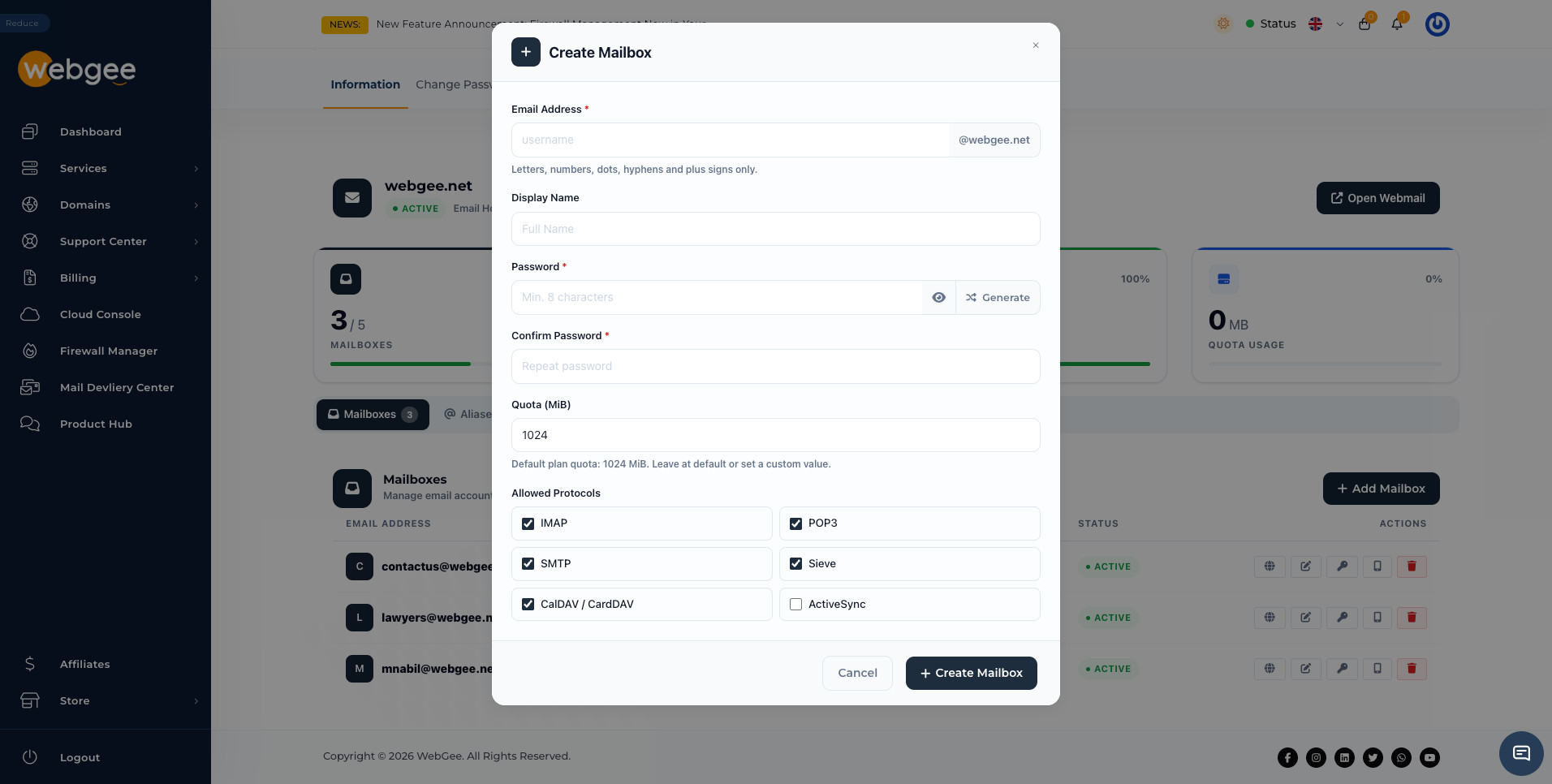
| Field | Notes |
|---|---|
| Email Address | The part before @. Letters, numbers, dots, hyphens and plus signs only |
| Display Name | Optional. What recipients see as the sender name |
| Password | Minimum 8 characters |
| Quota (MiB) | Defaults to the plan quota. Set a custom value if you want |
| Allowed Protocols | Which ways this mailbox can be reached |
Use Generate for the password. It produces something stronger than you will invent, and the eye icon shows it so you can copy it before saving.
Copy the password before you select Create Mailbox. It is not shown again. If it is lost, you can set a new one from the key icon on the mailbox's row, but you cannot retrieve the old one.
Quotas
The quota is per mailbox, taken from your plan's default. Every mailbox draws from the same plan total, so allocating 5 GB to one mailbox on a 5 GB plan leaves nothing for the others — see Storage.
Leave it at the default unless you know a particular mailbox needs more.
Protocols
Five are enabled by default; ActiveSync is not.
| Protocol | What it does | Turn it off when |
|---|---|---|
| IMAP | Reads mail, leaving it on the server | Never, in practice |
| POP3 | Downloads mail to one device and removes it | You want to force IMAP |
| SMTP | Sends mail | The mailbox should only receive |
| Sieve | Server-side filters and rules | Not needed |
| CalDAV / CardDAV | Calendar and contact sync | Not needed |
| ActiveSync | Microsoft's mobile sync protocol | — |
Turning SMTP off makes a receive-only address. That is the right setting for
something like noreply@ or a shared inbox that should never send, and it
means a stolen password cannot be used to send spam from your domain.
Leave ActiveSync off unless something specifically requires it. IMAP with the CalDAV/CardDAV pair covers the same ground on every modern client.
Change a password
Use the key icon on the mailbox's row. The mailbox is not otherwise disturbed, but every mail app signed in as that address will stop syncing until the new password is entered.
Changing a password is the first thing to do if a mailbox is sending spam — see Fix "550 5.7.1 [ESA] Sender Blocked".
Delete a mailbox
The trash icon removes the mailbox and its mail.
Deleting a mailbox deletes everything in it. If there is any chance the contents are wanted, copy them out first — connect the mailbox in a desktop client and drag the folders to a local folder, or run an Email Migrator job in reverse from the other provider's side.
If someone has simply left, an alias pointing their old address at a colleague is usually better than deletion: mail keeps arriving somewhere, and the address is not free for a stranger to claim later.
Related
Set up Premium Email
The order that works — publish DNS records first, then create mailboxes, then connect your mail apps. Doing it the other way round wastes a day.
Aliases
Forward an address to one or more real mailboxes without paying for a mailbox — for role addresses, departed staff and catching mail after a rename.