

Import mail from another provider
Set up an IMAP sync job that copies mail from your old provider into a Premium Email mailbox, and keeps copying until you switch over.
The Email Migrator connects to a remote IMAP server and syncs its messages into one of your mailboxes, repeatedly, at an interval you choose. It is how you move to WebGee without a gap.
Before you start
You need the destination mailbox to already exist — the job copies into a mailbox, it does not create one. See Manage mailboxes.
You also need, from the old provider: the IMAP server name, the mailbox username, and its password.
Create a job
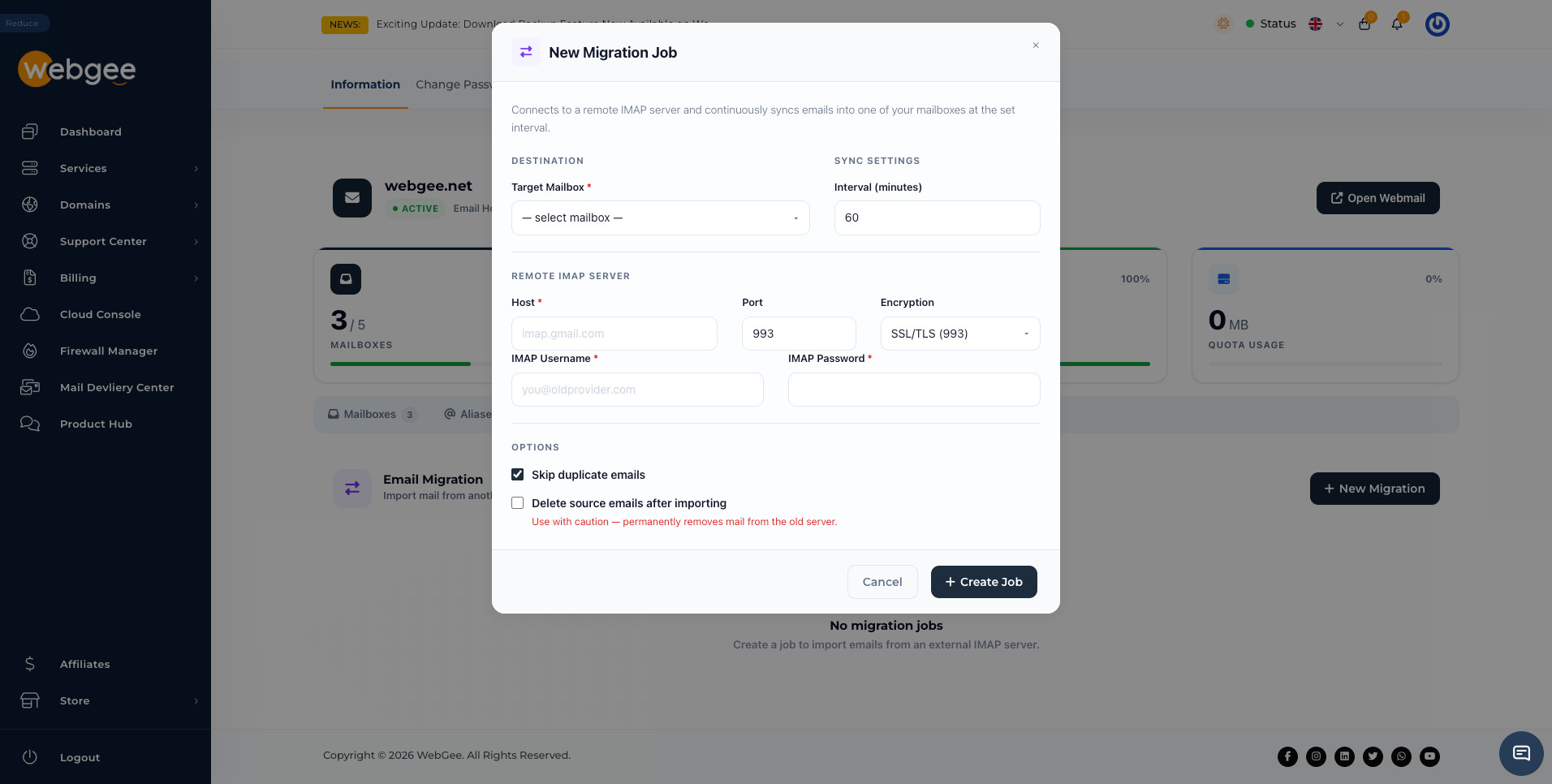
Select New Migration, then fill in three groups:
Destination
| Field | Notes |
|---|---|
| Target Mailbox | The Premium Email mailbox to copy into |
Sync settings
| Field | Notes |
|---|---|
| Interval (minutes) | How often the job re-runs. Defaults to 60 |
Remote IMAP server
| Field | Notes |
|---|---|
| Host | The old provider's IMAP server, e.g. imap.gmail.com |
| Port | 993 for SSL/TLS |
| Encryption | SSL/TLS (993) |
| IMAP Username | Usually the full old address |
| IMAP Password | That mailbox's password |
Then Create Job.
The two options
Skip duplicate emails is on by default and should stay on. It is what makes the job safe to re-run — each pass copies only what is new, instead of producing a second copy of everything.
Delete source emails after importing is off by default.
Delete source emails after importing permanently removes mail from the old server as it copies. If the job is misconfigured — wrong target mailbox, a connection that drops midway — you have deleted the only copy.
Leave it off. Migrate, verify everything arrived, and only then clear the old mailbox from the old provider's own interface.
Why it repeats
The interval is the useful part. A one-off copy leaves everything that arrives afterwards stranded at the old provider until you switch MX.
A repeating job means you can:
- Create the job and let the first pass run.
- Leave it syncing while people carry on using the old mailbox.
- Change the MX record when convenient — see DNS records.
- Let one more pass collect anything that arrived just before the cutover.
- Delete the job.
Nothing is lost in the window where DNS is propagating and mail could go either way.
Order of work
Migrate before the MX cutover. Once WebGee is receiving, new mail arrives at the new mailbox, but everything already sitting at the old provider stays there until this job brings it across.
When a job fails
Authentication errors — many providers require an app-specific password for IMAP rather than the account password, Gmail and Outlook.com among them. Generate one in their security settings and use it here.
Connection refused — IMAP access may be switched off at the old provider, or the host name may be wrong. Check their documentation for the exact server.
It ran but copied nothing — check the target mailbox is the one you meant, and that the old mailbox is not empty because mail was already being collected by POP3 somewhere.