

Premium Email
Business email on your own domain without a hosting account — mailboxes, aliases, DNS, migration and client setup, all managed from your WebGee client area.
Premium Email is standalone email hosting on your own domain. There is no cPanel and no website attached: you get mailboxes, aliases and the mail server, managed from a single page in your client area.
It suits anyone who wants professional addresses on their domain without paying for hosting they will not use — a domain registered elsewhere, a site hosted elsewhere, or a business that only needs email.
Where to find it
The panel appears in your client area as soon as the order is active:
- Sign in to my.webgee.com.
- Go to Services, then Premium Email.
- Select your domain to open Product Details.
The Information tab is the panel. The other tabs across the top — Change Password, Request Cancellation and Switch Billing Term — are the billing controls for the service itself, not for your mailboxes.
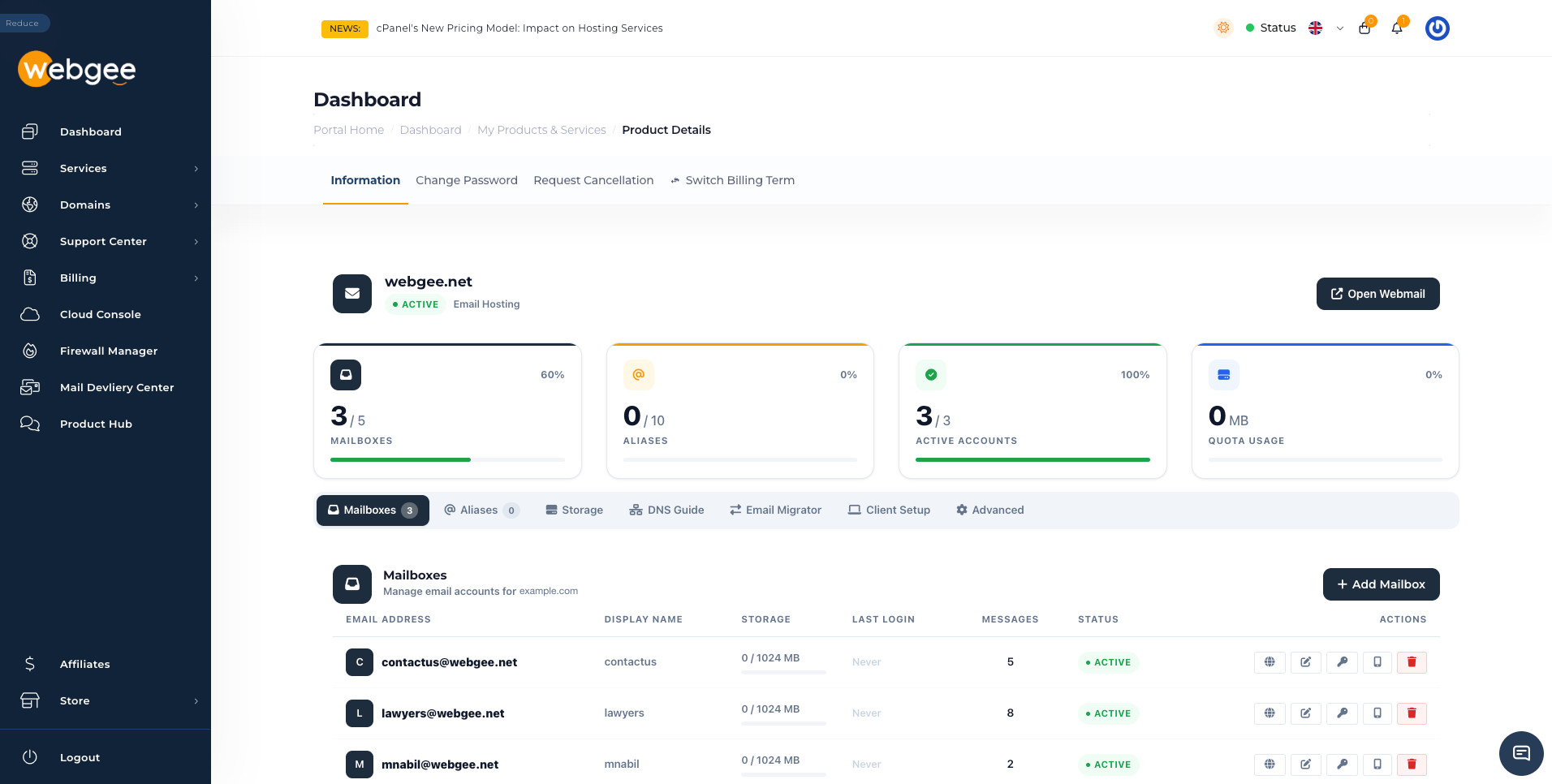
Change Password on that row changes the password for the service in your client area. It does not change a mailbox password. To change a mailbox password, use the key icon on its row in Mailboxes.
The four counters
| Counter | What it counts |
|---|---|
| Mailboxes | Mailboxes created, against your plan's limit |
| Aliases | Forwarding addresses created, against your plan's limit |
| Active Accounts | How many of your mailboxes are currently enabled |
| Quota Usage | Total mail stored across every mailbox |
Mailboxes and Active Accounts answer different questions. The first is how many you have created; the second is how many are switched on. A gap between them means a mailbox has been suspended or disabled, and mail to it is not being delivered.
The seven tabs
| Tab | Use it to |
|---|---|
| Mailboxes | Create, edit and delete mail accounts |
| Aliases | Forward one address to one or more others |
| Storage | See total and per-mailbox disk usage |
| DNS Guide | Get the records your domain needs, and check them |
| Email Migrator | Copy mail in from another IMAP provider |
| Client Setup | Server settings and per-app setup steps |
| Advanced | Less common per-domain settings |
Open Webmail, at the top right, opens webmail for the domain in a new tab — useful for checking a mailbox works before setting up a mail app.
If you are just starting
Do the DNS records first. Nothing else works until mail is actually routed to WebGee — see Set up Premium Email.