

إعداد خادمك السحابي
ثبّت نظام تشغيل على خادم WebGee سحابي جديد من وحدة التحكّم السحابية، واحصل على وصول الجذر بمفتاح SSH أو بكلمة مرور مرسَلة بالبريد.
انتقل بخادم WebGee السحابي المطلوب حديثًا من الفراغ إلى تشغيل نظام تشغيل. ينطبق على كل باقات الخوادم السحابية.
والعملية كلها تجري من وحدة التحكّم السحابية وتستغرق دقيقتين.
افتح وحدة التحكّم السحابية
-
سجّل الدخول إلى منطقة عملاء WebGee.
-
اختر Services.
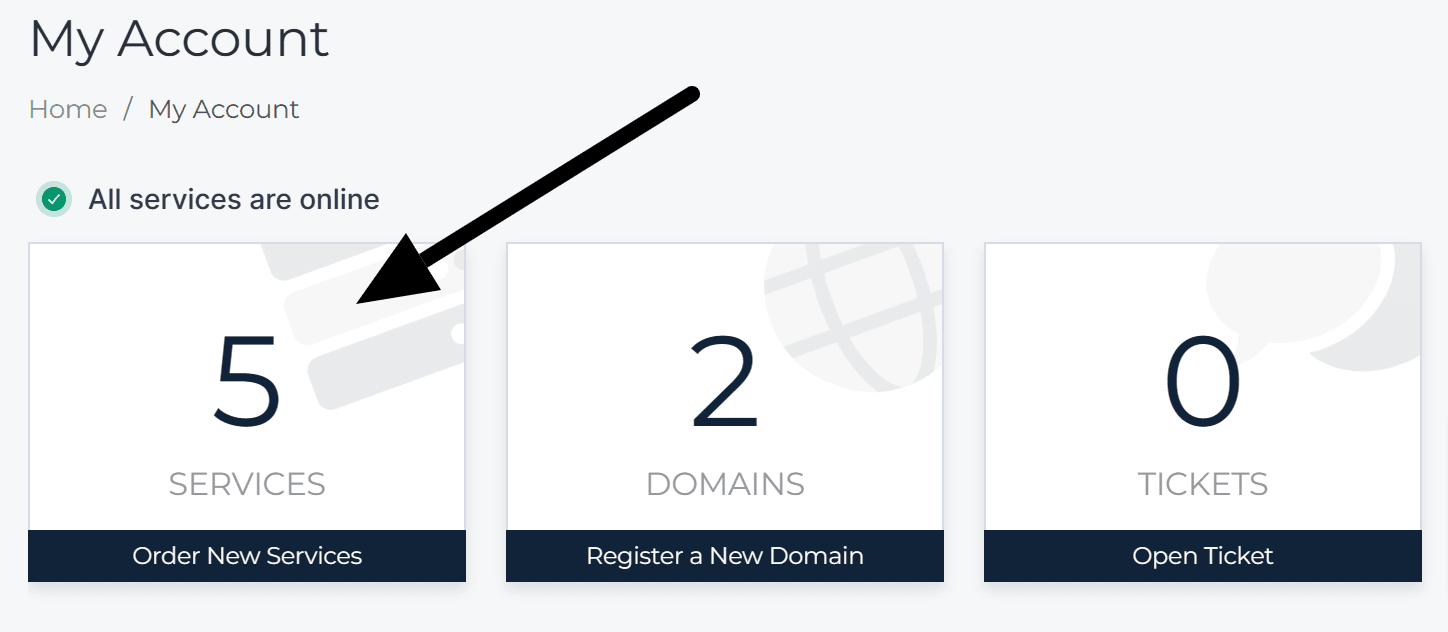
-
ضمن My Products & Services، اختر خادمك السحابي.
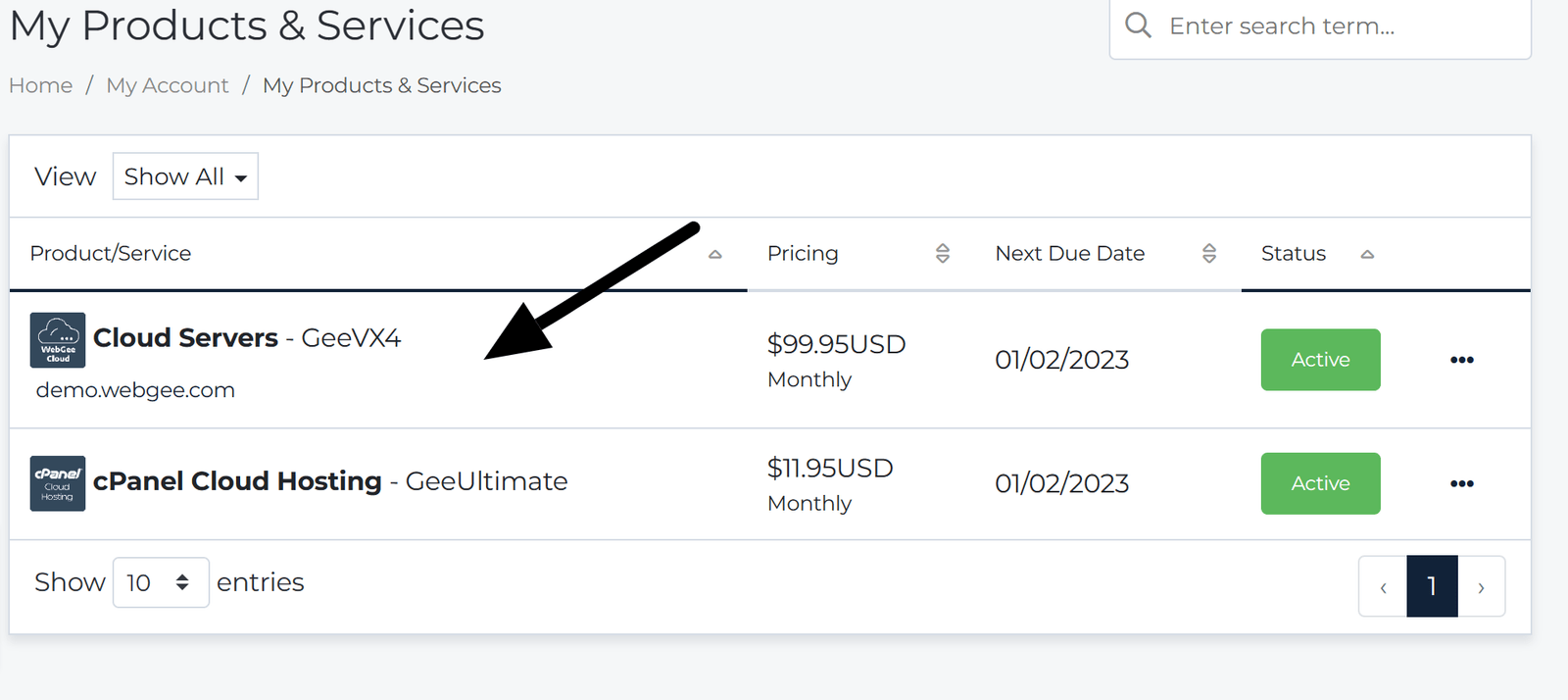
-
ضمن Manage، اختر Open Cloud Console.
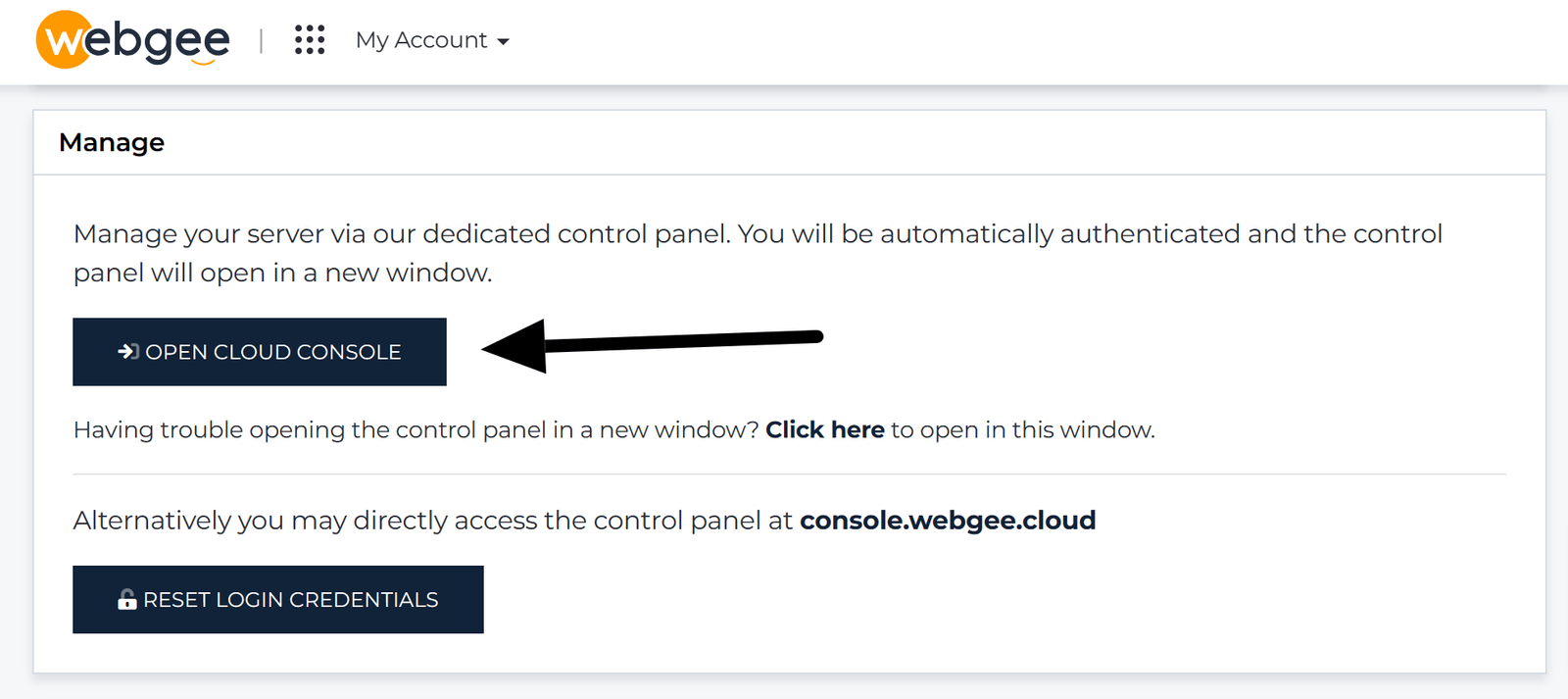
اضبط الخادم
-
اضبط Server Name وServer Hostname وServer Timezone.
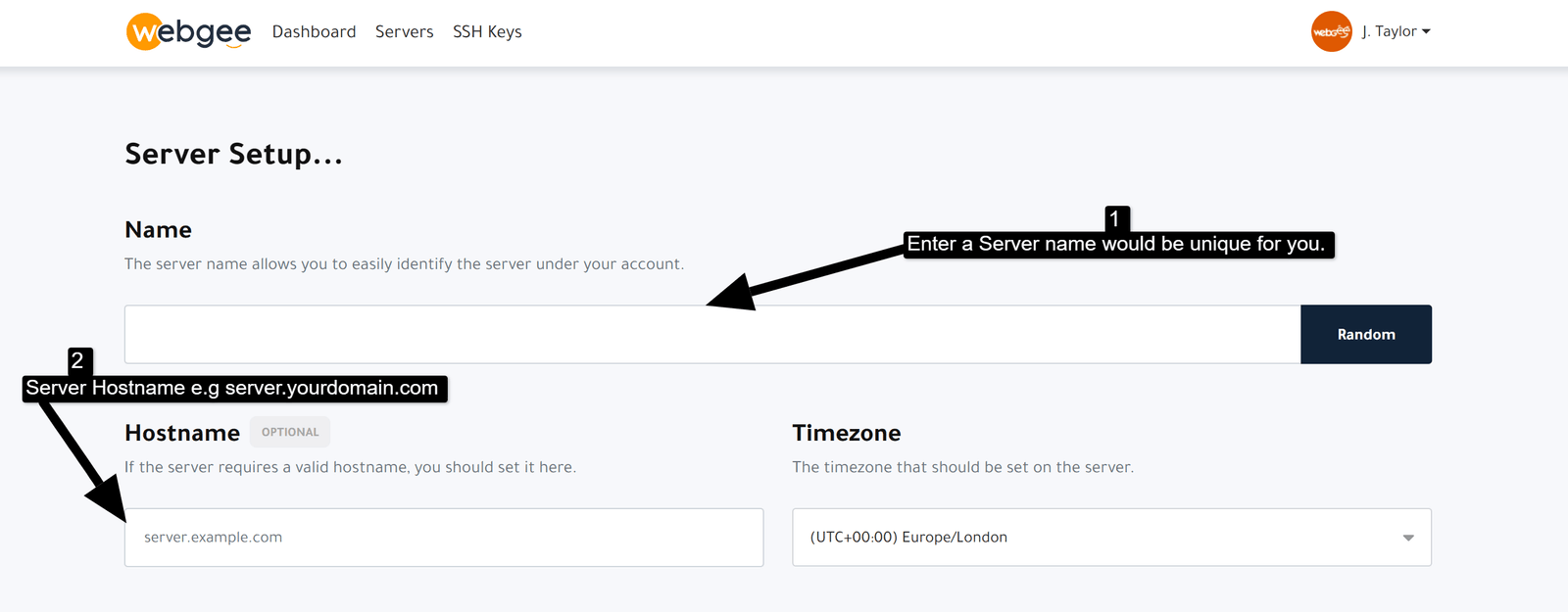
استخدم اسم مضيف مؤهّلًا بالكامل مثل
server1.example.com. فبرمجيات البريد خصوصًا تسلك سلوكًا سيئًا مع اسم مضيف مجرّد، وتغييره لاحقًا يعني إعادة إصدار الشهادات. -
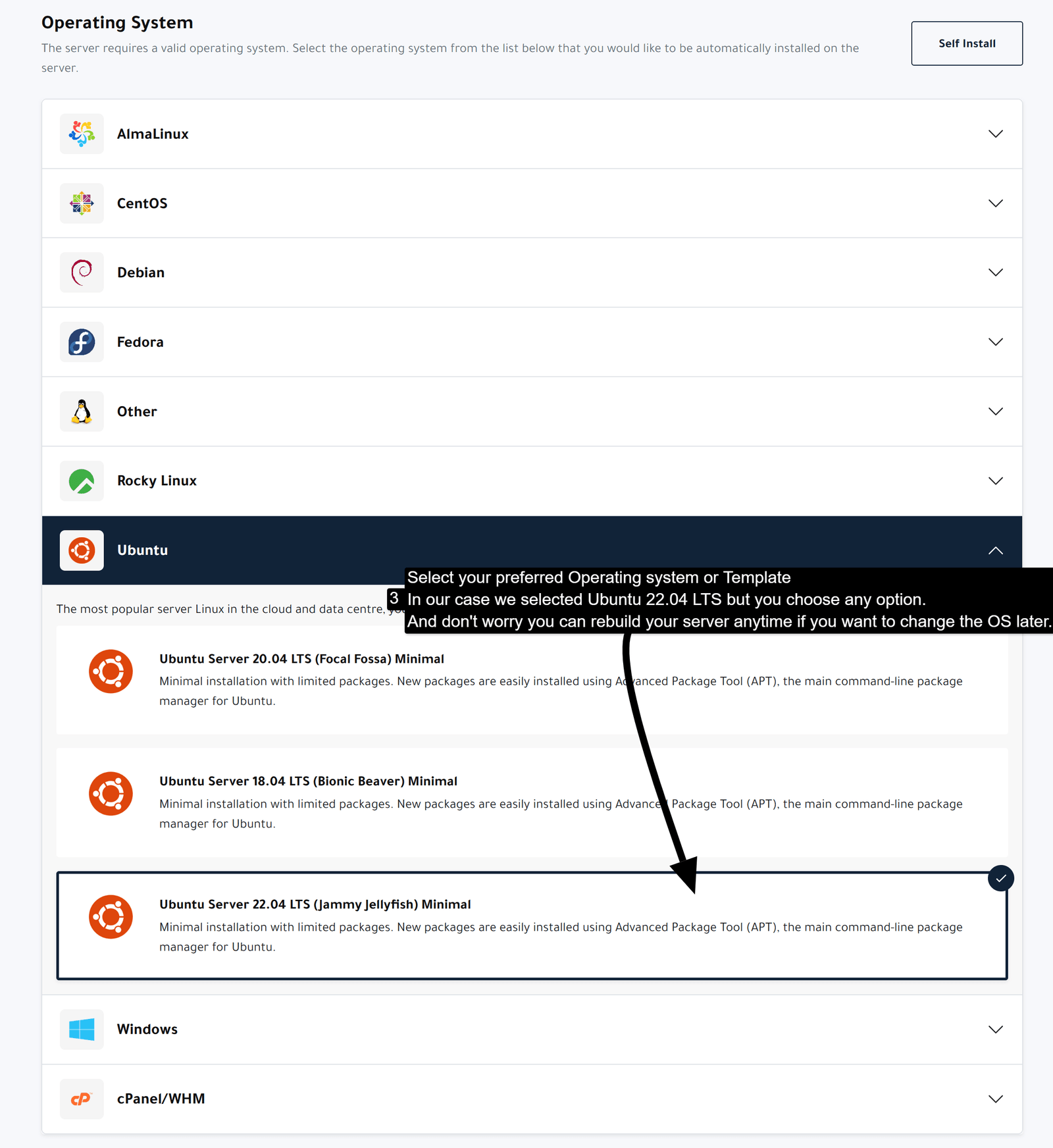
اختر نظام تشغيل من القوالب.
-
أضف مفتاح SSH اختياريًا.
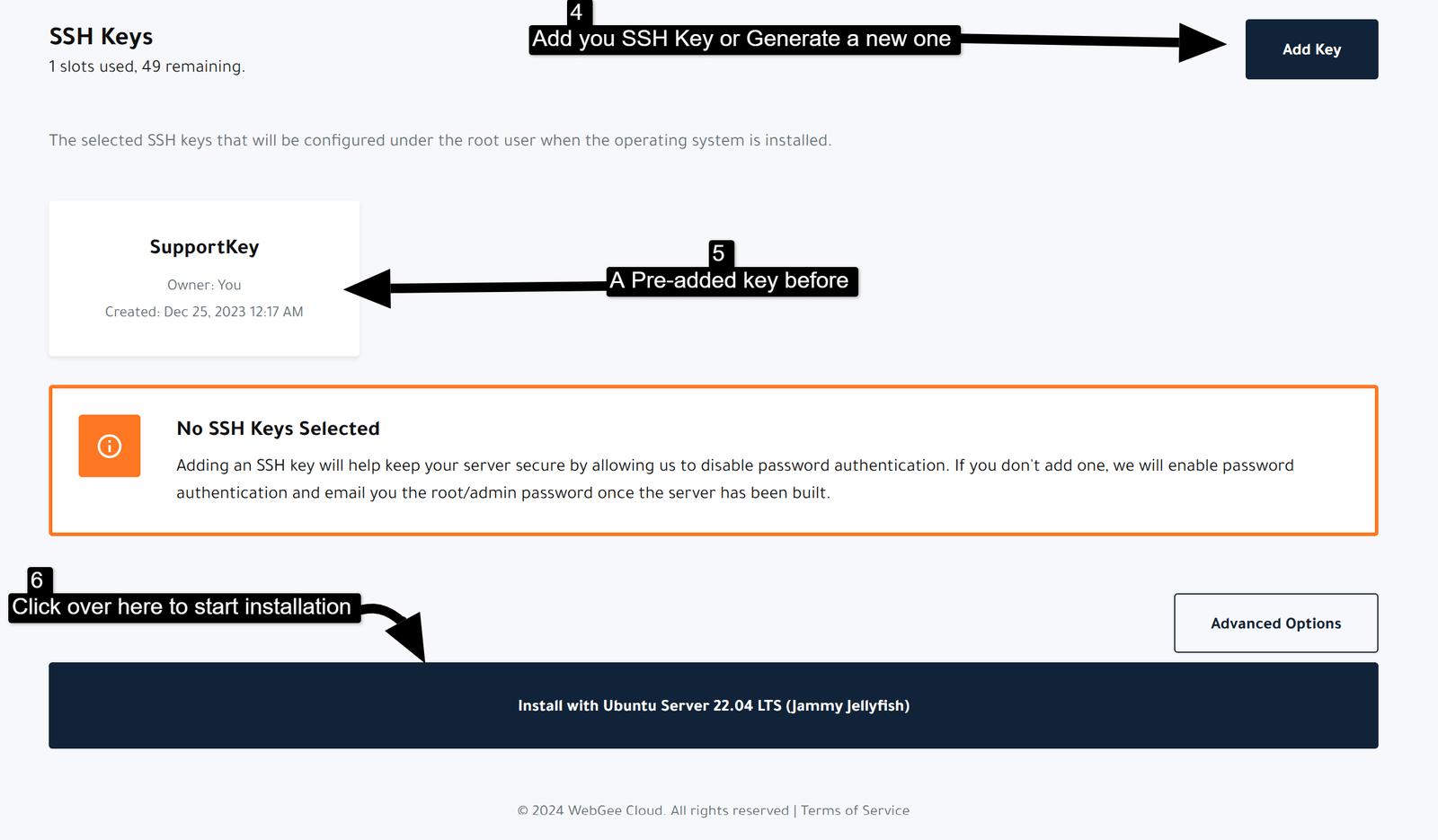
إضافة مفتاح هنا تستحق الدقيقة الإضافية. فبدونه تُرسَل كلمة مرور الجذر إليك بالبريد نصًا مكشوفًا — غيّرها فورًا عند أول دخول إن سلكت ذلك الطريق. راجع الاتصال عبر SSH لكيفية توليد مفتاح.
-
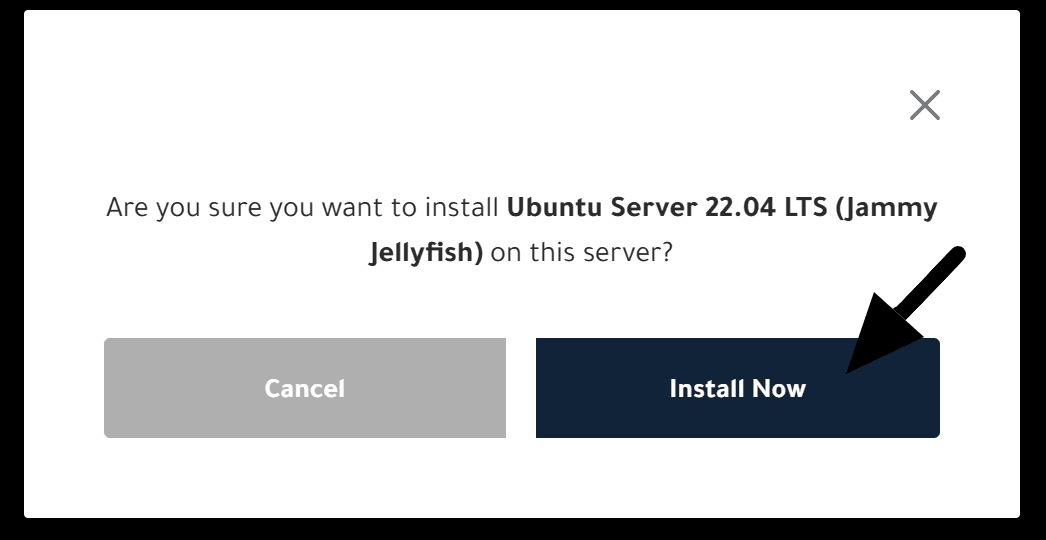
اختر Install، ثم أكّد.
ويكتمل التثبيت عادةً في أقل من 20 ثانية.
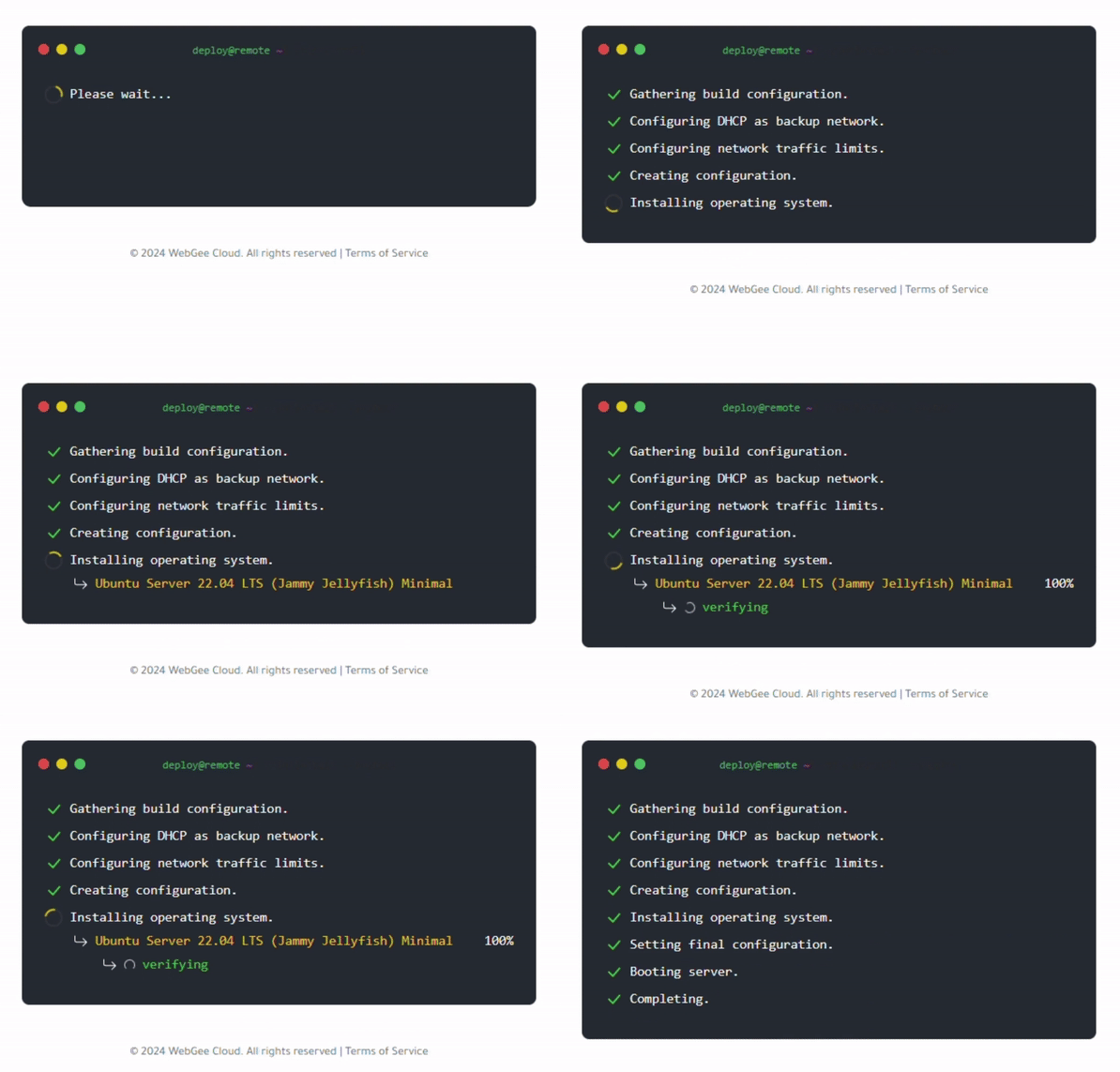
وعند انتهائه تنتقل إلى لوحة الخادم.
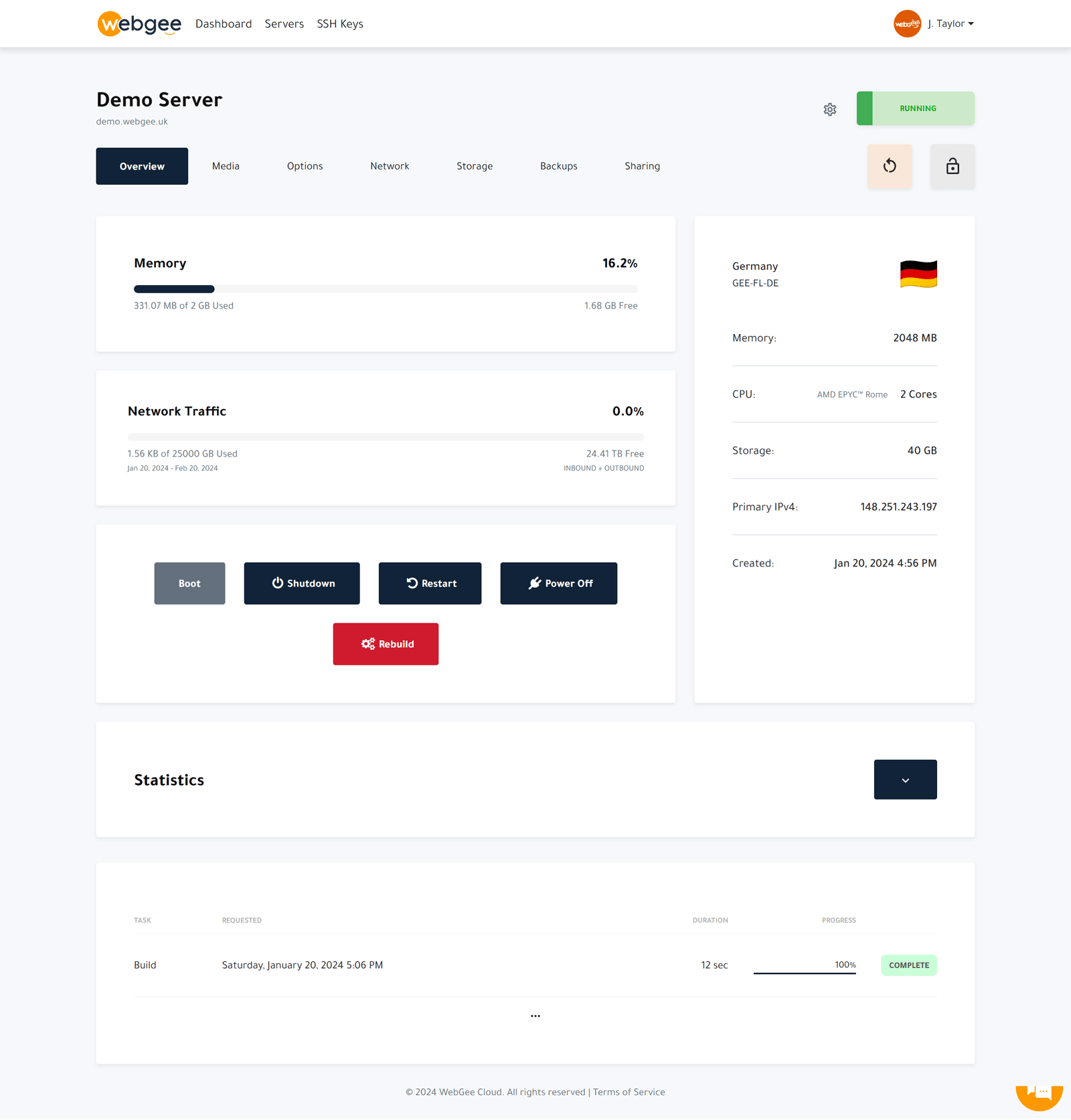
تأكّد أنه نجح
اتصل عبر SSH بعنوان IP الخاص بالخادم، المعروض في اللوحة:
ssh root@203.0.113.10فإن أضفت مفتاح SSH دخلت مباشرة. وإلا فاستخدم كلمة مرور الجذر من البريد.
أول ما تفعله
- غيّر كلمة مرور الجذر إن أُرسلت إليك بالبريد.
- حدّث النظام —
apt update && apt upgradeعلى دبيان أو أوبونتو، وdnf upgradeعلى AlmaLinux أو Rocky. - اضبط الـ DNS العكسي إن كان الخادم سيرسل بريدًا، وإلا صُفّيت رسائلك سبامًا.
إن تعذّر عليك الاتصال
- انتهاء مهلة الاتصال — قد يكون التثبيت لا يزال ينتهي. راجع اللوحة.
- Permission denied — المفتاح خاطئ، أو لم تصل رسالة كلمة المرور بعد. راجع مجلد السبام.
- أنت محبوس تمامًا — أعد ضبط كلمة مرور الجذر من وحدة التحكّم السحابية: إعادة ضبط كلمة مرور الجذر.
الخطوات التالية
هذا يشغّل الخادم. وكل ما بعده يقع في وحدة التحكّم السحابية:
- وحدة تحكّم WebGee السحابية — أين تجدها وماذا تفعل
- إضافة مفتاح SSH — لتتوقف عن استخدام كلمات المرور
- الشبكة والـ DNS العكسي — اضبط الـ DNS العكسي قبل إرسال أي بريد
- النسخ الاحتياطي لخادمك — قبل أن تحتاجه