

وضع الإنقاذ وVNC
صِل إلى خادم لا يُقلِع أو لا يقبل SSH، عبر طرفية VNC في المتصفح أو وضع الإنقاذ، وأعد ضبط كلمة مرور الجذر.
استعد خادمًا سحابيًا لا تستطيع الوصول إليه عبر SSH. ينطبق على كل خوادم VPS والمخصّصة.
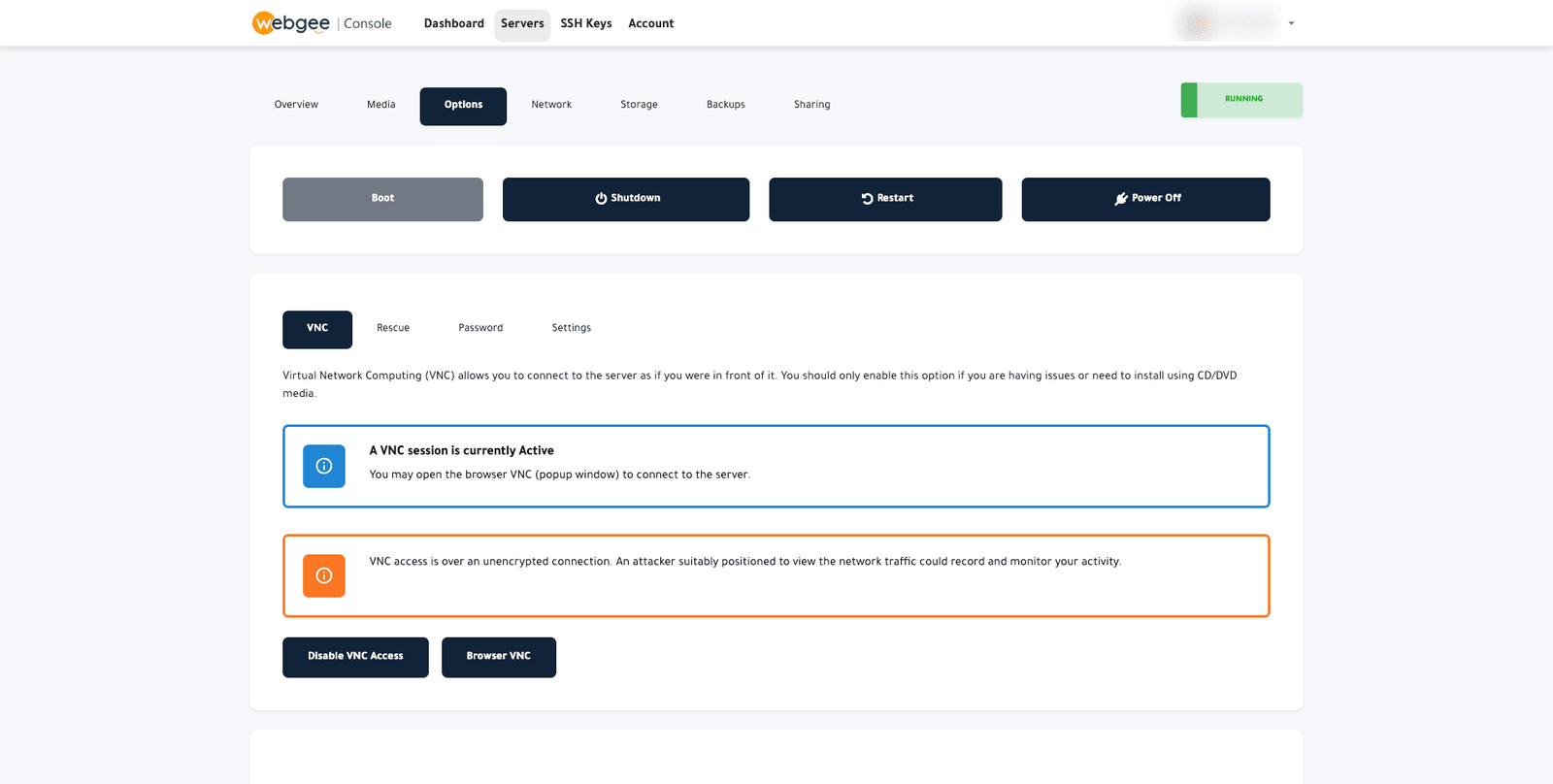
وهذه الأدوات تقع ضمن Options في وحدة التحكّم السحابية، في أربعة تبويبات فرعية: VNC وRescue وPassword وSettings.
أيّها تستخدم
| العَرَض | استخدم |
|---|---|
| يرفض SSH كلمة مرورك أو مفتاحك | Password — أعد ضبط كلمة مرور الجذر |
| يُقلِع الخادم لكن SSH لا يستجيب | VNC — احصل على طرفية وافحص |
| لا يُقلِع الخادم أصلًا | Rescue — أقلِع بيئة استعادة |
| تثبيت نظام تشغيل من وسائطك | VNC مع وسائط الإقلاع |
VNC
يمنحك VNC شاشة الخادم ولوحة مفاتيحه، تمامًا كما لو كنت واقفًا أمامه. وهو يعمل حين تتعطّل حزمة الشبكة أو SSH، لأنه لا يعتمد على أي منهما.
- افتح Options ← VNC.
- اختر Enable VNC Access إن لم يكن مفعَّلًا.
- اختر Browser VNC لفتح الطرفية في نافذة منبثقة.
VNC غير مشفَّر. فكل من يستطيع مراقبة الشبكة بينك وبين الخادم قد يسجّل الجلسة، بما في ذلك كل ما تكتبه — ككلمة مرور الجذر. استخدمه للتشخيص، ثم استخدم SSH للعمل الحقيقي، واختر Disable VNC Access عند انتهائك.
واسمح بالنوافذ المنبثقة للطرفية إن لم تُفتَح النافذة.
وضع الإنقاذ
يُقلِع وضع الإنقاذ الخادم إلى بيئة استعادة صغيرة بدل نظامك المثبَّت، مع إتاحة
قرصك للتركيب. استخدمه حين لا يُقلِع الخادم أصلًا — ملف fstab معطّل، أو تحديث
نواة فاشل، أو قرص ممتلئ.
-
افتح Options ← Rescue.
-
ابدأ وضع الإنقاذ.
-
اتصل عبر SSH أو VNC ببيانات اعتماد الإنقاذ المعروضة.
-
ركّب قرصك، مثلًا:
mount /dev/vda1 /mnt -
أصلح ما هو خاطئ، ثم فُكّ التركيب وأعد الإقلاع إلى نظامك.
ووضع الإنقاذ لا يغيّر قرصك. فلا يُعدَّل شيء ما لم تعدّله أنت.
إعادة ضبط كلمة مرور الجذر
ضمن Options ← Password. ويجب أن يكون الخادم مطفأً كي يسري التغيير — راجع إعادة ضبط كلمة مرور الجذر من وحدة التحكّم السحابية.
الإعدادات
خيارات على مستوى الخادم مثل مُقلِع النظام. لا تغيّرها إلا لسبب محدّد؛ فالافتراضيات تناسب كل تثبيت تقريبًا.