

وسائط الإقلاع وترتيبه
أرفق صورة قرص لتثبيت نظام تشغيل يدويًا أو لإقلاع قرص استعادة، وتحكّم في الجهاز الذي يُقلِع منه الخادم أولًا.
أقلِع خادمك السحابي من صورة بدل قرصه. ينطبق على كل خوادم VPS والمخصّصة.
وهذا لتثبيت نظام تشغيل لا تقدّمه وحدة التحكّم السحابية قالبًا، أو لإقلاع أداة استعادة من طرف ثالث. أما لنظام مدعوم، فاستخدم إعادة بناء خادمك بدلًا منه — فهو أسرع بكثير.
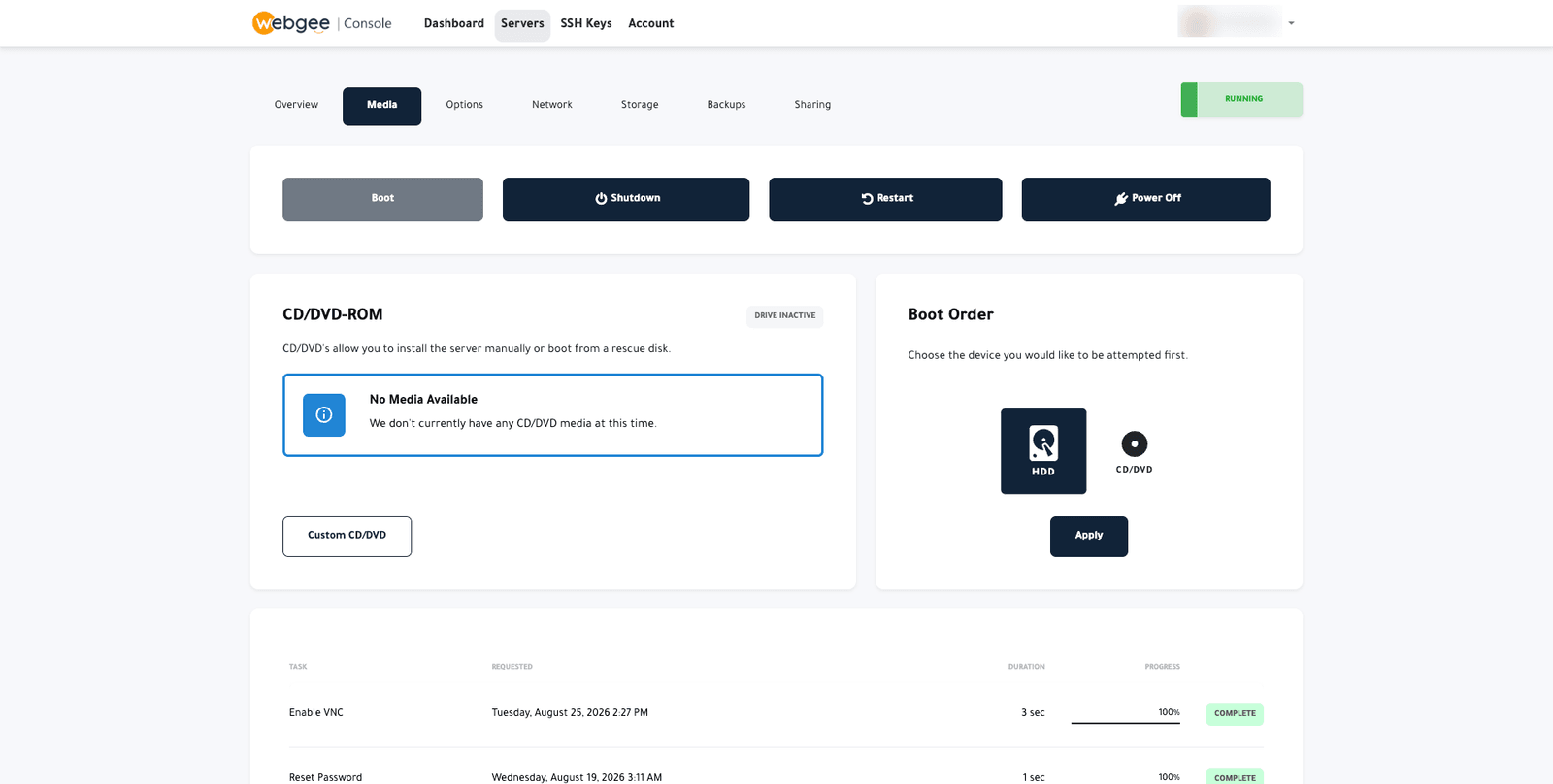
أرفق وسائط
- افتح تبويب Media.
- اختر من الصور المتاحة، أو اختر Custom CD/DVD لتقديم صورتك برابط.
وتعرض اللوحة DRIVE INACTIVE حين لا يكون شيء مرفقًا.
اضبط ترتيب الإقلاع
اختر الجهاز الذي يجرّبه الخادم أولًا:
- HDD — قرص الخادم نفسه. وهو الإعداد العادي.
- CD/DVD — الصورة المرفقة. ومطلوب لتشغيل مثبِّت.
اختر الجهاز، ثم Apply.
أعد ترتيب الإقلاع إلى HDD بعد انتهاء التثبيت. فتركه على CD/DVD يعني أن الخادم سيُقلِع المثبِّت من جديد في إعادة التشغيل التالية بدل النظام الذي ثبّته للتو — وهو ما يبدو تمامًا كفشل التثبيت.
ستحتاج VNC
لا وجود لوصول SSH أثناء التثبيت من وسائط — فنظام التشغيل لا يعمل بعد. فعّل VNC أولًا واستخدم طرفية المتصفح لقيادة المثبِّت: وضع الإنقاذ وVNC.
التسلسل المعتاد
- فعّل VNC.
- أرفق الصورة ضمن Media.
- اضبط ترتيب الإقلاع على CD/DVD واختر Apply.
- أعد تشغيل الخادم.
- افتح Browser VNC وامضِ في المثبِّت.
- أعد ترتيب الإقلاع إلى HDD.
- أعد التشغيل، ثم اتصل عبر SSH.
- عطّل VNC.