

إعادة بناء خادمك
أعد تثبيت نظام التشغيل على خادم سحابي من وحدة التحكّم السحابية. وهذا يمحو كل ما على القرص الأساسي.
ثبّت نظام تشغيل جديدًا على خادمك السحابي. ينطبق على كل خوادم VPS والمخصّصة.
إعادة البناء تمحو القرص الأساسي. فكل ملف وقاعدة بيانات وإعداد عليه يُدمَّر ولا يمكن استرجاعه بعد ذلك. خذ نسخة احتياطية وتأكّد أنك تستطيع الاستعادة منها قبل أن تبدأ — راجع النسخ الاحتياطي لخادمك.
ابدأ إعادة البناء
- في وحدة التحكّم السحابية، افتح خادمك.
- اختر Rebuild.
وتُفتَح صفحة الإعداد، مع شريط يؤكّد ما سيحدث وزر Cancel Rebuild. ولا يُدمَّر شيء حتى تختار Install.
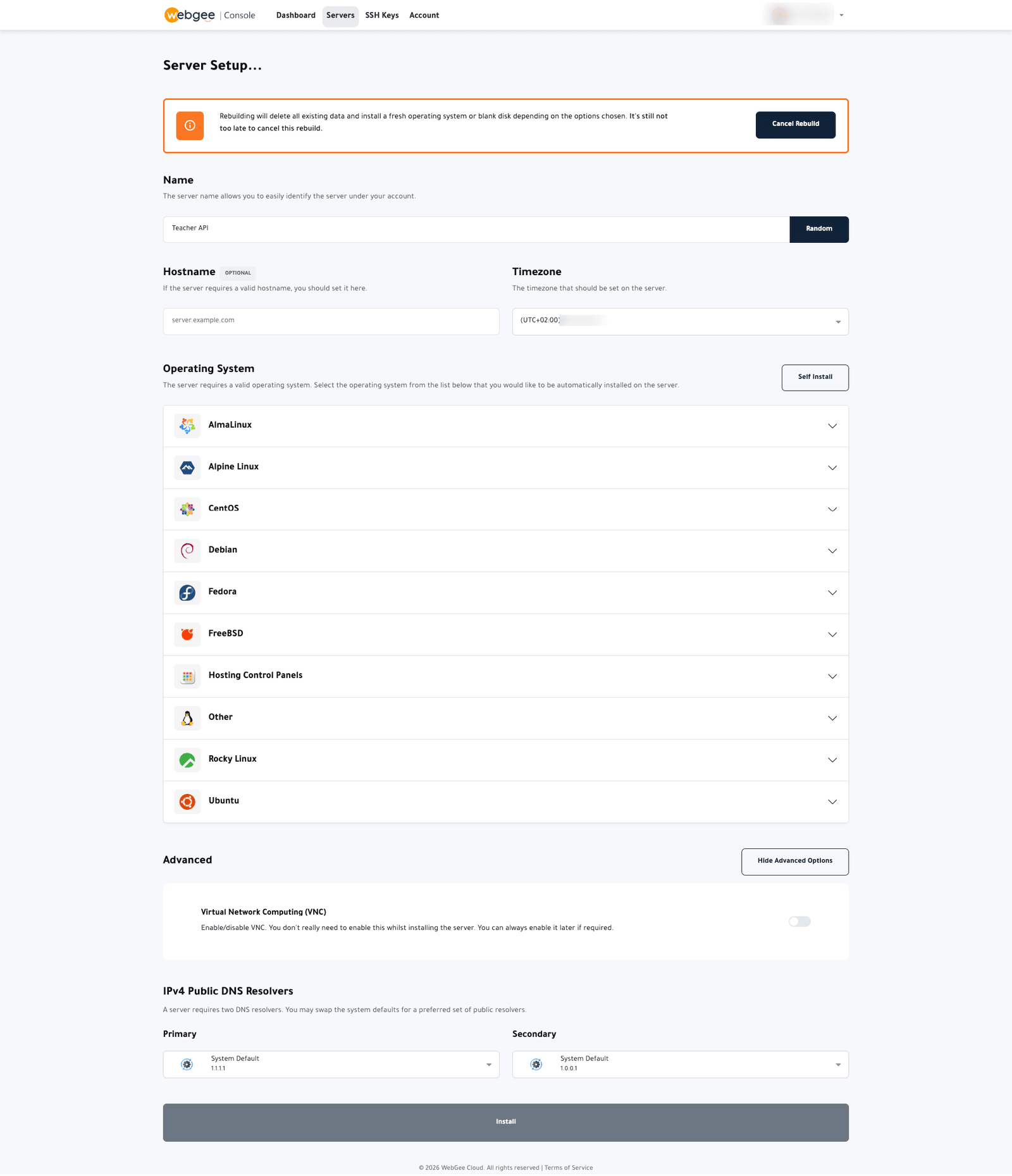
اضبطه
الاسم واسم المضيف
Name يعرّف الخادم في حسابك — ولا أثر له على الخادم نفسه.
Hostname يُضبَط على الخادم. استخدم اسمًا مؤهّلًا بالكامل مثل
server1.example.com. فبرمجيات البريد خصوصًا تسلك سلوكًا سيئًا مع اسم مضيف
مجرّد، وتغييره لاحقًا يعني إعادة إصدار الشهادات.
المنطقة الزمنية
تضبط المنطقة الزمنية لساعة الخادم. وتتبعها أختام السجلات الزمنية والمهام المجدولة.
نظام التشغيل
اختر من العائلات المتاحة:
- AlmaLinux وRocky Linux وCentOS — متوافقة مع RHEL
- Debian وUbuntu — مبنية على دبيان
- Fedora وAlpine Linux وFreeBSD
- Hosting Control Panels — صور بلوحة تحكم مثبَّتة مسبقًا
- Other
وسّع عائلة لاختيار إصدار. وفضّل إصدارًا طويل الدعم ما لم يكن لديك سبب محدّد لغير ذلك؛ فهي تتلقّى التحديثات الأمنية مدة أطول بكثير.
Self Install يترك القرص فارغًا لتثبّت من وسائطك أنت. وستحتاج VNC ووسائط الإقلاع لإتمامه — فليس للخادم نظام تشغيل تتصل به عبر SSH.
الخيارات المتقدمة
- VNC — اتركه معطّلًا. فلا تحتاجه أثناء التثبيت ويمكنك تفعيله لاحقًا إن ساء شيء.
- IPv4 Public DNS Resolvers — والافتراضيان هما
1.1.1.1و1.0.0.1من Cloudflare. لا تغيّرهما إلا إن كان لديك سبب.
ثبّت
اختر Install. وتستغرق إعادة البناء بضع دقائق؛ ويظهر التقدّم في قائمة المهام.
بعد إعادة البناء
تُعاد ضبط كلمة مرور الجذر وتُثبَّت أي مفاتيح SSH مرفقة بالبناء. وإن لم ترفق مفتاحًا، فتُرسَل كلمة المرور الجديدة إليك بالبريد.
- اتصل عبر SSH — راجع الاتصال عبر SSH.
- غيّر كلمة مرور الجذر إن أُرسلت إليك بالبريد.
- حدّث النظام:
apt update && apt upgrade، أوdnf upgradeعلى أنظمة عائلة RHEL. - أعد تطبيق أي قواعد جدار حماية — فهي لا تنجو من إعادة البناء.
إن تعذّر عليك الاتصال بعدها
- التثبيت لا يزال يعمل. راجع قائمة المهام.
- لم يُرفَق مفتاح SSH لديك. استخدم كلمة المرور من البريد، أو أعد ضبط كلمة مرور الجذر.
- تغيّر مفتاح المضيف. فسيرفض عميل SSH لديك الاتصال ويقول ذلك. أزل المدخل
القديم:
ssh-keygen -R your.server.ip.