

ربط استضافتك محرّك شبكة عبر Web Disk
استخدم Web Disk لربط حساب استضافتك مجلدًا على ويندوز أو macOS أو لينكس، ومتى يكون SFTP الخيار الأفضل.
يعرض Web Disk حسابك عبر WebDAV، فيظهر محرّك شبكة على حاسوبك وتحرّر الملفات كأنها محلية. ينطبق على الاستضافة المشتركة والموزِّعة والمميّزة على cPanel.
افتح Web Disk في cPanel ضمن Files.
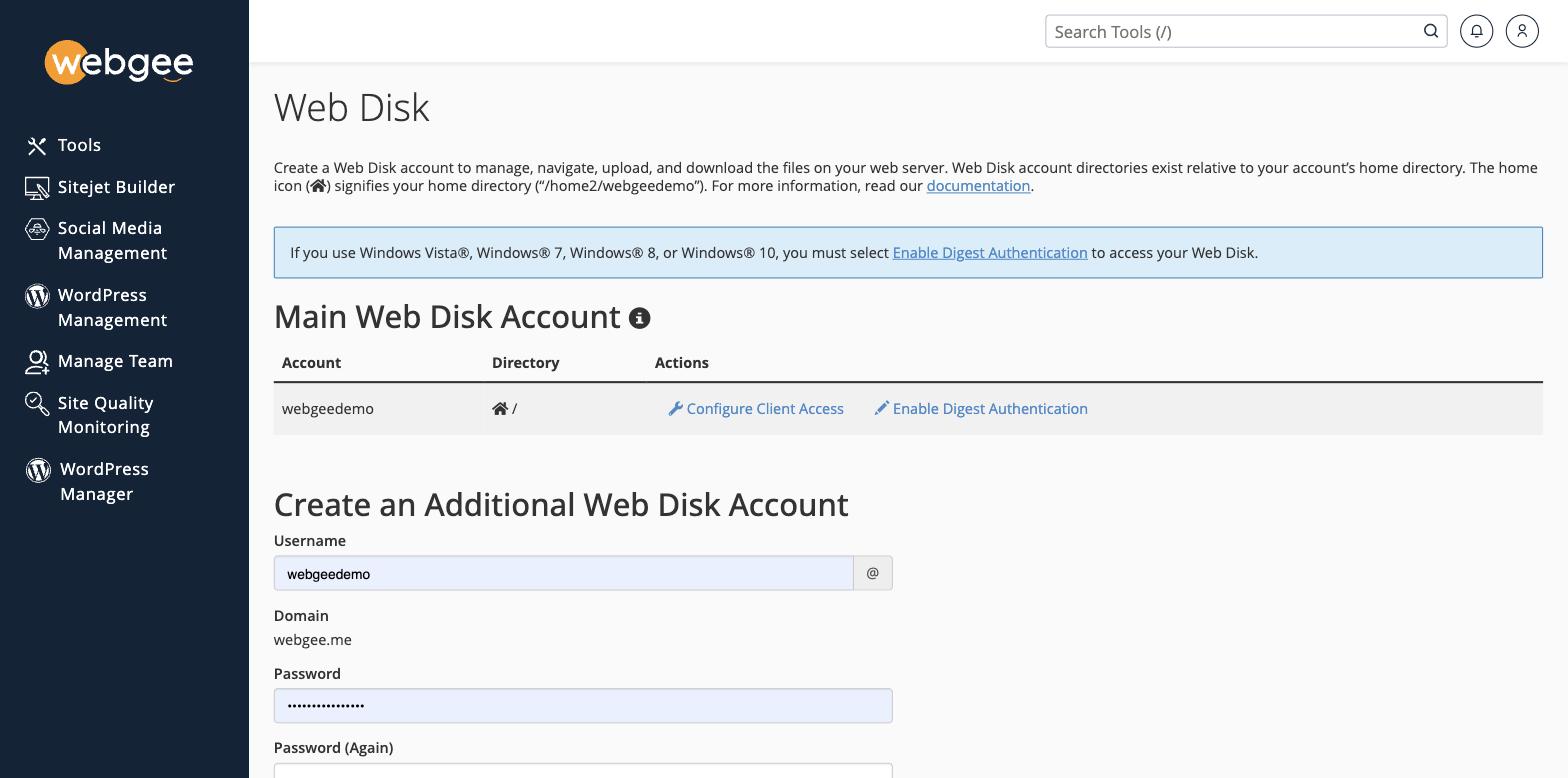
استخدام الحساب الرئيسي
لحساب cPanel لديك حساب Web Disk أصلًا يغطّي المجلد الرئيسي كله. اختر Configure Client Access بجواره، واختر نظام تشغيلك، واتبع التعليمات — فـ cPanel يولّد سكربت إعداد لويندوز ويعطي إعدادات يدوية لما عداه.
لحساب Web Disk الرئيسي وصول إلى مجلدك الرئيسي كله، وكلمة مروره هي كلمة مرور cPanel لديك. فلا تضبطه على حاسوب مشترك أو غير موثوق. أنشئ حسابًا مقيَّدًا بدلًا منه، كما أدناه.
إنشاء حساب مقيَّد
ينشئ Create an Additional Web Disk Account تسجيل دخول محصورًا في مجلد واحد.
استخدم هذا لمن ينبغي أن يصل إلى جزء من الحساب فقط — مصمّم يحتاج
public_html/wp-content/themes ولا شيء غيره.
ويُلحَق اسم المستخدم بنطاقك، فـ alex يصير alex@example.com، وذلك العنوان
الكامل هو تسجيل الدخول.
ويندوز يحتاج المصادقة بالملخّص
إن كنت على ويندوز، فاختر Enable Digest Authentication قبل الاتصال. فويندوز لن يصادق على مشاركة WebDAV بدونها، والفشل يبدو كلمة مرور خاطئة لا إعدادًا ناقصًا.
SFTP أفضل عادةً
Web Disk مريح للتحرير العرضي، لكن WebDAV بطيء مع الملفات الصغيرة الكثيرة ويُسقط الاتصالات على الشبكات غير المستقرة — وهو ما يفسد حفظًا في منتصفه.
ولأي شيء كبير استخدم SFTP. فهو أسرع وأوثق ويستطيع المصادقة بمفتاح بدل كلمة مرور: