

إنشاء نطاق فرعي شامل
أضف نطاقًا فرعيًا شاملًا *.example.com في cPanel فيُحلّ أي نطاق فرعي، لـ WordPress Multisite أو لشهادة SSL شاملة.
أنشئ نطاقًا فرعيًا شاملًا كي يُحلّ أي نطاق فرعي من نطاقك إلى موقعك، بما في ذلك ما لم يُنشأ بعد. ينطبق على الاستضافة المشتركة والموزِّعة.
والشامل يطابق كل طلب لنطاق فرعي لم تنشئه صراحةً. والأمران اللذان يحتاجه الناس لهما عادةً هما WordPress Multisite في وضع النطاقات الفرعية، وشهادات SSL الشاملة.
أنشئه
-
في cPanel، افتح Subdomains ضمن Domains.
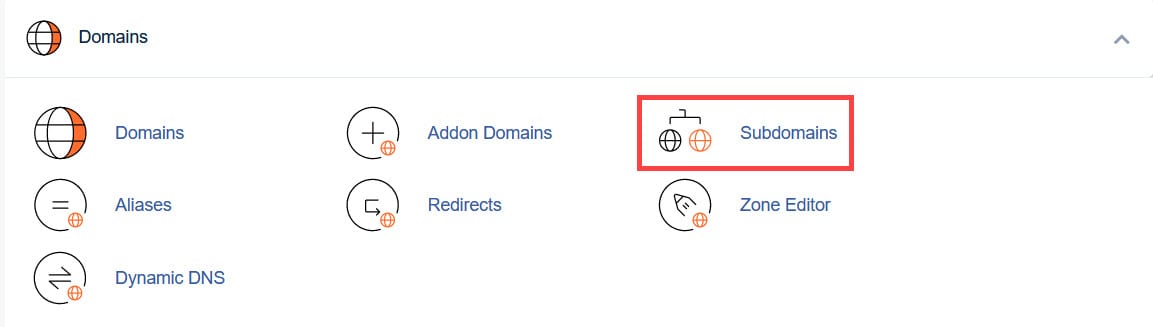
-
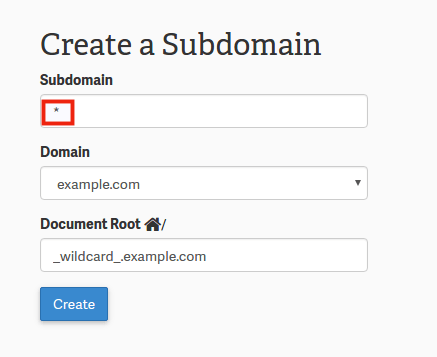
في خانة Subdomain، أدخل نجمة واحدة:
*
-
اختر النطاق الذي ينطبق عليه.
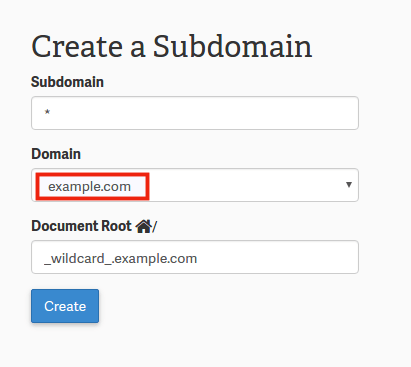
-
يملأ cPanel Document Root تلقائيًا. غيّره إن أردت أن يقدّم الشامل موقعك الرئيسي لا مجلدًا خاصًا به.
-
اختر Create.
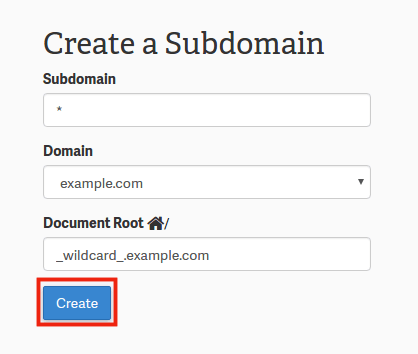
وينبغي أن ترى تأكيدًا.
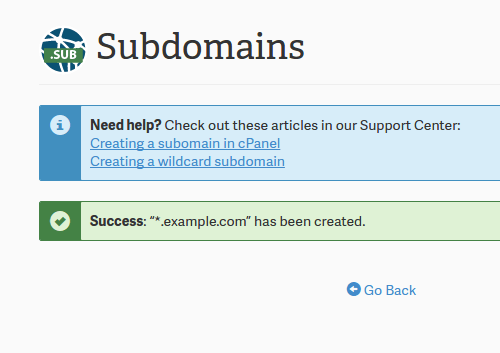
تأكّد أنه نجح
اطلب نطاقًا فرعيًا لم تنشئه قط:
curl -sI https://anything-at-all.example.com | head -n 1وينبغي أن يصل إلى موقعك بدل أن يفشل في التحليل.
وجّهه إلى موقعك الرئيسي
يحصل الشامل افتراضيًا على جذر مستنَدي خاص به، فتعرض النطاقات الفرعية غير المعروفة
مجلدًا فارغًا لا موقعك. فإن أردتها أن تقدّم الموقع الرئيسي، فاضبط
Document Root على public_html عند الإنشاء — أو غيّره لاحقًا ضمن
Subdomains.
WordPress Multisite
يحتاج Multisite في وضع النطاقات الفرعية النطاقَ الشامل، وهو يكتب قواعد
.htaccess الخاصة به أثناء الإعداد، فلا شيء آخر لضبطه. راجع
نطاقات WordPress Multisite الفرعية.
شهادة SSL شاملة
لا يصدر AutoSSL شهادات شاملة. فلـ *.example.com تحتاج Let's Encrypt مع تحقّق
عبر DNS — راجع
تثبيت شهادة شاملة عبر Let's Encrypt.