

Resolve a cPGuard CMS threats report
Read the "Threats to CMS installations detected" email, find the plugin or theme behind it in cPanel, and update or remove it.
cPGuard checks every WordPress, Joomla and Drupal installation in your account for known vulnerabilities and emails you a summary each week. Applies to shared, reseller and Premium hosting on cPanel.
The email is titled Threats to CMS installations detected. It tells you that an installation has a problem, not which plugin or theme causes it. The detail is in cPanel, and this article takes you to it.
Read the email
The four numbers at the top count problems across the whole account:
| Counter | What it means |
|---|---|
| Critical CMS Issues | Installations with at least one known vulnerability |
| Updates Pending | Installations whose core version is out of date |
| CMS threats | Malicious files found inside an installation |
| Database infections | Malicious content found in an installation's database |
The table below them lists each affected installation. Two columns are easy to misread together:
- Status describes the CMS core only. latest means WordPress, Joomla or Drupal itself is up to date.
- CVE is the most severe known vulnerability anywhere in the installation, which usually means a plugin or theme. The score is out of 10: 4.0 to 6.9 is Medium, 7.0 to 8.9 is High and 9.0 or more is Critical.
So a row showing latest next to High, Score: 7.5 is not a contradiction. The core is current, but something installed on top of it has a published vulnerability.
If CMS threats or Database infections is above zero, the site is already infected, not just exposed. Go straight to Clean malware from your website.
Find what is vulnerable
-
In cPanel, type
cPGuardinto the Search Tools box and open it. -
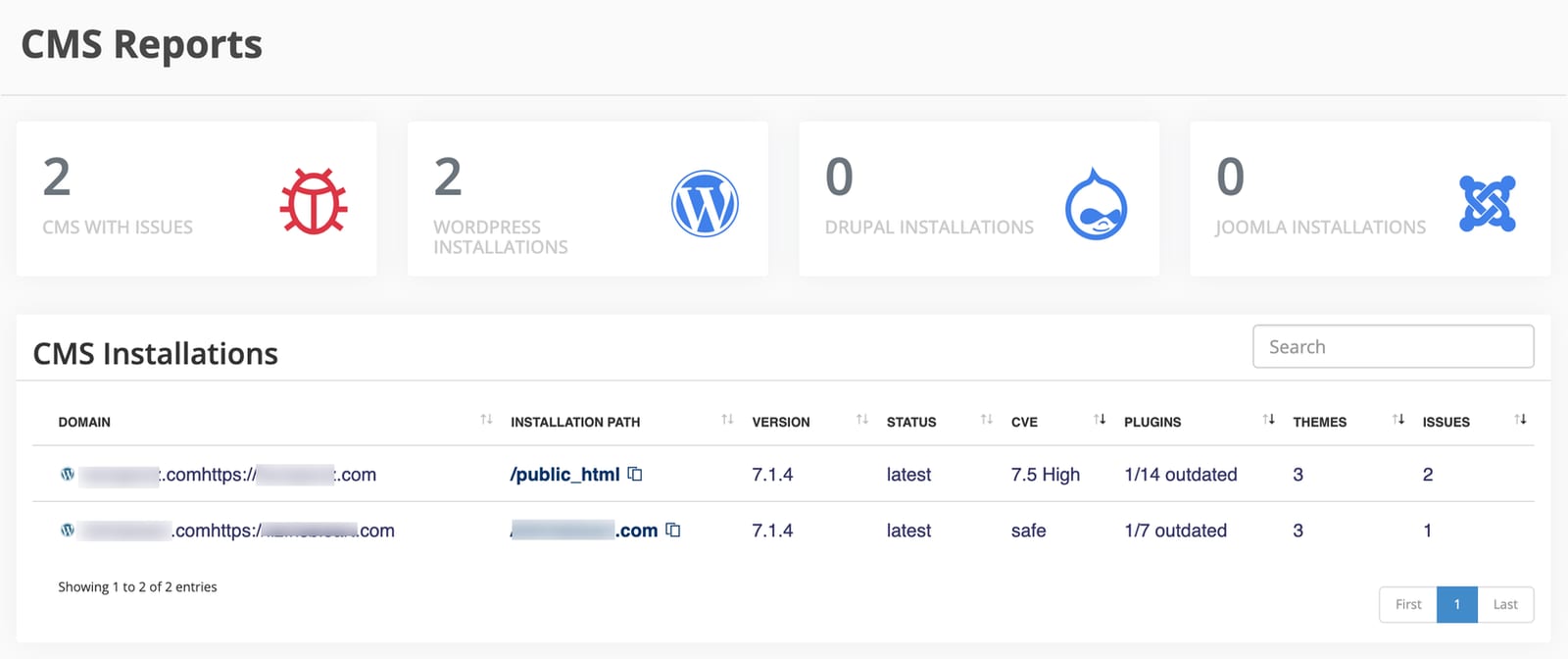
Select CMS Threats.
-
Find the installation from the email. CVE shows its worst score, Plugins shows how many are outdated, and Issues counts everything cPGuard found.
-
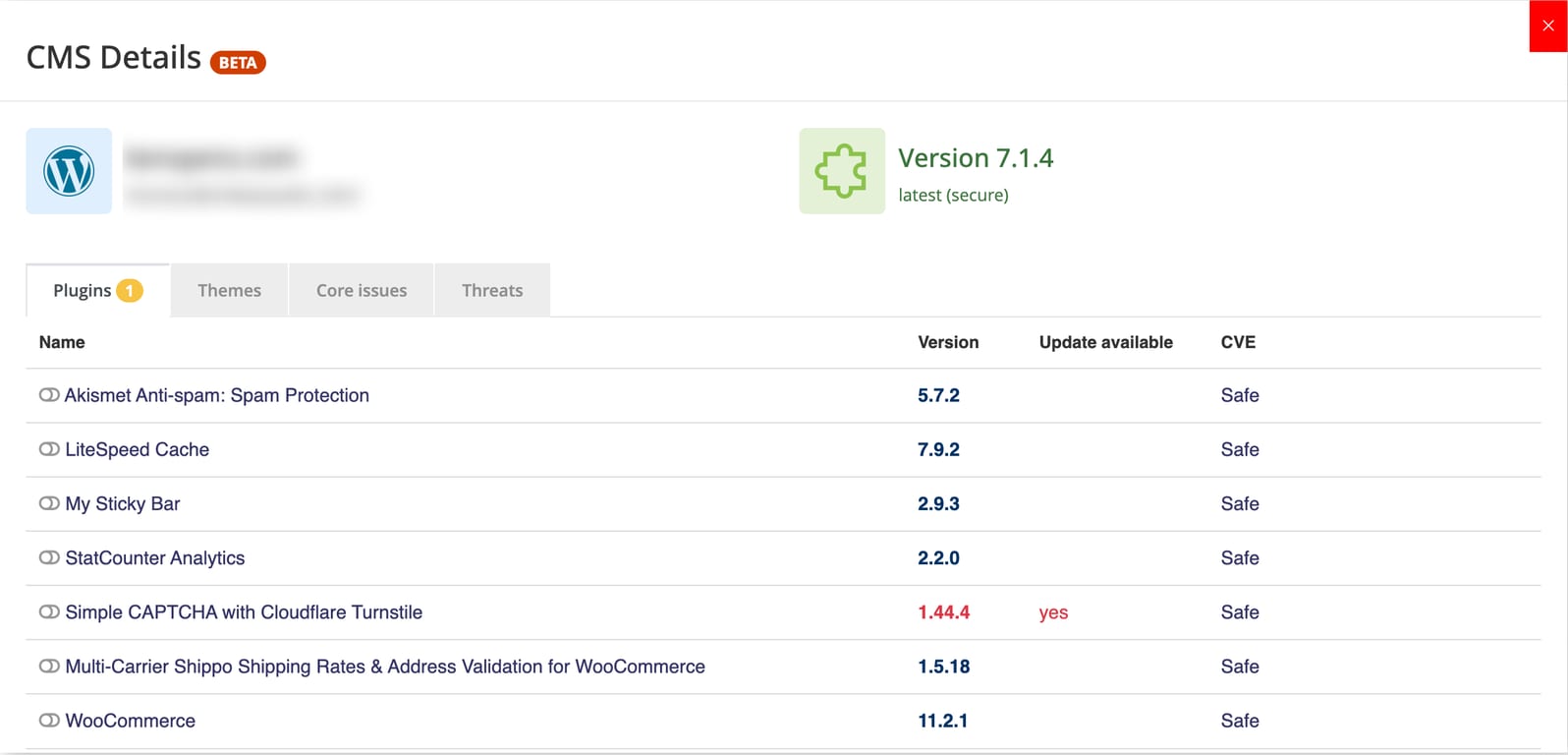
Select the installation to open CMS Details.
-
Work through the tabs. A number on a tab means it has something to look at:
- Plugins and Themes — a version in red with yes under Update available is outdated. A score in the CVE column, instead of Safe, is the vulnerability the email reported.
- Core issues — problems with the CMS itself.
- Threats — malicious files. Anything here means cleaning the site, not just updating it.
Note the name of each plugin or theme with a CVE score. You need them in the next section.
Fix it
Take a backup of the site first. An update that breaks the site is easier to undo than to fix.
- Log in to the site's admin area. For WordPress, that is
/wp-admin. - For WordPress, open Dashboard > Updates. For Joomla or Drupal, open the extensions or updates page.
- Update each item you noted at the end of the previous section.
- If an item has a CVE score but no update is available, the author has not fixed it yet. Deactivate and delete it, and replace it with an alternative that is maintained.
- Delete any plugin or theme you no longer use, including inactive ones.
Deactivating a plugin does not protect you. Its files stay on the server and can still be reached directly, which is how most of these vulnerabilities are exploited. If you do not use it, delete it.
Confirm it worked
- In the site's admin area, the updates page shows nothing pending.
- In CMS Threats, open the installation again. The items you updated show Safe in the CVE column.
cPGuard re-checks installations on its own schedule, so the page can take a little while to catch up. Your next weekly email should no longer list the installation.
If it is still listed
- You do not recognise the installation. Old copies of a site, such as
public_html/oldor a forgotten staging folder, are scanned too and are a common way in. If you no longer need the copy, delete its folder and its database. - The update fails. The plugin may require a newer PHP version than the site runs, or the update may be blocked by file permissions. Check the plugin's requirements, then see File and directory permissions.
- Every item shows Safe but the email keeps arriving. Open a ticket with your support PIN and the installation path, and we will look at the report with you.