

مجموعة أدوات ووردبريس
أدر ووردبريس نفسه من اللوحة — الإصدار وسياسة التحديث والإضافات والقوالب والمستخدمون وتسجيل الدخول الموحّد ووضع الصيانة وثوابت التنقيح.
تدير مجموعة الأدوات ووردبريس من خارج ووردبريس. وهي مفيدة حين يتعطّل الموقع،
أو حين تمنعك إضافة من الدخول، أو حين تفضّل ألا تدخل wp-admin أصلًا. ينطبق على
كل تثبيتات ووردبريس على ووردبريس كلاود.
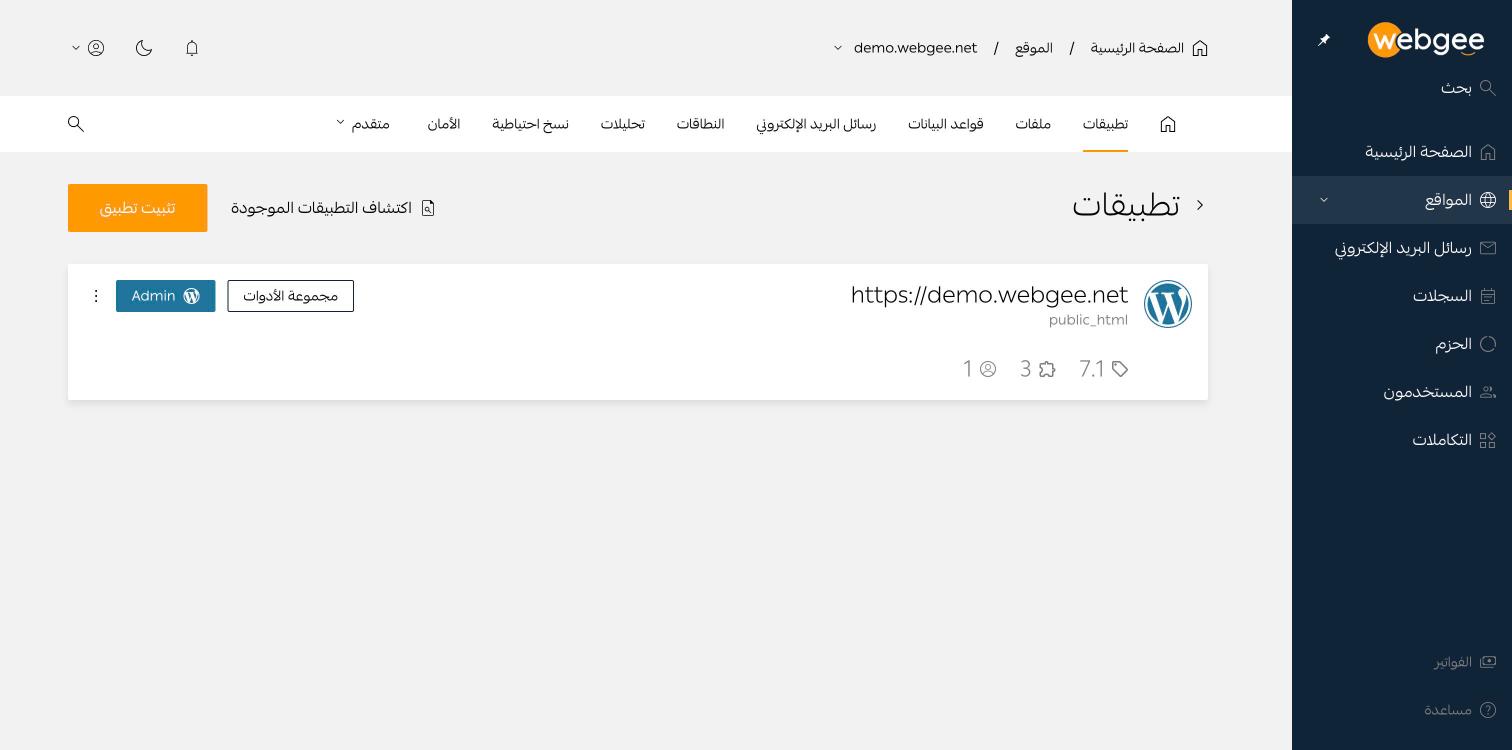
افتح موقعًا واذهب إلى تطبيقات، ثم اضغط مجموعة الأدوات بجانب التثبيت.
عام
- رابط الموقع — ما يستخدمه ووردبريس لبناء الروابط الداخلية والتحويلات. عدّله هنا إن تركته عملية نقل مشيرًا إلى نطاق خاطئ؛ فهذا هو الإعداد الذي يسبّب حلقات التحويل حين يكون خاطئًا.
- مسار الملفات — موضع التثبيت، وعادةً
public_html. - إصدار ووردبريس — الإصدار المثبَّت وسياسة تحديثه. والافتراضي هو التحديث دائمًا إلى أحدث إصدار متاح.
- وضع الصيانة — مفتاح يعرض للزوار إشعار صيانة. مفيد أثناء عملية نقل.
الإضافات
ثبّت وفعّل وعطّل واحذف واضبط التحديث التلقائي لكل إضافة، مع مربع بحث للمواقع الكبيرة. يأتي التثبيت الجديد بإضافتي Akismet وHello Dolly، وكلتاهما معطّلة.
إدارة الإضافات من هنا هي المخرج من العطل الكلاسيكي: تحديث إضافة يُظهر شاشة
بيضاء. عطّلها من اللوحة فيعود الموقع دون الحاجة إلى wp-admin.
القوالب
نفس أدوات الإضافات — تثبيت وتفعيل وحذف وتحديث تلقائي — مع معاينات. يأتي التثبيت الجديد بثلاثة قوالب افتراضية، واحد منها مفعّل.
المستخدمون
يعرض حسابات مستخدمي ووردبريس وعناوين بريدهم، ويتيح إضافة حساب. وهذه هي الطريقة لاستعادة الوصول حين يُفقد حساب المدير: أنشئ مستخدمًا جديدًا بدل محاولة إعادة تعيين كلمة مرور لم تعد تملكها.
تسجيل الدخول الموحّد
يتيح لك الدخول إلى wp-admin من اللوحة دون إدخال كلمة مرور ووردبريس. وزر
Admin بجانب التثبيت يستخدمه.
التنقيح
ثلاثة ثوابت في ووردبريس، جميعها معطّلة افتراضيًا:
| الثابت | الأثر |
|---|---|
WP_DEBUG | يفعّل وضع التنقيح في ووردبريس |
WP_DEBUG_LOG | يكتب الأخطاء في wp-content/debug.log |
WP_DEBUG_DISPLAY | يطبع رسائل التنقيح داخل صفحة الموقع |
أبقِ WP_DEBUG_DISPLAY معطّلًا على موقع حي. فهو يطبع مسارات الملفات وتفاصيل
الاستعلامات لكل زائر. لتشخيص مشكلة على موقع حي فعّل WP_DEBUG و
WP_DEBUG_LOG فقط، ثم اقرأ wp-content/debug.log من
مدير الملفات.