

حسابات البريد الإلكتروني
أنشئ صناديق بريد ومحوّلات على نطاق في ووردبريس كلاود، واضبط عتبات السبام والردود التلقائية، واعثر على إعدادات IMAP وPOP وSMTP.
يستضيف ووردبريس كلاود صناديق بريد على نطاقاتك، مع بريد ويب Roundcube ووصول قياسي عبر IMAP وPOP وSMTP. ينطبق على المواقع الإنتاجية.
المواقع التجريبية لا تدعم صناديق البريد. إذا عرضت صفحة رسائل البريد الإلكتروني أنه لا توجد مواقع، فإن كل ما تملكه مواقع تجريبية — راجع المواقع التجريبية.
افتح موقعًا إنتاجيًا واختر رسائل البريد الإلكتروني، أو استخدم رسائل البريد الإلكتروني في القائمة الجانبية للعمل عبر كل مواقعك.
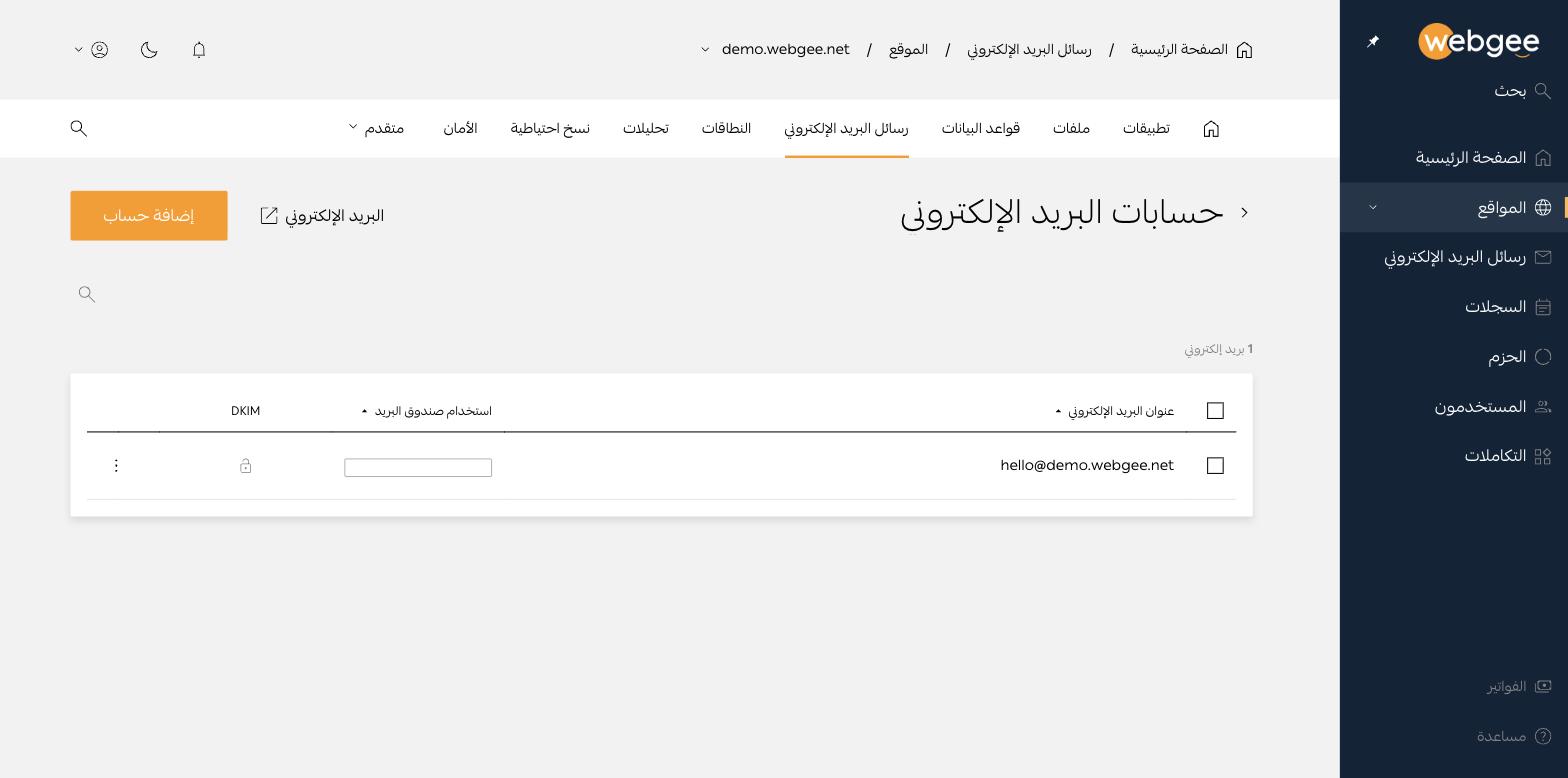
أضف صندوق بريد
- اضغط إضافة حساب.
- أدخل الجزء الذي يسبق
@واختر النطاق. - فعّل خيار الالتقاط الشامل فقط إذا أردت استقبال الرسائل الموجّهة إلى أي اسم على هذا النطاق.
تظهر بقية النموذج بعد إدخال العنوان:
| الحقل | ملاحظات |
|---|---|
| صندوق بريد | صندوق حقيقي بمساحة تخزين. يُحتسب من حصة الصناديق في باقتك |
| محوّل فقط | بلا تخزين — تُمرَّر الرسالة مباشرة. غير محدود عادةً |
| حجم الصندوق | الحصة، و10 GB افتراضيًا |
| الاسم الكامل | يظهر كاسم المرسِل |
| كلمة المرور | نفس قواعد التعقيد؛ استخدم أيقونة المفتاح لتوليدها |
اختر محوّل فقط لعناوين مثل info@ أو sales@ التي تمرّر الرسائل إلى شخص
بعينه. فهي لا تستهلك صندوقًا ولا تترك صندوقًا ثانيًا يحتاج المتابعة.
عنوان الالتقاط الشامل يستقبل كل ما يُرسل إلى أي اسم على النطاق، بما في ذلك الكم الكبير من الرسائل الموجّهة إلى أسماء مُخمَّنة. لا تفعّله إلا لسبب واضح، وتوقّع الحاجة إلى تصفيته.
أدر صندوق بريد
استخدم قائمة الصف ← إدارة.
- صندوق البريد — اسم المرسِل والحصة والاستهلاك، وزر إعادة تعيين كلمة المرور.
- المحوّلات — تخزين الرسالة و تمرير نسخة إلى عناوين أخرى.
- الالتقاط الشامل — تفعيله أو تعطيله لاحقًا.
- إعدادات السبام — انظر أدناه.
- خارج المكتب — رد تلقائي.
- إعدادات عميل البريد — بيانات الاتصال.
إعدادات السبام
ثلاث عتبات، كل منها درجة سبام تتدرّج من صارمة إلى متساهلة:
| الإعداد | الافتراضي | ما يحدث فوق العتبة |
|---|---|---|
| مجلد السبام | 4 | تُسلَّم إلى مجلد Spam، ويظهر في بريد الويب وIMAP |
| الرفض | 8 | تُرفض تمامًا، ويصل المرسِل إشعار بعدم التسليم |
| التأجيل المؤقت | 6 | تُؤجَّل مؤقتًا، وتعيد الخوادم الحقيقية المحاولة بعد خمس دقائق |
خفض عتبة الرفض هو الإعداد الذي يُفقدك الرسائل دون أن تدري، فالرسائل المرفوضة لا تصل إلى مجلد السبام أصلًا. إذا كانت رسائل مشروعة تختفي فارفع عتبة الرفض أولًا ودع مجلد السبام يقوم بالمهمة.
اربط عميل بريد
| البروتوكول | الخادم | المنفذ | التشفير |
|---|---|---|---|
| IMAP | mail.example.com | 993 | SSL/TLS |
| POP | mail.example.com | 995 | SSL/TLS |
| SMTP | mail.example.com | 465 | SSL/TLS |
| SMTP | mail.example.com | 587 | STARTTLS |
استبدل example.com بنطاقك. اسم المستخدم هو عنوان البريد الكامل، لا الجزء
الذي يسبق @ — وهذا أكثر سبب شائع لفشل الاتصال.
فضّل IMAP على POP ما لم يكن لديك سبب محدد: يبقي IMAP الرسائل على الخادم فترى كل أجهزتك الصندوق نفسه، بينما ينزّل POP الرسائل ويحذفها من الخادم افتراضيًا.
بريد الويب
زر البريد الإلكتروني في صفحة الحسابات يفتح Roundcube. سجّل الدخول بعنوان البريد الكامل وكلمة مرور الصندوق.
قابلية التسليم
وصول بريدك إلى صندوق الوارد يحتاج أكثر من صندوق يعمل. فعّل DKIM للنطاق وتحقّق من سجل SPF — راجع النطاقات وDNS وتوجيه البريد.