

إدارة الملفات وحسابات FTP
استخدم مدير الملفات في المتصفح، وافهم بنية الحاوية، وأنشئ حسابات FTP لبرامج مثل FileZilla.
لكل موقع مدير ملفات يعمل في المتصفح، ويمكن أن تكون له حسابات FTP لبرامج خارجية. ينطبق على جميع باقات ووردبريس كلاود.
مدير الملفات
افتح موقعًا واختر ملفات.
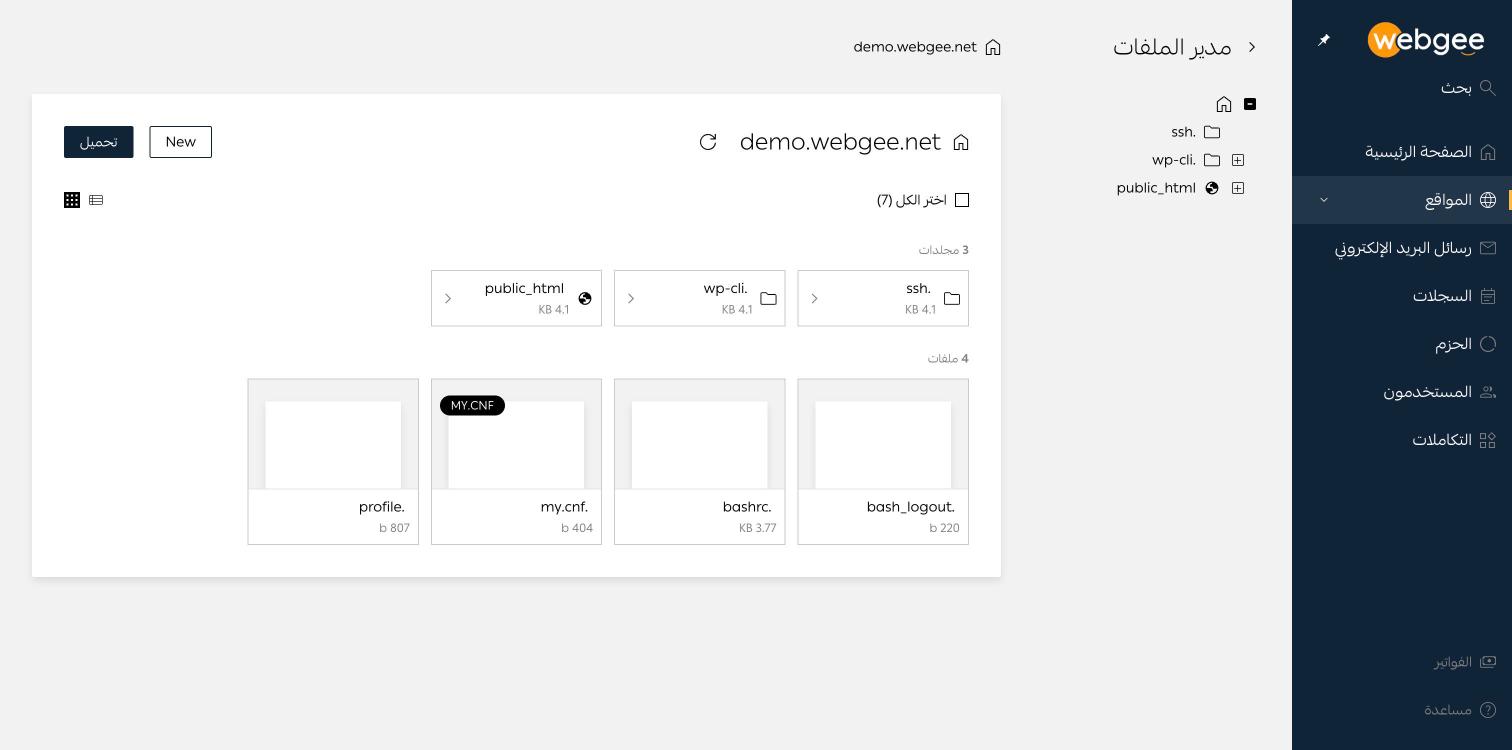
الجزء الجانبي شجرة مجلدات، والجزء الأكبر يعرض المجلد الحالي في شكل شبكة أو قائمة. زر New ينشئ ملفًا أو مجلدًا، وتحميل يرفع ملفات من جهازك.
ماذا يحوي المجلد الرئيسي
موقع ووردبريس مُجهَّز حديثًا يحتوي:
| المسار | ما هو |
|---|---|
public_html | جذر الموقع — أي موقعك |
.wp-cli | إعدادات WP-CLI التي تستخدمها مهمة الكرون المجدولة |
.my.cnf | بيانات اعتماد MySQL، تستخدمها أدوات سطر الأوامر |
.bashrc و.profile و.bash_logout | إعدادات الصدفة لجلسات SSH |
يظهر المسار الكامل للحاوية تحت نظرة سريعة ← مدير المنزل، بصيغة
/var/www/ متبوعًا بمعرّف الموقع.
يحتوي .my.cnf على بيانات اعتماد قاعدة بيانات فعّالة. لا تنقله إلى
public_html، ولا تضمّنه في أي شيء تشاركه علنًا.
يظهر ملفان إضافيان بعد تفعيل
Redis: وهما redis.conf وredis.log.
أنشئ حساب FTP
اذهب إلى متقدم ← FTP، ثم اضغط إضافة حساب. استخدم الحساب مع أي برنامج قياسي مثل FileZilla.
فضّل SFTP عبر SSH حيثما دعمه برنامجك — راجع الوصول عبر SSH. فهو يشفّر الجلسة كاملة ولا يحتاج حساب FTP منفصلًا.