

Install WordPress manually
Install WordPress by hand when you need control Softaculous does not give you — uploading the files, creating the database and running the installer.
Install WordPress without an installer. Applies to shared, reseller and Premium hosting.
For a normal new site, use Softaculous instead — it does all of this in one step and assigns a unique database table prefix automatically. Install manually when you need a specific version, a specific directory layout, or you are recreating a site from parts.
1. Download WordPress
Download the package from wordpress.org/download
and unzip it. You get a folder named wordpress — you will upload its
contents, not the folder itself.
2. Upload the files
Upload into your document root, usually public_html. Any of these work:
- File Manager in cPanel — upload the zip and extract it there. This is by far the fastest option; WordPress is several thousand small files and FTP transfers them one at a time.
- FTP or SFTP — see Upload files with FileZilla.
- SSH — see Connect over SSH.
Upload the contents of the wordpress folder. If you end up with
public_html/wordpress/index.php, your site is at example.com/wordpress
rather than example.com.
3. Create the database
-
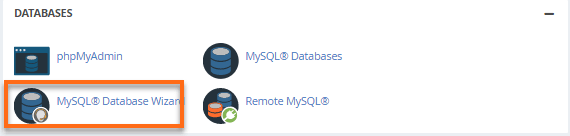
In cPanel, open MySQL Database Wizard under Databases.
-
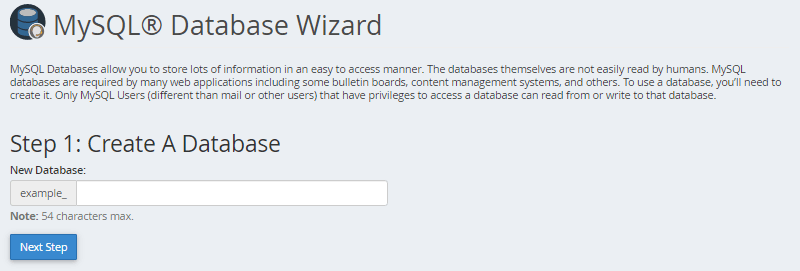
Enter a database name and select Next Step.
-
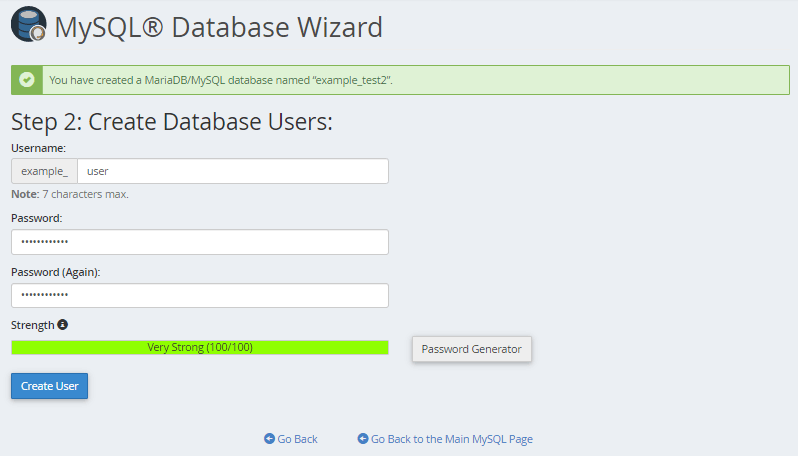
Enter a username and password, then select Create User.
-
Grant All Privileges and finish.
Keep the database name, username and password. Both names are prefixed with your cPanel username.
4. Run the installer
Visit https://example.com. WordPress detects that it is not configured and
starts its setup:
- Enter the database name, username and password from step 3.
- Leave Database Host as
localhost. - Change the table prefix from
wp_to something unique, such aswg7x_.
Changing the table prefix matters if you run more than one WordPress site on
the account. Sites sharing wp_ will share Redis cache entries and start
serving each other's content — see
Use Redis object caching without LiteSpeed Cache.
- Complete the site title and admin account. Do not use
adminas the username — it is the first thing automated attacks try.
Check it worked
Visit https://example.com and confirm the site loads, then sign in at
/wp-admin.
If HTTPS shows a warning, the certificate has not been issued — see Install a free SSL certificate.
If the installer will not run
- "Error establishing a database connection" — the credentials are wrong, or the user was not granted privileges on the database.
- A directory listing appears instead — the files are one level too deep. Move the contents up into the document root.
- A 500 error — check
error_login the document root. See Find your error log.
Related
Move a local WordPress site to your hosting
Deploy a WordPress site built on your own machine to a cPanel account — files, database, wp-config and the URL rewrite that catches people out.
Send WordPress email over SMTP
Configure WP Mail SMTP to send WordPress email through your WebGee mailbox, so contact forms and order confirmations stop landing in spam.