

Fix "missing the MySQL extension" in WordPress
Enable the nd_mysqli PHP extension so WordPress can reach its database, and resolve the utf8mb4 client library warning in Site Health.
Fix either of these WordPress errors. Applies to shared, reseller and Premium hosting.
Your PHP installation appears to be missing the MySQL extension which is required by WordPress.
Or, in Tools → Site Health:
utf8mb4 requires a newer client library
Both mean the same thing: PHP cannot talk to MySQL properly because the right extension is not enabled.
Enable the extensions
-
In cPanel, open Select PHP Version.

-
Select the Extensions tab.
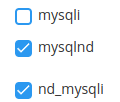
-
Enable nd_mysqli.
-
Enable nd_pdo_mysql as well.
mysqli and nd_mysqli cannot both be on — nor can pdo_mysql and
nd_pdo_mysql. If the nd_ version will not tick, untick the plain one
first, then enable it. Trying to enable both is why this often looks like it
did not work.
The nd_ variants are the mysqlnd-based drivers. They are what support
utf8mb4, which is why the Site Health warning clears once they are on.
Check it worked
Reload your site — the error should be gone. Then open Tools → Site Health →
Info → Database and confirm the extension shows as mysqli with a recent
client version.
If the error persists
- The change was made on the wrong PHP version. If your site runs a different version from the account default, select that version first, then set its extensions.
- A cached page is being served. Hard-refresh, or clear your caching plugin.
- The credentials in
wp-config.phpare wrong. That produces a similar failure — see Move a local WordPress site to your hosting.
Related
Use Redis object caching without LiteSpeed Cache
Set up Redis object caching on a WordPress site that uses a caching plugin other than LiteSpeed Cache, using the Redis Object Cache plugin.
Replace WP-Cron with a real cron job
WordPress runs scheduled tasks on page load, which slows busy sites and misses schedules on quiet ones. Move them to a system cron job instead.