

Change your PHP version and settings
Switch PHP versions and adjust values like memory_limit from cPanel, or with a .user.ini file if your site runs on Bolt-Cache.
Change the PHP version your site runs on, and adjust settings such as
memory_limit or upload_max_filesize. Applies to shared, reseller and Premium
hosting.
How you do this depends on whether your site uses Bolt-Cache. Bolt-Cache is an NGINX and PHP-FPM stack available on Premium plans, and it bypasses the cPanel PHP Selector entirely. If you are not sure which applies, check cPanel → Bolt-Cache — if it is not there, or shows as disabled, use the first method.
Shared and reseller hosting
Use the PHP Selector, part of CloudLinux. You never need to edit php.ini,
.user.ini or .htaccess by hand.
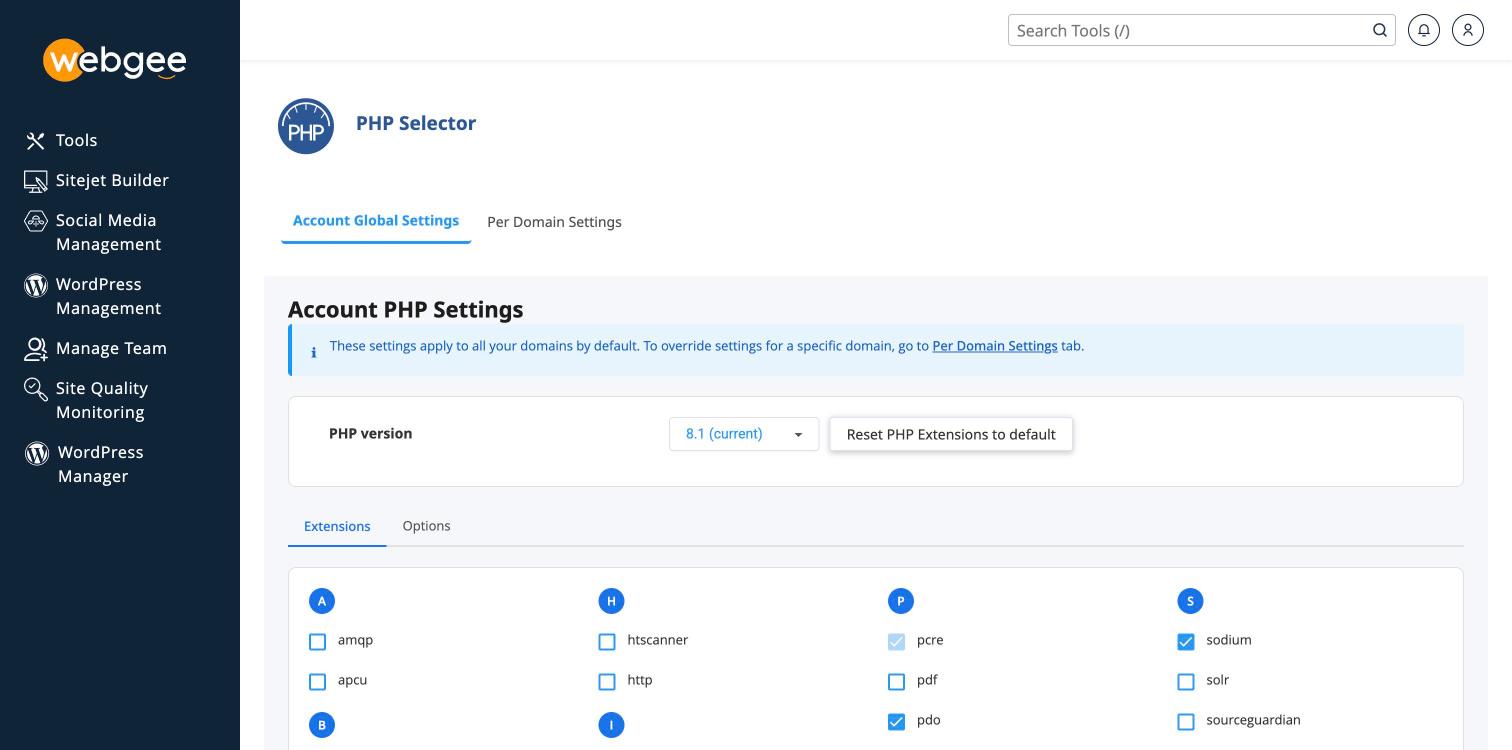
The page opens on Account Global Settings, which apply to every domain on the account. To change one domain only, use the Per Domain Settings tab — otherwise you will move all of them at once.
Change the version
-
In cPanel, open Select PHP Version.
-
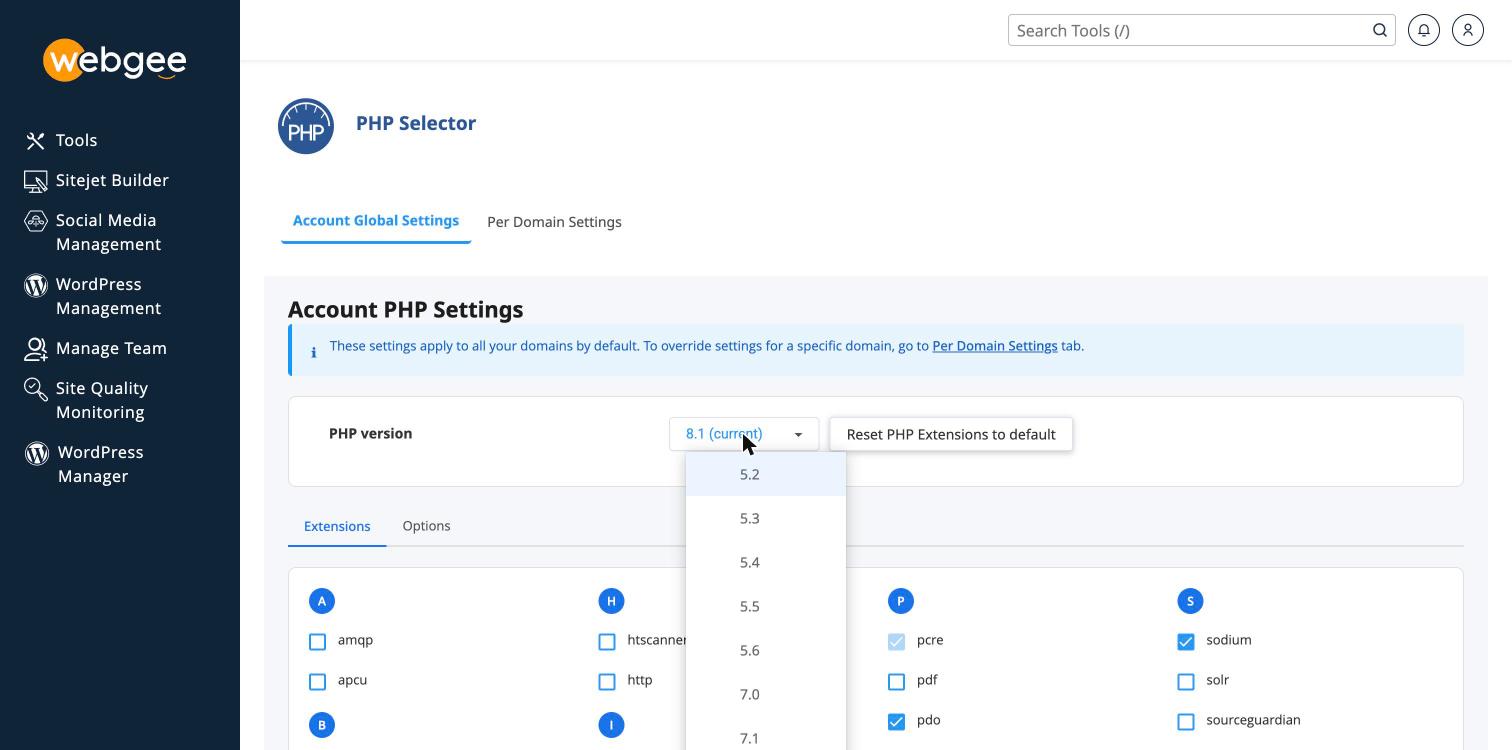
Choose the version you want from the PHP version list.
-
Select Apply.
The change takes effect immediately.
The list goes back a long way — 5.2 onwards. Anything below 8.1 is past end of life and receives no security fixes. Pick the newest version your application supports, not the oldest one that works.
Moving between major versions — 7.4 to 8.x especially — can break older themes and plugins. Take a snapshot first: see Take a snapshot backup.
Change settings such as memory_limit
- In cPanel, open Select PHP Version.
- Select the Options tab, beneath the version selector.
- Find the setting you want and change its value.
Changes save as you make them. The values most people come here for are
memory_limit, upload_max_filesize, post_max_size and max_execution_time.
Enable or disable extensions
On the same page, select the Extensions tab and tick the ones you need.
Reset PHP Extensions to default undoes the lot if you lose track of what you
changed. This is where
you turn on redis for object caching — see
Enable Redis object caching.
Premium hosting with Bolt-Cache
Bolt-Cache replaces Apache with NGINX and PHP-FPM. The PHP Selector no longer applies, and any changes made there are ignored.
Change the version
The PHP version is set when you enable Bolt-Cache. To change it, reconfigure Bolt-Cache from its cPanel interface and select the version you want there.
Change settings such as memory_limit
Create a file named .user.ini in your document root:
/home/yourusername/public_html/.user.iniThe leading dot is part of the filename and is required. Add one setting per
line, in the same format as php.ini:
memory_limit = 512M
upload_max_filesize = 64M
post_max_size = 64M
Save the file. The change applies immediately.
Check it worked
Create a file called phpinfo.php in your document root:
<?php phpinfo();Visit https://example.com/phpinfo.php and check the version at the top and your
changed value in the table below it.
Delete phpinfo.php as soon as you have checked. It exposes a great deal of
detail about your server to anyone who visits it.
If your setting is ignored
- On Bolt-Cache, changes made in the PHP Selector do nothing. Use
.user.iniinstead. - On shared hosting, a
.user.inifile does nothing. Use the PHP Selector. - The value is above the plan's ceiling. Some settings are capped; see Understanding PHP memory limits.