

تنتقل من استضافة أخرى؟ ننقل موقعك مجانًا، مع ضمان استرداد المال خلال 30 يومًا.ترحيل مجاني وضمان 30 يومًااعرف كيف
إدارة خادمك
نظرة الخادم في وحدة التحكّم السحابية — أدوات الطاقة، واستخدام الموارد، وماذا يغطّي كل تبويب.
افتح خادمًا من لوحة وحدة التحكّم السحابية باختيار Manage. ينطبق على كل خوادم VPS والمخصّصة.
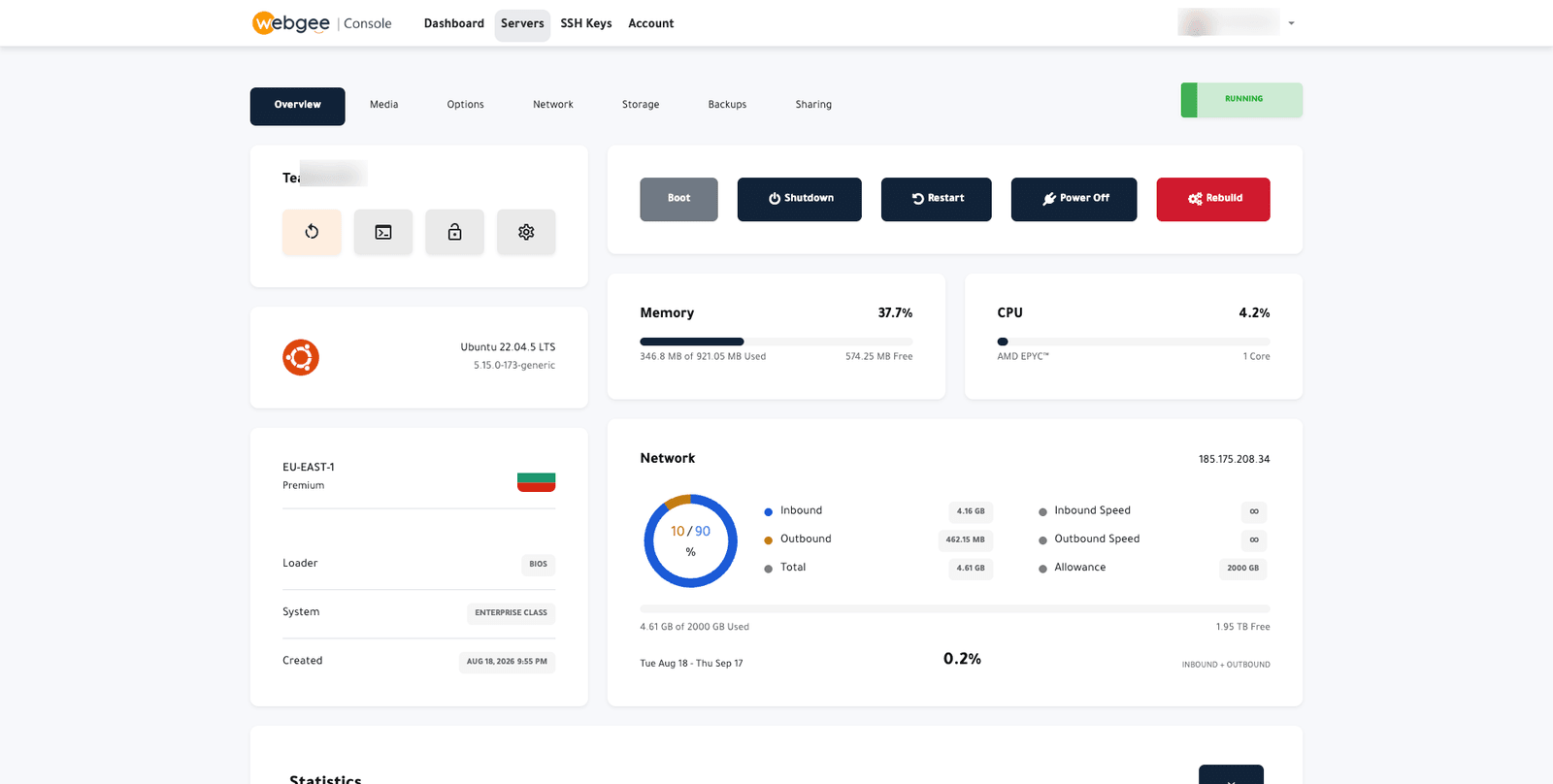
وشارة الحالة في الأعلى تعرض الوضع الحالي — RUNNING أو STOPPED أو مهمة قيد التنفيذ.
أدوات الطاقة
| الأداة | ماذا تفعل | استخدمها حين |
|---|---|---|
| Boot | تشغّل خادمًا متوقفًا | يكون الخادم مطفأً |
| Shutdown | تطلب من النظام الإغلاق بنظافة | الإغلاق العادي |
| Restart | تطلب من النظام إعادة التشغيل بنظافة | إعادة التشغيل العادية |
| Power Off | تقطع الطاقة فورًا | لا يستجيب الخادم |
Power Off يعادل نزع القابس. فلا يحصل نظام التشغيل على فرصة لتفريغ أي شيء إلى القرص، فتضيع الكتابات الجارية وقد تُترَك قاعدة بيانات غير متسقة. استخدم Shutdown ما لم يكن الخادم لا يستجيب البتة.
ماذا تعرض النظرة
- نظام التشغيل والنواة المثبَّتان حاليًا.
- الذاكرة والمعالج — الاستخدام الحي مقابل ما توفّره باقتك.
- المنطقة وفئة النظام، وتاريخ إنشاء الخادم.
- المُقلِع — BIOS أو UEFI.
- الشبكة — الوارد والصادر والإجمالي مقابل مخصّصك الشهري، مع عنوان IPv4 الحالي.
والحركة هي الرقم الذي يستحق المراقبة. فتجاوز مخصّصك له عواقب تعتمد على باقتك، والنظرة تعرض الرقم والنسبة المستخدَمة معًا.
التبويبات
| التبويب | ماذا يغطّي |
|---|---|
| Overview | الحالة والموارد وأدوات الطاقة |
| Media | وسائط الإقلاع وترتيبه |
| Options | VNC ووضع الإنقاذ وإعادة ضبط كلمة المرور |
| Network | عناوين IP والـ DNS العكسي والمحلّلات |
| Storage | الأقراص المرفقة |
| Backups | اللقطات والجداول |
| Sharing | منح شخص آخر وصولًا |
سجل المهام
تعدّد كل صفحة المهام الأخيرة بمدتها وحالتها. فحين يبدو أن إجراءً لم يفعل شيئًا، فافحص هنا أولًا — فمهمة تظهر FAILED تخبرك بأكثر بكثير من صفحة لم تتغيّر ببساطة.