

A tour of cPanel
What each section of cPanel contains, which tools you will actually use, and how to read the resource limits in the sidebar.
A walk through every section of cPanel on WebGee hosting, so you know where things live before you need them. Applies to shared, reseller and Premium hosting.
To sign in, see Getting started with cPanel.
Your first sign-in
The first time you sign in, cPanel offers a starting point.
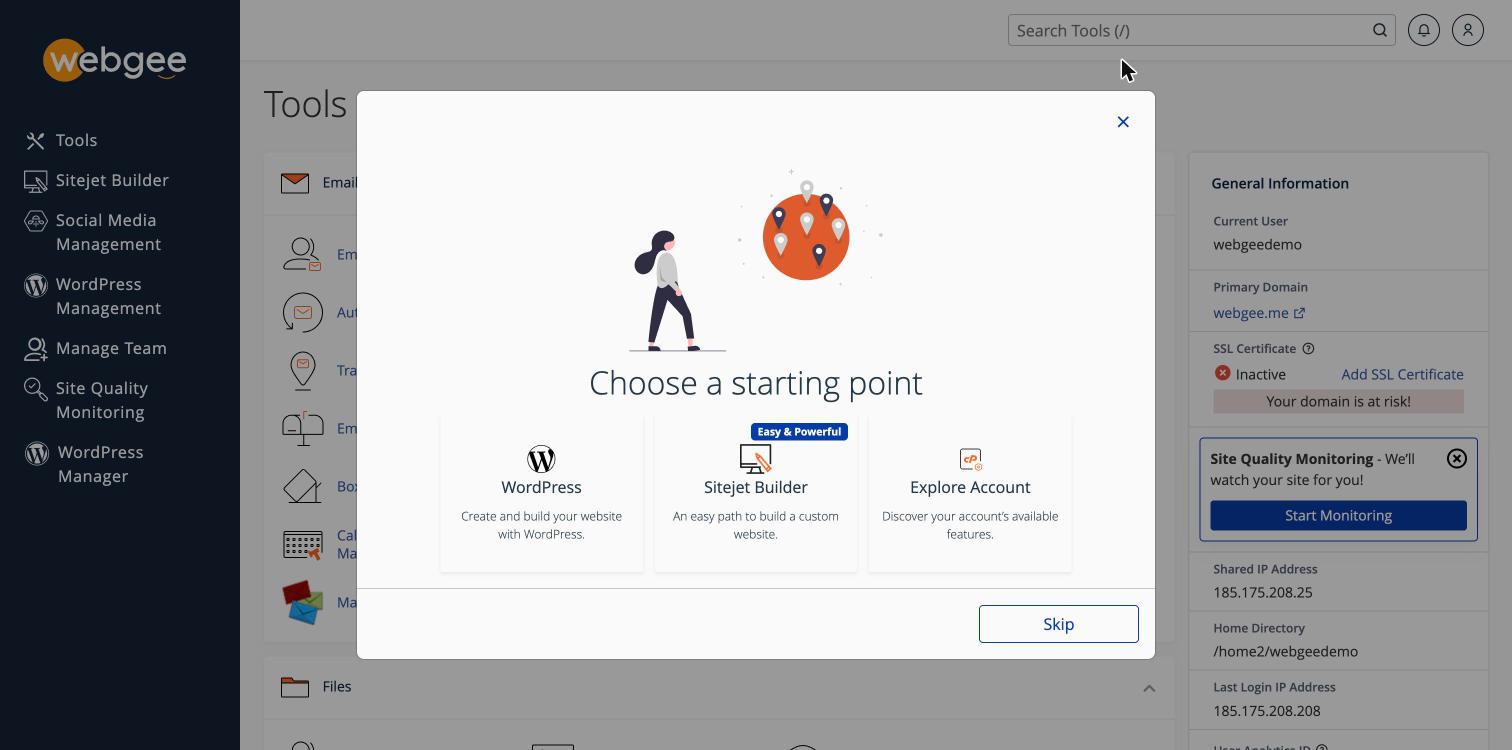
- WordPress — install WordPress straight away.
- Sitejet Builder — build a site visually without WordPress.
- Explore Account — skip to the full tool list.
Skip dismisses it. Nothing here is required, and you can reach all three later.
You may also be asked to consent to usage tracking by cPanel's vendor. It is optional — leave the box unticked and select Save and Continue to decline.
Reading the sidebar
The right-hand column is the most useful part of the dashboard and the part most people ignore.
General Information shows your username, primary domain, SSL status, shared IP address and home directory. The SSL line is worth checking on a new account: if it reads Inactive, see Install a free SSL certificate.
Statistics lists what you have used against what you are allowed — disk, bandwidth, email accounts, databases, subdomains.
Resource usage is the part that explains intermittent site problems:
| Metric | What it means when it is high |
|---|---|
| CPU Usage | Pages are slow because your account is being throttled |
| Entry Processes | Simultaneous PHP requests. Hitting this causes 508 errors |
| Physical Memory Usage | A script is asking for more memory than the plan allows |
| IOPS and I/O Usage | Disk activity — often a plugin writing logs on every request |
| Number Of Processes | Total processes running under your account |
If a site is intermittently slow or returning 508 errors, look here first. See Diagnose a slow website.
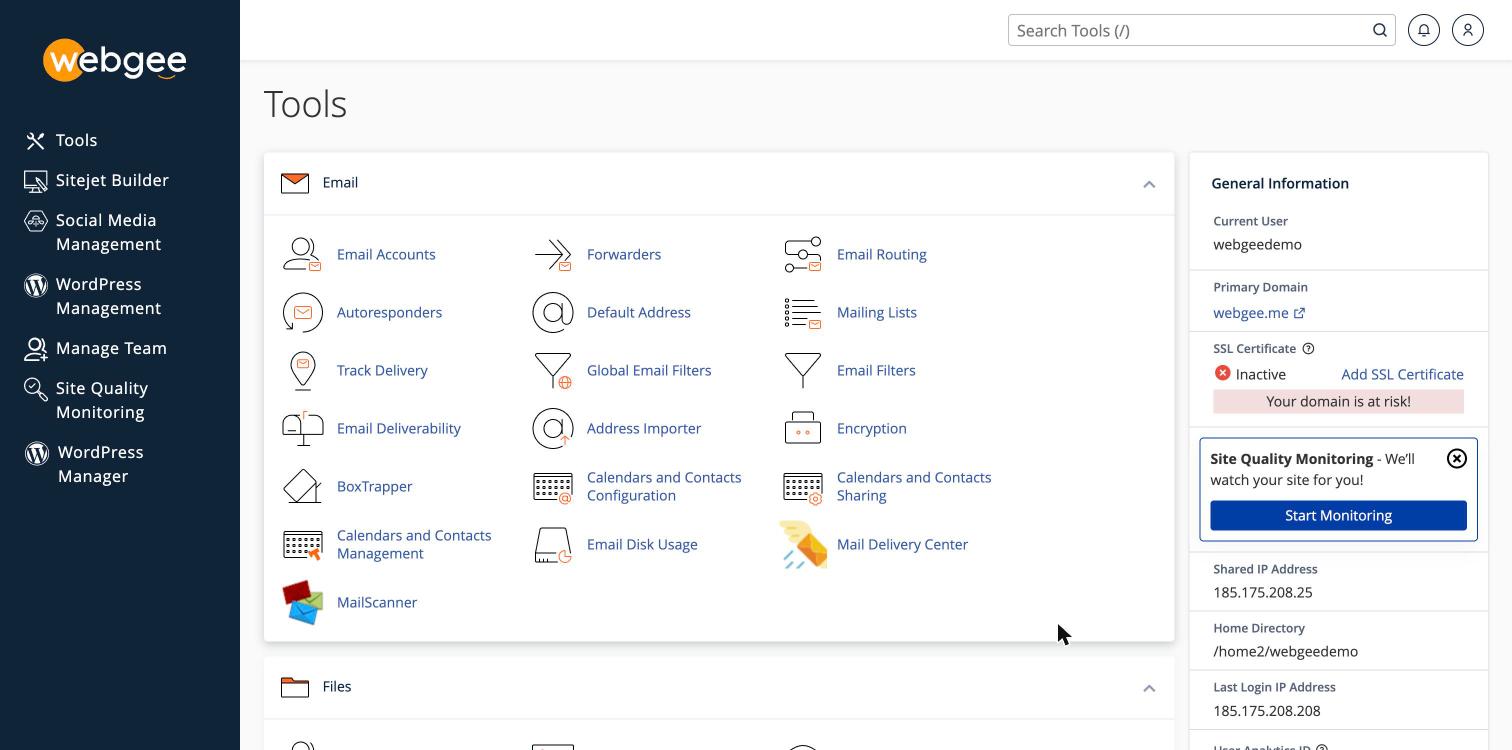
Mailboxes, forwarders, autoresponders and filtering.
The ones you will use: Email Accounts to create mailboxes, Email Routing when mail is handled elsewhere, Track Delivery to find out what happened to a message, and MailScanner for spam thresholds.
Email Deliverability checks your SPF and DKIM records and offers to fix them — the first place to look if your mail is landing in Junk.
See Email.
Files and Databases
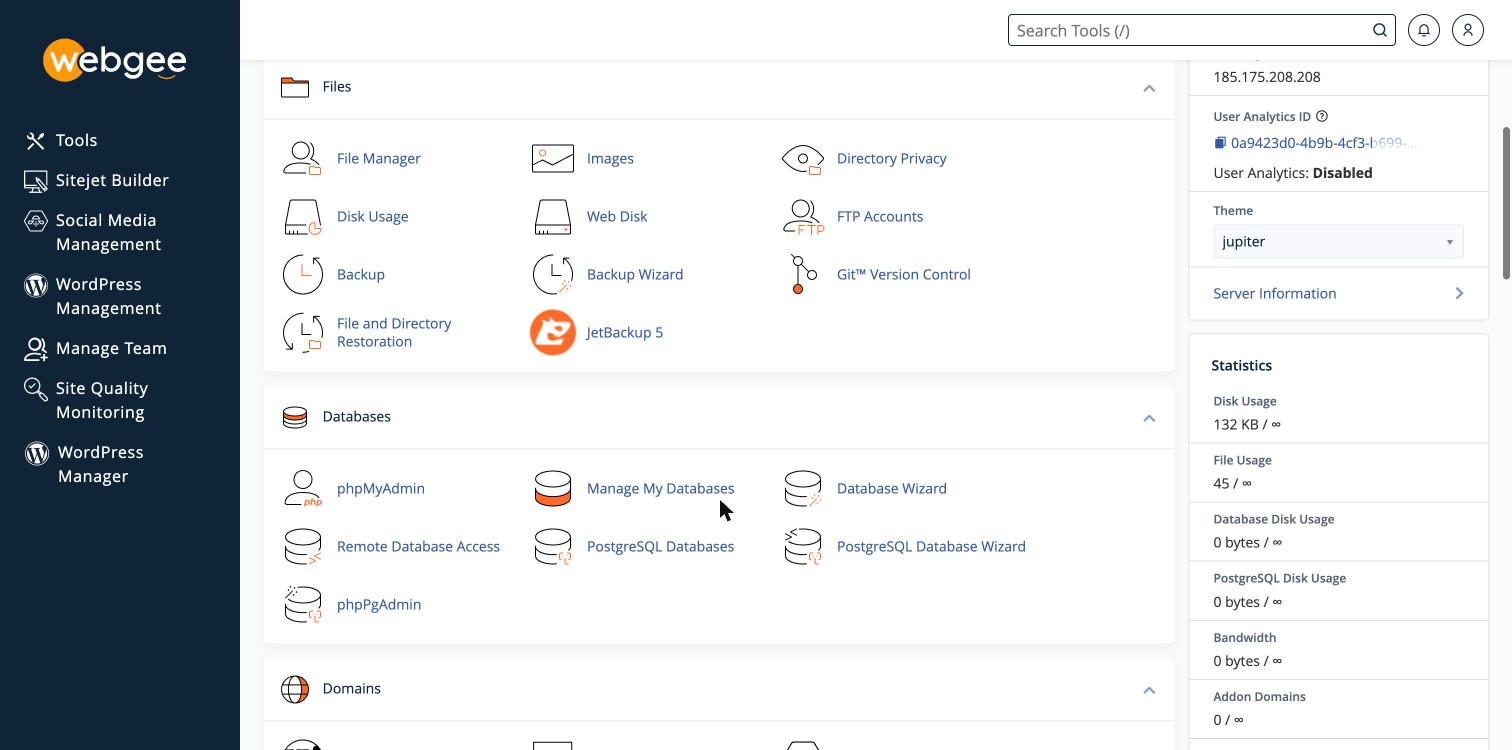
File Manager is the browser-based way to reach your files; public_html is
your website's document root. Disk Usage shows what is consuming space.
For backups, use JetBackup 5 rather than Backup or Backup Wizard — JetBackup is incremental, stored outside your quota, and keeps a history. See Backups & Restores.
Databases offers both MySQL and PostgreSQL. Most applications use MySQL: create databases in Manage My Databases or Database Wizard, and browse them in phpMyAdmin. Remote Database Access is where you authorise an outside IP to connect.
Domains
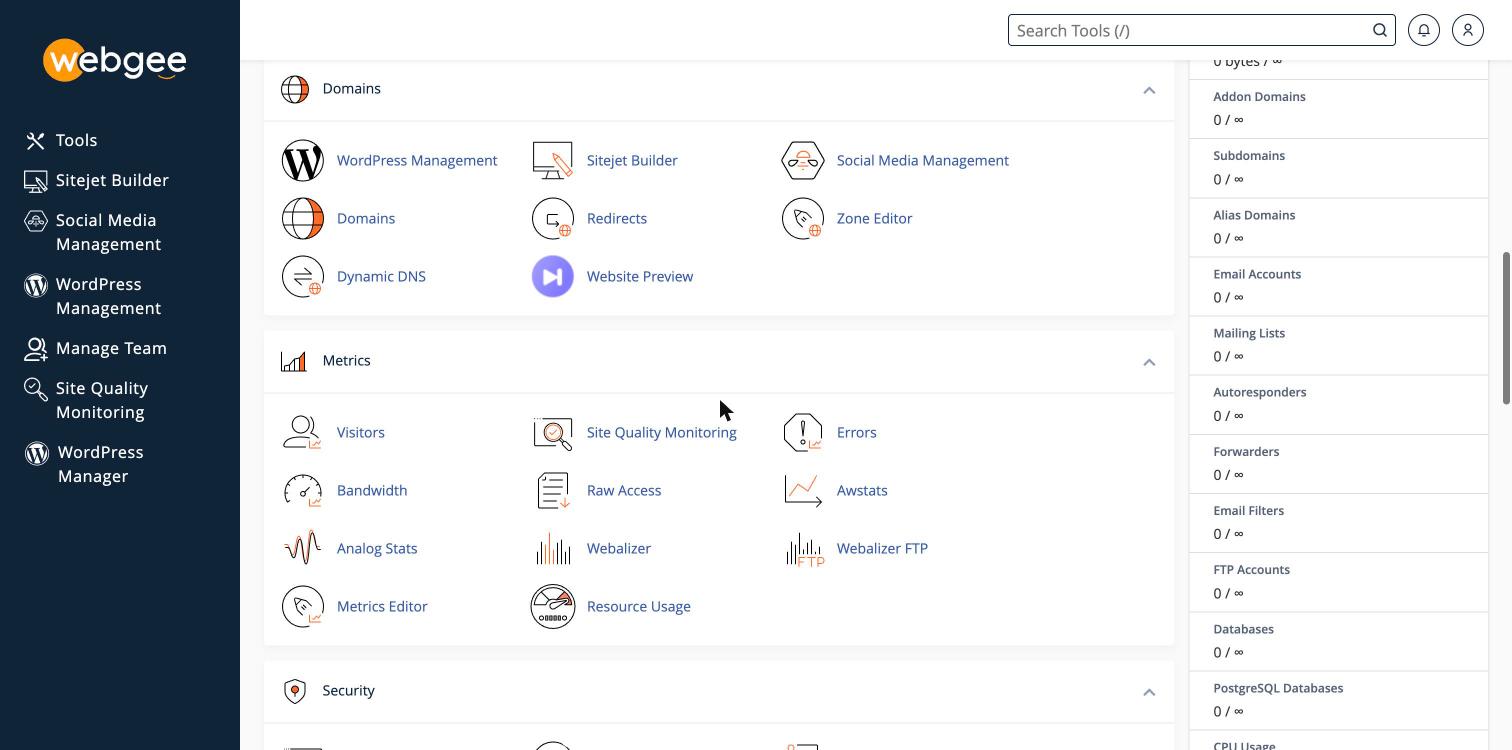
Domains adds addon domains, subdomains and aliases. Zone Editor manages DNS records. Redirects forwards one address to another.
WordPress Management, Sitejet Builder and Social Media Management also live here.
Metrics
Visitors, Bandwidth and Errors are the practical three. Errors shows your site's recent error log, which is often quicker than enabling debugging in the application.
Resource Usage expands the sidebar figures into history, so you can see whether a limit was hit and when.
Security
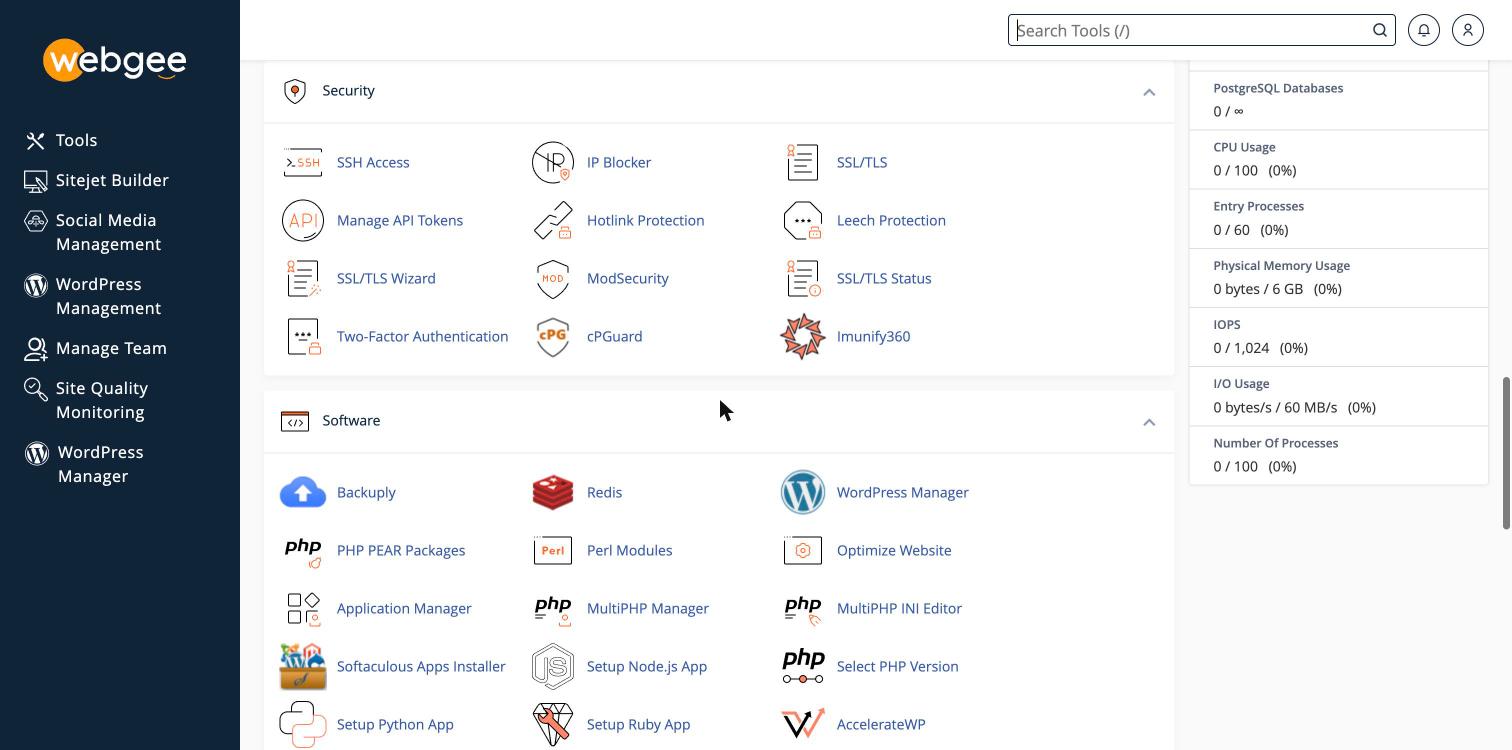
SSL/TLS Status is where certificates are issued — and where new domains must be included in AutoSSL before anything happens. See Install a free SSL certificate.
SSH Access manages keys. IP Blocker blocks addresses. Two-Factor Authentication should be turned on. ModSecurity, Imunify360 and cPGuard are the server's protective layers — see Security & SSL.
Hotlink Protection stops other sites embedding your images and consuming your bandwidth. Leech Protection limits password sharing on protected directories.
Software
Select PHP Version and MultiPHP Manager set the PHP version;
MultiPHP INI Editor changes settings such as memory_limit and
upload_max_filesize.
Softaculous Apps Installer and WordPress Manager install applications. Redis enables object caching. Setup Node.js App, Setup Python App and Setup Ruby App run applications in those languages.
AccelerateWP and Optimize Website are performance tools; see Performance & Caching.
Advanced
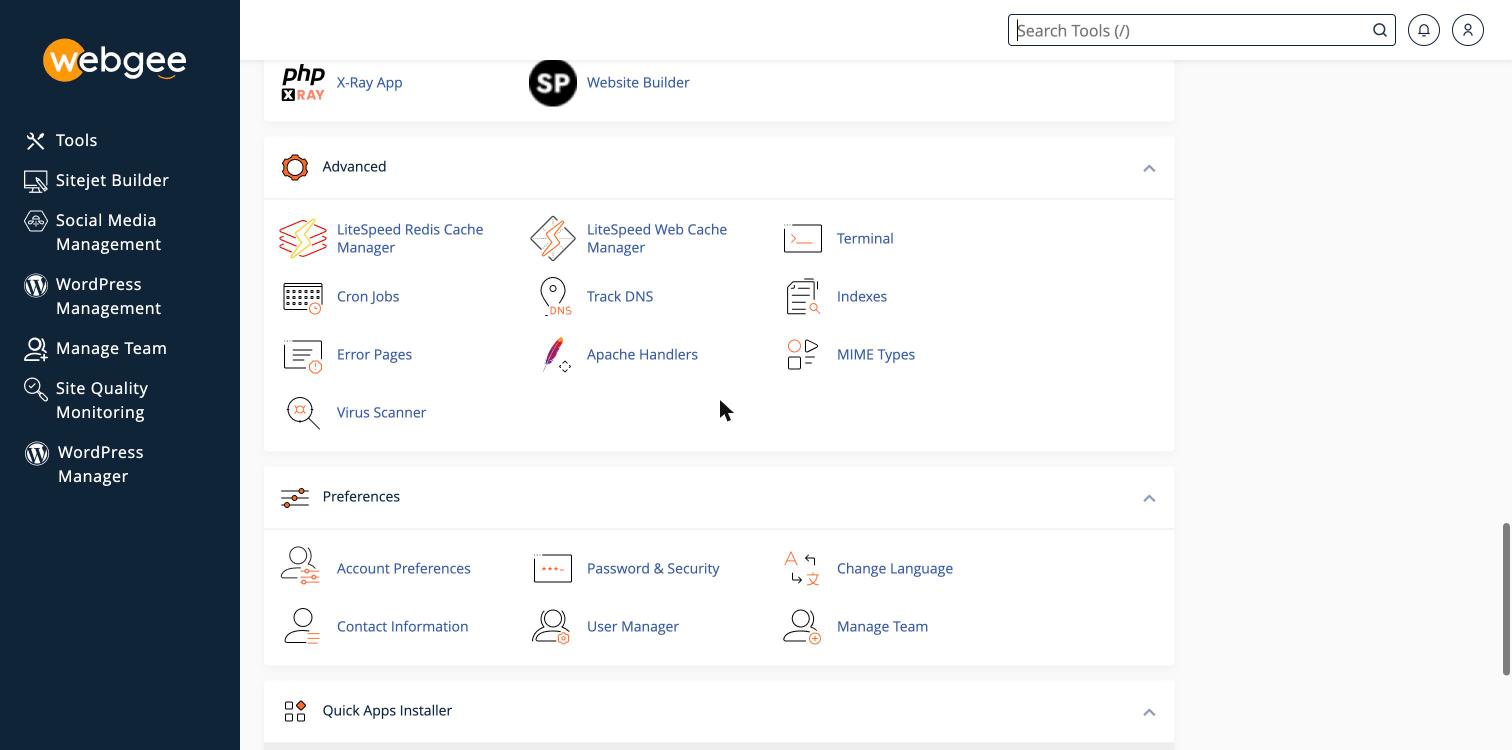
Terminal gives you a shell in the browser without an SSH client. Cron Jobs schedules commands. LiteSpeed Web Cache Manager controls LSCache per WordPress installation — see WordPress.
Error Pages customises 404 and similar pages. Indexes controls whether a directory without an index file lists its contents — it should normally be off.
Preferences
Password & Security changes your cPanel password. Contact Information sets where account notifications go; keep it current, because quota and security warnings are sent there.
User Manager and Manage Team grant other people access without sharing your own password.
Quick Apps Installer
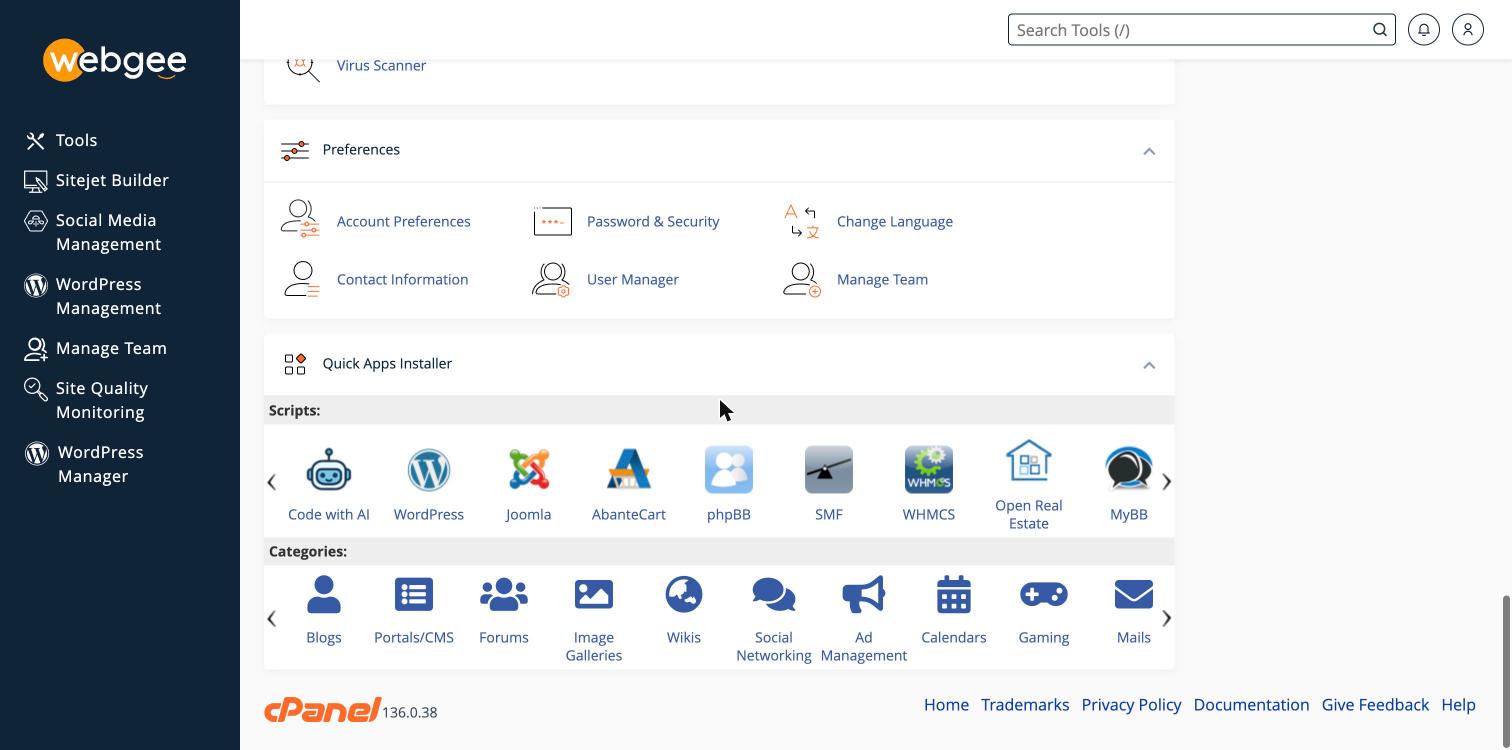
A shortcut to the most-installed applications — WordPress, Joomla, phpBB, WHMCS and others — browsable by category.
Finding things quickly
The Search Tools box at the top is faster than scrolling. Typing part of a
tool's name filters the whole list, and it searches descriptions too, so
searching ssl finds every SSL-related tool at once.
Related
Getting started with cPanel
Sign in to cPanel, find your way around the tools you will actually use, and know which ones matter first.
Where to upload your website files
Website files go in public_html. What the other folders in your home directory are, and why uploading to the wrong one is the usual first mistake.