

Invite WebGee support to your Cloudflare account
Grant the WebGee support team temporary access to your Cloudflare account so they can investigate DNS, SSL or firewall issues directly.
Give WebGee support access to your Cloudflare account so we can investigate directly rather than asking you to relay settings back and forth. Applies to any domain you manage in Cloudflare.
You stay in control and can remove access at any time.

When this helps
Cloudflare sits in front of your site, so a surprising number of problems that look like hosting faults are actually configuration there:
- DNS records pointing to the wrong place
- SSL/TLS mode causing redirect loops — see Put your site behind Cloudflare
- Firewall rules or rate limits blocking legitimate visitors
- Page rules breaking logins or caching the wrong thing — see the "please wait while your request is being verified" loop
- MX records preventing mail delivery
Invite us
-
Sign in at dash.cloudflare.com.
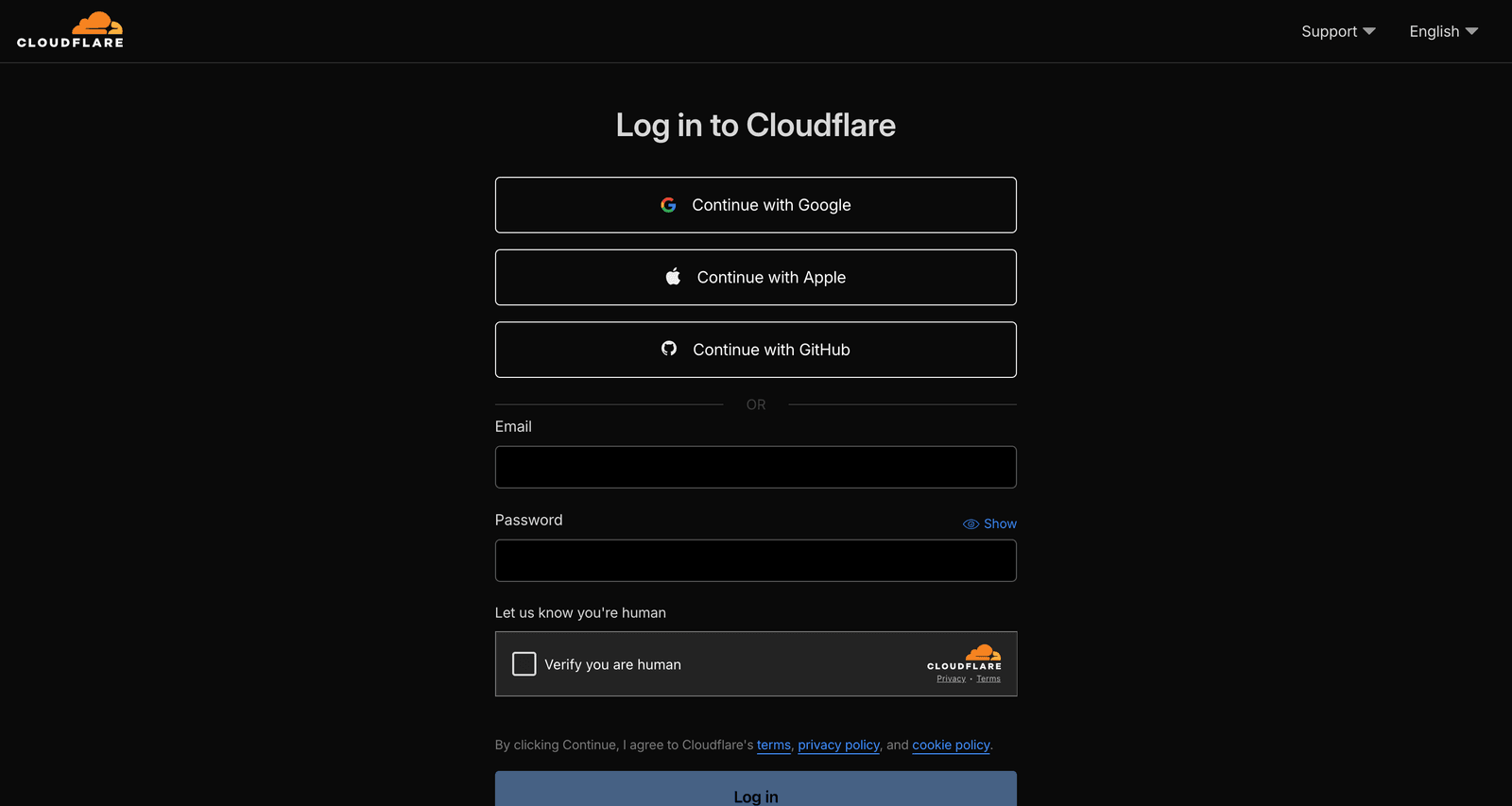
-
Select the correct account from the dropdown, top left, if you have more than one.
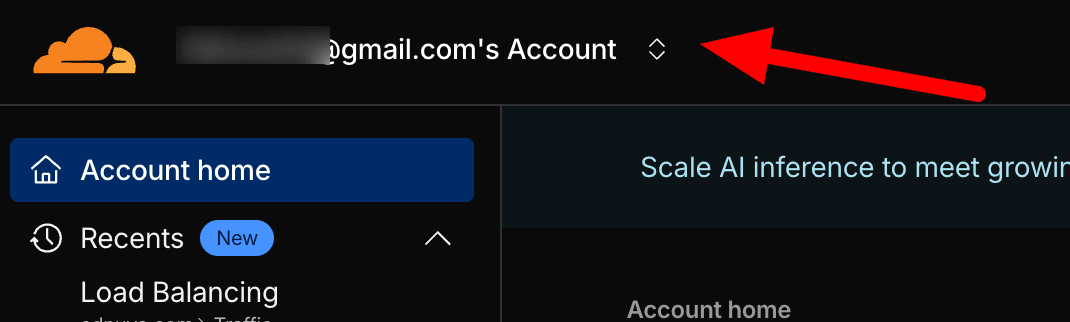
-
Go to Manage Account → Members.
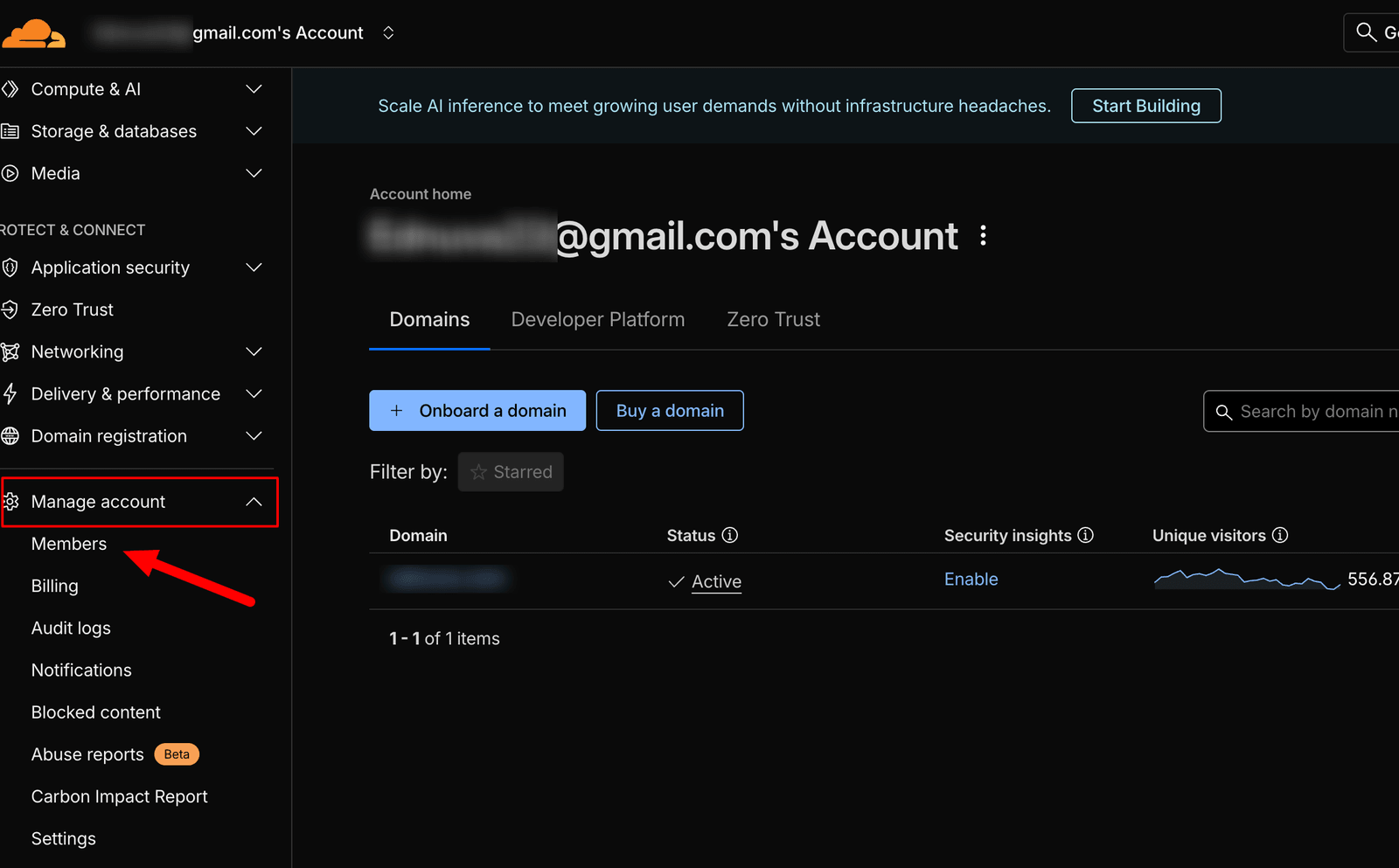
-
Select Invite.
-
Enter
support@webgee.com. -
Assign the Administrator role.
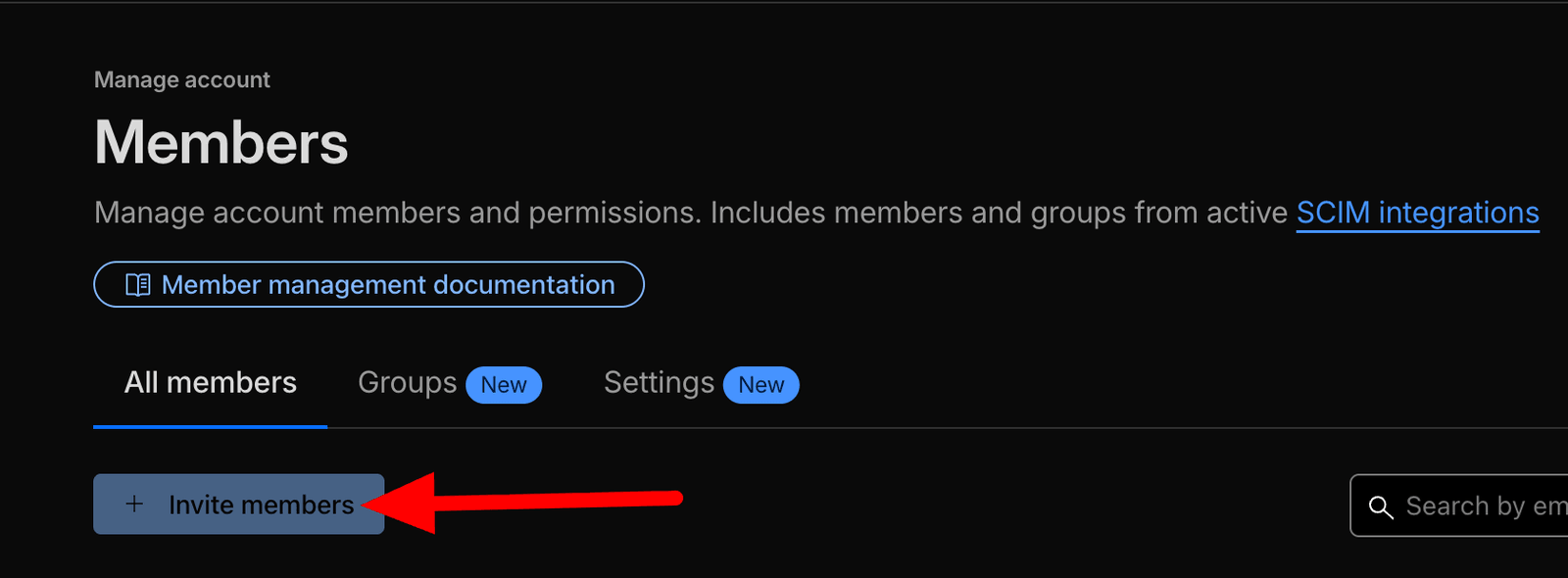
-
Send the invitation.
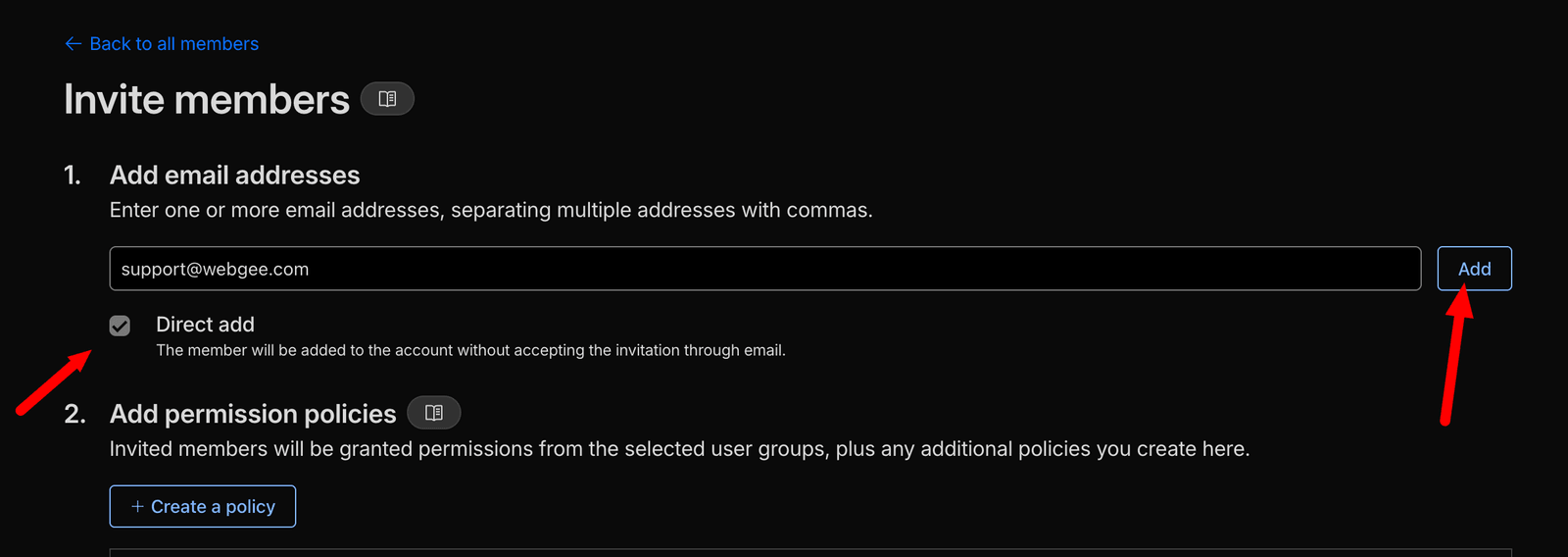
Then mention it on your ticket, so we know to accept it.
Administrator is needed because DNS, SSL and firewall settings are not all reachable from a lesser role — a read-only role means we can describe the problem but not fix it. If you would rather scope it tighter, say so on the ticket and we will tell you the minimum for your specific issue.
Remove access afterwards
Under Members, remove support@webgee.com once your ticket is resolved.
Do this rather than leaving it in place. An unused standing grant to your DNS is worth removing on principle, and it is a single click.