

فحص موقعك بحثًا عن برمجيات خبيثة
شغّل فحص Imunify360 عند الطلب من cPanel، واقرأ النتائج، وماذا تفعل بالملفات التي يعلّمها.
افحص حساب استضافة بحثًا عن برمجيات خبيثة عند الطلب. ينطبق على الاستضافة المشتركة والموزِّعة، بلا رسوم إضافية.
يفحص Imunify360 باستمرار في الخلفية على كل خوادم WebGee أصلًا. وهذا لحين تريد فحص حساب بعينه الآن — بعد اختراق مشتبه به، أو قبل تسليم موقع.
شغّل فحصًا
-
في cPanel، افتح Imunify360 ضمن Security.

-
اختر Start scanning.
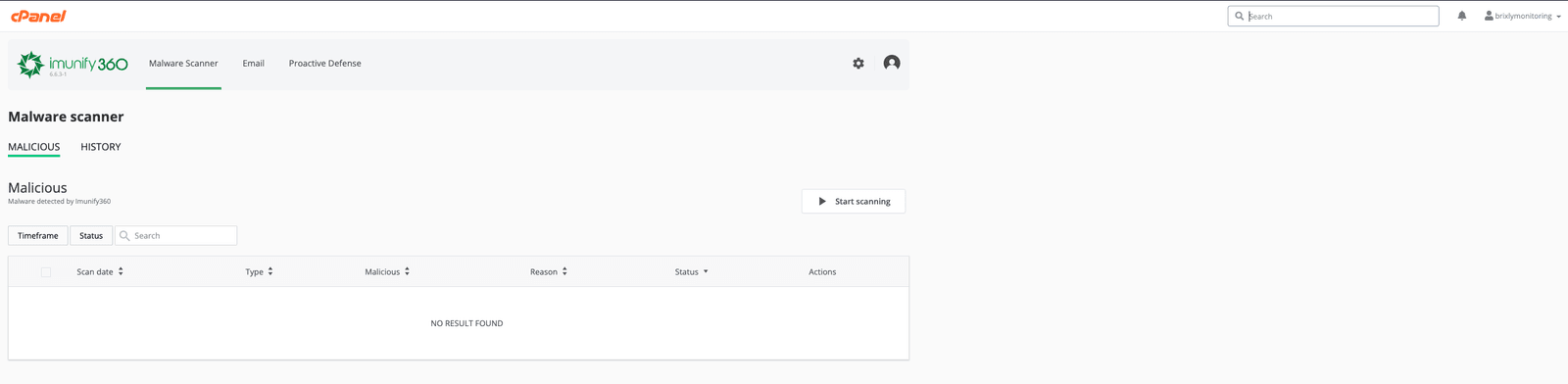
ويُدرَج الفحص في طابور ويمرّ على ملفات الحساب. والحسابات الكبيرة تستغرق وقتًا؛ ويمكنك مغادرة الصفحة.
اقرأ النتائج
يظهر ما يُعثَر عليه تحت Malicious، مع مسار الملف والتوقيع المكتشَف.
ولكل نتيجة يمكنك:
- Clean up — يحاول Imunify360 إزالة الكود الخبيث والإبقاء على الملف.
- Delete — إزالة الملف كليًا.
- Add to ignore list — للنتيجة الإيجابية الخاطئة.
خذ نسخة احتياطية قبل التنظيف أو الحذف. فالتنظيف يعدّل الملفات في مكانها، ونتيجة خاطئة على ملف مشروع قد تعطّل موقعك. راجع أخذ لقطة احتياطية.
التنظيف ليس كل المهمة
إزالة الملفات الخبيثة لا تسدّ الثغرة التي دخلت منها. فإن وجد الفحص شيئًا، فافترض أن الموقع اختُرق عبر إضافة أو قالب أو كلمة مرور قديمة وعالج ذلك أيضًا — وإلا فسيعود خلال أيام.
امض في تنظيف البرمجيات الخبيثة من موقعك، فهي تغطّي الباقي: تحديث كل شيء، وتدوير كلمات المرور، والبحث عمّا تركه المهاجم من ملفات ومستخدمين إداريين.
إن علّمت جوجل الموقع
الفحص النظيف لا يكفي وحده — فتظل جوجل تعرض التحذير حتى تعيد الفحص. راجع طلب مراجعة جوجل لموقع مخترَق.