

أخذ لقطة احتياطية
أنشئ لقطة JetBackup عند الطلب لحساب cPanel قبل إجراء تغييرات مهمة، وتأكّد من اكتمالها.
خذ نسخة احتياطية يدوية لحساب cPanel مباشرةً قبل تغيير محفوف — تحديث إضافة، أو تبديل قالب، أو ترحيل قاعدة بيانات. ينطبق على الاستضافة المشتركة والموزِّعة.
تنسخ WebGee كل حساب مشترك وموزِّع احتياطيًا يوميًا، فاللقطة ليست شبكة أمانك للحوادث اليومية. بل هي للحالة المحدّدة التي توشك فيها على تغيير شيء وتريد نقطة استعادة من قبله مباشرة.
قبل أن تبدأ
للّقطات حدود تستحق المعرفة قبل الاعتماد عليها:
- لقطة واحدة لكل حساب cPanel. فأخذ ثانية يزيل الأولى.
- تُحفَظ يومين، ثم تُحذف تلقائيًا.
- غير متاحة للحسابات الكبيرة — فوق 5 غيغابايت تقريبًا، أو بعدد inode مرتفع جدًا.
تعيش اللقطة على بنية WebGee إلى جانب حسابك. فلأي شيء لا تحتمل خسارته، خذ نسخة احتياطية تحتفظ بها في مكان آخر أيضًا — راجع إنشاء نسخة احتياطية وتنزيلها.
خذ اللقطة
-
في cPanel، افتح JetBackup 5.
-
اختر Accounts.
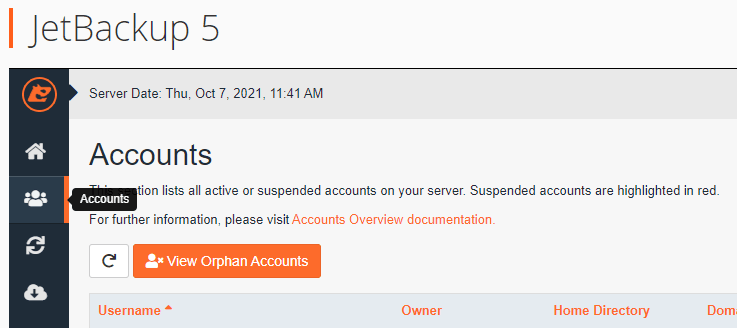
-
حدّد حسابك، ثم اختر Create Backup on Demand.
-
أكّد عند الطلب.
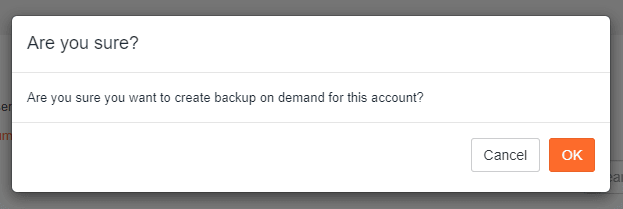
تأكّد من اكتمالها
اللقطة تُدرَج في طابور لا تُنجَز فورًا. لا تبدأ تغييرك قبل أن تنتهي.
-
في JetBackup 5، اختر Queue.
-
انتظر حتى تُبلَّغ النسخة بأنها مكتملة.
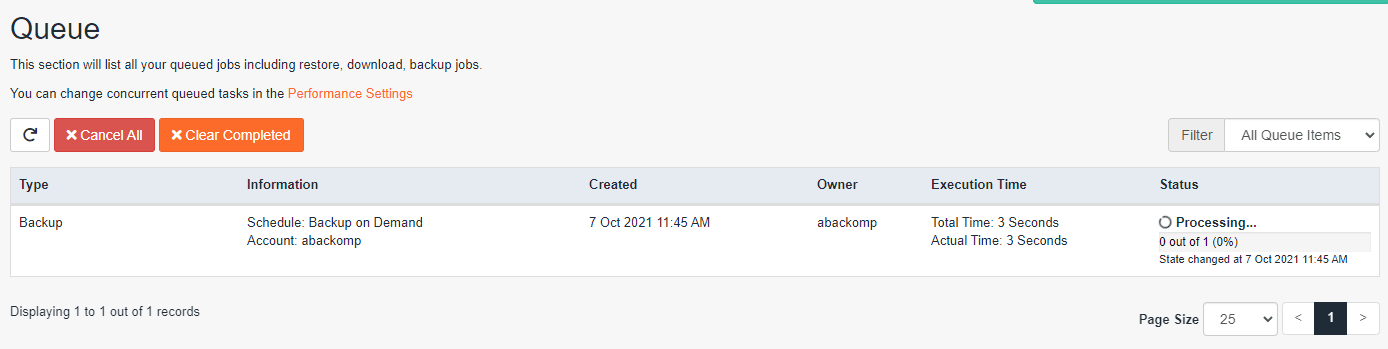
ومدة ذلك تعتمد على حجم حسابك — فالمواقع الصغيرة تنتهي في دقيقة أو دقيقتين.
إن كان الخيار غائبًا
يُخفى Create Backup on Demand حين يكون حسابك أكبر من أن تُؤخذ له لقطة. راجع استخدامك ضمن cPanel ← Disk Usage؛ فإن كنت قريبًا من 5 غيغابايت أو تجاوزتها، أو لديك عدد كبير جدًا من الملفات الصغيرة، فاستخدم إضافة أو سكربتًا لإنشاء نسخة عند الطلب بدلًا من ذلك.