

استعادة ملفات أو مجلدات بعينها
استعد مجلدك الرئيسي أو مجلدًا واحدًا أو ملفات مفردة من JetBackup دون المساس ببقية الحساب.
استعد جزءًا من حسابك بدل استعادته كله. ينطبق على الاستضافة المشتركة والموزِّعة.
وهذا هو ما تريده في الغالب دائمًا. فالاستعادة الكاملة تُرجع حسابات البريد وإعدادات cPanel أيضًا، وهو نادرًا ما يكون المقصود حين تستعيد مجلدًا واحدًا محذوفًا — راجع الاستعادة من نسخة احتياطية لمسار الحساب الكامل.
الاستعادة
-
في cPanel، افتح JetBackup 5.

-
ضمن Restore & Download، اختر Home Directory.
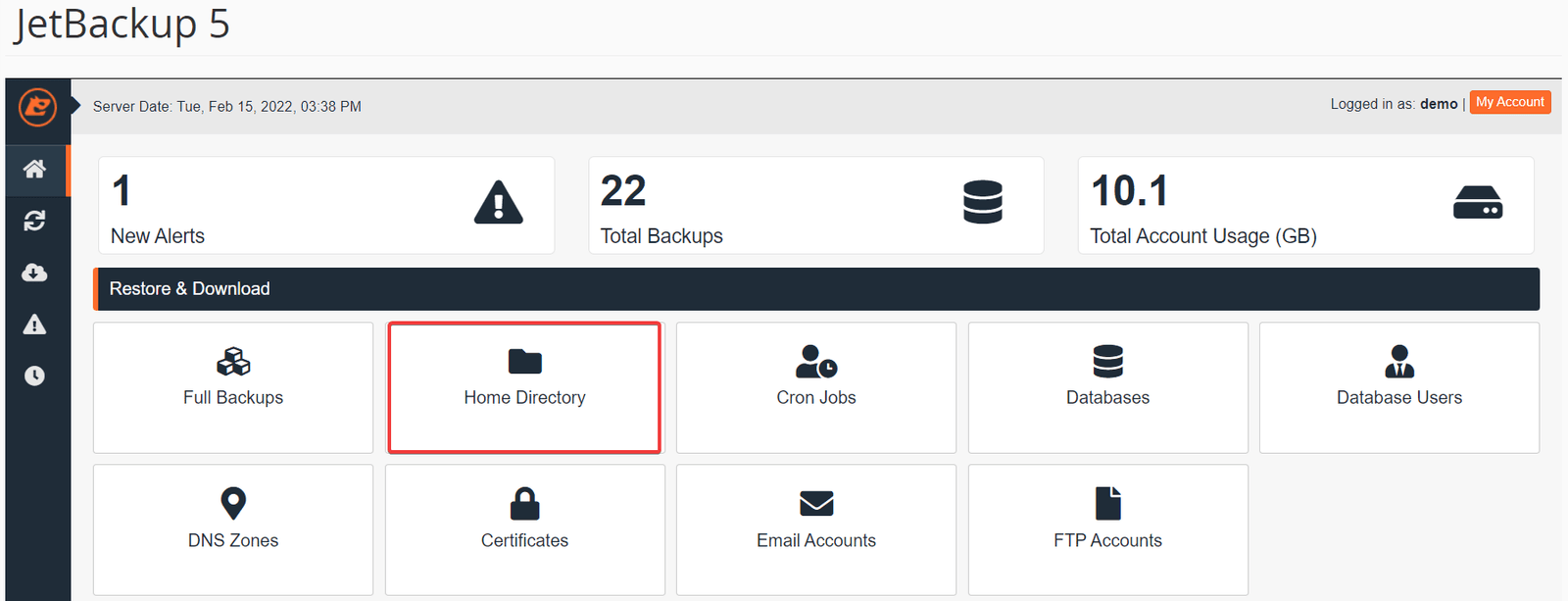
-
اختر تاريخ النسخة الذي تريده، ثم اختر Restore.
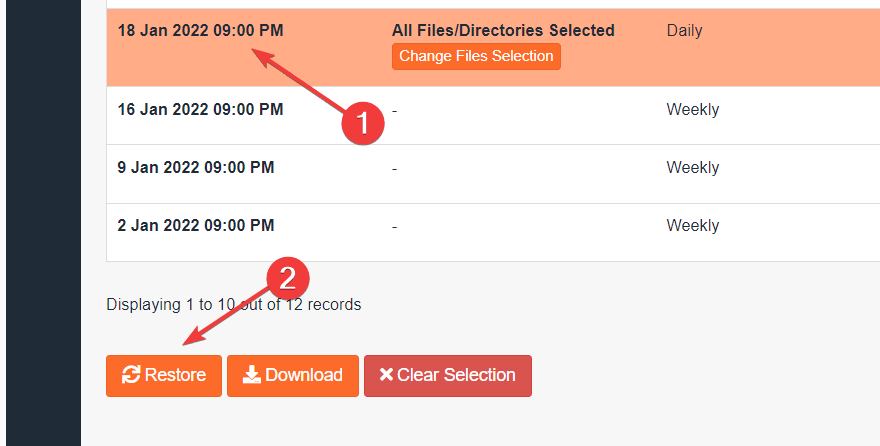
-
في Restore Summary، أكّد العناصر المدرَجة تحت Items To Restore، ثم اختر Restore Selected Items.
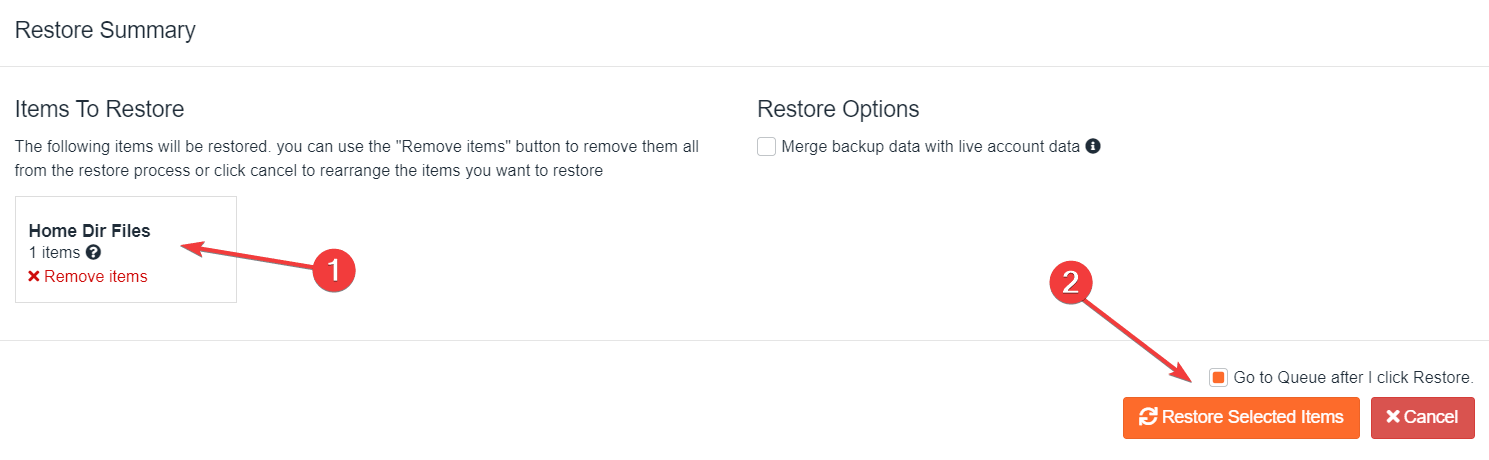
-
تنتقل إلى صفحة Queue، حيث تظهر المهمة قيد التنفيذ.
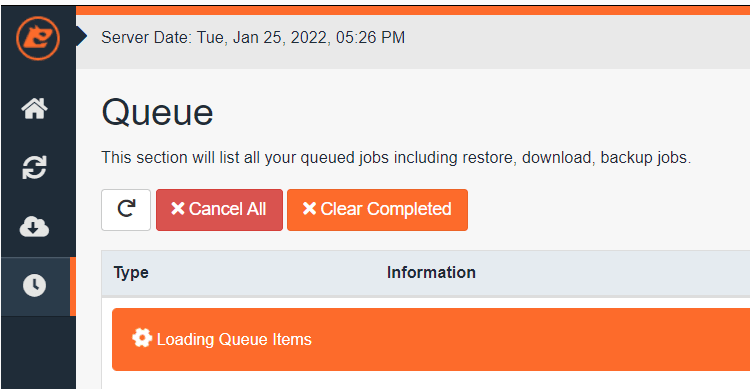
استعادة المجلد الرئيسي كاملًا تستبدل الملفات الحالية بنسخ النسخة الاحتياطية. وكل ما تغيّر منذ ذلك التاريخ يضيع. ولاسترجاع ملف واحد، تصفّح داخل النسخة واختر ذلك الملف وحده بدل استعادة المجلد.
التنزيل بدل الاستعادة
تقدّم الشاشة نفسها خيار Download. وهو يعطيك الملفات أرشيفًا دون تغيير أي شيء في الحساب — وهو مفيد حين تريد مقارنة نسختين، أو أخذ نسخة قبل الاستبدال.
وهذا الخيار الأأمن حين لا تكون متأكدًا أن النسخة تحوي ما تتوقعه.
تأكّد أنها نجحت
انتظر حتى يُبلغ الطابور بالاكتمال، ثم افحص الملفات المستعادة في File Manager.
وقد يظل موقع ووردبريس مستعاد يقدّم صفحات مخزّنة مؤقتًا — امسح ذاكرة إضافة التخزين المؤقت، أو حدّث الصفحة تحديثًا قسريًا.
اقرأ أيضًا
ما المستثنى من النسخ اليومية
تتخطّى JetBackup الأرشيفات والوسائط والسجلات وملفات النسخ التي تنشئها الإضافات. وماذا يعني ذلك لما تستطيع استعادته فعلًا.
لماذا صفحة File and Directory Restoration فارغة
أداة استعادة الملفات المدمجة في cPanel معطّلة على خوادم WebGee. وما تستخدمه بدلًا منها لاسترجاع ملف واحد.